Configure Data Security Posture Management (DSPM) for AI
Microsoft Purview Data Security Posture Management (DSPM) for AI helps security teams understand how AI tools like Microsoft 365 Copilot interact with sensitive data across the organization. At Contoso Financial Services, the security team needs visibility into which SharePoint sites and files Copilot references when responding to user prompts from the finance and advisory teams. Here, you learn how to enable and configure DSPM for AI, explore the dashboard, and understand what data discovery reveals.
Note
Microsoft Purview offers two versions of Data Security Posture Management. DSPM for AI (classic) - covered in this module—is accessible via Solutions > DSPM for AI (classic) in the Microsoft Purview portal. Microsoft also released a newer Data Security Posture Management experience with expanded data source coverage, guided workflows organized around data security objectives, and a unified interface across Purview solutions. The classic version remains available and fully functional; the new version builds on the same underlying capabilities with a streamlined experience. New features are added to the newer version only.
| Configuration Step | Action |
|---|---|
| Access the portal | Navigate to the Microsoft Purview portal > Solutions > DSPM for AI (classic) |
| Review prerequisites | Verify Microsoft Purview Audit is enabled and users have Microsoft 365 Copilot licenses assigned |
| Review the Get started section | Confirm prerequisite status and activate any needed one-click policies |
| Review dashboard | Examine Reports, Data risk assessments, and Activity explorer for AI interaction data |
Note
The Get started section surfaces three one-click policies you can activate immediately: Detect risky AI usage flags risky prompts and responses across Copilot and AI apps; Unethical behavior in AI apps detects inappropriate content in AI interactions; and Detect sensitive info shared with AI via network captures sensitive data sent to external AI sites. Each policy creates the underlying DLP or communication compliance rule automatically—no manual policy authoring required.
What DSPM for AI monitors
DSPM for AI surfaces data security risks that arise when users interact with AI applications. Unlike traditional data loss prevention tools that focus on preventing data exfiltration, DSPM for AI focuses on understanding, which sensitive content AI tools can access and reference.
The capability monitors three primary risk areas. First, it tracks when Microsoft 365 Copilot references sensitive content classified by sensitivity labels during user interactions. Second, it identifies SharePoint sites that serve as grounding sources for Copilot and contain broadly accessible sensitive data. Third, it detects when users paste or type sensitive content into external AI sites accessed through a browser.
DSPM for AI automatically discovers active AI tools in your environment. The discovery process identifies which Microsoft 365 Copilot features users access, which SharePoint sites Copilot queries for grounding data, and which external AI applications connect to your tenant. This discovery runs continuously, updating the dashboard as user behavior and AI tool usage evolve.
Prerequisites for enabling DSPM for AI
Before admins configure DSPM for AI, your organization must have specific infrastructure and licenses in place. You need access to the Microsoft Purview portal (purview.microsoft.com) with Compliance Administrator permissions or an equivalent role that includes information protection management rights.
The primary prerequisites for monitoring Copilot interactions are:
- Microsoft Purview Audit must be enabled for your organization. Auditing is on by default for new tenants, but verify auditing is active before expecting data to appear in the dashboard.
- Microsoft 365 Copilot licenses must be assigned to users whose interactions you want to monitor. Without these licenses, DSPM for AI has no Copilot interaction data to surface.
- Microsoft 365 E5 or Microsoft Purview Suite (formerly Microsoft 365 E5 Compliance) is required for DSPM access. Microsoft 365 E3 isn't a qualifying license tier for this capability.
For Purview to monitor external AI sites such as ChatGPT or Gemini, two other prerequisites apply: devices must be onboarded to Microsoft Purview, and users must have the Microsoft Purview browser extension installed. Without these, DSPM can't detect sensitive content pasted into external AI sites accessed through a browser.
Sensitivity labels are recommended but aren't a hard prerequisite for enabling DSPM. The dashboard can surface some risks based on sensitive information type detection (credit card numbers, SSNs, and similar patterns) even without labels applied. However, labeled content enables full risk prioritization and remediation guidance. Organizations without sensitivity labels in place see limited insights—deploying labels is the highest-value step for maximizing DSPM for AI value.
Navigate the DSPM for AI dashboard
The DSPM for AI (classic) dashboard is organized into several sections accessible from the left navigation pane. Understanding where each risk type surfaces helps you build an efficient review workflow.
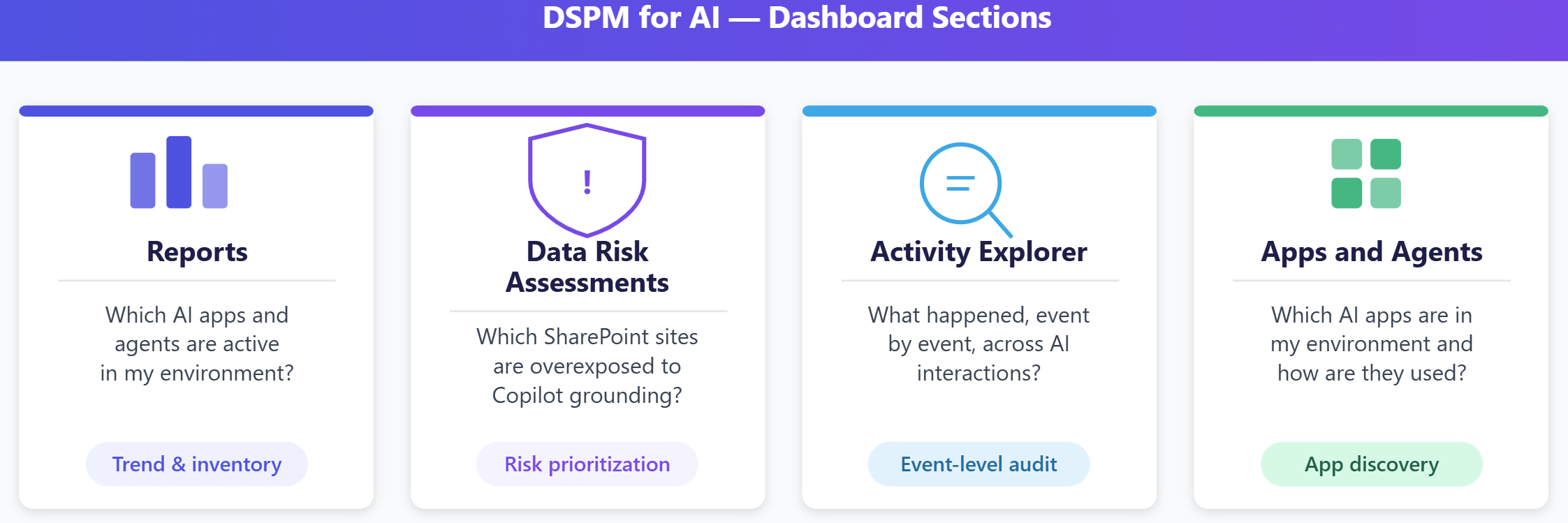
The Reports section displays AI interaction data organized into three categories: Copilot experiences and agents (Microsoft 365 Copilot, Copilot Studio), Enterprise AI apps (ChatGPT Enterprise), and Other AI apps (external sites such as ChatGPT consumer and Gemini). The Reports section is where you review which AI tools are active in your organization and the volume of interactions involving sensitive content.
The Data risk assessments section is the equivalent of what some documentation calls the SharePoint overexposure view. DSPM for AI automatically runs a weekly data risk assessment against the top 100 SharePoint sites based on usage. For each assessed site, a flyout pane shows Overview, Identify, Protect, and Monitor tabs—giving you a structured path from risk discovery to remediation action. Custom assessments can be created to extend coverage beyond the default top-100 list.
The Activity explorer provides granular, event-level data on AI interactions. Each event record shows the activity type (AI interaction, AI website visit, sensitive info types detected), the user, the AI app category, any sensitive information types found, and files referenced during the interaction.
The Apps and agents section lists all AI tools discovered in your environment across the same three categories. This view shows per-app usage statistics and interaction counts involving sensitive content. In this context, agents are AI workflows—such as workflows built-in Microsoft Copilot Studio—that query organizational data and take actions independently of a direct user session rather than in response to a single prompt. DSPM for AI tracks per-agent details, showing which sensitive data each agent accessed, and whether Purview policies protect those interactions. Microsoft Security Copilot appears here only when a separate collection policy is configured to capture its prompts and responses—it doesn't appear automatically.
At Contoso, the security team opens the Data risk assessments section and finds the "Earnings Analysis" SharePoint site flagged in the default weekly assessment. The site contains 47 files including items labeled "Confidential" and its permissions grant access to all finance team members—far broader than the senior analyst audience the data requires.
Tip
Start with Data risk assessments to identify quick wins on SharePoint overexposure. Restricting site permissions or applying more stringent access controls provides immediate risk reduction.