Assess SharePoint overexposure
SharePoint sites that serve as grounding sources for Microsoft 365 Copilot can create data exposure risks when they contain sensitive content accessible to more users than intended. When Copilot queries these sites to answer user prompts, it can surface confidential information to users who shouldn't have access to it. At Contoso Financial Services, the security team discovered that quarterly earnings analysis files stored in a broadly accessible SharePoint site were appearing in Copilot responses to junior analysts. Those analysts shouldn't have access to prerelease financial data. Here, you learn how to identify SharePoint overexposure risks, interpret the DSPM dashboard, and prioritize remediation actions.
| Site Risk Level | Sensitivity Labels Present | Remediation Priority |
|---|---|---|
| High | Highly Confidential, Confidential | Immediate - Restrict site access within 24 hours |
| Medium | Confidential, Internal | Review within one week - Apply tighter access controls |
| Low | Internal, Public | Monitor - Ensure labeling is accurate |
How SharePoint overexposure affects Copilot grounding
Microsoft 365 Copilot grounds its responses in content the user has permission to access. When a user asks Copilot a question, it searches across SharePoint sites, OneDrive files, and other Microsoft 365 content the user's account can reach. If a SharePoint site contains sensitive files but has overly broad permissions, Copilot can include that content in responses to users who shouldn't see it.
Overexposure occurs when site permissions don't match the sensitivity of the content stored there. A site might be set to allow all employees to view content, even though it contains files labeled "Confidential - Finance Only." In this scenario, Copilot can reference those files when responding to any employee's prompt, creating an inadvertent data disclosure risk.
DSPM for AI detects this pattern by correlating three data points: which SharePoint sites Copilot queries, which sensitivity labels are applied to files in those sites, and which users have access to those sites. When it identifies a mismatch between sensitivity and access breadth, it flags the site as an overexposure risk.
Read the SharePoint data risk assessment
The Data risk assessments section in the DSPM for AI (classic) dashboard is where SharePoint oversharing risks surface. DSPM for AI automatically runs a weekly assessment against the top 100 SharePoint sites based on usage in your organization. You can also create custom assessments to scan specific sites or a broader set of users.
Select a site from the assessment list to open a flyout pane with four tabs:
- Overview - shows the total number of items scanned, sensitive data detected, and sharing links that expose data broadly
- Identify - shows how much content is scanned for sensitive information types, with an option to trigger an on-demand classification scan
- Protect - provides remediation actions including restricting access by label, restricting all items using SharePoint Restricted Content Discovery, creating autolabeling policies for unlabeled sensitive files, and creating retention policies for stale content
- Monitor - shows how items in the site are shared: with specific people, with the organization, with external users, or via anyone-with-the-link
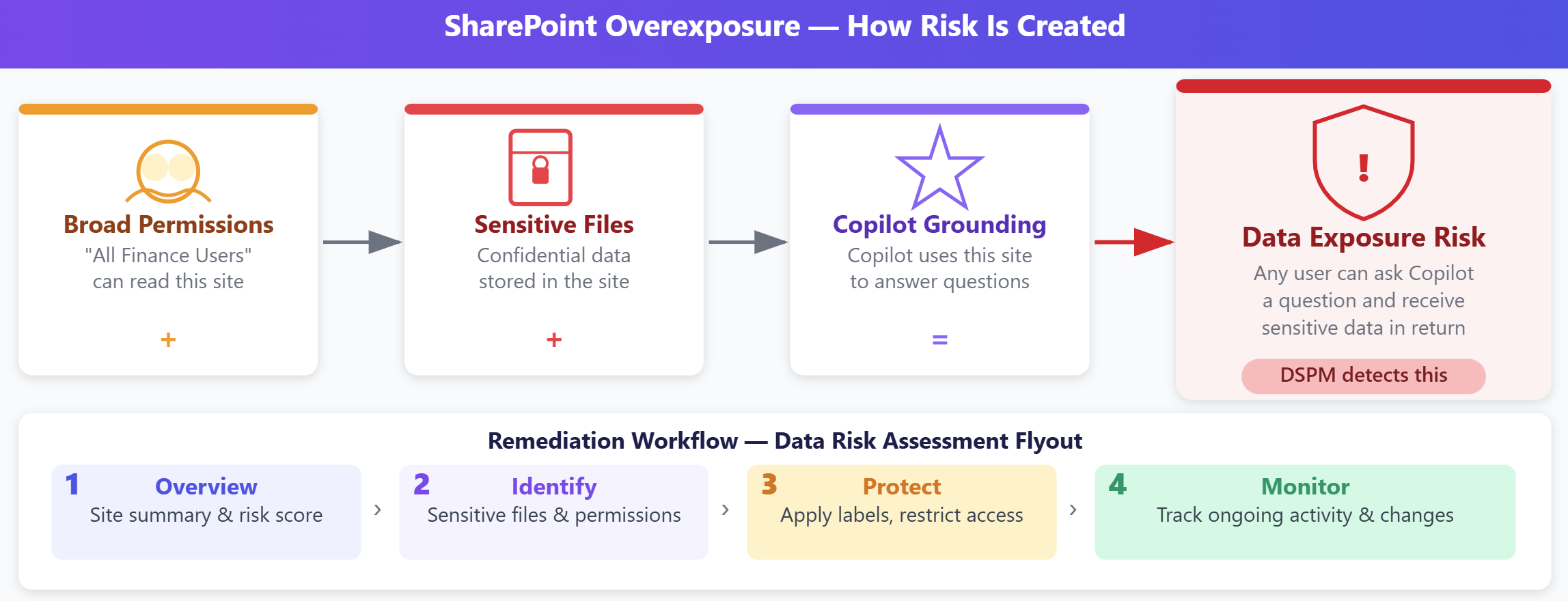
Sites with high-sensitivity labels and broad access appear at the top of the assessment. A site containing "Highly Confidential" labeled files accessible to hundreds of users represents a higher priority than a site with "Internal" files accessible to a large department. At Contoso, the security team finds the "Earnings Analysis" site at the top of the default weekly assessment with sharing links accessible to the entire finance group.
Prioritize remediation actions
Not all overexposure risks require immediate action. Security teams must prioritize based on sensitivity level, access breadth, and Copilot activity patterns.
High-priority risks involve sites with "Highly Confidential" labeled files accessible to large groups. These sites require immediate remediation because a single Copilot interaction could expose critical business data, personal data, or regulated financial information. Contoso's security team addresses these sites within 24 hours by restricting site permissions to only users who require access for their job functions.
Medium-priority risks include sites with "Confidential" labeled files or sites with moderately sensitive content accessible to departments beyond the content owner's team. These sites warrant review within one week. Remediation might involve applying more granular access controls, relabeling files with more appropriate sensitivity classifications, or configuring conditional access policies that restrict Copilot's ability to reference that site.
Low-priority risks appear when sites contain "Internal" labeled files accessible to all employees, or when sensitivity labels can be incorrectly applied. These sites don't pose immediate disclosure risks but can benefit from better labeling practices or periodic access reviews.
After Purview identifies an overexposure risk, DSPM for AI surfaces remediation actions directly from the Protect tab of each site's flyout pane:
- Restrict access by label - creates a DLP policy that prevents Microsoft 365 Copilot and agents from summarizing content carrying specific sensitivity labels, without changing SharePoint permissions
- Restrict all items - uses SharePoint Restricted Content Discovery to exclude the site from Copilot grounding entirely, eliminating AI access while preserving human access
- Create an auto-labeling policy - for sites with unlabeled sensitive files, creates a policy that automatically applies a sensitivity label when sensitive information types are detected
- Create retention policies - for content without access in at least three years, automatically deletes stale data that unnecessarily expands the oversharing surface
The most direct approach restricts site permissions to limit access to only users who need the content. In SharePoint, navigate to the site's settings and modify the members list or change the site from company-wide sharing to specific security groups. This reduces both human and AI exposure simultaneously.
Applying or updating sensitivity labels addresses scenarios where files lack labels or carry labels that don't match their actual sensitivity. Review unlabeled files in the site and apply appropriate classifications. If files are labeled "Internal" but actually contain confidential financial data, relabel them "Confidential - Finance Only."
Some organizations choose to exclude specific SharePoint sites from serving as Copilot grounding sources. This approach prevents Copilot from querying the site entirely, eliminating the risk of inadvertent exposure through AI interactions. However, this also reduces Copilot's ability to provide helpful responses to authorized users who legitimately need that content.
At Contoso, the security team restricts the "Earnings Analysis" site to senior financial analysts only and applies a "Highly Confidential - Earnings Data" label to all quarterly reports. This remediation ensures Copilot can still reference the site for authorized analysts while preventing junior staff from receiving responses that include prerelease financial data.
Tip
Combine sensitivity labels with SharePoint permissions for defense in depth. Even if permissions are misconfigured, labeled files trigger other protections through Microsoft Purview Data Loss Prevention policies.