Enable and navigate Microsoft Agent 365
Microsoft Agent 365 provides a centralized management interface for governing AI agents across your organization. At Contoso Financial Services, the IT team needs to establish oversight before allowing departments to deploy agents across advisory, compliance, and operations teams. Here, you learn how to access and navigate Microsoft Agent 365 to discover, review, and manage agents that users submit for approval.
| Management area | Purpose |
|---|---|
| Agent Registry | View all agents in your organization's catalog, accessible at Agents > All agents > Registry |
| Requests | Review agents awaiting administrator approval, accessible at Agents > All agents > Requests |
| All agents (Status: Available) | Manage agents currently approved and available to users |
| All agents (Status: Blocked) | View agents explicitly blocked from organizational use |
What is Microsoft Agent 365
Microsoft Agent 365 is a governance and management layer built into Microsoft 365 that gives IT administrators centralized control over AI agents. With Agent 365, you can discover which agents exist in your organization, approve, or block agents before users interact with them. Then you can monitor agent activity to ensure compliance with organizational policies.
Microsoft Agent 365 became generally available on May 1, 2026, and requires a Microsoft 365 Copilot license. Organizations that deploy Microsoft 365 Copilot inherit Agent 365 capabilities automatically—no separate installation is required. The tight integration ensures that agent governance evolves alongside your Copilot deployment, providing consistent controls across the AI agent ecosystem.
Without Agent 365, agents built in Copilot Studio or submitted by users appear directly in the Microsoft 365 Copilot experience without administrative oversight. This creates security and compliance risks, particularly in regulated industries where data access and external integrations must be vetted before deployment.
Access the Agent 365 management interface
To manage agents, navigate to the Microsoft 365 admin center and select Agents from the left navigation bar. From there, select Overview for the governance dashboard or All agents to access the Agent Registry. The Agent overview displays a snapshot of agent activity, pending requests, and governance gaps for the last 30 days.
You must hold either the AI Administrator role or the Global Administrator role to access and manage Agent 365 settings. These roles grant the permissions needed to approve, block, configure access controls, and monitor agent activity. Several roles provide view-only access to agent data and registry information without governance authority: AI Reader, Global Reader, Security Administrator, Security Reader, and Security Operator. This distinction matters for security teams—your Security Operations team can monitor agent activity and view registry information to support investigations, but they can't approve agents or assign ownership. Important governance actions—such as approving agent requests or assigning agent ownership—the AI Administrator or Global Administrator perform the tasks.
If you don't see the Agents section in the admin center, verify that your organization has active Microsoft 365 Copilot licenses. Then confirm your account is assigned one of the required administrative roles. Agent name, current status (pending, active, or blocked), owner or publisher, category, and last activity timestamp. At Contoso, the Microsoft 365 administrator opens the Agents page for the first time and discovers 14 agents in pending approval status—submitted by five different department-heads over the past two weeks, none of which were reviewed. This backlog indicates that departments are actively building agents, but without a governance process, those agents remain unapproved and unavailable to users.
Navigate the Agent 365 interface
The Agent workload organizes management into several key areas, all accessible from Agents in the left navigation. The Agent Registry (at Agents > All agents > Registry) displays all agents in your organization's catalog—agents built in Copilot Studio, agents from external vendors your organization approved, and Microsoft-built agents. Use Status filters to view agents by their current state: Available, Blocked, or other lifecycle states.
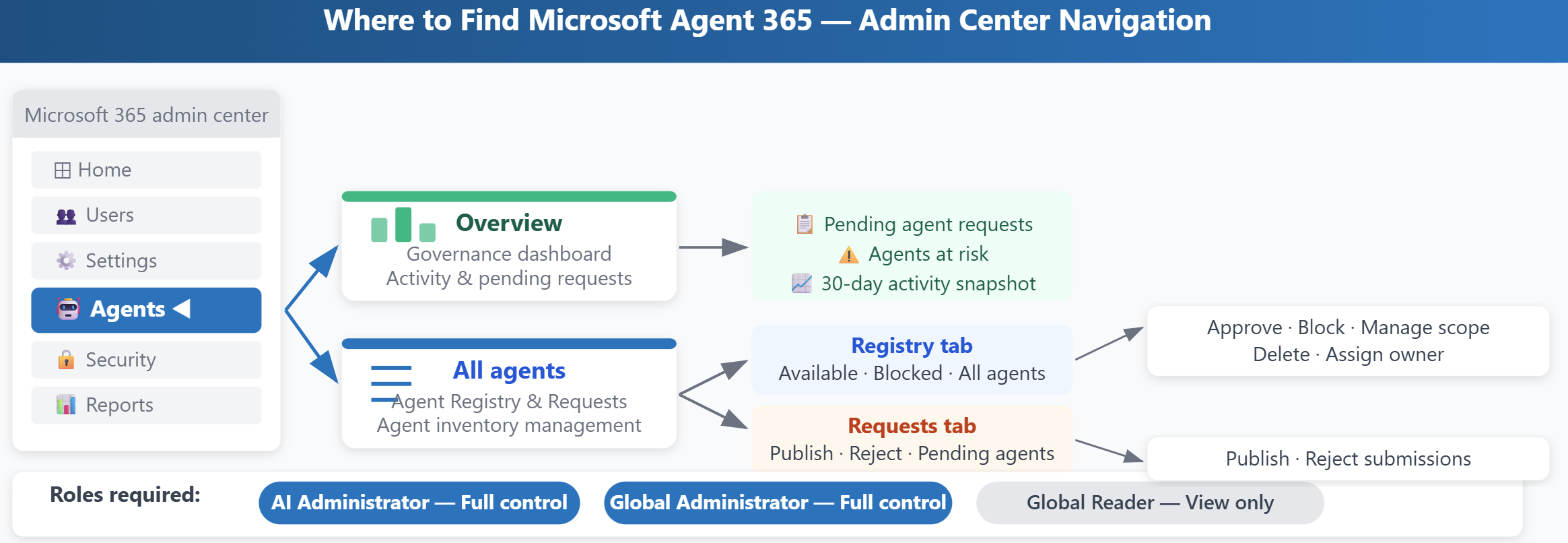
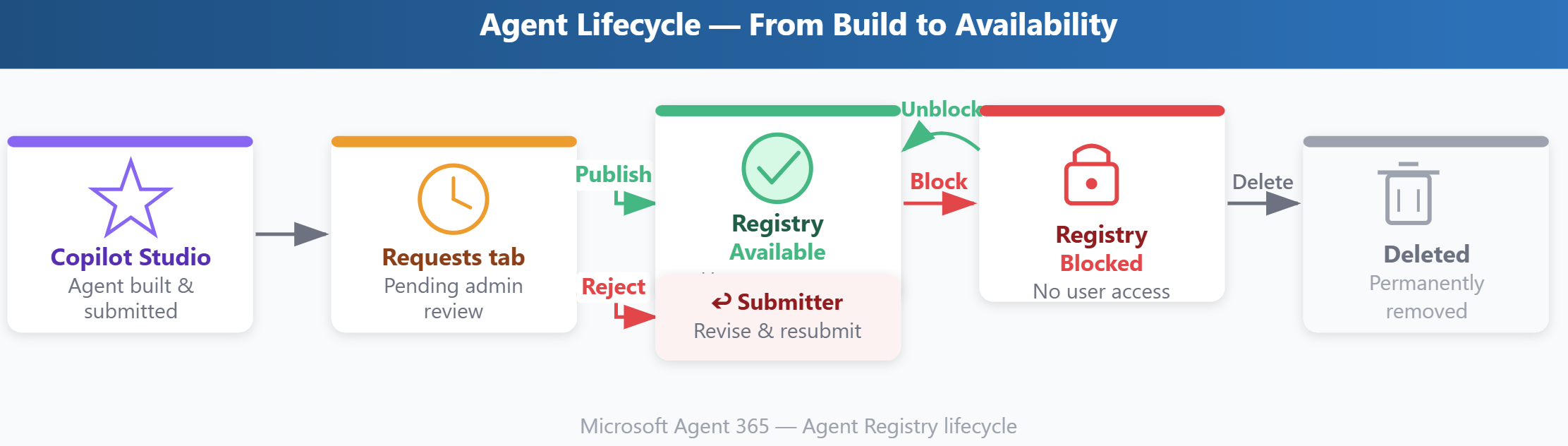
The Requests tab (at Agents > All agents > Requests) lists agents that are submitted for organizational approval but not yet reviewed by an administrator. Each pending agent shows the requestor's name, submission date, and a summary of requested capabilities. This is where you spend most of your time during initial rollout, as departments submit agents for production use. The available actions are Publish (approve the agent to the organization) or Reject (decline the submission).
Approved agents appear in the Agent Registry with a status of Available. For each available agent, you can review usage statistics, modify user scope, block access, or delete the agent if business requirements change.
Blocked agents remain in the Agent Registry with a status of Blocked. Blocking prevents an agent from being surfaced to any user in the organization. You can unblock an agent at any time, making a reversible action suitable for temporary enforcement during investigations. This view helps you maintain a record of governance decisions and ensures consistent enforcement of organizational AI policies.