Register agents and apply access controls
Approving an agent makes it available to users, but effective governance requires more than binary approval decisions. At Contoso, the compliance team needs to ensure that agents requesting mailbox access are limited to specific departments, and that agents using external APIs align with the organization's approved vendor list. Here, you learn how to register agents through the approval workflow and apply granular access controls to enforce organizational policies.
Understand the agent approval workflow
Agents arrive in Microsoft Agent 365 when users or developers build them in Copilot Studio and publish them to the Microsoft 365 tenant. Publishing triggers a submission for organizational approval, which places the agent in the Requests tab (Agents > All agents > Requests). Until you approve an agent, it remains unavailable to users—even the person who built it can't interact with it in the production Microsoft 365 Copilot experience.
The approval process begins when you select a pending agent to review its details. The agent detail view displays the agent's name, description, publisher/creator, and category. It displays the permissions and data access the agent requests. Common permission requests include reading mailbox items, accessing SharePoint files, querying Microsoft Graph endpoints, or connecting to external APIs through Power Platform connectors.
What approval means is important to understand: approving an agent makes it available in the Microsoft 365 Copilot experience, but it doesn't automatically grant every user access. You control which users or groups interact with the agent through user scope settings, which you configure during or after the approval process. This separation allows you to approve an agent once and then incrementally roll it out to pilot groups before enabling organization-wide access.
Evaluate agents against approval criteria
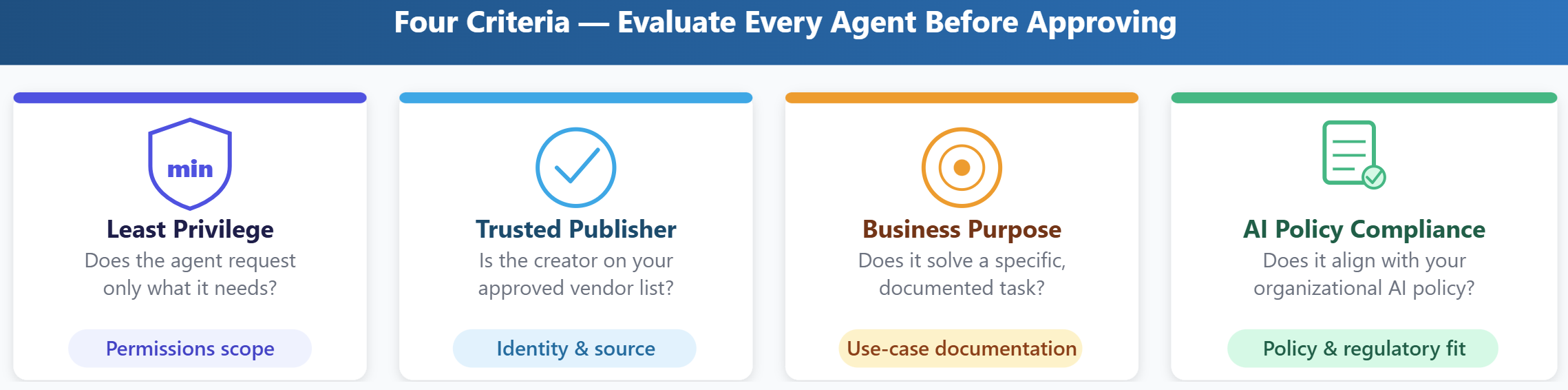
Before approving an agent, assess it against four key criteria. The first is least-privilege permissions: does the agent request only the minimum permissions required to perform its intended function? An agent that analyzes employee survey responses needs read access to a specific SharePoint list, write access to all SharePoint sites is unneeded. If an agent requests broader permissions than its description justifies, return it to the publisher with feedback requesting clarification or a scope reduction.
The second criterion is trusted publisher. Agents built by your organization's employees in Copilot Studio display the creator's email address. Agents published by external vendors display the vendor's organizational identity. Verify that external publishers align with your organization's approved software vendor list. If a department submits an agent from an unknown publisher, investigate the vendor's security posture and data handling practices before approval.
The third criterion is clear business purpose. Every agent should solve a specific problem or automate a defined task. Vague descriptions like "helps with productivity" or "analyzes data" don't provide enough context to evaluate risk. Require submitters to document the business process the agent supports, the data it accesses, and the expected user base. This documentation becomes part of your governance record and supports audit reviews.
The fourth criterion is compliance with organizational AI policy. If your organization maintains policies governing AI usage—such as restrictions on processing personal data, requirements for human oversight of AI-generated decisions, or prohibitions on certain types of automated decision-making—verify that the agent aligns with those policies. Agents that don't comply should be blocked, not left unapproved.
Configure user scope and access controls
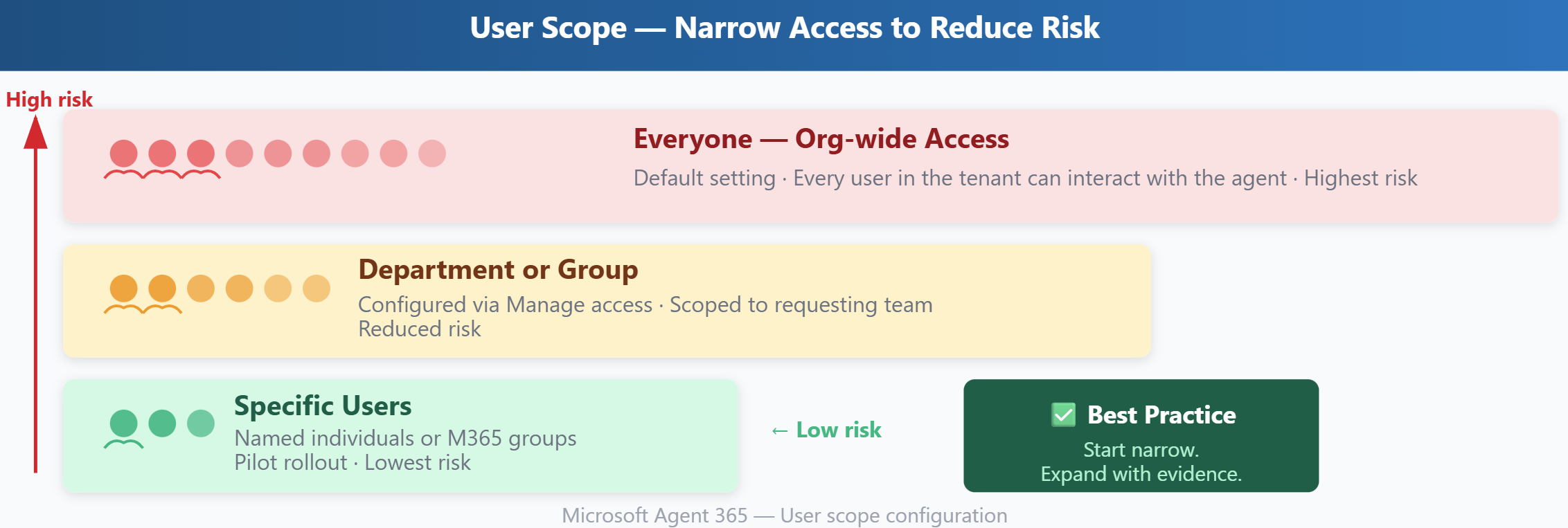
User scope determines which users or groups in your organization can discover and interact with an approved agent. By default, most agents default to organization-wide access, but you should limit scope to the smallest appropriate audience—particularly during initial rollout. To configure user scope, select an approved agent, choose Manage access, and specify either individual users or Microsoft 365 groups.
Limiting scope to specific departments reduces risk in two ways. First, it contains the challenges of any agent misconfiguration or unexpected behavior to a smaller user base. If an agent inadvertently exposes sensitive data or produces incorrect outputs, fewer users are affected. Second, it aligns with the principle of least privilege: only users who need the agent to perform their job should have access to it.
Beyond user scope, review the Power Platform connectors the agent uses. Agents built in Copilot Studio use on-behalf-of (OBO) authentication by default—the agent acts using the signed-in user's identity and permissions, not a separate service account. Actions appear in audit logs as performed by the user, with agent context recorded for compliance. This means a user's existing permissions form the effective ceiling for what the agent can access, which is why least-privilege user permissions matter as much as least-privilege agent permissions. If your organization enforces Data Loss Prevention (DLP) policies on Power Platform connectors, verify that the agent's connectors comply with those policies. For example, if your DLP policy classifies SharePoint as a business-use connector and Dropbox as a nonbusiness connector. Then the agent that moves files between SharePoint and Dropbox violates the policy and should be blocked until the publisher redesigns the workflow.
External data access presents another governance consideration. Some agents query data outside the Microsoft 365 tenant—external APIs, on-premises databases accessed through on-premises data gateways, or public internet sources. Assess whether the agent's external data access aligns with your organization's data residency and sovereignty requirements. If your organization prohibits storing customer data outside specific geographic regions, an agent that sends data to an external API hosted in a noncompliant region should be blocked.
| Access control | Purpose | Configuration location |
|---|---|---|
| User scope | Limit which users or groups can interact with the agent | Agent settings > Manage access |
| Connector permissions | Ensure connectors comply with organizational DLP policies | Power Platform admin center > Data policies |
| External data access | Verify data residency and sovereignty compliance | Agent detail view > Permissions & data access |
Block agents that don't meet governance standards
When an agent doesn't meet approval criteria, you have two options: return it to the submitter with feedback, or block it outright. Returning with feedback is appropriate when the agent has a valid business purpose but requires minor adjustments—such as reducing permission scope or clarifying its description. Blocking is appropriate when the agent violates organizational policy or presents unacceptable risk.
Blocking prevents the agent from being surfaced to any user in the organization, even if the submitter modifies and resubmits it. Blocked agents appear in the Blocked agents view with the reason for blocking and the administrator who made the decision. This creates an audit trail that supports consistent governance enforcement and helps you explain decisions during compliance reviews.
At Contoso, the Microsoft 365 administrator reviews the 14 pending agents. Ten agents are approved with user scope limited to the requesting department—agents for document summarization, meeting follow-up automation, and compliance policy lookup. Three agents are blocked: requests read access to all mailboxes without a justified business need, one connects to an external API that isn't on the approved vendor list, and one duplicates the functionality of an already-approved agent. The final agent is returned to the submitter with feedback requesting clarification on how long the agent retains customer data, as the current description doesn't address the organization's data retention policy.