Automate webmail services
Power Automate desktop app enables you to automate webmail services through the email actions. Use these actions to retrieve email messages from IMAP servers and send messages through SMTP servers.
Virtually all major webmail services support IMAP and SMTP, but they usually require you to activate the respective options.
Note
To automate email accounts protected with multifactor authentication, you need to create application passwords.
Configure IMAP and SMTP servers
Before deploying any email actions, configure the server that handles the requests. The Retrieve email messages and Process email messages actions require an IMAP server, while the Send email action requires an SMTP server.
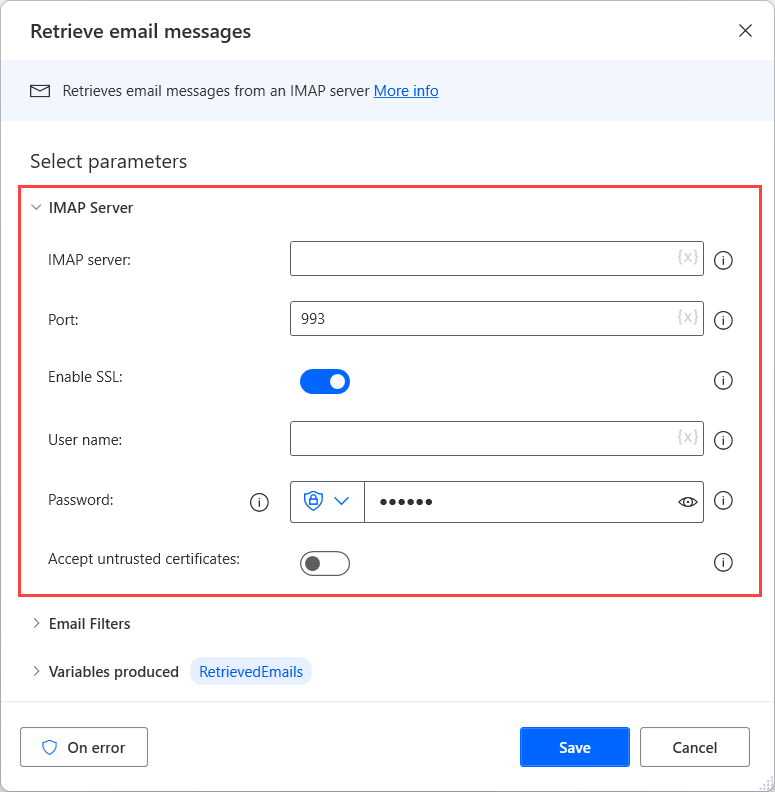
To configure the required IMAP server, open the action's properties and expand the IMAP server section.
In the IMAP server section, populate the address and the port of the server, and your account credentials. If untrusted certificates are permitted or the server uses TLS/SSL, select the Accept Untrusted Certificates or the Enable SSL option, respectively.
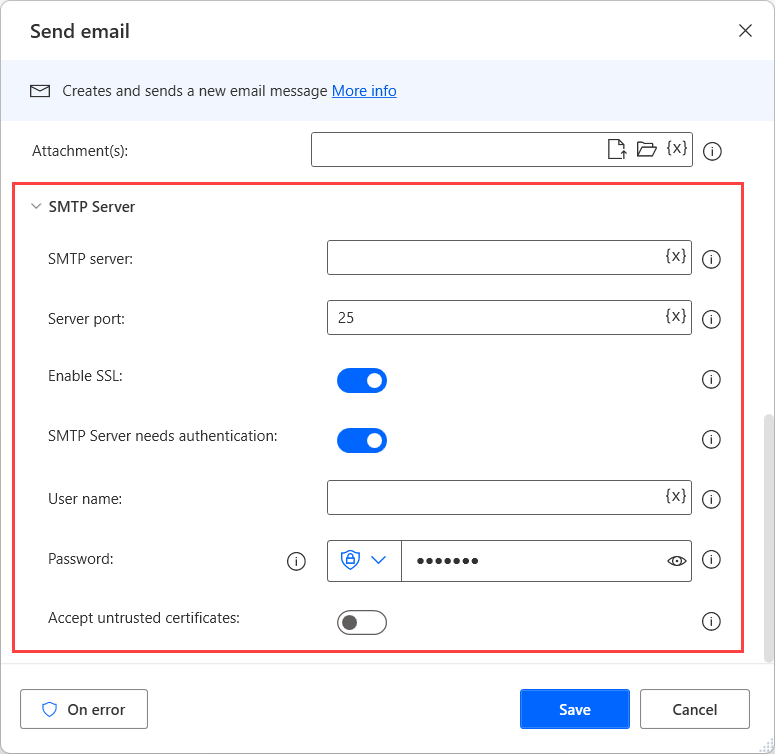
To configure the required SMTP server, open the properties of the Send email action and expand the SMTP server section.
In the SMTP server section, populate the address and the port of the server, and your account credentials. Additionally, you can enable SSL/TLS and untrusted certificates, if they're applicable.
Retrieve email messages
To retrieve emails that meet specific criteria from your mailbox, use the Retrieve email messages action.
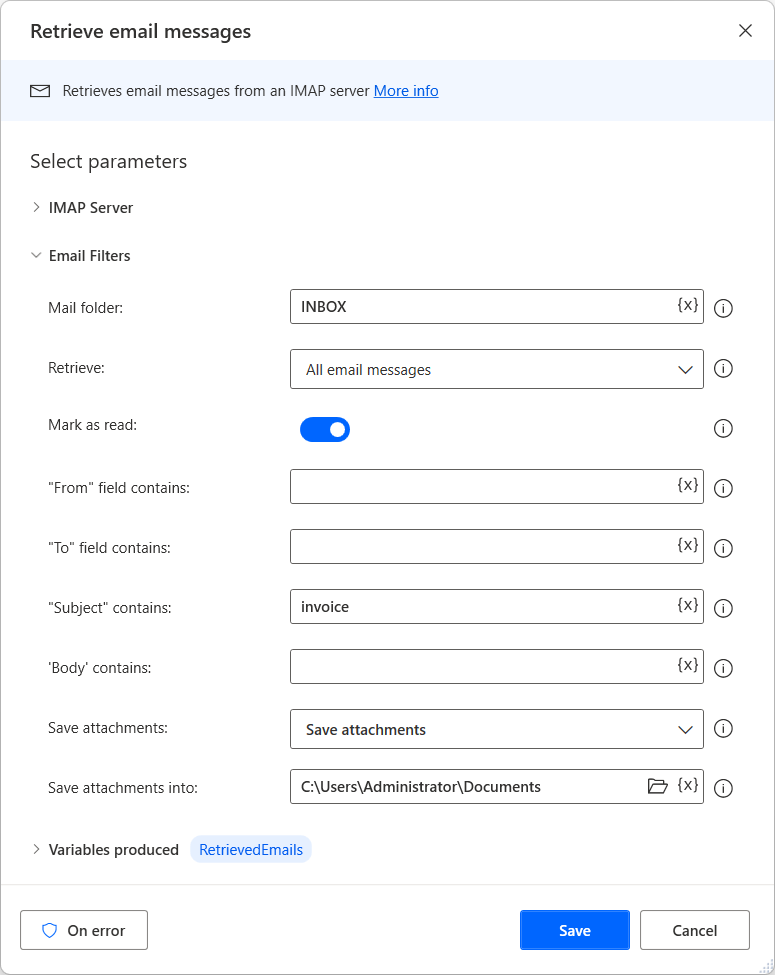
To limit the retrieved emails, filter them by their parent folder, state, or keywords included in various fields. You can find all the available filters in the Email filters section of the action's properties.
If the retrieved emails contain attachments, the action enables you to save the files locally on your desktop.
Process email messages
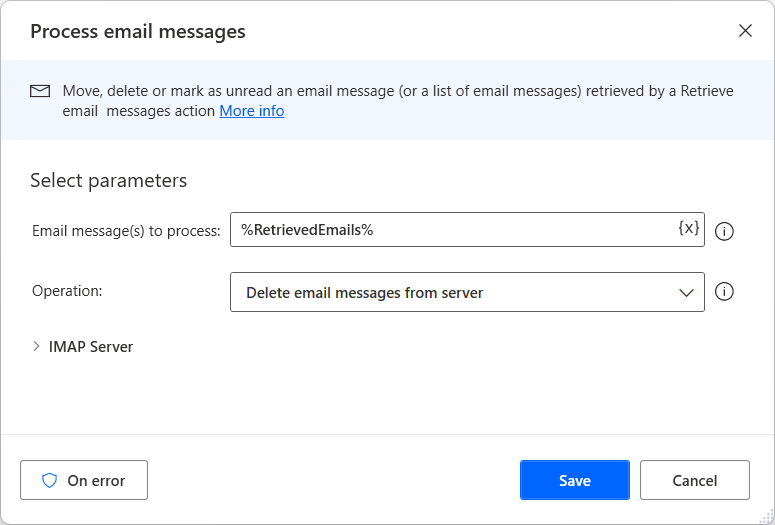
After retrieving messages from your mailbox, Power Automate desktop app enables you to manipulate them by using the Process email messages action.
This action runs a series of essential email handling operations, such as deleting, marking as unread, and moving messages to other folders.
To deploy this action, set a list of emails as input. The Retrieve email messages action can create the list.
Send email
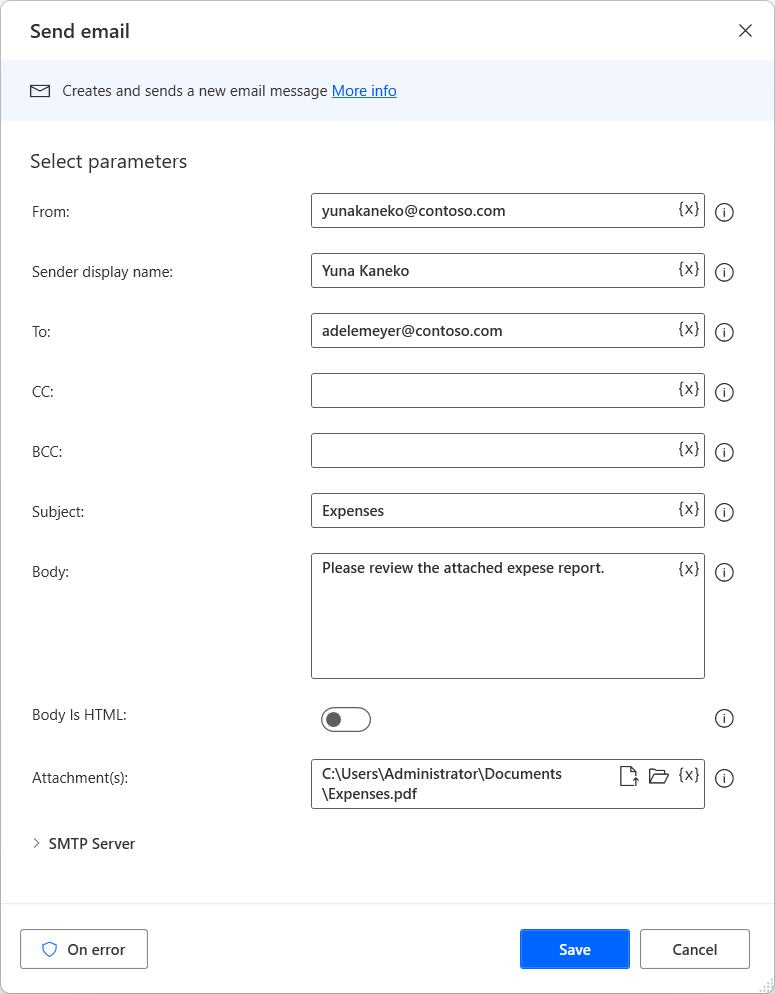
The last action in the email group is the Send email action. This action creates and sends new email messages. To deploy this action, specify the following elements:
- Sender
- Sender's display name
- Recipient
- CC and BCC recipients
- Subject and body of the new email
Optionally, you can write the email body in HTML and attach files to the message. To attach a file, enter the file path or a variable containing the file (or a list of files) in the Attachment(s) field.