Safeguard your devices
This unit focuses on actionable steps you can take to strengthen the security of your devices and technology systems. In the rapidly evolving digital landscape, you must establish robust cybersecurity measures to protect your family against the ever-present and evolving threats of malware and ransomware. Education represents over 79% of total reported malware encounters across all industries. Microsoft Security Intelligencereported blocking more than 6.7 million malware encounters on education devices in August 2023.
Know the threats: Malware and ransomware
Imagine your child is using their device, and suddenly you notice something strange – it could be malware or ransomware, which are sneaky types of software.
Malware is unwanted, malicious software installed on your devices without your knowledge. It's program that creates an open door that lets cyber criminals steal sensitive information.
Ransomware is a type of malware that deliberately encrypts or erases data and systems to force you to pay a ransom. The financial and reputational consequences of ransomware incidents, which cause initial disruption and sometimes prolonged recovery, underline the importance of taking proactive steps such as implementing comprehensive backups.
Malware is packaged and delivered in a variety of ways. Here’s what to watch for:
- Attachments, QR codes, or links: If your child gets an email or message with unexpected attachments or strange links, be cautious. Check with them before opening.
- Downloads: Sometimes, malware sneaks in through downloads. Advise your child to only download things from trusted sources.
- Pop-ups: If your child sees unexpected pop-ups, advise them not to select anything inside them. Pop-ups can sometimes lead to deceptive websites or even try to install unwanted programs.
- Ad banners: While many ads are harmless, some banners might lead to risky places. Teach your child to avoid selecting flashy or suspicious-looking ads.
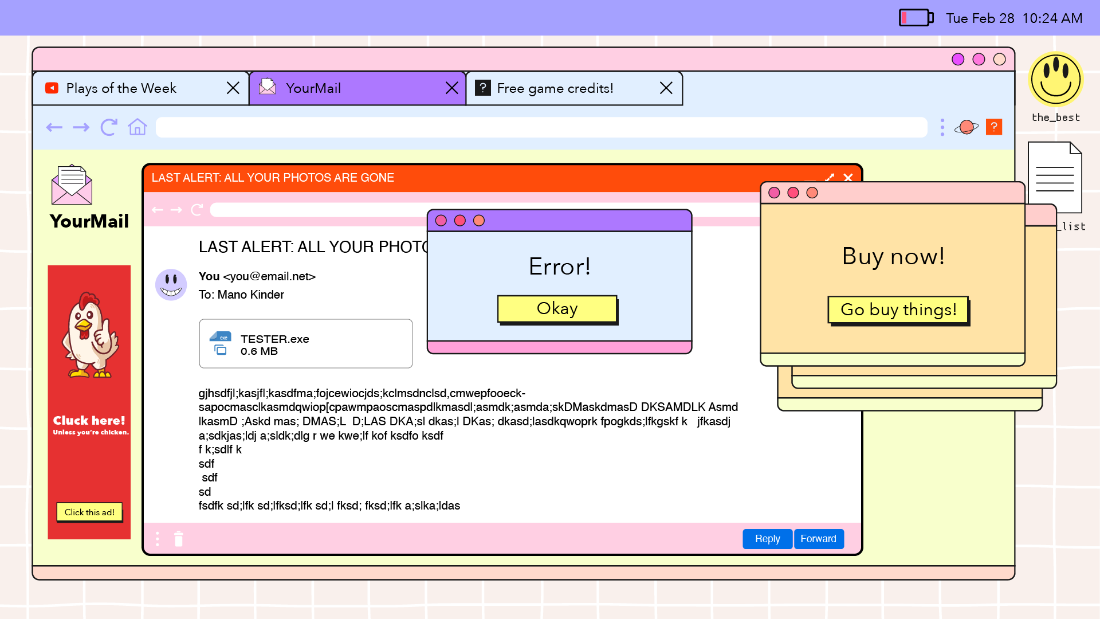
Detecting and preventing malware can be challenging. Malware might be on your computer without you ever realizing it's there. It can slow your computer to a crawl, take you to websites you didn't choose, and present pop-ups while browsing. Malware can also lock down your computer completely. Being aware of these signs and having open communication with your child about online activities can help keep your family's devices safe from malware and ransomware.
Take action
The best way to prevent malware and ransomware is to be observant, avoid suspicious exploits, and use trusted security tools. Review the chart for best practices to prevent malware from infecting your devices.
| Do | Don’t |
|---|---|
| Download software from trusted websites. | Download files from unknown banners and ads. |
| Delete suspicious files flagged by your computer. | Open files on your computer that are flagged as suspicious or dangerous. |
| Stop using any passwords on a device with possible malware. | Enter your password on a device with a suspected malware infection. |
| Work offline or shut down your device if you suspect a malware infection. | Ignore malware warning signs, such as frequent crashes or slow performance. |
| Update and restart your device. | Ignore update notifications. |
| Use OneDrive to safely share files. | Download or forward messages with suspicious attachments. |
| Regularly backup your devices. | Fall for update scams that look legitimate. |
| Set up and utilize secure, private internet networks. | Connect to internet networks of Wi-Fi in public places. |
Learn together
Explore these resources or try these practices with your child to help safeguard your devices:
- Learn how to analyze threats and avoid malware and ransomware with these videos from the Federal Trade Commission and Canada’s Communications Security Establishment.
- Perform regular backups to maintain your files in case your device is ever attacked. Microsoft automates the backup process, helping you minimize disruptions, quickly restore important files, and maintain a secure and uninterrupted learning environment. Discover how to back up your local folders with OneDrive or archive important email messages to a secure backup file with Outlook.
- Review your device update settings to verify that your devices are up to date. If your devices are running Windows 11, you have the choice of when and how to get the latest updates to keep them running smoothly and securely. Learn how to manage updates on Windows Devices and/or turn on Automatic Windows App Updates.
- Create a plan with your child for when a malware incident occurs. This may include shutting down the device and altering you as soon as possible. You can then follow the appropriate steps to remove any viruses and malware.