Configure Conditional Access policies for agents
Conditional Access policies scoped to agent identities provide granular control over which agents can authenticate and under what conditions. Contoso Financial Services needs to restrict a legacy Copilot Studio agent that was deployed for a completed project but never decommissioned. Here, you configure Conditional Access policies targeting agent identities and apply them safely using report-only mode.
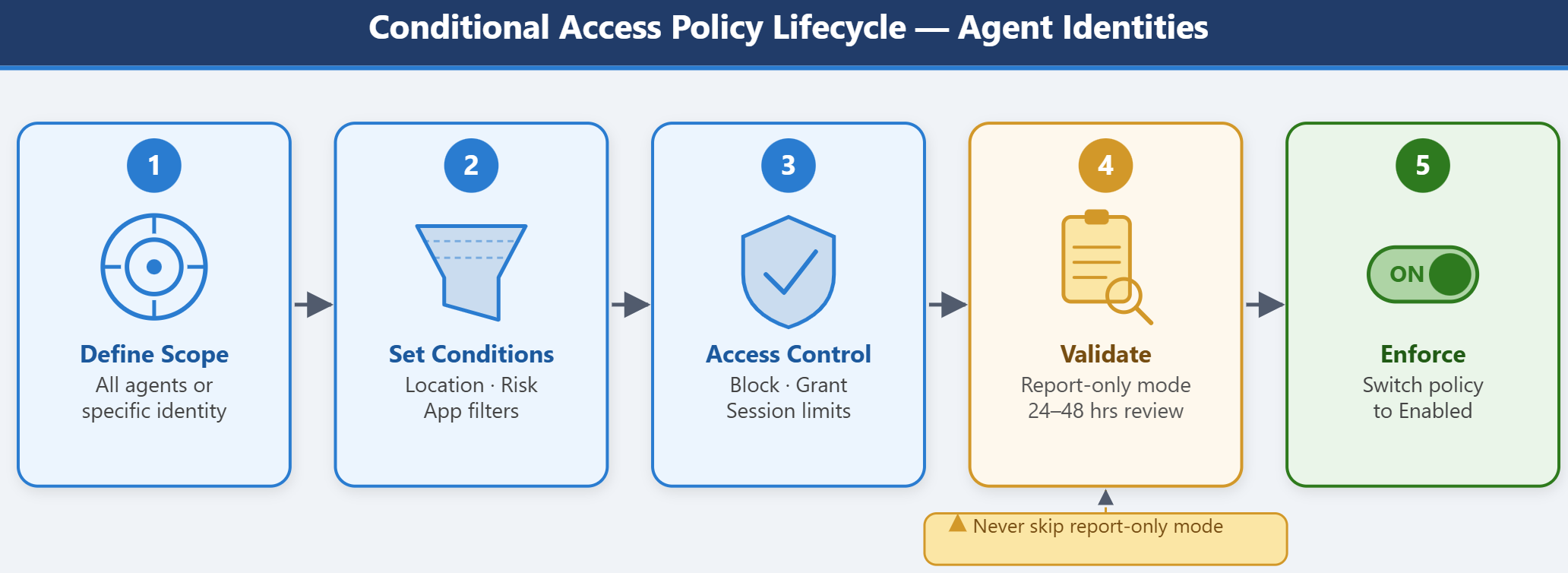
| Configuration Step | Action |
|---|---|
| Define scope | Select All agent identities or specific agent service principals |
| Set conditions | Named locations, sign-in risk, or application filters |
| Choose access control | Block access, or grant with conditions, or session controls |
| Validate impact | Deploy in report-only mode and review sign-in logs |
| Enforce policy | Switch to enabled after validation period |
Configure Conditional Access for OBO flows
In an OBO flow, the access token is issued to the user—not the agent service principal. Conditional Access policies for OBO agents assign to users or groups, not to agent identities. Because the user is the token subject, the full CA control set is available, including MFA, device compliance, and sign-in risk requirements.
To configure a CA policy for agents operating in an OBO flow:
- Navigate to Protection > Conditional Access > Policies and select New policy.
- Under Assignments, select Users, agents or workload identities. Under What does this policy apply to?, select Users and service principals.
- Under Include, select the users or groups who interact with the agent—or select All users for a broader baseline policy.
- Under Target resources, select the resources the agent accesses on the user's behalf—specific applications such as Microsoft Graph or SharePoint Online, or All resources for broad coverage.
- Under Conditions, configure signals based on where users sign in, such as named locations or sign-in risk.
- Under Access controls > Grant, configure the controls appropriate to the resource's sensitivity, such as Require multifactor authentication or Require compliant device.
- Set Enable policy to Report-only and select Create. Review sign-in logs for at least 24–48 hours before switching to enforcement.
The recommended baseline CA policies for OBO flows include blocking legacy authentication, requiring MFA for elevated sign-in risk, and requiring MFA for guest users accessing agent-connected resources.
The remainder of this unit covers configuring CA for the application-only (autonomous) scenario—blocking a specific agent service principal from authenticating.
Create a Conditional Access policy for agent identities
Conditional Access policies for agents follow the same creation flow as user-focused policies but target agent identities instead of user accounts. Conditional Access for agents requires a Microsoft Entra ID P1 or Microsoft 365 E3 license. Microsoft Entra Agent ID is part of Microsoft Agent 365—users need a Microsoft Agent 365 or Microsoft 365 E5 license to use Agent ID features, with the specific security features each requiring their own licensing tier.
To create a Conditional Access policy for agent identities, sign in to the Microsoft Entra admin center and navigate to Protection > Conditional Access > Policies. Select New policy and give the policy a descriptive name that reflects its purpose, such as "Block Copilot Studio agent - Legacy compliance project."
Under Assignments, select Users, agents or workload identities. In the Include section, choose All agent identities to apply the policy to every agent in your tenant. Alternatively, select Select agent identities and choose specific agent service principals by name or object ID. This granular targeting allows you to isolate individual agents for blocking or conditional access without affecting other agents.
The choice between targeting all agents and targeting specific agents depends on your security posture. Blocking all agents by default and selectively allowing approved agents creates a secure-by-default environment but increases operational overhead. Targeting specific agents for blocking provides flexibility but requires ongoing monitoring to detect new unauthorized agents.
Design the policy for agent-specific conditions
Agent authentication flows support a subset of Conditional Access conditions compared to user authentication. When admins design policies for agents, focus on conditions that evaluate at token issuance time without requiring interactive prompts.
Named locations are the most common condition for agent policies. You can restrict agent authentication to corporate IP ranges, Azure regions, or specific datacenters. For example, Contoso restricts all Copilot Studio agents to authenticate only from their Azure East US and West Europe regions, where their primary workloads run. Agents attempting to authenticate from other locations are blocked automatically.
Sign-in risk conditions apply to agents through Microsoft Entra ID Protection. If an agent's service principal exhibits suspicious behavior—such as authentication from an unusual location or at an unusual time—the risk level increases. You can configure Conditional Access to block high-risk agent sign-ins or require extra validation.
Application filters allow you to target agents based on the resources they're trying to access. For instance, you might block all agent identities from accessing Microsoft Graph but allow access to Power Platform APIs. This approach limits the blast radius if an agent's credentials are compromised.
Under Target resources > Resources (formerly cloud apps), select All resources to apply the policy globally or choose specific applications like Microsoft Graph or Microsoft Power Platform.
Configure access controls and session policies
After defining conditions, you configure what happens when an agent meets those conditions. Under Access controls > Grant, you have three primary options:
- Block access: Completely prevent the agent from authenticating. Use this option to decommission agents or enforce an allow list model where only approved agents can authenticate.
- Grant access: Allow authentication without other conditions. This option is rare for agent policies because it doesn't add security value over no policy at all.
- Grant access with controls: Require specific conditions before granting access. For agents, the most applicable control is Require compliant network (enforced through named locations).
Session controls offer limited applicability to agents because they're designed for interactive sessions. However, Sign-in frequency can enforce token expiration, requiring agents to reauthenticate at defined intervals. This control limits the window of opportunity if an agent's token is stolen.
For Contoso's scenario, the security team configures the following policy:
- Name: Block Copilot Studio agent - Legacy compliance project
- Scope: Specific agent service principal (selected by object ID)
- Conditions: None (block unconditionally)
- Access control: Block access
- Policy state: Report-only (initially)
This configuration completely blocks the legacy agent from authenticating once the policy is enforced.
Validate the policy with report-only mode
Before enforcing a Conditional Access policy targeting agents, deploy it in report-only mode to understand its operational changes. Report-only mode evaluates the policy against every authentication request and logs what would happen without actually blocking access. This validation step prevents accidental disruption of production agents.
When you create a new policy, set Enable policy to Report-only instead of On. Microsoft Entra ID evaluates the policy and logs the results in the Conditional Access sign-in logs. Navigate to Microsoft Entra ID > Monitoring > Sign-in logs and filter by Conditional Access to view policy evaluations.
Review the logs for at least 24-48 hours to capture a full cycle of agent activity. Look for unexpected matches—agents you didn't intend to block—and verify that the intended agents are correctly scoped. If the policy targets the wrong service principals or blocks critical agents, adjust the scope and repeat the validation period.
Important
Targeting the wrong service principal in a Conditional Access block policy can break production services with no warning. Always start in report-only mode and validate policy issues before enforcing.
After validating the policy, return to Protection > Conditional Access > Policies, select the policy, and change Enable policy to On. The policy now actively blocks authentication for the targeted agents.
Apply the policy to Contoso's legacy agent
Contoso's security team identifies the legacy Copilot Studio agent by reviewing the agent identities list in the Microsoft Entra admin center. They note the agent's object ID and create a Conditional Access policy scoped specifically to that service principal.
After admins deploy the policy in report-only mode for two days, the sign-in logs confirm the agent attempted authentication three times per day from an Azure East US region. No other agents match the policy scope. The team switches the policy to enforcement mode, and the next authentication attempt is blocked. The legacy agent stops functioning, and the compliance project's automated workflows—now obsolete—are safely decommissioned.
This targeted approach allows Contoso to remove access for individual agents without disrupting other agent-based automation across the organization.