Explore the capabilities of Security Copilot in Microsoft Purview
Microsoft Security Copilot is accessible within Microsoft Purview data security and compliance solutions, including DLP, Insider Risk Management, Communication Compliance, and eDiscovery (Premium).
In this exercise, you explore the Copilot summarization capabilities available in each of these solutions. Start by verifying that the Microsoft Purview plugin is enabled.
Note
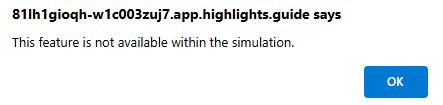
The environment for this exercise is a simulation generated from the product. As a limited simulation, links on a page may not be enabled and text-based inputs that fall outside of the specified script may not be supported. A message states, "This feature is not available within the simulation." When this message occurs, select OK and continue the exercise steps.
Copilot in Purview exercise
For this exercise, you're signed in as the Copilot owner, which grants specific permissions needed to access each of the mentioned Microsoft Purview solutions.
You work with specific Microsoft Purview solutions and access the embedded Copilot capabilities of those solutions.
This exercise should take approximately 20 minutes to complete.
Note
When a lab instruction calls for opening a link to the simulated environment, it's recommended that you open the link in a new browser window so that you can simultaneously view the instructions and the exercise environment.
Enable the Microsoft Purview sign in
This task enables the Microsoft Purview plugin in the standalone experience.
- Open the simulated environment by selecting Microsoft Security Copilot.
- From the Microsoft Security Copilot landing page, select Sources in the prompt bar.
- From the manage sources window, under the Microsoft plugins, select Show 11 more.
- Move through the page so that the Microsoft Purview plugin is available.
- Select Information. Note the instructions then close the plugins page.
- Select the Home menu.
- Select Owner settings.
- Enable the toggle switch next to Allow Security Copilot to access data from your Microsoft 365 services.
- Return to the Copilot landing page, by selecting Microsoft Security Copilot.
- Now that Copilot is enabled to access data from your Microsoft 365 services, return to the plugins page and enable the Microsoft Purview plugin.
- From the prompt bar, select Sources.
- From the manage sources window, under the Microsoft plugins, select Show 11 more.
- Enable the toggle switch next to Microsoft Purview to enable the plugin.
- Close the manage sources window.
Gain comprehensive summary of Insider Risk Management alerts
This and all later tasks explore the Copilot functionality embedded in Purview.
In this task, you explore the value Copilot provides in summarizing an Insider Risk Management alert. Start by reviewing an alert without Security Copilot. It can be challenging to know where to start your investigation when risky activities are detected over a long period of time. Then, you see how Copilot can address this same task with a single action.
Copilot assumes the permissions of the user when it tries to access the data to answer queries. To access data associated with the Purview Insider Risk Management solution, the Copilot user should have previously been assigned an appropriate role.
- Open the environment by selecting Microsoft Purview Portal. A window appears that says, "Welcome to the new Microsoft Purview portal!"
- Select the box where it says "This is a public preview. I agree to the terms of data flow disclosure, the preview section of the Product Terms, and Privacy Statements."
- Select Try now.
- You can close the Explore all solutions window by selecting the X. Alternatively, you can select Next to go through the information. If you go through all six information windows, you need to move through the page when you're done.
- From the Microsoft Purview portal, select Insider Risk Management.
- Select Alerts.
- Select the first alert on the list, alert ID: 86e52569.
- This alert is associated with the policy, 'Potential data theft - Employee Departure.' Under User details, you can gain more context on why the user was identified as a high impact user by selecting View all details. Review the user details then close the User details window.
- The current page shows All risk factors. If you move through the page, there are even more details to consume.
- Select Activity explorer to quickly review a timeline of potentially risky activity and filter for specific risk activities associated with the alert. Select the activity labeled Files accessed on SPO. Review the information provided close the window.
- Select User activity to view a scatter plot for one, three, or six months with details of each event.
- With Security Copilot, you gain a comprehensive summary of an alert in a single action
- From the top of the alert page, select Summarize.
- This comprehensive summary provides key details, including alert severity, user details like their HR offboarding event and much more.
- These summaries help accelerate investigations by helping you quickly gain context into user intent and timing of risky activities, enabling you to tailor your investigation with specific dates in mind and quickly pinpoint sensitive files at risk.
- From the navigation panel, select Home to return to the Microsoft Purview portal. You'll return to this page in the next task.
Gain comprehensive summary of DLP alerts
This task explores the value Copilot provides in summarizing a DLP alert. As in the earlier task, start by first reviewing an alert without Security Copilot. You discover how Copilot can address this same task with a single action.
Microsoft Copilot assumes the permissions of the user when it tries to access the data to answer queries. To access data associated with the Purview DLP solution, users should have previously been assigned a role.
- Select Data loss prevention, then select Alerts.
- Investigating DLP alerts can be overwhelming due to the large number of sources to analyze, including apps, cloud services, email, endpoints and chat, and the varying rules and conditions of a policy.
- Select the first alert from the list, labeled, DLP policy match for document cardholder transaction Log.xlsx in OneDrive.
- A side panel opens listing some details of this alert, including the alert status, severity, the DLP policy match, location, and user involved. From the bottom of the page, select View details. This opens a new browser tab.
- Select the Events tab. For the selected event, you can view event details, impacted entities and more.
- Select the Classifiers tab. Under classifiers, you view the specific sensitive information types or trainable classifiers that were matched.
- You can also select File Activity. There's much information to analyze.
- Close this browser tab but be sure to keep the 'Alerts|Microsoft Purview' tab open.
- Now view the information that Copilot can generate.
- From the Alerts|Microsoft Purview tab, which shows the side panel with information about the alert, select Summarize with Copilot.
- This comprehensive summary provides key details, including policy rules, source, files involved and more. Additionally, the summary pulls the user risk levels from Insider Risk Management, offering integrated insights across data security solutions. These summaries provide a better starting point for further investigation.
- From the navigation panel, select Home to return the Microsoft Purview portal. You return to this page in the next task.
Gain contextual summary of Communication Compliance policy matches
This task explores the capability of Copilot in Microsoft Purview Communication Compliance. Reviewing communication violations can be time-consuming, especially when reviewing lengthy content like meeting transcripts, email attachments, Teams attachments, or extensive text. Copilot can address this, and more.
Microsoft Copilot assumes the permissions of the user when it tries to access the data to answer queries. To access data associated with the Microsoft Purview Communication Compliance solution, users should have previously been assigned a role.
- From the Microsoft Purview portal, select View all solutions, then select Communication Compliance, listed under Risk & Compliance.
- Select Policies.
- Select Regulatory compliance policy to identify potential regulatory compliance violations.
- From the list of violations triggered by the policy, select the Teams communication with the subject Happy new year valued customers! to expand the list. Select the first item from the expanded view.
- Communication Compliance pinpoints the timestamps when a potential violation occurred and highlight conditions matched, but there's still a good bit of text to read.
- With Security Copilot, you gain a comprehensive summary of an alert in a single action. Select Summarize.
- You can also ask follow-up questions. Use copy/paste to enter Does this violation indicate unauthorized disclosure?
- From the navigation panel, select Home to return the Microsoft Purview portal. You'll return to this page in the next task.
Gain contextual summary of evidence collected in eDiscovery review sets
This task explores the capability of Copilot in Purview to gain a contextual summary of evidence collected in an eDiscovery review set.
Legal investigations can take hours, days, even weeks to sift through the list of evidence collected in review sets, requiring costly resources like outside counsel to manually go through each document to find the relevancy to the case. Copilot can significantly reduce that burden by generating summaries of conversations in a variety of languages and the documents that may be included as attachments.
Microsoft Copilot assumes the permissions of the user when it tries to access the data to answer queries. To access data associated with the Microsoft Purview eDiscovery solution, users should have previously been assigned an appropriate role.
- From the New Microsoft Purview portal, select View all solutions, then select eDiscovery, listed under Risk & Compliance.
- For this simulation, you're taken directly to the page for cases. From the cases page, select Contoso stock manipulation, then select the tab Review sets.
- From the review sets page, open the review set listed RS - Stock manipulation Teams conversation + cloud attachments.
- From the Overview page, select Open review set.
- Using the filter, filter for Teams conversations:
- Filter - File class.
- Select an operator - Equals any of.
- Select Any - Conversation.
- From the results, select the first item on the list #1.
- Information about the conversation appears in the window. Explore the source history. There's quite a bit of text included in this team's conversation. It can be time-consuming to sift through the information.
- With Security Copilot, you can gain a comprehensive summary of the conversation in the review set. Select Summarize. Copilot also provides prompt suggestions and a prompt bar for you to enter your own prompts in furtherance of the investigation. This helps you save time and conduct investigations more efficiently.
- Refer to the Teams conversation list. This time, select the second item on list #2.
- The subject is displayed in a non-English language. This is a common challenge with schools who have students and community members who use various languages. The window with the source conversations shows a conversation history with non-English language. Select Summarize to view a summary in English, if this is your default language for Copilot.
- Within Microsoft Teams, you can send cloud attachments, which are links to documents. Expand item #2 by selecting the >. The first subitem is a Word document. Select the document then select Summarize to have Copilot generate a summary.
- From the navigation panel, select Home to return the Microsoft Purview portal.