Nota:
El acceso a esta página requiere autorización. Puede intentar iniciar sesión o cambiar directorios.
El acceso a esta página requiere autorización. Puede intentar cambiar los directorios.
En este artículo se muestra cómo crear una red de bloques de flujo de datos que realizan el procesamiento de imágenes en una aplicación de Windows Forms.
En este ejemplo se cargan los archivos de imagen de la carpeta especificada, se crea una imagen compuesta y se muestra el resultado. En el ejemplo se usa el modelo de flujo de datos para enrutar imágenes a través de la red. En el modelo de flujo de datos, los componentes independientes de un programa se comunican entre sí mediante mensajes. Cuando un componente recibe un mensaje, realiza alguna acción y, a continuación, pasa el resultado a otro componente. Compárelo con el modelo de flujo de control, en el que una aplicación usa estructuras de control, por ejemplo, instrucciones condicionales, bucles, etc., para controlar el orden de las operaciones en un programa.
Prerrequisitos
Lea Flujo de datos antes de iniciar este tutorial.
Nota:
La biblioteca de flujos de datos TPL (el System.Threading.Tasks.Dataflow namespace) se incluye en .NET 6 y posteriores. Para los proyectos de .NET Framework y .NET Standard, debe instalar el 📦 paquete NuGet System.Threading.Tasks.Dataflow.
Secciones
Este tutorial contiene las siguientes secciones:
Creación de la aplicación de Windows Forms
En esta sección se describe cómo crear la aplicación básica de Windows Forms y agregar controles al formulario principal.
Para crear la aplicación de Windows Forms
En Visual Studio, cree un proyecto de aplicación de Windows Forms de Visual C# o Visual Basic. En este documento, el proyecto se denomina
CompositeImages.En el diseñador de formularios del formulario principal, Form1.cs (Form1.vb para Visual Basic), agregue un ToolStrip control .
Agregue el control ToolStripButton al control ToolStrip. Establezca la DisplayStyle propiedad en Text y la Text propiedad en Elegir carpeta.
Agregue un segundo control ToolStripButton al control ToolStrip. Establezca la propiedad DisplayStyle a Text, la propiedad Text a Cancelar y la propiedad Enabled a
False.Agregue un PictureBox objeto al formulario principal. Establezca la propiedad Dock en Fill.
Creación de la red de flujo de datos
En esta sección se describe cómo crear la red de flujo de datos que realiza el procesamiento de imágenes.
Para crear la red de flujo de datos
Agregue una referencia a System.Threading.Tasks.Dataflow.dll al proyecto.
Asegúrese de que Form1.cs (Form1.vb para Visual Basic) contiene las siguientes
usinginstrucciones (Usingen Visual Basic):using System; using System.Collections.Generic; using System.Drawing; using System.Drawing.Imaging; using System.IO; using System.Linq; using System.Threading; using System.Threading.Tasks; using System.Threading.Tasks.Dataflow; using System.Windows.Forms;Agregue los siguientes miembros de datos a la
Form1clase :// The head of the dataflow network. ITargetBlock<string> headBlock = null; // Enables the user interface to signal cancellation to the network. CancellationTokenSource cancellationTokenSource;Agregue el método siguiente,
CreateImageProcessingNetwork, a laForm1clase . Este método crea la red de procesamiento de imágenes.// Creates the image processing dataflow network and returns the // head node of the network. ITargetBlock<string> CreateImageProcessingNetwork() { // // Create the dataflow blocks that form the network. // // Create a dataflow block that takes a folder path as input // and returns a collection of Bitmap objects. var loadBitmaps = new TransformBlock<string, IEnumerable<Bitmap>>(path => { try { return LoadBitmaps(path); } catch (OperationCanceledException) { // Handle cancellation by passing the empty collection // to the next stage of the network. return Enumerable.Empty<Bitmap>(); } }); // Create a dataflow block that takes a collection of Bitmap objects // and returns a single composite bitmap. var createCompositeBitmap = new TransformBlock<IEnumerable<Bitmap>, Bitmap>(bitmaps => { try { return CreateCompositeBitmap(bitmaps); } catch (OperationCanceledException) { // Handle cancellation by passing null to the next stage // of the network. return null; } }); // Create a dataflow block that displays the provided bitmap on the form. var displayCompositeBitmap = new ActionBlock<Bitmap>(bitmap => { // Display the bitmap. pictureBox1.SizeMode = PictureBoxSizeMode.StretchImage; pictureBox1.Image = bitmap; // Enable the user to select another folder. toolStripButton1.Enabled = true; toolStripButton2.Enabled = false; Cursor = DefaultCursor; }, // Specify a task scheduler from the current synchronization context // so that the action runs on the UI thread. new ExecutionDataflowBlockOptions { TaskScheduler = TaskScheduler.FromCurrentSynchronizationContext() }); // Create a dataflow block that responds to a cancellation request by // displaying an image to indicate that the operation is cancelled and // enables the user to select another folder. var operationCancelled = new ActionBlock<object>(delegate { // Display the error image to indicate that the operation // was cancelled. pictureBox1.SizeMode = PictureBoxSizeMode.CenterImage; pictureBox1.Image = pictureBox1.ErrorImage; // Enable the user to select another folder. toolStripButton1.Enabled = true; toolStripButton2.Enabled = false; Cursor = DefaultCursor; }, // Specify a task scheduler from the current synchronization context // so that the action runs on the UI thread. new ExecutionDataflowBlockOptions { TaskScheduler = TaskScheduler.FromCurrentSynchronizationContext() }); // // Connect the network. // // Link loadBitmaps to createCompositeBitmap. // The provided predicate ensures that createCompositeBitmap accepts the // collection of bitmaps only if that collection has at least one member. loadBitmaps.LinkTo(createCompositeBitmap, bitmaps => bitmaps.Count() > 0); // Also link loadBitmaps to operationCancelled. // When createCompositeBitmap rejects the message, loadBitmaps // offers the message to operationCancelled. // operationCancelled accepts all messages because we do not provide a // predicate. loadBitmaps.LinkTo(operationCancelled); // Link createCompositeBitmap to displayCompositeBitmap. // The provided predicate ensures that displayCompositeBitmap accepts the // bitmap only if it is non-null. createCompositeBitmap.LinkTo(displayCompositeBitmap, bitmap => bitmap != null); // Also link createCompositeBitmap to operationCancelled. // When displayCompositeBitmap rejects the message, createCompositeBitmap // offers the message to operationCancelled. // operationCancelled accepts all messages because we do not provide a // predicate. createCompositeBitmap.LinkTo(operationCancelled); // Return the head of the network. return loadBitmaps; }Implemente el método
LoadBitmaps.// Loads all bitmap files that exist at the provided path. IEnumerable<Bitmap> LoadBitmaps(string path) { List<Bitmap> bitmaps = new List<Bitmap>(); // Load a variety of image types. foreach (string bitmapType in new string[] { "*.bmp", "*.gif", "*.jpg", "*.png", "*.tif" }) { // Load each bitmap for the current extension. foreach (string fileName in Directory.GetFiles(path, bitmapType)) { // Throw OperationCanceledException if cancellation is requested. cancellationTokenSource.Token.ThrowIfCancellationRequested(); try { // Add the Bitmap object to the collection. bitmaps.Add(new Bitmap(fileName)); } catch (Exception) { // TODO: A complete application might handle the error. } } } return bitmaps; }Implemente el método
CreateCompositeBitmap.// Creates a composite bitmap from the provided collection of Bitmap objects. // This method computes the average color of each pixel among all bitmaps // to create the composite image. Bitmap CreateCompositeBitmap(IEnumerable<Bitmap> bitmaps) { Bitmap[] bitmapArray = bitmaps.ToArray(); // Compute the maximum width and height components of all // bitmaps in the collection. Rectangle largest = new Rectangle(); foreach (var bitmap in bitmapArray) { if (bitmap.Width > largest.Width) largest.Width = bitmap.Width; if (bitmap.Height > largest.Height) largest.Height = bitmap.Height; } // Create a 32-bit Bitmap object with the greatest dimensions. Bitmap result = new Bitmap(largest.Width, largest.Height, PixelFormat.Format32bppArgb); // Lock the result Bitmap. var resultBitmapData = result.LockBits( new Rectangle(new Point(), result.Size), ImageLockMode.WriteOnly, result.PixelFormat); // Lock each source bitmap to create a parallel list of BitmapData objects. var bitmapDataList = (from bitmap in bitmapArray select bitmap.LockBits( new Rectangle(new Point(), bitmap.Size), ImageLockMode.ReadOnly, PixelFormat.Format32bppArgb)) .ToList(); // Compute each column in parallel. Parallel.For(0, largest.Width, new ParallelOptions { CancellationToken = cancellationTokenSource.Token }, i => { // Compute each row. for (int j = 0; j < largest.Height; j++) { // Counts the number of bitmaps whose dimensions // contain the current location. int count = 0; // The sum of all alpha, red, green, and blue components. int a = 0, r = 0, g = 0, b = 0; // For each bitmap, compute the sum of all color components. foreach (var bitmapData in bitmapDataList) { // Ensure that we stay within the bounds of the image. if (bitmapData.Width > i && bitmapData.Height > j) { unsafe { byte* row = (byte*)(bitmapData.Scan0 + (j * bitmapData.Stride)); byte* pix = (byte*)(row + (4 * i)); a += *pix; pix++; r += *pix; pix++; g += *pix; pix++; b += *pix; } count++; } } //prevent divide by zero in bottom right pixelless corner if (count == 0) break; unsafe { // Compute the average of each color component. a /= count; r /= count; g /= count; b /= count; // Set the result pixel. byte* row = (byte*)(resultBitmapData.Scan0 + (j * resultBitmapData.Stride)); byte* pix = (byte*)(row + (4 * i)); *pix = (byte)a; pix++; *pix = (byte)r; pix++; *pix = (byte)g; pix++; *pix = (byte)b; } } }); // Unlock the source bitmaps. for (int i = 0; i < bitmapArray.Length; i++) { bitmapArray[i].UnlockBits(bitmapDataList[i]); } // Unlock the result bitmap. result.UnlockBits(resultBitmapData); // Return the result. return result; }Nota:
La versión de C# del
CreateCompositeBitmapmétodo usa punteros para permitir un procesamiento eficaz de los System.Drawing.Bitmap objetos. Por lo tanto, debe habilitar la opción Permitir código no seguro en el proyecto para usar la palabra clave unsafe . Para obtener más información sobre cómo habilitar código no seguro en un proyecto de Visual C#, vea Build Page, Project Designer (C#).
En la tabla siguiente se describen los miembros de la red.
| Miembro | Tipo | Description |
|---|---|---|
loadBitmaps |
TransformBlock<TInput,TOutput> | Toma una ruta de acceso de carpeta como entrada y genera una colección de Bitmap objetos como salida. |
createCompositeBitmap |
TransformBlock<TInput,TOutput> | Toma una colección de Bitmap objetos como entrada y genera un mapa de bits compuesto como salida. |
displayCompositeBitmap |
ActionBlock<TInput> | Muestra el mapa de bits compuesto en el formulario. |
operationCancelled |
ActionBlock<TInput> | Muestra una imagen para indicar que la operación se cancela y permite al usuario seleccionar otra carpeta. |
Para conectar los bloques de flujo de datos para formar una red, en este ejemplo se usa el LinkTo método . El LinkTo método contiene una versión sobrecargada que toma un Predicate<T> objeto que determina si el bloque de destino acepta o rechaza un mensaje. Este mecanismo de filtrado permite que los bloques de mensajes reciban solo determinados valores. En este ejemplo, la red puede bifurcarse de una de estas dos maneras. La rama principal carga las imágenes del disco, crea la imagen compuesta y muestra esa imagen en el formulario. La rama alternativa cancela la operación actual. Los Predicate<T> objetos permiten que los bloques de flujo de datos a lo largo de la rama principal cambien a la rama alternativa rechazando determinados mensajes. Por ejemplo, si el usuario cancela la operación, el bloque createCompositeBitmap de flujo de datos genera null (Nothing en Visual Basic) como salida. El bloque displayCompositeBitmap de flujo de datos rechaza los null valores de entrada y, por tanto, el mensaje se ofrece a operationCancelled. El bloque operationCancelled de flujo de datos acepta todos los mensajes y, por tanto, muestra una imagen para indicar que se cancela la operación.
En la ilustración siguiente se muestra la red de procesamiento de imágenes:
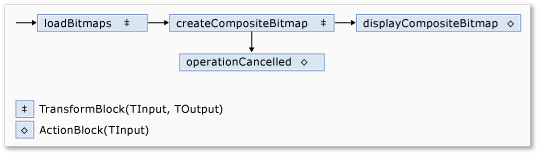
Dado que los displayCompositeBitmap bloques de flujo de datos y operationCancelled actúan en la interfaz de usuario, es importante que estas acciones se produzcan en el subproceso de la interfaz de usuario. Para ello, durante la construcción, cada uno de estos objetos proporciona un ExecutionDataflowBlockOptions objeto que tiene la TaskScheduler propiedad establecida en TaskScheduler.FromCurrentSynchronizationContext. El TaskScheduler.FromCurrentSynchronizationContext método crea un TaskScheduler objeto que realiza el trabajo en el contexto de sincronización actual.
CreateImageProcessingNetwork Dado que se llama al método desde el controlador del botón Elegir carpeta, que se ejecuta en el subproceso de la interfaz de usuario, las acciones de los displayCompositeBitmap bloques de flujo de datos y operationCancelled también se ejecutan en el subproceso de la interfaz de usuario.
En este ejemplo se usa un token de cancelación compartido en lugar de establecer la CancellationToken propiedad porque la propiedad cancela permanentemente la CancellationToken ejecución del bloque de flujo de datos. Un token de cancelación permite a este ejemplo reutilizar la misma red de flujo de datos varias veces, incluso cuando el usuario cancela una o varias operaciones. Para obtener un ejemplo que usa CancellationToken para cancelar permanentemente la ejecución de un bloque de flujo de datos, consulte Cómo: Cancelar un bloque de flujo de datos.
Conexión de la red de flujo de datos a la interfaz de usuario
En esta sección se describe cómo conectar la red de flujo de datos a la interfaz de usuario. La creación de la imagen compuesta y la cancelación de la operación se inician desde los botones Elegir carpeta y Cancelar . Cuando el usuario elige cualquiera de estos botones, la acción adecuada se inicia de forma asincrónica.
Para conectar la red de flujo de datos a la interfaz de usuario
En el diseñador de formularios del formulario principal, cree un controlador de eventos para el Click evento para el botón Elegir carpeta .
Implemente el Click evento para el botón Elegir carpeta .
// Event handler for the Choose Folder button. private void toolStripButton1_Click(object sender, EventArgs e) { // Create a FolderBrowserDialog object to enable the user to // select a folder. FolderBrowserDialog dlg = new FolderBrowserDialog { ShowNewFolderButton = false }; // Set the selected path to the common Sample Pictures folder // if it exists. string initialDirectory = Path.Combine( Environment.GetFolderPath(Environment.SpecialFolder.CommonPictures), "Sample Pictures"); if (Directory.Exists(initialDirectory)) { dlg.SelectedPath = initialDirectory; } // Show the dialog and process the dataflow network. if (dlg.ShowDialog() == DialogResult.OK) { // Create a new CancellationTokenSource object to enable // cancellation. cancellationTokenSource = new CancellationTokenSource(); // Create the image processing network if needed. headBlock ??= CreateImageProcessingNetwork(); // Post the selected path to the network. headBlock.Post(dlg.SelectedPath); // Enable the Cancel button and disable the Choose Folder button. toolStripButton1.Enabled = false; toolStripButton2.Enabled = true; // Show a wait cursor. Cursor = Cursors.WaitCursor; } }En el diseñador de formularios del formulario principal, cree un controlador de eventos para el Click evento para el botón Cancelar .
Implemente el Click evento para el botón Cancelar .
// Event handler for the Cancel button. private void toolStripButton2_Click(object sender, EventArgs e) { // Signal the request for cancellation. The current component of // the dataflow network will respond to the cancellation request. cancellationTokenSource.Cancel(); }
Ejemplo completo
En el ejemplo siguiente se muestra el código completo de este tutorial.
using System;
using System.Collections.Generic;
using System.Drawing;
using System.Drawing.Imaging;
using System.IO;
using System.Linq;
using System.Threading;
using System.Threading.Tasks;
using System.Threading.Tasks.Dataflow;
using System.Windows.Forms;
namespace CompositeImages
{
public partial class Form1 : Form
{
// The head of the dataflow network.
ITargetBlock<string> headBlock = null;

// Enables the user interface to signal cancellation to the network.
CancellationTokenSource cancellationTokenSource;
public Form1()
{
InitializeComponent();
}
// Creates the image processing dataflow network and returns the
// head node of the network.
ITargetBlock<string> CreateImageProcessingNetwork()
{
   //
   // Create the dataflow blocks that form the network.
   //

   // Create a dataflow block that takes a folder path as input
   // and returns a collection of Bitmap objects.
   var loadBitmaps = new TransformBlock<string, IEnumerable<Bitmap>>(path =>
      {
         try
         {
            return LoadBitmaps(path);
         }
         catch (OperationCanceledException)
         {
            // Handle cancellation by passing the empty collection
            // to the next stage of the network.
            return Enumerable.Empty<Bitmap>();
         }
      });

   // Create a dataflow block that takes a collection of Bitmap objects
   // and returns a single composite bitmap.
   var createCompositeBitmap = new TransformBlock<IEnumerable<Bitmap>, Bitmap>(bitmaps =>
      {
         try
         {
            return CreateCompositeBitmap(bitmaps);
         }
         catch (OperationCanceledException)
         {
            // Handle cancellation by passing null to the next stage
            // of the network.
            return null;
         }
      });

   // Create a dataflow block that displays the provided bitmap on the form.
   var displayCompositeBitmap = new ActionBlock<Bitmap>(bitmap =>
      {
         // Display the bitmap.
         pictureBox1.SizeMode = PictureBoxSizeMode.StretchImage;
         pictureBox1.Image = bitmap;

         // Enable the user to select another folder.
         toolStripButton1.Enabled = true;
         toolStripButton2.Enabled = false;
         Cursor = DefaultCursor;
      },
      // Specify a task scheduler from the current synchronization context
      // so that the action runs on the UI thread.
      new ExecutionDataflowBlockOptions
      {
          TaskScheduler = TaskScheduler.FromCurrentSynchronizationContext()
      });

   // Create a dataflow block that responds to a cancellation request by
   // displaying an image to indicate that the operation is cancelled and
   // enables the user to select another folder.
   var operationCancelled = new ActionBlock<object>(delegate
      {
         // Display the error image to indicate that the operation
         // was cancelled.
         pictureBox1.SizeMode = PictureBoxSizeMode.CenterImage;
         pictureBox1.Image = pictureBox1.ErrorImage;

         // Enable the user to select another folder.
         toolStripButton1.Enabled = true;
         toolStripButton2.Enabled = false;
         Cursor = DefaultCursor;
      },
      // Specify a task scheduler from the current synchronization context
      // so that the action runs on the UI thread.
      new ExecutionDataflowBlockOptions
      {
         TaskScheduler = TaskScheduler.FromCurrentSynchronizationContext()
      });

   //
   // Connect the network.
   //

   // Link loadBitmaps to createCompositeBitmap.
   // The provided predicate ensures that createCompositeBitmap accepts the
   // collection of bitmaps only if that collection has at least one member.
   loadBitmaps.LinkTo(createCompositeBitmap, bitmaps => bitmaps.Count() > 0);

   // Also link loadBitmaps to operationCancelled.
   // When createCompositeBitmap rejects the message, loadBitmaps
   // offers the message to operationCancelled.
   // operationCancelled accepts all messages because we do not provide a
   // predicate.
   loadBitmaps.LinkTo(operationCancelled);

   // Link createCompositeBitmap to displayCompositeBitmap.
   // The provided predicate ensures that displayCompositeBitmap accepts the
   // bitmap only if it is non-null.
   createCompositeBitmap.LinkTo(displayCompositeBitmap, bitmap => bitmap != null);

   // Also link createCompositeBitmap to operationCancelled.
   // When displayCompositeBitmap rejects the message, createCompositeBitmap
   // offers the message to operationCancelled.
   // operationCancelled accepts all messages because we do not provide a
   // predicate.
   createCompositeBitmap.LinkTo(operationCancelled);

   // Return the head of the network.
   return loadBitmaps;
}
// Loads all bitmap files that exist at the provided path.
IEnumerable<Bitmap> LoadBitmaps(string path)
{
   List<Bitmap> bitmaps = new List<Bitmap>();

   // Load a variety of image types.
   foreach (string bitmapType in
      new string[] { "*.bmp", "*.gif", "*.jpg", "*.png", "*.tif" })
   {
      // Load each bitmap for the current extension.
      foreach (string fileName in Directory.GetFiles(path, bitmapType))
      {
         // Throw OperationCanceledException if cancellation is requested.
         cancellationTokenSource.Token.ThrowIfCancellationRequested();

         try
         {
            // Add the Bitmap object to the collection.
            bitmaps.Add(new Bitmap(fileName));
         }
         catch (Exception)
         {
            // TODO: A complete application might handle the error.
         }
      }
   }
   return bitmaps;
}
// Creates a composite bitmap from the provided collection of Bitmap objects.
// This method computes the average color of each pixel among all bitmaps
// to create the composite image.
Bitmap CreateCompositeBitmap(IEnumerable<Bitmap> bitmaps)
{
   Bitmap[] bitmapArray = bitmaps.ToArray();

   // Compute the maximum width and height components of all
   // bitmaps in the collection.
   Rectangle largest = new Rectangle();
   foreach (var bitmap in bitmapArray)
   {
      if (bitmap.Width > largest.Width)
         largest.Width = bitmap.Width;
      if (bitmap.Height > largest.Height)
         largest.Height = bitmap.Height;
   }

   // Create a 32-bit Bitmap object with the greatest dimensions.
   Bitmap result = new Bitmap(largest.Width, largest.Height,
      PixelFormat.Format32bppArgb);

   // Lock the result Bitmap.
   var resultBitmapData = result.LockBits(
      new Rectangle(new Point(), result.Size), ImageLockMode.WriteOnly,
      result.PixelFormat);

   // Lock each source bitmap to create a parallel list of BitmapData objects.
   var bitmapDataList = (from bitmap in bitmapArray
                         select bitmap.LockBits(
                           new Rectangle(new Point(), bitmap.Size),
                           ImageLockMode.ReadOnly, PixelFormat.Format32bppArgb))
                        .ToList();

   // Compute each column in parallel.
   Parallel.For(0, largest.Width, new ParallelOptions
   {
      CancellationToken = cancellationTokenSource.Token
   },
   i =>
   {
      // Compute each row.
      for (int j = 0; j < largest.Height; j++)
      {
         // Counts the number of bitmaps whose dimensions
         // contain the current location.
         int count = 0;

         // The sum of all alpha, red, green, and blue components.
         int a = 0, r = 0, g = 0, b = 0;

         // For each bitmap, compute the sum of all color components.
         foreach (var bitmapData in bitmapDataList)
         {
            // Ensure that we stay within the bounds of the image.
            if (bitmapData.Width > i && bitmapData.Height > j)
            {
               unsafe
               {
                  byte* row = (byte*)(bitmapData.Scan0 + (j * bitmapData.Stride));
                  byte* pix = (byte*)(row + (4 * i));
                  a += *pix; pix++;
                  r += *pix; pix++;
                  g += *pix; pix++;
                  b += *pix;
               }
               count++;
            }
         }

         //prevent divide by zero in bottom right pixelless corner
         if (count == 0)
             break;

         unsafe
         {
            // Compute the average of each color component.
            a /= count;
            r /= count;
            g /= count;
            b /= count;

            // Set the result pixel.
            byte* row = (byte*)(resultBitmapData.Scan0 + (j * resultBitmapData.Stride));
            byte* pix = (byte*)(row + (4 * i));
            *pix = (byte)a; pix++;
            *pix = (byte)r; pix++;
            *pix = (byte)g; pix++;
            *pix = (byte)b;
         }
      }
   });

   // Unlock the source bitmaps.
   for (int i = 0; i < bitmapArray.Length; i++)
   {
      bitmapArray[i].UnlockBits(bitmapDataList[i]);
   }

   // Unlock the result bitmap.
   result.UnlockBits(resultBitmapData);

   // Return the result.
   return result;
}
// Event handler for the Choose Folder button.
private void toolStripButton1_Click(object sender, EventArgs e)
{
   // Create a FolderBrowserDialog object to enable the user to
   // select a folder.
   FolderBrowserDialog dlg = new FolderBrowserDialog
   {
      ShowNewFolderButton = false
   };

   // Set the selected path to the common Sample Pictures folder
   // if it exists.
   string initialDirectory = Path.Combine(
      Environment.GetFolderPath(Environment.SpecialFolder.CommonPictures),
      "Sample Pictures");
   if (Directory.Exists(initialDirectory))
   {
      dlg.SelectedPath = initialDirectory;
   }

   // Show the dialog and process the dataflow network.
   if (dlg.ShowDialog() == DialogResult.OK)
   {
      // Create a new CancellationTokenSource object to enable
      // cancellation.
      cancellationTokenSource = new CancellationTokenSource();

      // Create the image processing network if needed.
      headBlock ??= CreateImageProcessingNetwork();

      // Post the selected path to the network.
      headBlock.Post(dlg.SelectedPath);

      // Enable the Cancel button and disable the Choose Folder button.
      toolStripButton1.Enabled = false;
      toolStripButton2.Enabled = true;

      // Show a wait cursor.
      Cursor = Cursors.WaitCursor;
   }
}
// Event handler for the Cancel button.
private void toolStripButton2_Click(object sender, EventArgs e)
{
   // Signal the request for cancellation. The current component of
   // the dataflow network will respond to the cancellation request.
   cancellationTokenSource.Cancel();
}
~Form1()
{
cancellationTokenSource.Dispose();
}
}
}
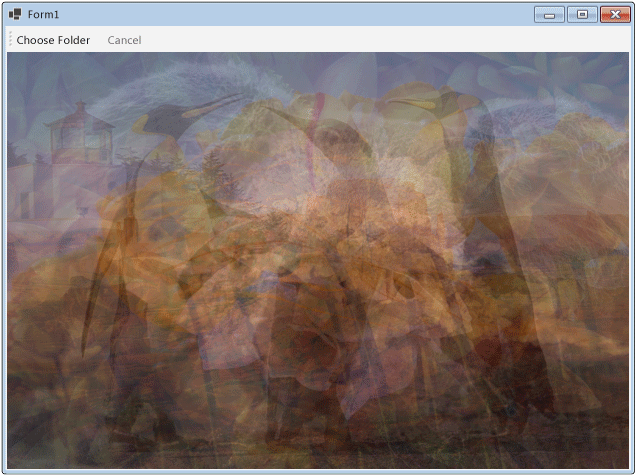
En la ilustración siguiente se muestra la salida típica de la carpeta común \Sample Pictures\.
Consulte también
Colaborar con nosotros en GitHub
El origen de este contenido se puede encontrar en GitHub, donde también puede crear y revisar problemas y solicitudes de incorporación de cambios. Para más información, consulte nuestra guía para colaboradores.
