Minecraft Education multiplayer game
Considerations for hosting a multiplayer world are:
- The maximum number of players that can connect to a Minecraft Education multiplayer game at one time is 30.
- All players need to be running the same version of Minecraft Education to be able to host and join worlds together.
Host a world in Minecraft Education
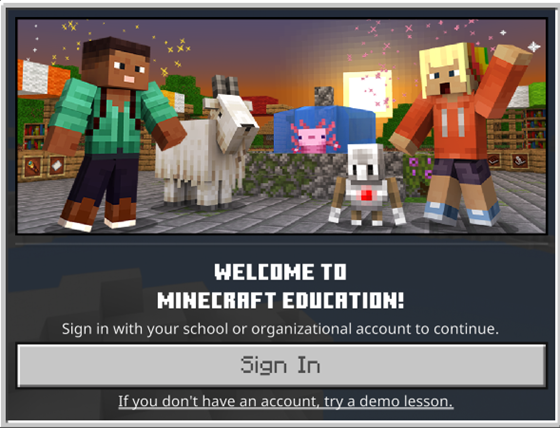
Step 1: Open Minecraft Education
- Launch Minecraft Education on your device.
- Sign in using your school or district account.
Step 2: Create or open a world
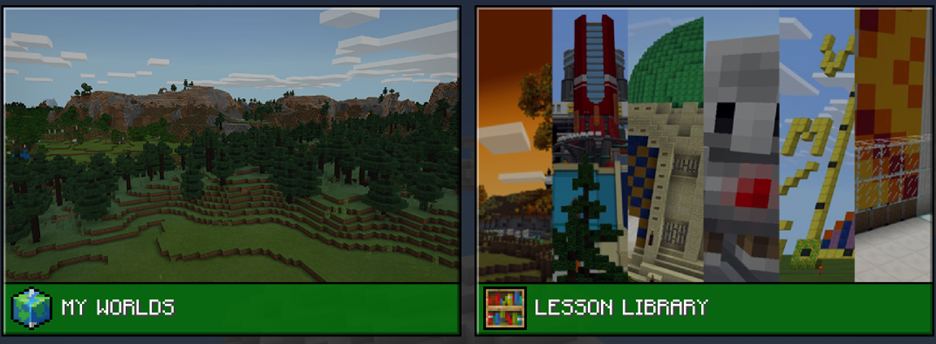
- From the main menu, select Play.
- Choose My Worlds to open an existing world or choose Lesson Library to find a new world.
Step 3: Obtain the join code
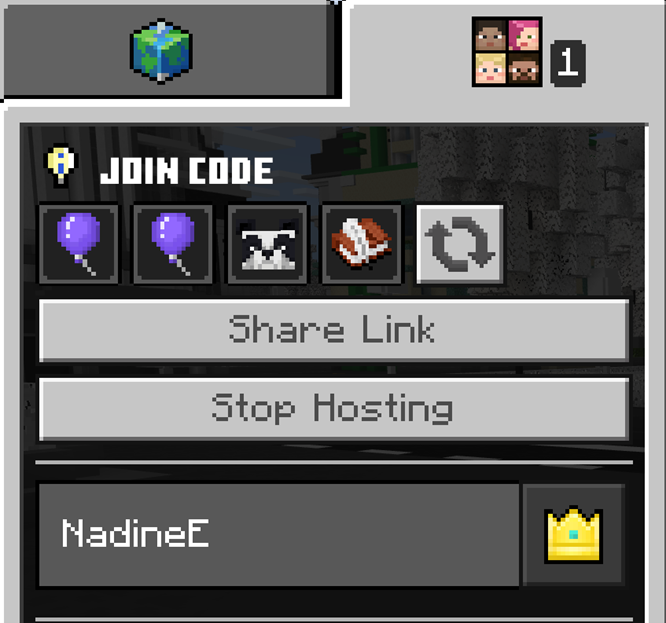
- Once the world is loaded, select the Escape key then choose the icon that has four faces.
- Select Start hosting. This generates a unique join code for your session.
- The join code appears as a set of symbols on the screen (for example a sheep, book, and apple).
Step 4: Share the join code with students
- Share this join code with your students so they can join your world.
- Share the join code on your screen or provide it through a chat or email.
Step 5: Students join the world
- Students open Minecraft Education and select Play from the main menu.
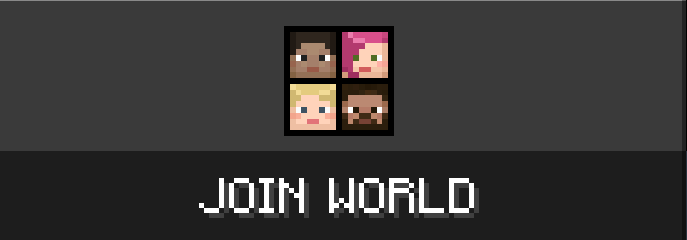
- They choose Join World and enter the join code you provide.
- Once they enter the code, they automatically join your world.
By following these steps, you host a Minecraft Education world and allow your students to collaborate in a shared environment.
Deeper dive
When you finish setting up your multiplayer game, be sure to check out the build challenges and other lessons in the Minecraft Education library for activities MSAs can play together.