Nóta
Teastaíonn údarú chun rochtain a fháil ar an leathanach seo. Is féidir leat triail a bhaint as shíniú isteach nó eolairí a athrú.
Teastaíonn údarú chun rochtain a fháil ar an leathanach seo. Is féidir leat triail a bhaint as eolairí a athrú.
Data lineage shows where data in Azure Databricks came from and where it goes: which queries and files populate a table, which jobs and notebooks transform it, and which dashboards consume the results.
Unity Catalog captures lineage automatically for queries run on Azure Databricks, down to the column level, and aggregates it across all workspaces attached to the metastore. Lineage in Unity Catalog lets you:
- Perform impact analysis: Before changing or deleting a table or column, identify the downstream tables, jobs, and dashboards that depend on it.
- Investigate root causes: When a downstream report shows unexpected results, trace upstream sources to find where the data diverged.
- Track sensitive data flow: For compliance audits, see where regulated data originates, how it is transformed, and which downstream assets consume it.
- Understand cross-team dependencies: Discover which teams own the upstream sources you rely on, or which teams consume your tables.
External lineage (Public Preview) extends the lineage graph beyond Azure Databricks. Register upstream sources like Salesforce or MySQL and downstream tools like Tableau or Power BI as external assets in Unity Catalog, and they appear alongside your Unity Catalog tables in a single graph. See Bring your own data lineage.
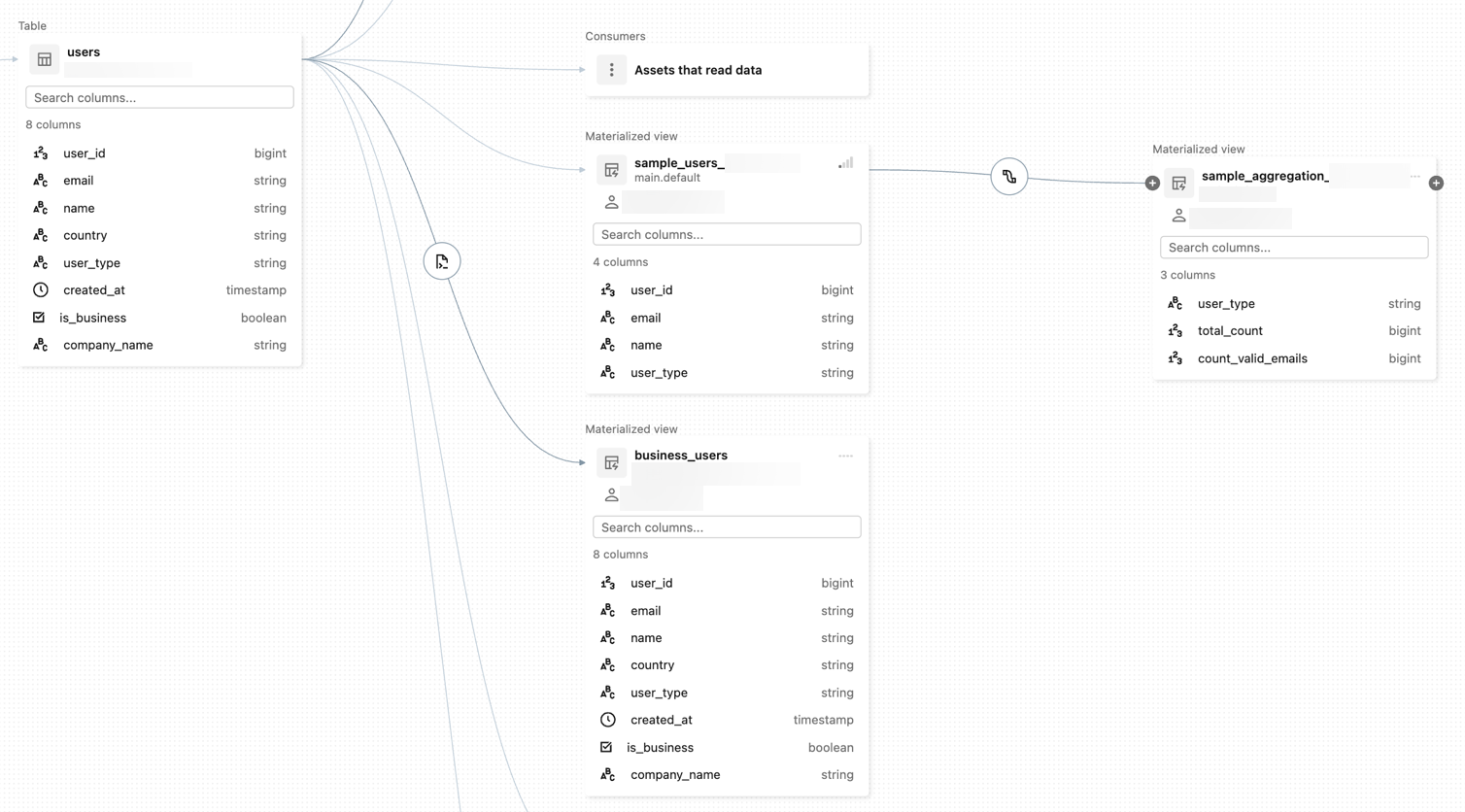
The following image is a sample lineage graph. Nodes can represent tables and views, ML model versions, external assets, and file paths.
Requirements
To capture data lineage using Unity Catalog:
- Tables must be registered in a Unity Catalog metastore.
- External assets (those not registered in the Unity Catalog metastore) must be added as external metadata objects in Unity Catalog, configured to have relationships with other securable objects registered in your Unity Catalog metastore. See Bring your own data lineage.
- Queries must use the Spark DataFrame (for example, Spark SQL functions that return a DataFrame) or Databricks SQL interfaces such as notebooks or the SQL query editor.
To view data lineage:
- You must have at least the
BROWSEprivilege on the parent catalog of the table or view. The parent catalog must also be accessible from the workspace. See Workspace-catalog binding. - For notebooks, jobs, or dashboards, you must have permissions on these objects as defined by the access control settings in the workspace. For details, see Permissions.
- For a Unity Catalog-enabled pipeline, you must have CAN VIEW permission on the pipeline.
Compute requirements:
- Lineage tracking of streaming between Delta tables requires Databricks Runtime 11.3 LTS or above.
- Column lineage tracking for Lakeflow Spark Declarative Pipelines workloads requires Databricks Runtime 13.3 LTS or above.
Networking requirements:
- You might need to update your outbound firewall rules to allow for connectivity to the Event Hubs endpoint in the Azure Databricks control plane. Typically this applies if your Azure Databricks workspace is deployed in your own VNet (also known as VNet injection). To get the Event Hubs endpoint for your workspace region, see Metastore, artifact Blob storage, system tables storage, log Blob storage, and Event Hubs endpoint IP addresses. For information about setting up user-defined routes (UDR) for Azure Databricks, see User-defined route settings for Azure Databricks.
View lineage in Catalog Explorer
To use Catalog Explorer to view table lineage:
In your Azure Databricks workspace, click
 Catalog.
Search or browse for your table.
Select the Lineage tab. The lineage panel appears and displays related tables.
To view an interactive graph of the data lineage, click See Lineage Graph.
By default, one level is displayed in the graph. Click the
 icon on a node to reveal more connections if they are available.
Click the icon on a connecting edge in the lineage graph to open the Lineage details panel.
The Lineage details panel shows details about the connection, including source and target tables.
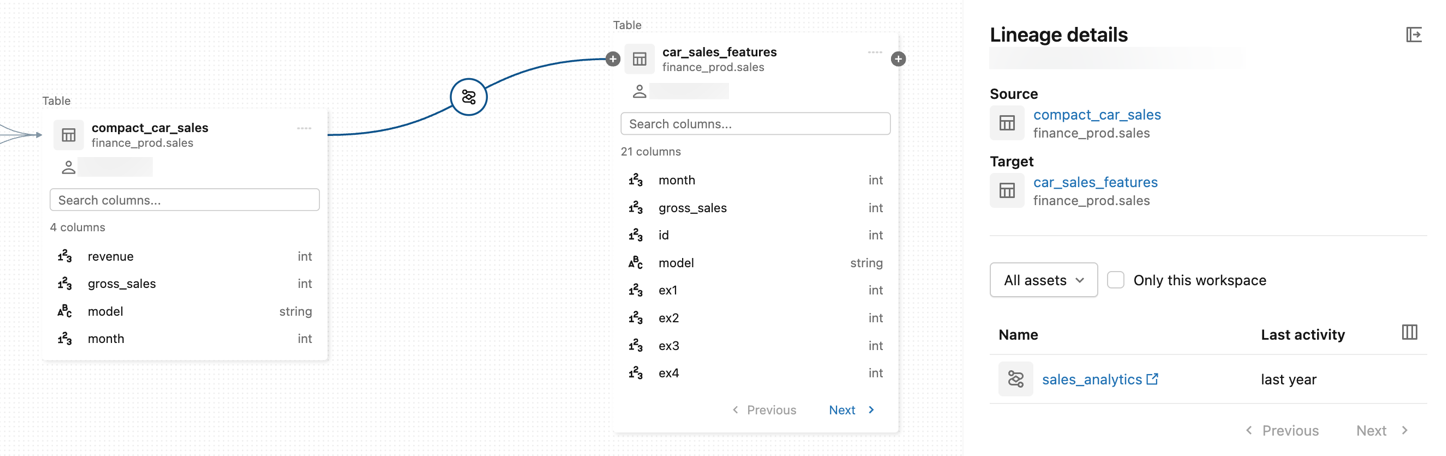
To view an asset associated with a table, select the asset in the Lineage details panel. You can filter by notebooks, jobs, pipelines, and queries.
To view column-level lineage, click a column in the graph to show links to related columns. For example, clicking on the
revenuecolumn in this sample graph shows the upstream columns from which the column was derived: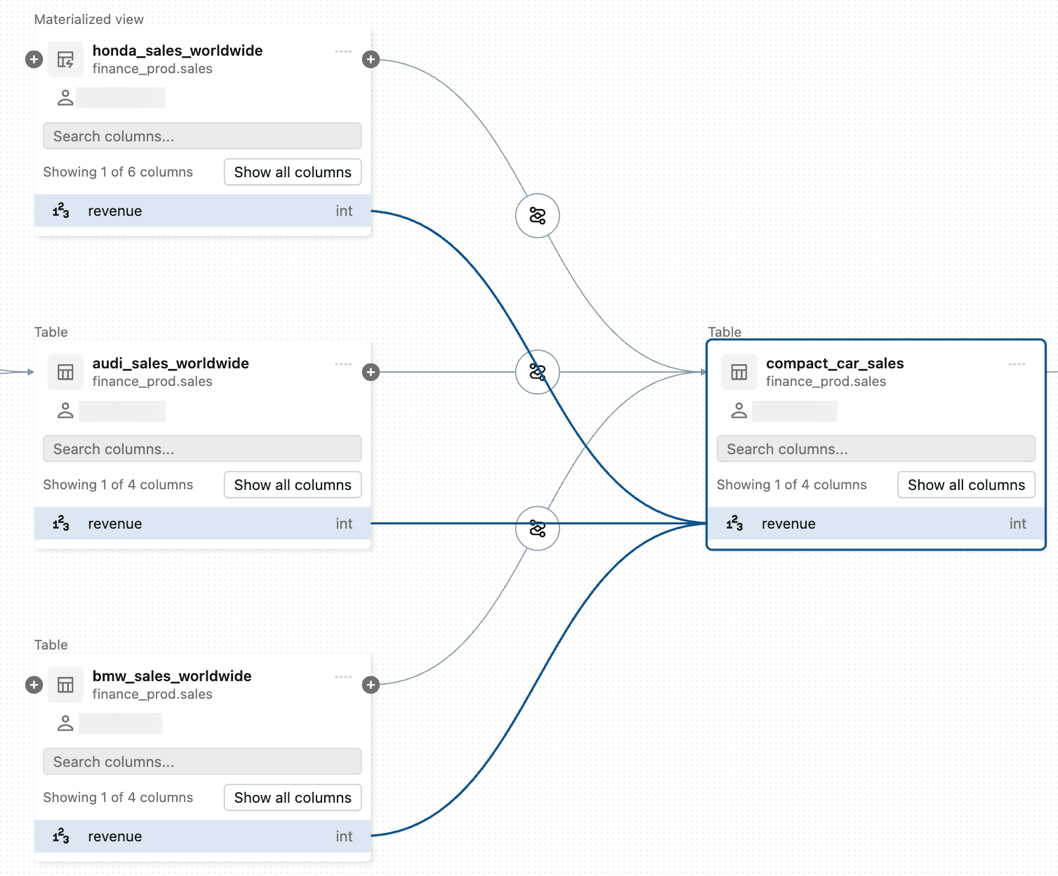
View job lineage
To view job lineage, go to a table's Lineage tab, select Jobs, and select Downstream. The job name appears under Job Name as a consumer of the table.
View dashboard lineage
To view dashboard lineage, go to a table's Lineage tab and click Dashboards. The dashboard appears under Dashboard Name as a consumer of the table.
Get lineage using Genie Code
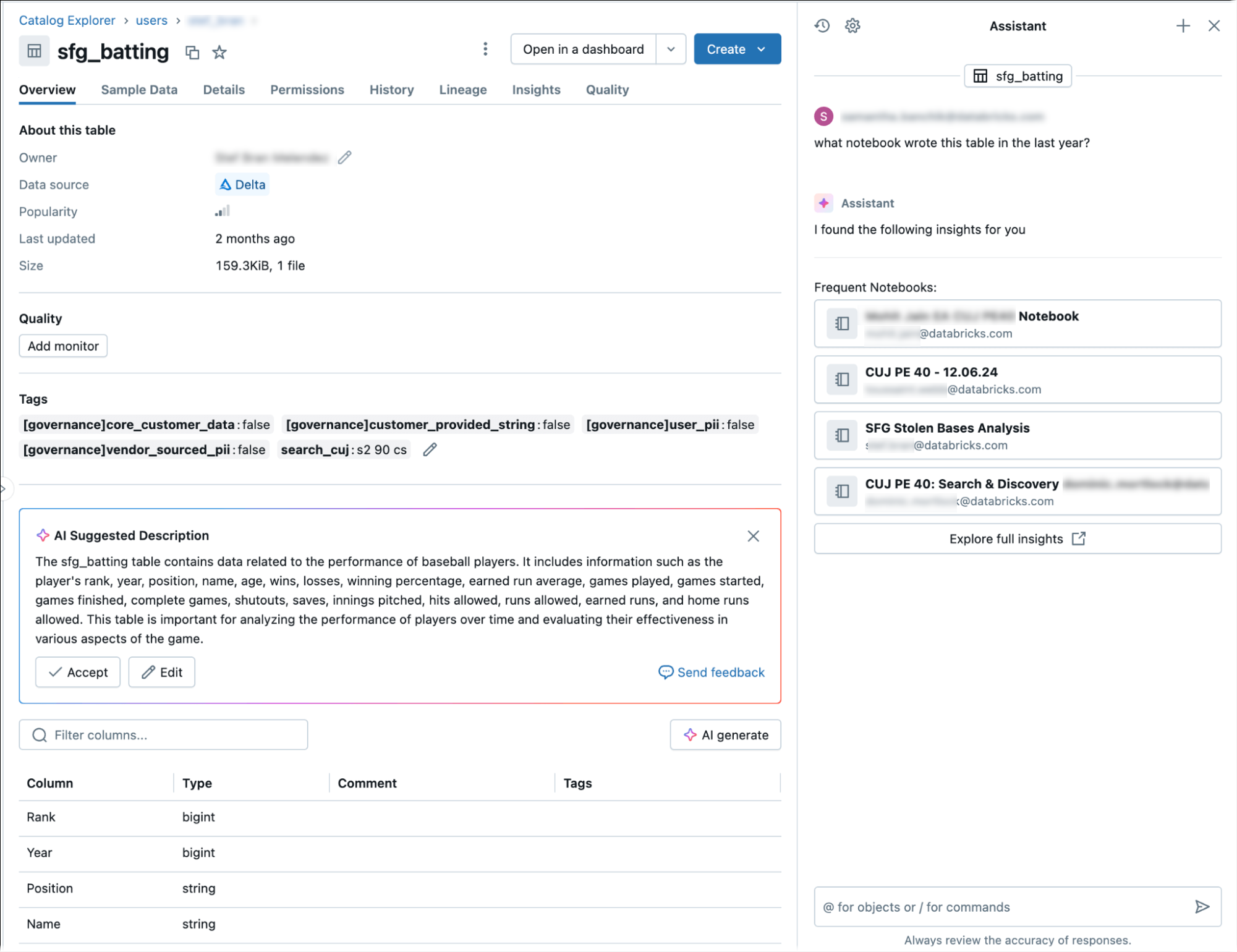
Genie Code can answer lineage questions in natural language.
To get lineage information using Genie Code:
- In the workspace sidebar, click Catalog.
- Browse or search for the catalog, click the catalog name, and then click the
 Genie Code icon in the upper-right corner.
 - At the Genie Code prompt, type:
/getTableLineagesto view upstream and downstream dependencies./getTableInsightsto access metadata-driven insights, such as user activity and query patterns.
These queries enable Genie Code to answer questions like "show me downstream lineages" or "who queries this table most often."
Query lineage with system tables
You can use the lineage system tables to programmatically query lineage data. For detailed instructions, see System tables reference and Lineage system tables reference.
Permissions
Lineage graphs share the same permission model as Unity Catalog. Tables and other data objects registered in the Unity Catalog metastore are visible only to users who have at least BROWSE permissions on those objects. If a user does not have the BROWSE or SELECT privilege on a table, they cannot explore its lineage.
Lineage is aggregated across all workspaces attached to a Unity Catalog metastore, so lineage captured in one workspace is visible in any other workspace that shares that metastore, as long as the user has adequate object permissions. Detailed information about workspace-level objects like notebooks and dashboards in other workspaces is masked. See Limitations.
For example, run the following commands for userA:
GRANT USE SCHEMA on lineage_data.lineagedemo to `userA@company.com`;
GRANT SELECT on lineage_data.lineagedemo.menu to `userA@company.com`;
When userA views the lineage graph for the lineage_data.lineagedemo.menu table, they see the menu table. They cannot see information about associated tables, such as the downstream lineage_data.lineagedemo.dinner table. The dinner table appears as a masked node to userA, and userA cannot expand the graph to reveal downstream tables from tables they do not have permission to access.
If you run the following command to grant the BROWSE permission to userB, that user can view the lineage graph for any table in the lineage_data schema:
GRANT BROWSE on lineage_data to `userB@company.com`;
Lineage users must also have specific permissions to view workspace objects like notebooks, jobs, and dashboards. Detailed information about these objects is visible only in the workspace where they were created.
For more information about managing access to securable objects in Unity Catalog, see Manage privileges in Unity Catalog. For more information about managing access to workspace objects like notebooks, jobs, and dashboards, see Access control lists.
Retention
Lineage data displayed in Catalog Explorer is retained indefinitely. All lineage data captured after September 1, 2024 is available. For metastores created after that date, Catalog Explorer includes an All time option in the lineage time-range dropdown. For older metastores, the dropdown includes an All available option that starts from September 1, 2024. The default selection is 1 year.
Lineage system tables (system.access.table_lineage and system.access.column_lineage) retain a rolling 1-year window of data. See Lineage system tables reference.
Limitations
Data lineage has the following limitations. These limitations also apply to lineage system tables:
- Lineage data captured before September 1, 2024 is not available.
- Jobs that use the Jobs API
runs submitrequest or thespark submittask type are unavailable in lineage views. Table and column level lineage is still captured for these workflows, but the link to the job run is not captured. - Lineage is not preserved for renamed catalogs, schemas, tables, views, or columns.
- If you use Spark SQL dataset checkpointing, lineage is not captured.
- Unity Catalog captures lineage from Lakeflow Spark Declarative Pipelines in most cases, but coverage is incomplete for pipelines that use PRIVATE tables.
- Resilient Distributed Datasets (RDDs) are not captured in lineage.
- Global temp views are not captured in lineage.
- Transactions emit lineage as each read and write occurs. Lineage events persist even if the transaction is rolled back.
- Tables under
system.information_schemaare not captured in lineage. - Unity Catalog captures lineage to the column level as much as possible. However, there are some cases where column-level lineage cannot be captured. These include:
Column lineage cannot be captured if the source or the target is referenced as path (Example:
select * from delta."s3://<bucket>/<path>"). Column lineage is supported only when both the source and target are referenced by table name (Example:select * from <catalog>.<schema>.<table>).Use of user-defined functions (UDFs), which can obscure the mapping between source and target columns.
Additional resources
- Demo: Unity Catalog - Data Lineage
- ML model lineage: To track lineage for a machine learning model, see Track the data lineage of a model in Unity Catalog.
- Table insights: The Insights tab in Catalog Explorer shows usage trends for a table: query patterns, top users, and dashboards that read it. See View frequent queries and users of a table.