Nóta
Teastaíonn údarú chun rochtain a fháil ar an leathanach seo. Is féidir leat triail a bhaint as shíniú isteach nó eolairí a athrú.
Teastaíonn údarú chun rochtain a fháil ar an leathanach seo. Is féidir leat triail a bhaint as eolairí a athrú.
You can access mirrored database table data in Delta format files. This tutorial provides steps to connect to Azure Cosmos DB data directly with Azure Storage Explorer.
Prerequisites
- Complete the tutorial to create a mirrored database from your source database.
- Tutorial: Create a mirrored database from Azure Cosmos DB
- Tutorial: Create a mirrored database from Azure Databricks
- Tutorial: Create a mirrored database from Azure SQL Database
- Tutorial: Create a mirrored database from Azure SQL Managed Instance
- Tutorial: Create a mirrored database from Snowflake
- Tutorial: Create a mirrored database from SQL Server
- Tutorial: Create an open mirrored database
Access OneLake files
- Open the Mirrored Database item and navigate to the SQL analytics endpoint.
- Select the
...dots next to any of the tables. - Select Properties. Select the copy button next to the URL.
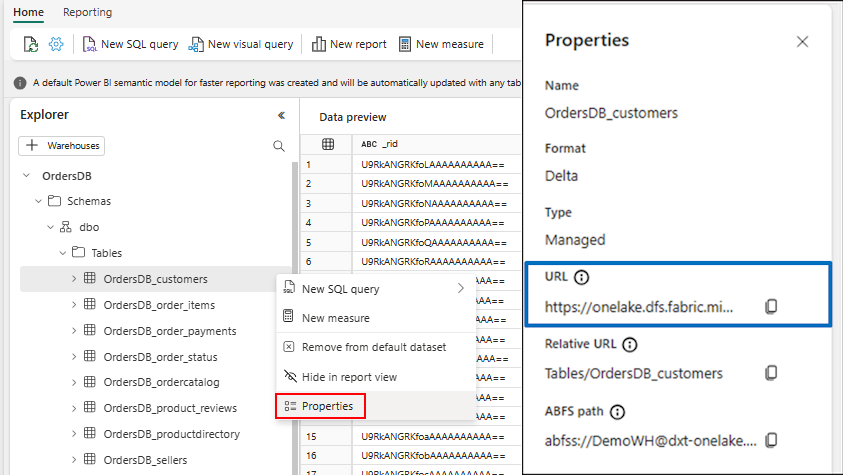
- Open the Azure Storage Explorer desktop application. If you don't have it, download and install Azure Storage Explorer.
- Connect to Azure Storage.
- On the Select Resource page, select Azure Data Lake Storage (ADLS) Gen2 as the resource.
- Select Next.
- On the Select Connection Method page, Sign in using OAuth. If you aren't signed into the subscription, you should do that first with OAuth. And then access ADLS Gen2 resource.
- Select Next.
- On the Enter Connection Info page, provide a Display name.
- Paste the SQL analytics endpoint URL into the box for Blob container or directory URL.
- Select Next.
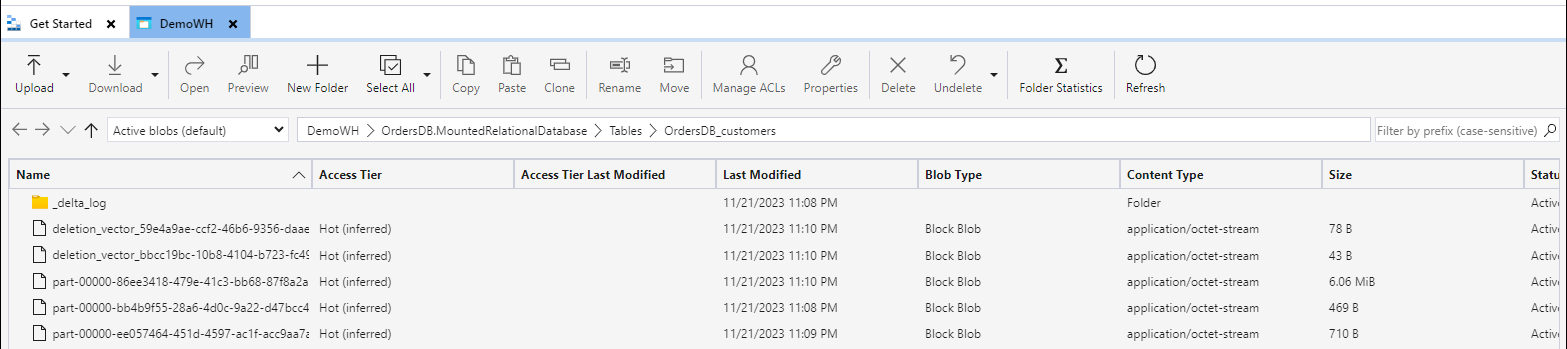
- You can access delta files directly from Azure Storage Explorer.
Tip
More examples: