Note
Access to this page requires authorization. You can try signing in or changing directories.
Access to this page requires authorization. You can try changing directories.
Important
The XBOX PC Toolbox app is in preview. Download it from the Microsoft Store on Windows.
Frequently asked questions
What's the difference between Fully Managed and Lightweight device types?
Choose Fully Managed if you need to manage device configuration or run PowerShell commands remotely. SSH is automatically installed and configured for you during setup.
Choose Lightweight if you only need to deploy, launch, and terminate games on the target device and want a faster setup without SSH.
Both device types use encrypted communication. Fully Managed uses SSH for encryption, while Lightweight uses HTTPS/TLS. The device type you select for your development PC must match the device type on the target device. For example, you can't choose Lightweight on the target device and Fully Managed on the development PC.
| Fully Managed | Lightweight | |
|---|---|---|
| Encryption | SSH | HTTPS/TLS |
| Best for | Full device management and remote iteration | Quick setup for remote iteration |
| Protocol | PowerShell remoting over SSH | HTTPS/TLS |
| Setup | SSH is automatically installed and configured; requires fingerprint acceptance | No SSH setup needed, faster provisioning |
| Remote iteration | Transfer and delete files, deploy and manage games, and run tools | Transfer and delete files, deploy and manage games, and run tools |
| Device management | Sandbox management and PowerShell remoting | Not available |
Where can I find the app version number?
The app version number is displayed in the top-left corner of the XBOX PC Toolbox app. You can also find it in the Settings menu.
What are the known issues, dependencies, and limitations?
XBOX PC Toolbox
Issue: In XBOX PC Toolbox version 1.126.5221.0 and earlier, PowerShell/DSC setup might fail and the app might close unexpectedly during setup.
- Workaround: Update to the latest version of XBOX PC Toolbox. If you can't update, see PowerShell and DSC provisioning fails during setup.
Issue: On domain-joined Windows Pro target devices, Fully Managed mode supports only password-based authentication for OpenSSH connections. Key-based authentication isn't available.
- Workaround: Use Lightweight provisioning.
Issue: Setting up a fully managed remote device may fail with this error:
Windows capability 'OpenSSH.Server~~~~0.0.1.0' did not reach desired Ensure 'Present'.This error could be caused by a pending Windows Update reboot on the PC.- Workaround: Reboot the PC and re-run XBOX PC Toolbox setup to resolve this issue.
XBOX PC Remote Iteration APIs and Command Line Tools
Issue: Concurrent copy or deployment operations targeting the same device are not supported and may result in incomplete or zero-byte files, even when the operation reports success.
- Workaround: Run file copy and deployment operations sequentially when targeting the same device.
Issue: Running
wdRemote run /asAdminrequires administrator approval on the target device. A Windows elevation prompt is displayed on the target machine, making this scenario unsuitable for unattended or CI/CD workflows. If elevation is declined,wdRemotemay return error0x800704C7, which may not clearly indicate that the elevation request was rejected.- Workaround: Ensure a user is available to approve the elevation prompt, or avoid
/asAdminin unattended scenarios.
- Workaround: Ensure a user is available to approve the elevation prompt, or avoid
Issue: Cancelling a remote delete operation may return control to the client before deletion has fully stopped on the target device. As a result, some selected files may continue to be deleted after cancellation is requested.
- Workaround: Verify the deletion state on the target device before proceeding with subsequent operations.
Issue: If a
wdRemote deployoperation is interrupted, a partially written file may remain at the target location under its final filename.- Workaround: Re-run the deployment before using the deployed content. The deployment process will detect and replace incomplete files during the retry.
XBOX PC Remote Debugger
Issue: The XBOX PC Remote Debugger hasn't been optimized for performance. Debugging might be slower than local debugging.
- Workaround: No workaround is currently available. Debugger performance will be improved in a future release.
Issue: The XBOX PC Remote Debugger might stop responding after approximately 50 debugging iterations.
- Workaround: Restart the target device, and then restart the debugger session.
Dependencies and limitations
- Both devices need internet access during setup.
- Devices must be on the same local network and able to ping each other.
- The XBOX PC Toolbox app is only available in the RETAIL sandbox. Ensure devices are in RETAIL mode to download from the Microsoft Store.
- Supported devices: Windows 10 or Windows 11, Home, or Pro editions.
- Physical access to both devices is required during setup.
- Administrator access is required on both devices for setup.
- Microsoft Entra ID–joined target devices are supported via Lightweight provisioning only. Fully Managed isn't available for Entra-joined devices. The app automatically detects this and disables the Fully Managed option during setup.
Does unpairing from my development PC fully disconnect the device?
No. Unpairing from the development PC only removes the device from your local workspace. It doesn't clear the SSH keys on the remote target device. To fully disconnect, unpair from the remote target device. This action removes the SSH keys on both devices and ensures a clean disconnection.
How do I find device connection information?
After you pair the target device with XBOX PC Toolbox, connection details appear on the Testing Device screen.
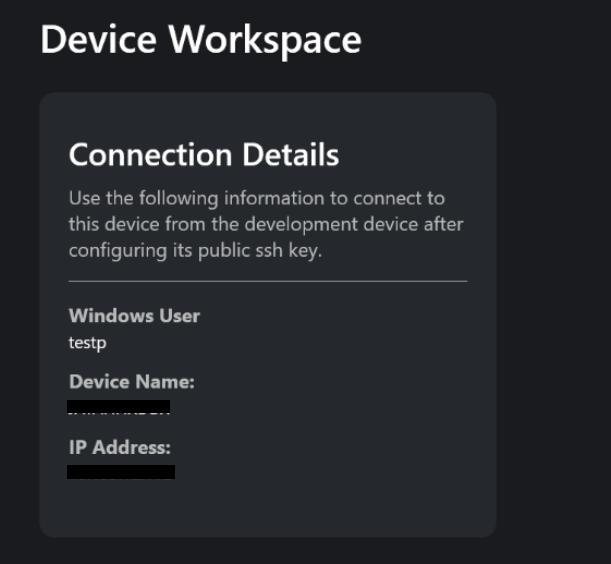
Alternatively, use PowerShell on the target device.
# Open a PowerShell 7 terminal
$env:ComputerName  # Device name
$env:Username      # Username
ipconfig           # IP address
How do I verify configuration changes on devices?
Important
The DSC verification steps in this section apply to XBOX PC Toolbox version 1.126.5221.0 and earlier. Update to the latest version of XBOX PC Toolbox to avoid DSC-related configuration issues.
Use Device State Configuration (DSC) and PowerShell to test configurations.
# Open a PowerShell 7 terminal on the DevPC
dsc config test -f "$env:LOCALAPPDATA\XboxPCDeviceManager\config\devPC.dsc.yaml"

# Network (usable on either device)
dsc config test -f "$env:LOCALAPPDATA\XboxPCDeviceManager\config\network.dsc.yaml"
# Open a PowerShell 7 terminal on TargetDevice
dsc config test -f "$env:LOCALAPPDATA\XboxPCDeviceManager\config\targetDevice.dsc.yaml"
You can also check configuration changes in Windows Settings for each device.
How do I verify and change the sandbox?
Set your sandbox to RETAIL for tool functionality. To check the current configuration, run:
xblpcsandbox /get
If the configuration isn't set to RETAIL, switch it by running:
XblPCSandbox.exe RETAIL
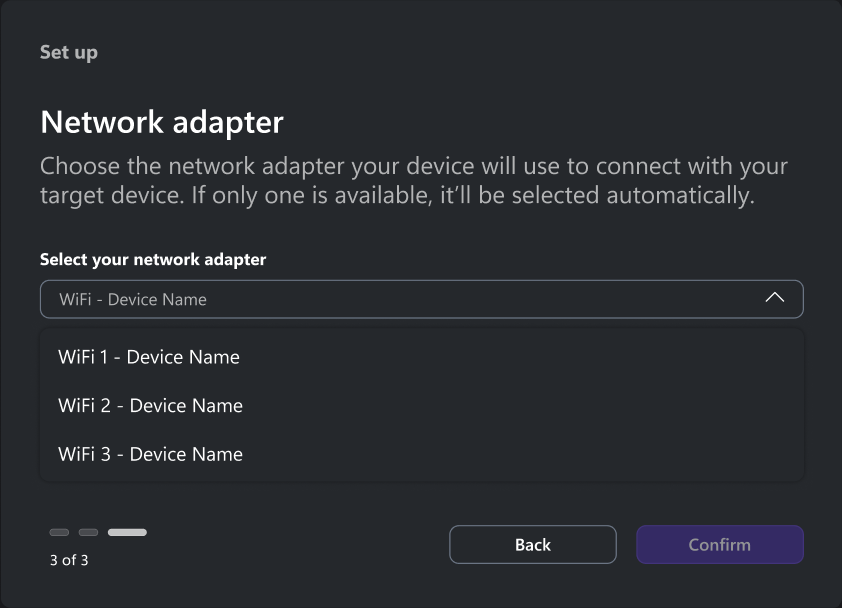
How do I select a specific network adapter for secure channel setup?
During setup, XBOX PC Toolbox lets you choose the network adapter.
How can I report a problem?
From the XBOX PC Toolbox title bar, select Send Feedback. Then select Report a Problem.

Include the following details:
- Operating System version (Windows 10/11 build)
- PowerShell version (
$PSVersionTable) forMicrosoft.XboxPC.DeviceManagerissues - Network configuration (Wi-Fi/Ethernet, corporate/home)
- Error messages (exact text)
- Steps to reproduce
- Which tool was being used (XBOX PC Toolbox,
Microsoft.XboxPC.DeviceManager,wdRemote, orwdEndpoint) - Preview version
What's the difference between Microsoft.XboxPC.DeviceManager (XDM) and wdRemote/wdEndpoint?
- XDM: Sets up secure communication channels.
wdRemote/wdEndpoint: Transfers and deletes files, deploys and manages games, and runs tools over those channels.
Do I need both XDM and wdRemote/wdEndpoint?
Yes. Use XDM to establish the connection, then use wdRemote/wdEndpoint for file management, game deployment and execution, and remote tool execution.
Why run wdEndpoint as administrator the first time?
The first time you run wdEndpoint, you need administrator access to create and store certificates and bind the HTTPS URL. Subsequent runs don't require elevation.
Can I deploy multiple games to the same target device?
Yes. Deploy games to different directories and launch them as needed.
What happens if the network connection drops during deployment?
wdRemote shows an error. After restoring connectivity, retry the deployment command.
Is all communication encrypted?
Yes. All communication between the development PC and target device is encrypted.
Which tool should I use for each task?
- XBOX PC Toolbox: Use it to provision and acquire devices remotely, set up secure channels, install dependencies, and configure devices.
- Test connectivity: Use XBOX PC Toolbox before deploying games.
- Remote sessions: Use XDM-enabled remote sessions and PowerShell remoting to execute commands on the target device.
wdRemote/wdEndpoint: Use these tools to transfer and delete files, deploy and manage games, and run remote tools.
Can I use these tools with any Windows game?
Yes. These tools work with any Windows executable, not just Microsoft Game Development Kit (GDK) games.
Can I use the XBOX PC Remote Tools directly from the Unity or Unreal Editor?
Yes. Both engines integrate the XBOX PC Remote Tools, so you can build, deploy, and launch on a paired target device from the editor without generating a Visual Studio project. In both cases, install the XBOX PC Toolbox on your development machine and the target device and pair them first, as described in the XBOX PC Remote Tools quickstart guide.
Unity 6000.5 or later: Select XBOX PC Remote Tools in the Build and Run on dropdown of your Windows build profile, and then enter the target device name or IP address. For more information, see Test your game remotely via XBOX PC Remote Tools in the Unity getting started guide.
Unreal Engine 5.8 or later: Register the paired device in your engine configuration, and then select it from the Launch On menu in the editor toolbar, or pass
-deploy -run -device=<DeviceName>toRunUAT BuildCookRun. This feature also supports Windows on Arm64 targets. For more information, see Test your game remotely via XBOX PC Remote Tools in the Unreal Engine getting started guide.
What network ports do these tools use?
- XDM: SSH (port 22)
wdEndpoint: HTTPS (port 4275)
Troubleshooting Guide
Pairing fails in a corporate network environment
If you're on a corporate network and devices fail to pair or communicate:
- Verify that both devices are visible to each other on the network. Corporate firewalls or network segmentation might block device-to-device communication.
- Ensure the following ports are open between the devices: port 22 (OpenSSH) and port 4275 (Remote Iteration tools).
- Disconnect from any VPN before attempting to pair or connect.
- If your organization requires device registration, confirm your device is registered according to your IT policies.
Error installing required tools
If you receive errors installing Microsoft.XboxPC.DeviceManager, Microsoft.PowerShell.*, or Microsoft.Windows.Developer modules:
- Workaround: Delete the module directories from
%onedrive%/Documents/PowerShell/Modules/and try again. - Cause: OneDrive can interfere with PowerShell module installation.
PowerShell and DSC provisioning fails during setup
Important
This guidance applies to XBOX PC Toolbox version 1.126.5221.0 and earlier. Update to the latest version of XBOX PC Toolbox to avoid DSC-related setup issues.
If setup fails while installing PowerShell/DSC components or XBOX PC Toolbox closes during setup:
- Open an elevated terminal and run:
winget uninstall Microsoft.PowerShell
winget uninstall Microsoft.DSC
winget install Microsoft.PowerShell --installer-type wix
winget install Microsoft.DSC --installer-type zip
- If setup hangs while installing DSC after these steps, restart XBOX PC Toolbox and try again.
OpenSSH error: kex_exchange_identification: read: Connection reset
- Restart the target device.
- Ensure the device is on a private network profile; otherwise, the firewall might block the connection.
- Check for a corrupted
known_hostsfile on your local device.
Note
This is an OpenSSH-specific issue unrelated to the XBOX PC Toolbox app.
winget Microsoft PowerShell 7.5 installation fails (0x8A150049)
- Workaround: Uninstall PowerShell 7.6 (included with Visual Studio 2026). The newer version causes installation conflicts.
Running winget over SSH fails after pairing
If winget commands fail after pairing a device by using Connect:
- Workaround: Run
Repair-WinGetPackageManageron the target device, or reboot the target device. - Cause: This problem occurs over SSH connections.
Game deployment fails on handheld devices
If game deployment fails on handheld devices that go to sleep during deployment:
- Workaround: Adjust the power settings on the target device to prevent it from going to sleep during deployment. Ensure the device's sleep timer is set to a longer duration or disabled while deploying.
- Cause: The XBOX PC Toolbox no longer manages device power settings via DSC. On handheld devices with aggressive sleep timers, the device goes to sleep mid-deployment, causing
wdRemoteto fail.
Pairing shows success on the remote target device but SSH connection fails on the development PC
If the remote target device shows pairing was successful but the development PC fails to complete SSH setup, check the following:
Verify the OpenSSH server is running on the remote target device:
Get-Service sshd
If the service is stopped, restart it:
Restart-Service sshd
If the service isn't running, the development PC can't establish an SSH connection to the remote target device.
Check if the ssh-agent on the development PC is offering stale keys:
Test by bypassing the ssh-agent:
ssh -o IdentitiesOnly=yes -i "$env:USERPROFILE\.ssh\XboxPCDeviceManagerKey" -o PreferredAuthentications=publickey user@target-ip "echo SUCCESS"
- If this command succeeds, the ssh-agent is caching wrong keys. Follow the steps below to fix it.
- If this command fails, the issue is on the remote target device side. To diagnose further, see How to collect OpenSSH logs.
To fix the ssh-agent:
# Clear all cached keys
ssh-add -D

# Restart the agent service
Restart-Service ssh-agent

# Re-add only the correct key
ssh-add "$env:USERPROFILE\.ssh\XboxPCDeviceManagerKey"

# Verify only your key is loaded
ssh-add -l

# Test the connection
ssh -o PreferredAuthentications=publickey user@target-ip "echo SUCCESS"
How to collect OpenSSH logs
If you encounter connection problems related to OpenSSH, enable verbose logging to help diagnose the problem.
Open Notepad as an administrator.
Open the file
C:\ProgramData\ssh\sshd_config.Note
If the file doesn't appear in Notepad, change the file filter from Text Documents (*.txt) to All Files (.).
Find the section that starts with
# Loggingand change:# Logging #SyslogFacility AUTH #LogLevel INFOto:
# Logging
SyslogFacility LOCAL0
LogLevel Debug3
Open a PowerShell terminal as an administrator and restart the SSH service:
net stop sshd
net start sshd
Reproduce the issue in the XBOX PC Toolbox app.
Collect the logs from
C:\ProgramData\ssh\logs. Compress the folder into a .zip file to share with the development team.After collecting logs, revert the changes made in step 3 (add
#back to the beginning of each line) and restart the SSH service again using step 4.