Note
Access to this page requires authorization. You can try signing in or changing directories.
Access to this page requires authorization. You can try changing directories.
Intune supports the enrollment of iOS/iPadOS devices using Apple Configurator running on a Mac computer. This procedure differs from what's shown in the Apple Configurator enrollment process because it only enrolls devices without user affinity. Enrolling with Apple Configurator requires that you USB-connect each iOS/iPadOS device to a Mac computer to set up corporate enrollment.
You can enroll devices into Intune as a userless device with Apple Configurator by direct enrollment. This method doesn't wipe the device, and enrolls the device through iOS/iPadOS settings. This method only supports devices with no user affinity.
This article describes how to set up iOS/iPadOS device management and enroll userless devices for use at work.
Certificates
Important
Downloading the ACME profile is not supported at this time and will result in an error. Download the SCEP profile for all devices only until we fix this problem and restore support.
Apple Configurator enrollment supports the Automated Certificate Management Environment (ACME) protocol. When new devices enroll, the management profile on the device receives an ACME certificate. The ACME protocol provides better protection than the SCEP protocol against unauthorized certificate issuance through robust validation mechanisms and automated processes, which helps reduce errors in certificate management.
Devices that are already enrolled do not get an ACME certificate unless they re-enroll into Microsoft Intune. ACME is supported on devices running:
iOS 16.0 or later
iPadOS 16.1 or later
Prerequisites
 Device platform requirements
This enrollment method supports the following platforms:
- iOS/iPadOS
 Tenant configuration requirements
You also need:
- Physical access to iOS/iPadOS devices
- Device serial numbers (Setup Assistant enrollment only)
- USB connection cables
- macOS computer running Apple Configurator 2.0
Create an Apple Configurator profile for devices
A device enrollment policy defines the settings applied during enrollment. These settings are applied only once. Follow these steps to create an enrollment policy to enroll iOS/iPadOS devices with Apple Configurator.
Sign in to the Microsoft Intune admin center.
Go to Devices.
Expand Device onboarding, and then select Enrollment.
Select the Apple tab.
Under Bulk Enrollment Methods, select Apple Configurator.
Go to Profiles > Create.
Under Create Enrollment Policy, on the Basics tab, type a Name and Description for the profile. Users don't see these details. You can use the name to create a dynamic group in Microsoft Entra ID. Use the profile name to define the enrollmentProfileName parameter to assign devices with this enrollment policy. For more information about how to create a dynamic group with rules, see Create a group membership rule.

Select Next to go to the Settings page.
For User Affinity, choose whether devices with this profile must enroll with or without an assigned user.
- Enroll without User Affinity - Choose this option for devices unaffiliated with a single user and enroll as a userless device. Use this for devices that perform tasks without accessing local user data. Apps requiring user affiliation (including the Company Portal app used for installing line-of-business apps) won't work. Required for direct enrollment.
Choose Create to save the profile.
Create a device group
You can create assigned device groups or dynamic device groups in Intune. For more information about both groups, see Add groups to organize users and devices.
Dynamic device groups are configured to automatically add and remove devices based on a set of rules and parameters. For example, you can group devices by enrollment policy name.
Complete the following steps to create a dynamic Microsoft Entra device group for devices enrolled with an Apple corporate-owned, userless enrollment policy.
In the Microsoft Intune admin center, go to Groups > All groups > New group.
Enter the required fields as follows:
- Group type: Security
- Group name: Type an intuitive name (like Factory 1 devices)
- Membership type: Dynamic device
Choose Add dynamic query.
In the Dynamic membership rules blade, fill out the fields as follows:
- Add dynamic membership rule: Simple rule
- Add devices where: enrollmentProfileName
- In the middle box, choose Equals.
- In the last field, enter the enrollment policy name that you created in Create an Apple Configurator profile for devices.
For more information about dynamic membership rules, see Dynamic membership rules for groups in Microsoft Entra ID.
Choose Add query > Create.
Export the profile as .mobileconfig to iOS/iPadOS devices
In the Microsoft Intune admin center, go to Devices.
Expand Device onboarding, and then select Enrollment.
Select the Apple tab.
Under Bulk Enrollment Methods, select Apple Configurator.
Go to Profiles. Choose a profile to export.
- Choose either the SCEP or the ACME profile based on your operating system.
Select Export Profile.
Copy the Profile URL. You can then add it in Apple Configurator to define the Intune profile used by iOS/iPadOS devices.
Under Direct enrollment, choose Download profile, and save the file. An enrollment policy file is only valid for two weeks at which time you must re-create it.
Transfer the file to a Mac computer running Apple Configurator to push directly as a management profile to iOS/iPadOS devices.
Prepare the device with Apple Configurator by using the following steps:
On a Mac computer, open Apple Configurator 2.0.
Connect the iOS/iPadOS device to the Mac computer with a USB cord. Close Photos, iTunes, and other apps that open for the device when the device is detected.
In Apple Configurator, choose the connected iOS/iPadOS device, and then choose the Add button. Options that can be added to the device appear in the drop-down list. Choose Profiles.
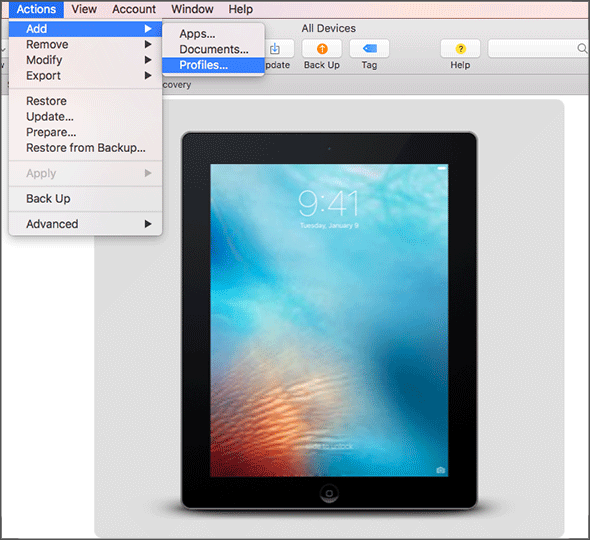
Use the file picker to select the .mobileconfig file that you exported from Intune, and then choose Add. The profile is added to the device. If the device is Unsupervised, the installation requires acceptance on the device.
Use the following steps to install the profile on the iOS/iPadOS device. The device must have already completed the Setup Assistant and be ready to use. If enrollment entails app deployments, the device should have an Apple ID set up because the app deployment requires that you have an Apple ID signed in for the App Store.
- Unlock the iOS/iPadOS device.
- In the Install profile dialog box for Management profile, choose Install.
- Provide the Device Passcode or Apple ID, if necessary.
- Accept the Warning and choose Install.
- Accept the Remote Warning and choose Trust.
- When the Profile Installed box confirms the profile as Installed, choose Done.
On the iOS/iPadOS device, open Settings and go to General > Device Management > Management Profile. Confirm that the profile installation is listed, and check the iOS/iPadOS policy restrictions and installed apps. Policy restrictions and apps might take up to 10 minutes to appear on the device.
Distribute devices. The iOS/iPadOS device is now enrolled in Intune and managed.
After enrollment
App updates
The Microsoft Intune app automatically installs available app updates for itself, Authenticator, and Company Portal. When an update becomes available, the Intune app closes and installs the update. The app must be closed completely to install the update.
Manage devices remotely
The following remote actions are available for Apple devices:
- Retire
- Wipe
- Delete
- Remote lock
- Sync
- Remove passcode
- Revoke licenses
You can take action on one device at a time. For more information about where to find remote actions in Intune, see Remove devices by using wipe, retire, or manually unenrolling the device.
Troubleshooting + Support
Go to Troubleshooting + Support in the Microsoft Intune admin center to:
- See a list of iOS/iPadOS devices enrolled by a user.
- Enable troubleshooting of Apple devices the same way you can troubleshoot other user devices.
Known limitations
The ACME profile can sometimes fail to install on iOS/iPadOS 16 or later even though this is correct operating system. If this happens, use the SCEP profile instead. Follow steps from Export the profile as .mobileconfig to iOS/iPadOS devices to install the SCEP profile onto your device. If it fails to install once, retry until installation is successful.
Next steps
- Create an iOS/iPadOS MDM app configuration policy to restrict settings on devices with specific users.
- For information about enrolling macOS devices via direct enrollment with Apple Configurator, see Use Direct Enrollment for macOS devices.