Nota
L'accesso a questa pagina richiede l'autorizzazione. Puoi provare ad accedere o a cambiare directory.
L'accesso a questa pagina richiede l'autorizzazione. Puoi provare a cambiare directory.
Questo articolo illustra come creare una rete di blocchi di flussi di dati che eseguono l'elaborazione di immagini in un'applicazione Windows Form.
In questo esempio vengono caricati i file di immagine dalla cartella specificata, viene creata un'immagine composita e viene visualizzato il risultato. Nell'esempio viene usato il modello di flusso di dati per instradare le immagini attraverso la rete. Nel modello del flusso di dati, i componenti indipendenti di un programma di comunicano tra loro mediante l'invio di messaggi. Quando un componente riceve un messaggio, esegue un'azione e quindi passa il risultato a un altro componente. Confrontarlo con il modello di flusso di controllo, in cui un'applicazione usa strutture di controllo, ad esempio istruzioni condizionali, cicli e così via, per controllare l'ordine delle operazioni in un programma.
Prerequisiti
Leggere Flusso di dati prima di iniziare questa procedura dettagliata.
Annotazioni
La libreria di flussi di dati TPL (il namespace System.Threading.Tasks.Dataflow) è inclusa in .NET 6 e versioni successive. Per i progetti .NET Framework e .NET Standard, è necessario installare il 📦 pacchetto NuGet System.Threading.Tasks.Dataflow.
Sezioni
Questa procedura dettagliata contiene le sezioni seguenti:
Creazione dell'applicazione Windows Form
In questa sezione viene descritto come creare l'applicazione Windows Form di base e aggiungere controlli al form principale.
Per creare l'applicazione Windows Form
In Visual Studio creare un progetto Visual C# o Visual Basic Windows Forms Application . In questo documento il progetto è denominato
CompositeImages.Nella finestra di progettazione del modulo principale Form1.cs (Form1.vb per Visual Basic), aggiungere un controllo ToolStrip.
Aggiungi il controllo ToolStripButton al controllo ToolStrip. Impostare la DisplayStyle proprietà su Text e la Text proprietà su Scegli cartella.
Aggiungere un secondo ToolStripButton controllo al ToolStrip controllo . Impostare la DisplayStyle proprietà su Text, la Text proprietà su Cancel e la Enabled proprietà su
False.Aggiungere un PictureBox oggetto al form principale. Impostare la proprietà Dock su Fill.
Creazione della rete del flusso di dati
Questa sezione descrive come creare la rete del flusso di dati che esegue l'elaborazione delle immagini.
Per creare la rete del flusso di dati
Aggiungere un riferimento a System.Threading.Tasks.Dataflow.dll al progetto.
Assicurarsi che Form1.cs (Form1.vb per Visual Basic) contenga le istruzioni seguenti
using(Usingin Visual Basic):using System; using System.Collections.Generic; using System.Drawing; using System.Drawing.Imaging; using System.IO; using System.Linq; using System.Threading; using System.Threading.Tasks; using System.Threading.Tasks.Dataflow; using System.Windows.Forms;Aggiungere i membri dati seguenti alla
Form1classe :// The head of the dataflow network. ITargetBlock<string> headBlock = null; // Enables the user interface to signal cancellation to the network. CancellationTokenSource cancellationTokenSource;Aggiungere il metodo seguente,
CreateImageProcessingNetwork, allaForm1classe . Questo metodo crea la rete di elaborazione delle immagini.// Creates the image processing dataflow network and returns the // head node of the network. ITargetBlock<string> CreateImageProcessingNetwork() { // // Create the dataflow blocks that form the network. // // Create a dataflow block that takes a folder path as input // and returns a collection of Bitmap objects. var loadBitmaps = new TransformBlock<string, IEnumerable<Bitmap>>(path => { try { return LoadBitmaps(path); } catch (OperationCanceledException) { // Handle cancellation by passing the empty collection // to the next stage of the network. return Enumerable.Empty<Bitmap>(); } }); // Create a dataflow block that takes a collection of Bitmap objects // and returns a single composite bitmap. var createCompositeBitmap = new TransformBlock<IEnumerable<Bitmap>, Bitmap>(bitmaps => { try { return CreateCompositeBitmap(bitmaps); } catch (OperationCanceledException) { // Handle cancellation by passing null to the next stage // of the network. return null; } }); // Create a dataflow block that displays the provided bitmap on the form. var displayCompositeBitmap = new ActionBlock<Bitmap>(bitmap => { // Display the bitmap. pictureBox1.SizeMode = PictureBoxSizeMode.StretchImage; pictureBox1.Image = bitmap; // Enable the user to select another folder. toolStripButton1.Enabled = true; toolStripButton2.Enabled = false; Cursor = DefaultCursor; }, // Specify a task scheduler from the current synchronization context // so that the action runs on the UI thread. new ExecutionDataflowBlockOptions { TaskScheduler = TaskScheduler.FromCurrentSynchronizationContext() }); // Create a dataflow block that responds to a cancellation request by // displaying an image to indicate that the operation is cancelled and // enables the user to select another folder. var operationCancelled = new ActionBlock<object>(delegate { // Display the error image to indicate that the operation // was cancelled. pictureBox1.SizeMode = PictureBoxSizeMode.CenterImage; pictureBox1.Image = pictureBox1.ErrorImage; // Enable the user to select another folder. toolStripButton1.Enabled = true; toolStripButton2.Enabled = false; Cursor = DefaultCursor; }, // Specify a task scheduler from the current synchronization context // so that the action runs on the UI thread. new ExecutionDataflowBlockOptions { TaskScheduler = TaskScheduler.FromCurrentSynchronizationContext() }); // // Connect the network. // // Link loadBitmaps to createCompositeBitmap. // The provided predicate ensures that createCompositeBitmap accepts the // collection of bitmaps only if that collection has at least one member. loadBitmaps.LinkTo(createCompositeBitmap, bitmaps => bitmaps.Count() > 0); // Also link loadBitmaps to operationCancelled. // When createCompositeBitmap rejects the message, loadBitmaps // offers the message to operationCancelled. // operationCancelled accepts all messages because we do not provide a // predicate. loadBitmaps.LinkTo(operationCancelled); // Link createCompositeBitmap to displayCompositeBitmap. // The provided predicate ensures that displayCompositeBitmap accepts the // bitmap only if it is non-null. createCompositeBitmap.LinkTo(displayCompositeBitmap, bitmap => bitmap != null); // Also link createCompositeBitmap to operationCancelled. // When displayCompositeBitmap rejects the message, createCompositeBitmap // offers the message to operationCancelled. // operationCancelled accepts all messages because we do not provide a // predicate. createCompositeBitmap.LinkTo(operationCancelled); // Return the head of the network. return loadBitmaps; }Implementa il metodo
LoadBitmaps.// Loads all bitmap files that exist at the provided path. IEnumerable<Bitmap> LoadBitmaps(string path) { List<Bitmap> bitmaps = new List<Bitmap>(); // Load a variety of image types. foreach (string bitmapType in new string[] { "*.bmp", "*.gif", "*.jpg", "*.png", "*.tif" }) { // Load each bitmap for the current extension. foreach (string fileName in Directory.GetFiles(path, bitmapType)) { // Throw OperationCanceledException if cancellation is requested. cancellationTokenSource.Token.ThrowIfCancellationRequested(); try { // Add the Bitmap object to the collection. bitmaps.Add(new Bitmap(fileName)); } catch (Exception) { // TODO: A complete application might handle the error. } } } return bitmaps; }Implementa il metodo
CreateCompositeBitmap.// Creates a composite bitmap from the provided collection of Bitmap objects. // This method computes the average color of each pixel among all bitmaps // to create the composite image. Bitmap CreateCompositeBitmap(IEnumerable<Bitmap> bitmaps) { Bitmap[] bitmapArray = bitmaps.ToArray(); // Compute the maximum width and height components of all // bitmaps in the collection. Rectangle largest = new Rectangle(); foreach (var bitmap in bitmapArray) { if (bitmap.Width > largest.Width) largest.Width = bitmap.Width; if (bitmap.Height > largest.Height) largest.Height = bitmap.Height; } // Create a 32-bit Bitmap object with the greatest dimensions. Bitmap result = new Bitmap(largest.Width, largest.Height, PixelFormat.Format32bppArgb); // Lock the result Bitmap. var resultBitmapData = result.LockBits( new Rectangle(new Point(), result.Size), ImageLockMode.WriteOnly, result.PixelFormat); // Lock each source bitmap to create a parallel list of BitmapData objects. var bitmapDataList = (from bitmap in bitmapArray select bitmap.LockBits( new Rectangle(new Point(), bitmap.Size), ImageLockMode.ReadOnly, PixelFormat.Format32bppArgb)) .ToList(); // Compute each column in parallel. Parallel.For(0, largest.Width, new ParallelOptions { CancellationToken = cancellationTokenSource.Token }, i => { // Compute each row. for (int j = 0; j < largest.Height; j++) { // Counts the number of bitmaps whose dimensions // contain the current location. int count = 0; // The sum of all alpha, red, green, and blue components. int a = 0, r = 0, g = 0, b = 0; // For each bitmap, compute the sum of all color components. foreach (var bitmapData in bitmapDataList) { // Ensure that we stay within the bounds of the image. if (bitmapData.Width > i && bitmapData.Height > j) { unsafe { byte* row = (byte*)(bitmapData.Scan0 + (j * bitmapData.Stride)); byte* pix = (byte*)(row + (4 * i)); a += *pix; pix++; r += *pix; pix++; g += *pix; pix++; b += *pix; } count++; } } //prevent divide by zero in bottom right pixelless corner if (count == 0) break; unsafe { // Compute the average of each color component. a /= count; r /= count; g /= count; b /= count; // Set the result pixel. byte* row = (byte*)(resultBitmapData.Scan0 + (j * resultBitmapData.Stride)); byte* pix = (byte*)(row + (4 * i)); *pix = (byte)a; pix++; *pix = (byte)r; pix++; *pix = (byte)g; pix++; *pix = (byte)b; } } }); // Unlock the source bitmaps. for (int i = 0; i < bitmapArray.Length; i++) { bitmapArray[i].UnlockBits(bitmapDataList[i]); } // Unlock the result bitmap. result.UnlockBits(resultBitmapData); // Return the result. return result; }Annotazioni
La versione C# del
CreateCompositeBitmapmetodo usa puntatori per consentire un'elaborazione System.Drawing.Bitmap efficiente degli oggetti. Pertanto, è necessario abilitare l'opzione Consenti codice unsafe nel progetto per usare la parola chiave unsafe . Per altre informazioni su come abilitare il codice unsafe in un progetto Visual C#, vedere Pagina di compilazione, Progettazione progetti (C#).
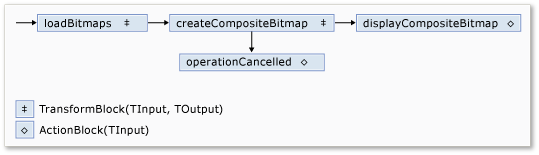
Nella tabella seguente vengono descritti i membri della rete.
| Membro | TIPO | Description |
|---|---|---|
loadBitmaps |
TransformBlock<TInput,TOutput> | Accetta un percorso di cartella come input e produce una raccolta di Bitmap oggetti come output. |
createCompositeBitmap |
TransformBlock<TInput,TOutput> | Accetta una raccolta di Bitmap oggetti come input e produce una bitmap composita come output. |
displayCompositeBitmap |
ActionBlock<TInput> | Visualizza la bitmap composita nel form. |
operationCancelled |
ActionBlock<TInput> | Visualizza un'immagine per indicare che l'operazione viene annullata e consente all'utente di selezionare un'altra cartella. |
Per connettere i blocchi del flusso di dati per formare una rete, in questo esempio viene utilizzato il LinkTo metodo . Il LinkTo metodo contiene una versione sovraccarica che accetta come argomento un oggetto Predicate<T> che determina se il blocco di destinazione accetta o rifiuta un messaggio. Questo meccanismo di filtro consente ai blocchi di messaggi di ricevere solo determinati valori. In questo esempio, la rete può diramarsi in uno dei due modi seguenti. Il ramo principale carica le immagini dal disco, crea l'immagine composita e visualizza tale immagine nel modulo. Il ramo alternativo annulla l'operazione corrente. Gli Predicate<T> oggetti consentono ai blocchi del flusso di dati lungo il ramo principale di passare al ramo alternativo rifiutando determinati messaggi. Ad esempio, se l'utente annulla l'operazione, il blocco createCompositeBitmap del flusso di dati produce null (Nothing in Visual Basic) come output. Il blocco displayCompositeBitmap del flusso di dati rifiuta i null valori di input e pertanto il messaggio viene offerto a operationCancelled. Il blocco operationCancelled del flusso di dati accetta tutti i messaggi e pertanto visualizza un'immagine per indicare che l'operazione è stata annullata.
Nella figura seguente viene illustrata la rete di elaborazione delle immagini:
Poiché i displayCompositeBitmap blocchi di flusso di dati e operationCancelled agiscono sull'interfaccia utente, è importante che queste azioni avvengano nel thread dell'interfaccia utente. A tale scopo, durante la costruzione, questi oggetti forniscono ognuno un ExecutionDataflowBlockOptions oggetto con la TaskScheduler proprietà impostata su TaskScheduler.FromCurrentSynchronizationContext. Il TaskScheduler.FromCurrentSynchronizationContext metodo crea un TaskScheduler oggetto che esegue operazioni sul contesto di sincronizzazione corrente. Poiché il CreateImageProcessingNetwork metodo viene chiamato dal gestore del pulsante Scegli cartella , che viene eseguito nel thread dell'interfaccia utente, le azioni per i blocchi di displayCompositeBitmap flussi di dati e operationCancelled vengono eseguite anche nel thread dell'interfaccia utente.
In questo esempio viene utilizzato un token di annullamento condiviso anziché impostare la CancellationToken proprietà perché la proprietà annulla in modo permanente l'esecuzione CancellationToken del blocco del flusso di dati. Un token di annullamento consente a questo esempio di riutilizzare più volte la stessa rete del flusso di dati, anche quando l'utente annulla una o più operazioni. Per un esempio che usa CancellationToken per annullare in modo permanente l'esecuzione di un blocco di flussi di dati, vedere Procedura: Annullare un blocco di flussi di dati.
Connessione della rete del flusso di dati all'interfaccia utente
Questa sezione descrive come connettere la rete del flusso di dati all'interfaccia utente. La creazione dell'immagine composita e l'annullamento dell'operazione vengono avviate dai pulsanti Scegli cartella e Annulla . Quando l'utente sceglie uno di questi pulsanti, l'azione appropriata viene avviata in modo asincrono.
Per connettere la rete del flusso di dati all'interfaccia utente
Nella finestra di progettazione moduli per il modulo principale creare un gestore eventi per l'evento Click per il pulsante Scegli cartella .
Implementare l'evento Click per il pulsante Scegli cartella .
// Event handler for the Choose Folder button. private void toolStripButton1_Click(object sender, EventArgs e) { // Create a FolderBrowserDialog object to enable the user to // select a folder. FolderBrowserDialog dlg = new FolderBrowserDialog { ShowNewFolderButton = false }; // Set the selected path to the common Sample Pictures folder // if it exists. string initialDirectory = Path.Combine( Environment.GetFolderPath(Environment.SpecialFolder.CommonPictures), "Sample Pictures"); if (Directory.Exists(initialDirectory)) { dlg.SelectedPath = initialDirectory; } // Show the dialog and process the dataflow network. if (dlg.ShowDialog() == DialogResult.OK) { // Create a new CancellationTokenSource object to enable // cancellation. cancellationTokenSource = new CancellationTokenSource(); // Create the image processing network if needed. headBlock ??= CreateImageProcessingNetwork(); // Post the selected path to the network. headBlock.Post(dlg.SelectedPath); // Enable the Cancel button and disable the Choose Folder button. toolStripButton1.Enabled = false; toolStripButton2.Enabled = true; // Show a wait cursor. Cursor = Cursors.WaitCursor; } }Nella finestra di progettazione del modulo principale creare un gestore eventi per l'evento Click per il pulsante Annulla .
Implementare l'evento Click per il pulsante Annulla .
// Event handler for the Cancel button. private void toolStripButton2_Click(object sender, EventArgs e) { // Signal the request for cancellation. The current component of // the dataflow network will respond to the cancellation request. cancellationTokenSource.Cancel(); }
Esempio completo
Nell'esempio seguente viene illustrato il codice completo per questa procedura dettagliata.
using System;
using System.Collections.Generic;
using System.Drawing;
using System.Drawing.Imaging;
using System.IO;
using System.Linq;
using System.Threading;
using System.Threading.Tasks;
using System.Threading.Tasks.Dataflow;
using System.Windows.Forms;
namespace CompositeImages
{
public partial class Form1 : Form
{
// The head of the dataflow network.
ITargetBlock<string> headBlock = null;

// Enables the user interface to signal cancellation to the network.
CancellationTokenSource cancellationTokenSource;
public Form1()
{
InitializeComponent();
}
// Creates the image processing dataflow network and returns the
// head node of the network.
ITargetBlock<string> CreateImageProcessingNetwork()
{
   //
   // Create the dataflow blocks that form the network.
   //

   // Create a dataflow block that takes a folder path as input
   // and returns a collection of Bitmap objects.
   var loadBitmaps = new TransformBlock<string, IEnumerable<Bitmap>>(path =>
      {
         try
         {
            return LoadBitmaps(path);
         }
         catch (OperationCanceledException)
         {
            // Handle cancellation by passing the empty collection
            // to the next stage of the network.
            return Enumerable.Empty<Bitmap>();
         }
      });

   // Create a dataflow block that takes a collection of Bitmap objects
   // and returns a single composite bitmap.
   var createCompositeBitmap = new TransformBlock<IEnumerable<Bitmap>, Bitmap>(bitmaps =>
      {
         try
         {
            return CreateCompositeBitmap(bitmaps);
         }
         catch (OperationCanceledException)
         {
            // Handle cancellation by passing null to the next stage
            // of the network.
            return null;
         }
      });

   // Create a dataflow block that displays the provided bitmap on the form.
   var displayCompositeBitmap = new ActionBlock<Bitmap>(bitmap =>
      {
         // Display the bitmap.
         pictureBox1.SizeMode = PictureBoxSizeMode.StretchImage;
         pictureBox1.Image = bitmap;

         // Enable the user to select another folder.
         toolStripButton1.Enabled = true;
         toolStripButton2.Enabled = false;
         Cursor = DefaultCursor;
      },
      // Specify a task scheduler from the current synchronization context
      // so that the action runs on the UI thread.
      new ExecutionDataflowBlockOptions
      {
          TaskScheduler = TaskScheduler.FromCurrentSynchronizationContext()
      });

   // Create a dataflow block that responds to a cancellation request by
   // displaying an image to indicate that the operation is cancelled and
   // enables the user to select another folder.
   var operationCancelled = new ActionBlock<object>(delegate
      {
         // Display the error image to indicate that the operation
         // was cancelled.
         pictureBox1.SizeMode = PictureBoxSizeMode.CenterImage;
         pictureBox1.Image = pictureBox1.ErrorImage;

         // Enable the user to select another folder.
         toolStripButton1.Enabled = true;
         toolStripButton2.Enabled = false;
         Cursor = DefaultCursor;
      },
      // Specify a task scheduler from the current synchronization context
      // so that the action runs on the UI thread.
      new ExecutionDataflowBlockOptions
      {
         TaskScheduler = TaskScheduler.FromCurrentSynchronizationContext()
      });

   //
   // Connect the network.
   //

   // Link loadBitmaps to createCompositeBitmap.
   // The provided predicate ensures that createCompositeBitmap accepts the
   // collection of bitmaps only if that collection has at least one member.
   loadBitmaps.LinkTo(createCompositeBitmap, bitmaps => bitmaps.Count() > 0);

   // Also link loadBitmaps to operationCancelled.
   // When createCompositeBitmap rejects the message, loadBitmaps
   // offers the message to operationCancelled.
   // operationCancelled accepts all messages because we do not provide a
   // predicate.
   loadBitmaps.LinkTo(operationCancelled);

   // Link createCompositeBitmap to displayCompositeBitmap.
   // The provided predicate ensures that displayCompositeBitmap accepts the
   // bitmap only if it is non-null.
   createCompositeBitmap.LinkTo(displayCompositeBitmap, bitmap => bitmap != null);

   // Also link createCompositeBitmap to operationCancelled.
   // When displayCompositeBitmap rejects the message, createCompositeBitmap
   // offers the message to operationCancelled.
   // operationCancelled accepts all messages because we do not provide a
   // predicate.
   createCompositeBitmap.LinkTo(operationCancelled);

   // Return the head of the network.
   return loadBitmaps;
}
// Loads all bitmap files that exist at the provided path.
IEnumerable<Bitmap> LoadBitmaps(string path)
{
   List<Bitmap> bitmaps = new List<Bitmap>();

   // Load a variety of image types.
   foreach (string bitmapType in
      new string[] { "*.bmp", "*.gif", "*.jpg", "*.png", "*.tif" })
   {
      // Load each bitmap for the current extension.
      foreach (string fileName in Directory.GetFiles(path, bitmapType))
      {
         // Throw OperationCanceledException if cancellation is requested.
         cancellationTokenSource.Token.ThrowIfCancellationRequested();

         try
         {
            // Add the Bitmap object to the collection.
            bitmaps.Add(new Bitmap(fileName));
         }
         catch (Exception)
         {
            // TODO: A complete application might handle the error.
         }
      }
   }
   return bitmaps;
}
// Creates a composite bitmap from the provided collection of Bitmap objects.
// This method computes the average color of each pixel among all bitmaps
// to create the composite image.
Bitmap CreateCompositeBitmap(IEnumerable<Bitmap> bitmaps)
{
   Bitmap[] bitmapArray = bitmaps.ToArray();

   // Compute the maximum width and height components of all
   // bitmaps in the collection.
   Rectangle largest = new Rectangle();
   foreach (var bitmap in bitmapArray)
   {
      if (bitmap.Width > largest.Width)
         largest.Width = bitmap.Width;
      if (bitmap.Height > largest.Height)
         largest.Height = bitmap.Height;
   }

   // Create a 32-bit Bitmap object with the greatest dimensions.
   Bitmap result = new Bitmap(largest.Width, largest.Height,
      PixelFormat.Format32bppArgb);

   // Lock the result Bitmap.
   var resultBitmapData = result.LockBits(
      new Rectangle(new Point(), result.Size), ImageLockMode.WriteOnly,
      result.PixelFormat);

   // Lock each source bitmap to create a parallel list of BitmapData objects.
   var bitmapDataList = (from bitmap in bitmapArray
                         select bitmap.LockBits(
                           new Rectangle(new Point(), bitmap.Size),
                           ImageLockMode.ReadOnly, PixelFormat.Format32bppArgb))
                        .ToList();

   // Compute each column in parallel.
   Parallel.For(0, largest.Width, new ParallelOptions
   {
      CancellationToken = cancellationTokenSource.Token
   },
   i =>
   {
      // Compute each row.
      for (int j = 0; j < largest.Height; j++)
      {
         // Counts the number of bitmaps whose dimensions
         // contain the current location.
         int count = 0;

         // The sum of all alpha, red, green, and blue components.
         int a = 0, r = 0, g = 0, b = 0;

         // For each bitmap, compute the sum of all color components.
         foreach (var bitmapData in bitmapDataList)
         {
            // Ensure that we stay within the bounds of the image.
            if (bitmapData.Width > i && bitmapData.Height > j)
            {
               unsafe
               {
                  byte* row = (byte*)(bitmapData.Scan0 + (j * bitmapData.Stride));
                  byte* pix = (byte*)(row + (4 * i));
                  a += *pix; pix++;
                  r += *pix; pix++;
                  g += *pix; pix++;
                  b += *pix;
               }
               count++;
            }
         }

         //prevent divide by zero in bottom right pixelless corner
         if (count == 0)
             break;

         unsafe
         {
            // Compute the average of each color component.
            a /= count;
            r /= count;
            g /= count;
            b /= count;

            // Set the result pixel.
            byte* row = (byte*)(resultBitmapData.Scan0 + (j * resultBitmapData.Stride));
            byte* pix = (byte*)(row + (4 * i));
            *pix = (byte)a; pix++;
            *pix = (byte)r; pix++;
            *pix = (byte)g; pix++;
            *pix = (byte)b;
         }
      }
   });

   // Unlock the source bitmaps.
   for (int i = 0; i < bitmapArray.Length; i++)
   {
      bitmapArray[i].UnlockBits(bitmapDataList[i]);
   }

   // Unlock the result bitmap.
   result.UnlockBits(resultBitmapData);

   // Return the result.
   return result;
}
// Event handler for the Choose Folder button.
private void toolStripButton1_Click(object sender, EventArgs e)
{
   // Create a FolderBrowserDialog object to enable the user to
   // select a folder.
   FolderBrowserDialog dlg = new FolderBrowserDialog
   {
      ShowNewFolderButton = false
   };

   // Set the selected path to the common Sample Pictures folder
   // if it exists.
   string initialDirectory = Path.Combine(
      Environment.GetFolderPath(Environment.SpecialFolder.CommonPictures),
      "Sample Pictures");
   if (Directory.Exists(initialDirectory))
   {
      dlg.SelectedPath = initialDirectory;
   }

   // Show the dialog and process the dataflow network.
   if (dlg.ShowDialog() == DialogResult.OK)
   {
      // Create a new CancellationTokenSource object to enable
      // cancellation.
      cancellationTokenSource = new CancellationTokenSource();

      // Create the image processing network if needed.
      headBlock ??= CreateImageProcessingNetwork();

      // Post the selected path to the network.
      headBlock.Post(dlg.SelectedPath);

      // Enable the Cancel button and disable the Choose Folder button.
      toolStripButton1.Enabled = false;
      toolStripButton2.Enabled = true;

      // Show a wait cursor.
      Cursor = Cursors.WaitCursor;
   }
}
// Event handler for the Cancel button.
private void toolStripButton2_Click(object sender, EventArgs e)
{
   // Signal the request for cancellation. The current component of
   // the dataflow network will respond to the cancellation request.
   cancellationTokenSource.Cancel();
}
~Form1()
{
cancellationTokenSource.Dispose();
}
}
}
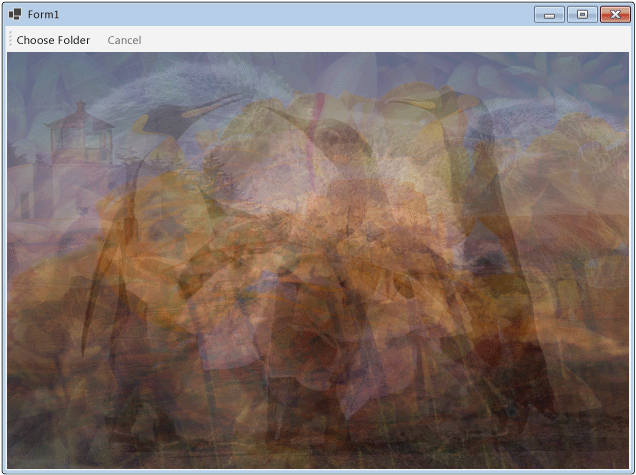
La figura seguente mostra l'output tipico per la cartella comune \Sample Pictures\.
Vedere anche
Collabora con noi su GitHub
L'origine di questo contenuto è disponibile su GitHub, dove è anche possibile creare ed esaminare problemi e richieste pull. Per ulteriori informazioni, consulta la nostra guida per i collaboratori.
