Nota
L'accesso a questa pagina richiede l'autorizzazione. È possibile provare ad accedere o modificare le directory.
L'accesso a questa pagina richiede l'autorizzazione. È possibile provare a modificare le directory.
The Excel JavaScript Library provides APIs to apply conditional formatting to data ranges in your worksheets. This functionality makes large sets of data easy to visually parse. The formatting also dynamically updates based on changes within the range.
Note
This article covers conditional formatting in the context of Excel JavaScript add-ins. The following articles provide detailed information about the full conditional formatting capabilities within Excel.
Programmatic control of conditional formatting
The Range.conditionalFormats property is a collection of ConditionalFormat objects that apply to the range. The ConditionalFormat object contains several properties that define the format to apply based on the ConditionalFormatType.
cellValuecolorScalecustomdataBariconSetpresettextComparisontopBottom
Note
Each of these formatting properties has a corresponding *OrNullObject variant. Learn more about that pattern in the *OrNullObject methods section.
You can set only one format type for the ConditionalFormat object. The type property, which is a ConditionalFormatType enum value, determines the format type. Set type when you add a conditional format to a range.
Create conditional formatting rules
Add conditional formats to a range by using conditionalFormats.add. After you add a conditional format, set the properties specific to that format. The following examples show how to create different formatting types.
Cell value
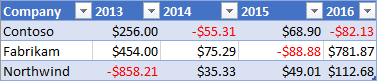
Cell value conditional formatting applies a user-defined format based on the results of one or two formulas in the ConditionalCellValueRule. The operator property is a ConditionalCellValueOperator that defines how the resulting expressions relate to the formatting.
The following example shows red font coloring applied to any value in the range less than zero.
await Excel.run(async (context) => {
    const sheet = context.workbook.worksheets.getItem("Sample");
    const range = sheet.getRange("B21:E23");
    const conditionalFormat = range.conditionalFormats.add(
        Excel.ConditionalFormatType.cellValue
    );

    // Set the font of negative numbers to red.
    conditionalFormat.cellValue.format.font.color = "red";
    conditionalFormat.cellValue.rule = { formula1: "=0", operator: "LessThan" };

    await context.sync();
});
Color scale
Color scale conditional formatting applies a color gradient across the data range. The criteria property on the ColorScaleConditionalFormat defines three ConditionalColorScaleCriterion: minimum, maximum, and, optionally, midpoint. Each of the criterion scale points has three properties:
color- The HTML color code for the endpoint.formula- A number or formula representing the endpoint. This value isnulliftypeislowestValueorhighestValue.type- How the formula should be evaluated.highestValueandlowestValuerefer to values in the range being formatted.
The following example shows a range being colored blue to yellow to red. Note that minimum and maximum are the lowest and highest values respectively and use null formulas. midpoint is using the percentage type with a formula of "=50" so the yellowest cell is the mean value.

await Excel.run(async (context) => {
    const sheet = context.workbook.worksheets.getItem("Sample");
    const range = sheet.getRange("B2:M5");
    const conditionalFormat = range.conditionalFormats.add(
          Excel.ConditionalFormatType.colorScale
    );

    // Color the backgrounds of the cells from blue to yellow to red based on value.
    const criteria = {
          minimum: {
               formula: null,
               type: Excel.ConditionalFormatColorCriterionType.lowestValue,
               color: "blue"
          },
          midpoint: {
               formula: "50",
               type: Excel.ConditionalFormatColorCriterionType.percent,
               color: "yellow"
          },
          maximum: {
               formula: null,
               type: Excel.ConditionalFormatColorCriterionType.highestValue,
               color: "red"
          }
    };
    conditionalFormat.colorScale.criteria = criteria;

    await context.sync();
});
Custom
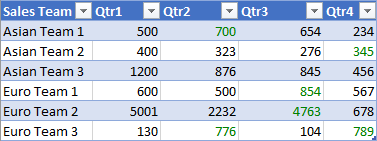
Custom conditional formatting applies a user-defined format to the cells based on a formula of arbitrary complexity. The ConditionalFormatRule object lets you define the formula in different notations:
formula- Standard notation.formulaLocal- Localized based on the user's language.formulaR1C1- R1C1-style notation.
The following example colors the fonts green for cells with higher values than the cell to their left.
await Excel.run(async (context) => {
    const sheet = context.workbook.worksheets.getItem("Sample");
    const range = sheet.getRange("B8:E13");
    const conditionalFormat = range.conditionalFormats.add(
         Excel.ConditionalFormatType.custom
    );

    // If a cell has a higher value than the one to its left, set that cell's font to green.
    conditionalFormat.custom.rule.formula = '=IF(B8>INDIRECT("RC[-1]",0),TRUE)';
    conditionalFormat.custom.format.font.color = "green";

    await context.sync();
});
Data bar
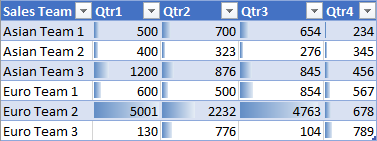
Data bar conditional formatting adds data bars to the cells. By default, the minimum and maximum values in the range form the bounds and proportional sizes of the data bars. The DataBarConditionalFormat object has several properties to control the bar's appearance.
The following example formats the range with data bars filling left-to-right.
await Excel.run(async (context) => {
    const sheet = context.workbook.worksheets.getItem("Sample");
    const range = sheet.getRange("B8:E13");
    const conditionalFormat = range.conditionalFormats.add(
         Excel.ConditionalFormatType.dataBar
    );

    // Give left-to-right, default-appearance data bars to all the cells.
    conditionalFormat.dataBar.barDirection = Excel.ConditionalDataBarDirection.leftToRight;
    await context.sync();
});
Icon set
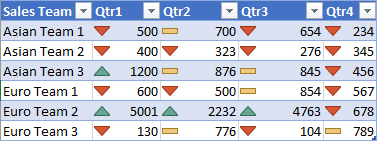
Icon set conditional formatting uses Excel Icons to highlight cells. The criteria property is an array of ConditionalIconCriterion, which define the symbol to insert and the condition for insertion. This array automatically prepopulates with criterion elements that have default properties. You can't overwrite individual properties. Instead, replace the whole criteria object.
The following example shows a three-triangle icon set applied across the range.
await Excel.run(async (context) => {
    const sheet = context.workbook.worksheets.getItem("Sample");
    const range = sheet.getRange("B8:E13");
    const conditionalFormat = range.conditionalFormats.add(
         Excel.ConditionalFormatType.iconSet
    );

    const iconSetCF = conditionalFormat.iconSet;
    iconSetCF.style = Excel.IconSet.threeTriangles;

    /*
       With a "three*" icon set style, such as "threeTriangles", the third
        element in the criteria array (criteria[2]) defines the "top" icon;
        e.g., a green triangle. The second (criteria[1]) defines the "middle"
        icon, The first (criteria[0]) defines the "low" icon, but it can often
        be left empty as this method does below, because every cell that
       does not match the other two criteria always gets the low icon.
    */
    iconSetCF.criteria = [
        {},
          {
            type: Excel.ConditionalFormatIconRuleType.number,
            operator: Excel.ConditionalIconCriterionOperator.greaterThanOrEqual,
            formula: "=700"
          },
          {
            type: Excel.ConditionalFormatIconRuleType.number,
            operator: Excel.ConditionalIconCriterionOperator.greaterThanOrEqual,
            formula: "=1000"
          }
    ];

    await context.sync();
});
Preset criteria
Preset conditional formatting applies a user-defined format to the range based on a selected standard rule. The ConditionalFormatPresetCriterion in the ConditionalPresetCriteriaRule defines these rules.
The following example colors the font white wherever a cell's value is at least one standard deviation above the range's average.

await Excel.run(async (context) => {
    const sheet = context.workbook.worksheets.getItem("Sample");
    const range = sheet.getRange("B2:M5");
    const conditionalFormat = range.conditionalFormats.add(
         Excel.ConditionalFormatType.presetCriteria
    );

    // Color every cell's font white that is one standard deviation above average relative to the range.
    conditionalFormat.preset.format.font.color = "white";
    conditionalFormat.preset.rule = {
         criterion: Excel.ConditionalFormatPresetCriterion.oneStdDevAboveAverage
    };

    await context.sync();
});
Text comparison
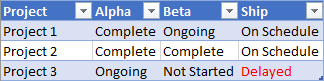
Text comparison conditional formatting uses string comparisons as the condition. The rule property is a ConditionalTextComparisonRule that defines a string to compare with the cell and an operator to specify the type of comparison.
The following example formats the font color red when a cell's text contains "Delayed".
await Excel.run(async (context) => {
    const sheet = context.workbook.worksheets.getItem("Sample");
    const range = sheet.getRange("B16:D18");
    const conditionalFormat = range.conditionalFormats.add(
         Excel.ConditionalFormatType.containsText
    );

    // Color the font of every cell containing "Delayed".
    conditionalFormat.textComparison.format.font.color = "red";
    conditionalFormat.textComparison.rule = {
         operator: Excel.ConditionalTextOperator.contains,
         text: "Delayed"
    };

    await context.sync();
});
Top/bottom
Top/bottom conditional formatting applies a format to the highest or lowest values in a range. The rule property, which is of type ConditionalTopBottomRule, sets whether the condition is based on the highest or lowest, as well as whether the evaluation is ranked or percentage-based.
The following example applies a green highlight to the highest value cell in the range.

await Excel.run(async (context) => {
    const sheet = context.workbook.worksheets.getItem("Sample");
    const range = sheet.getRange("B21:E23");
    const conditionalFormat = range.conditionalFormats.add(
         Excel.ConditionalFormatType.topBottom
    );

    // For the highest valued cell in the range, make the background green.
    conditionalFormat.topBottom.format.fill.color = "green"
    conditionalFormat.topBottom.rule = { rank: 1, type: "TopItems"}

    await context.sync();
});
Change conditional formatting rules
The ConditionalFormat object offers multiple methods to change conditional formatting rules after your code sets them.
- changeRuleToCellValue
- changeRuleToColorScale
- changeRuleToContainsText
- changeRuleToCustom
- changeRuleToDataBar
- changeRuleToIconSet
- changeRuleToPresetCriteria
- changeRuleToTopBottom
The following example shows how to use the changeRuleToPresetCriteria method from the preceding list to change an existing conditional format rule to the preset criteria rule type.
Note
The specified range must have an existing conditional format rule to use the change methods. If the specified range has no conditional format rule, the change methods don't apply a new rule.
await Excel.run(async (context) => {
    const sheet = context.workbook.worksheets.getItem("Sample");
    const range = sheet.getRange("B2:M5");

    // Retrieve the first existing `ConditionalFormat` rule on this range.
    // Note: The specified range must have an existing conditional format rule.
    const conditionalFormat = range.conditionalFormats.getItemOrNullObject("0");

    // Change the conditional format rule to preset criteria.
    conditionalFormat.changeRuleToPresetCriteria({
        criterion: Excel.ConditionalFormatPresetCriterion.oneStdDevAboveAverage,
    });
    conditionalFormat.preset.format.font.color = "red";

    await context.sync();
});
Multiple formats and priority
You can apply multiple conditional formats to a range. If the formats have conflicting elements, such as differing font colors, only one format applies that particular element. The ConditionalFormat.priority property defines which format takes precedence. Priority is a number equal to the index in the ConditionalFormatCollection, and you set it when creating the format. A lower priority value means higher priority.
The following example shows a conflicting font color choice between the two formats. Negative numbers get a bold font, but not a red font, because priority goes to the format that gives them a blue font.

await Excel.run(async (context) => {
    const sheet = context.workbook.worksheets.getItem("Sample");
    const temperatureDataRange = sheet.tables.getItem("TemperatureTable").getDataBodyRange();


    // Set low numbers to bold, dark red font and assign priority 1.
    const presetFormat = temperatureDataRange.conditionalFormats
        .add(Excel.ConditionalFormatType.presetCriteria);
    presetFormat.preset.format.font.color = "red";
    presetFormat.preset.format.font.bold = true;
    presetFormat.preset.rule = { criterion: Excel.ConditionalFormatPresetCriterion.oneStdDevBelowAverage };
    presetFormat.priority = 1;

    // Set negative numbers to blue font with green background and set priority 0.
    const cellValueFormat = temperatureDataRange.conditionalFormats
        .add(Excel.ConditionalFormatType.cellValue);
    cellValueFormat.cellValue.format.font.color = "blue";
    cellValueFormat.cellValue.format.fill.color = "lightgreen";
    cellValueFormat.cellValue.rule = { formula1: "=0", operator: "LessThan" };
    cellValueFormat.priority = 0;

    await context.sync();
});
Mutually exclusive conditional formats
The stopIfTrue property of ConditionalFormat prevents lower priority conditional formats from being applied to the range. When your code applies a conditional format with stopIfTrue === true to a range, no subsequent conditional formats apply, even if their formatting details aren't contradictory.
The following example shows two conditional formats being added to a range. Negative numbers have a blue font with a light green background, regardless of whether the other format condition is true.

await Excel.run(async (context) => {
    const sheet = context.workbook.worksheets.getItem("Sample");
    const temperatureDataRange = sheet.tables.getItem("TemperatureTable").getDataBodyRange();

    // Set low numbers to bold, dark red font and assign priority 1.
    const presetFormat = temperatureDataRange.conditionalFormats
        .add(Excel.ConditionalFormatType.presetCriteria);
    presetFormat.preset.format.font.color = "red";
    presetFormat.preset.format.font.bold = true;
    presetFormat.preset.rule = { criterion: Excel.ConditionalFormatPresetCriterion.oneStdDevBelowAverage };
    presetFormat.priority = 1;

    // Set negative numbers to blue font with green background and
    // set priority 0, but set stopIfTrue to true, so none of the
    // formatting of the conditional format with the higher priority
    // value will apply, not even the bolding of the font.
    const cellValueFormat = temperatureDataRange.conditionalFormats
        .add(Excel.ConditionalFormatType.cellValue);
    cellValueFormat.cellValue.format.font.color = "blue";
    cellValueFormat.cellValue.format.fill.color = "lightgreen";
    cellValueFormat.cellValue.rule = { formula1: "=0", operator: "LessThan" };
    cellValueFormat.priority = 0;
    cellValueFormat.stopIfTrue = true;

    await context.sync();
});
Clear conditional formatting rules
To remove format properties from a specific conditional format rule, use the clearFormat method of the ConditionalRangeFormat object. The clearFormat method creates a formatting rule without format settings.
To remove all the conditional formatting rules from a specific range, or an entire worksheet, use the clearAll method of the ConditionalFormatCollection object.
The following sample shows how to remove all conditional formatting from a worksheet by using the clearAll method.
await Excel.run(async (context) => {
    const sheet = context.workbook.worksheets.getItem("Sample");
    const range = sheet.getRange();
    range.conditionalFormats.clearAll();

    await context.sync();
});
See also
Collabora con noi su GitHub
L'origine di questo contenuto è disponibile in GitHub, in cui è anche possibile creare ed esaminare i problemi e le richieste pull. Per ulteriori informazioni, vedere la guida per i collaboratori.