Nota
L'accesso a questa pagina richiede l'autorizzazione. È possibile provare ad accedere o modificare le directory.
L'accesso a questa pagina richiede l'autorizzazione. È possibile provare a modificare le directory.
This article is the first Step in a three part tutorial series that demonstrates how to work with Flask in Visual Studio. Flask is a lightweight Python framework for web applications that provides the basics for URL routing and page rendering. Flask is called a "micro" framework because it doesn't directly provide features like form validation, database abstraction, authentication, and so on. These features are instead provided by special Python packages called Flask extensions. The extensions integrate seamlessly with Flask so they appear as if they're part of Flask itself. For example, Flask itself doesn't provide a page template engine. Templating is provided by extensions such as Jinja and Jade, as demonstrated in this tutorial.
In Step 1 of the tutorial, you learn how to:
- Create a Visual Studio solution and Flask project
- Examine project boilerplate code and run the project
- Create a Git repository to maintain changes to the Flask project
- Work with Git source code controls
- Create a virtual environment for the Flask project
This tutorial differs from the Flask Quickstart. You learn more about Flask and how to use Flask project templates to provide a more extensive starting point for your projects. The templates automatically install the Flask package when you create a project, whereas the Quickstart demonstrated how to install the package manually.
Prerequisites
Flask project templates are included with all earlier versions of Python Tools for Visual Studio. The template details might differ from the descriptions in this tutorial.
Visual Studio for Mac isn't supported. For more information, see What's happening to Visual Studio for Mac? Visual Studio Code on Windows, Mac, and Linux works well with Python through available extensions.
Create Visual Studio solution and Flask project
In Step 1 of this tutorial, you create a single Visual Studio solution to contain two separate Flask projects. You create the projects by using different Flask project templates included with Visual Studio. By keeping the projects in the same solution, you can easily switch back and forth between different files for comparison.
Follow this procedure to create the solution and a Flask web project:
Examine Git controls
As you work through this tutorial, get into the habit of periodically using the Git controls in Visual Studio to commit and push changes. This tutorial reminds you at the appropriate points.
Use source control from the start
There are several advantages to using source control from the beginning of a project. When you use source control from the start of a project, especially if you also use a remote repository, you gain regular offsite backup of your project. Unlike maintaining a project just on a local file system, source control also provides a complete change history and the easy ability to revert a single file or the whole project to a previous state. The change history helps determine the cause of regressions (test failures).
Source control is essential if multiple people are working on a project, because it manages overwrites and provides conflict resolution. Source control is fundamentally a form of automation, sets you up well for automating builds, testing, and release management. It's the first step in using Azure DevOps for a project, and because the barriers to entry are so low, there's really no reason to not use source control from the beginning.
For more information on source control as automation, see The Source of Truth: The Role of Repositories in DevOps, an article in MSDN Magazine written for mobile apps that applies also to web apps.
Prevent Visual Studio from auto-committing projects
Follow these steps to prevent Visual Studio from auto-committing a new project:
Create virtual environment and exclude source control
After you configure source control for your project, you can create the virtual environment with the necessary Flask packages that the project requires. You can then use the Git Changes window to exclude the environment's folder from source control.
Understand purpose of virtual environments
A virtual environment is a great way to isolate your application's exact dependencies. This method of isolation avoids conflicts within a global Python environment, and aids both testing and collaboration. Over time, as you develop an app, you invariably bring in many helpful Python packages. By keeping packages in a project-specific virtual environment, you can easily update the project's requirements.txt file that describes that environment, which is included in source control. When you copy the project to other computers, including build servers, deployment servers, and other development computers, it's easy to recreate the environment. You can recreate the environment by using only the requirements.txt file, which is why the environment doesn't need to be in source control. For more information, see Use virtual environments.
Remove virtual environment under source control
You can remove a virtual environment after it's under source control. Follow these steps:
Edit your .gitignore file to exclude the folder:
Open the file by selecting File > Open > File.
You can also open the file from Team Explorer. On the Settings page, select Repository Settings. Go to the Ignore & Attributes Files section and select the Edit link next to .gitignore.
Locate the section at the end that has the comment
# Python Tools for Visual Studio (PTVS).After that section, add a new line for the virtual environment folder, such as /BasicProject/env.
Open a command window and go to the folder (such as BasicProject) that has the virtual environment folder, such as env.
Run the
git rm -r envcommand to remove the virtual environment that's currently under source control.Commit your changes with the
git commit -m 'Remove venv'command, or commit them from the Changes page of Team Explorer.
Examine the boilerplate code
In this section, you examine the boilerplate code in the Project file (.py) that Visual Studio creates based on your template selection.
Open Solution Explorer to view your solution and project files. The initial project contains only two files, app.py and requirements.txt:
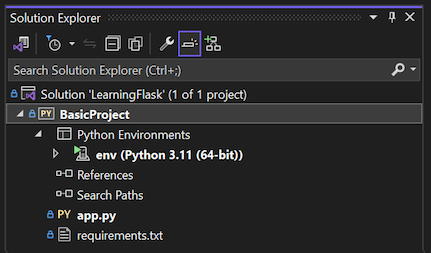
The requirements.txt file specifies the Flask package dependencies. The presence of this file is what invites you to create a virtual environment when first creating the project.
The single app.py file contains boilerplate code for a blank Flask web project.
Open the app.py file in the editor and examine the first section, an
importstatement for Flask.This statement creates an instance of the
Flaskclass, which is assigned to the variableapp. This section also assigns awsgi_appvariable (which is useful when you deploy to a web host, but not used for now):from flask import Flask app = Flask(__name__) # Make the WSGI interface available at the top level so wfastcgi can get it. wsgi_app = app.wsgi_appThe second section to review occurs at the end of the file. This section contains optional code that you can use to start the Flask development server.
You can define the code to use specific host and port values taken from environment variables, or use the default host and port value
localhost:55551.if __name__ == '__main__': import os HOST = os.environ.get('SERVER_HOST', 'localhost') try: PORT = int(os.environ.get('SERVER_PORT', '5555')) except ValueError: PORT = 5555 app.run(HOST, PORT)The third section of code to examine assigns a function to a URL route, which means the function provides the resource identified by the URL.
You define routes by using Flask's
@app.routedecorator with an argument that's the relative URL from the site root. As you can see in the code, the function returns only a text string, which is enough for a browser to render. In subsequent Steps in this tutorial series, you update the code to render richer pages with HTML.@app.route('/') def hello(): """Renders a sample page.""" return "Hello World!"
Understand the name argument in Flask class
The name argument in a Flask class is the name of the application's module or package. Flask uses the name to determine where to look for templates, static files, and other resources that belong to the app. For apps contained in a single module, __name__ is always the proper value. The name is also important for extensions that need debugging information. For more information, and other arguments, see the Flask class documentation (flask.pocoo.org).
Use multiple route decorators
A function can have more than one route decorator. You can use as many decorators as you want, if the same function serves multiple routes. For example, to use the hello function for both the / route and the /hello route, use the following code:
@app.route('/')
@app.route('/hello')
def hello():
    """Renders a sample page."""
    return "Hello World!"
Use variable URL routes and query parameters
Flask can work with variable URL routes and query parameters. In a route, you mark any variable with the <variable_name> attribute. Flask passes the variable to the function by using a named argument in the URL path. For example, a route in the form of /hello/<name> generates a string argument called name to the function. Query parameters are available through the request.args property, specifically through the request.args.get method. The following code provides an example:
# URL: /hello/<name>?message=Have%20a%20nice%20day
@app.route('/hello/<name>')
def hello(name):
    msg = request.args.get('message','')
    return "Hello " + name + "! "+ msg + "."
To change the type, prefix the variable with int, float, path (which accepts slashes to delineate folder names), and uuid. For more information, see Variable rules in the Flask documentation.
Generate requirements after package install
Visual Studio can generate a requirements.txt file from a virtual environment after you install other packages.
- In Solution Explorer, expand the Python Environments node, right-click your virtual environment, and select Generate requirements.txt.
It's a good practice to use this command periodically as you modify the environment. Commit changes to your requirements.txt file to source control along with any other code changes that depend on that environment. If you set up continuous integration on a build server, you should generate the file and commit changes whenever you modify the environment.
Run the project
Now you're ready to run your project in Visual Studio by following this procedure:
In Visual Studio, select Debug > Start Debugging (F5) or select Web Server on the main toolbar (the browser you see might vary):

Either command assigns a random port number to the PORT environment variable, and runs the Python app.py file.
The code starts the application by using that port within the Flask development server.
If Visual Studio posts the message Failed to start debugger and indicates no startup file is found, right-click the app.py file in Solution Explorer and select Set as Startup File.
When the server starts, a console window opens to display the server log. Visual Studio automatically opens a browser to
http://localhost:<port>, where you should see the message rendered by thehellofunction: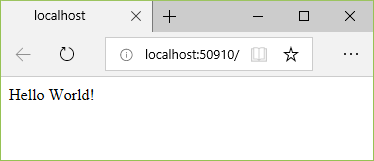
When you're done, close the console window, which stops the Flask development server. You can also select Debug > Stop Debugging.

Compare Debug commands with project Python commands
There's a difference between using the Debug menu commands and the server commands listed on the project's Python submenu.
Both commands open a console window in which you see the local URL (localhost:port) for the running server. However, you must manually open a browser with that URL, and running the debug server doesn't automatically start the Visual Studio debugger. You can attach a debugger to the running process later, if you want by using the Debug > Attach to Process command.