Exercise - Activate and manage tools
Agent 365 tools provide a centralized view of all AI-powered tools and Model Context Protocol (MCP) servers available in your organization.
You can monitor availability, manage access, and ensure compliance with organizational policies. Use the Registry tab to view and manage tools available in your tenant, and the Requests tab to review and approve tool requests from users in your organization.
In this exercise, you govern Agent 365 tools as Reed. You explore the Agent Tools Registry, approve tool requests, and block tools.
Prerequisites
- Install MCP servers and request activation. For more information, see Bring your own MCP server and Register a remote MCP server
Review the tools registry
Go to Microsoft 365 admin center.
In the left navigation pane, select Agents > Tools.
On the Registry tab, review the tool, plugin, and MCP server totals.
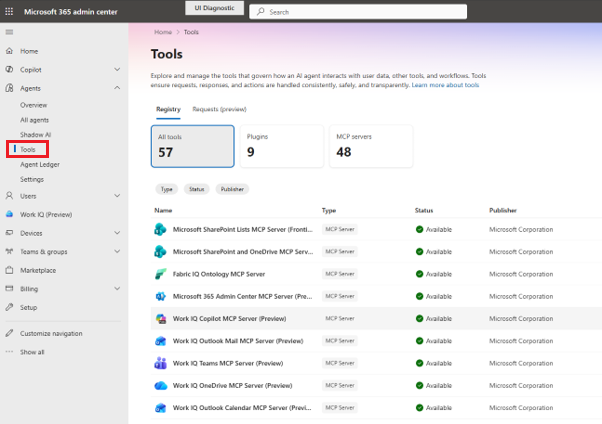
Select each total to view the available tools, publishers, and statuses.
Select All tools and then select Work IQ MCP server.
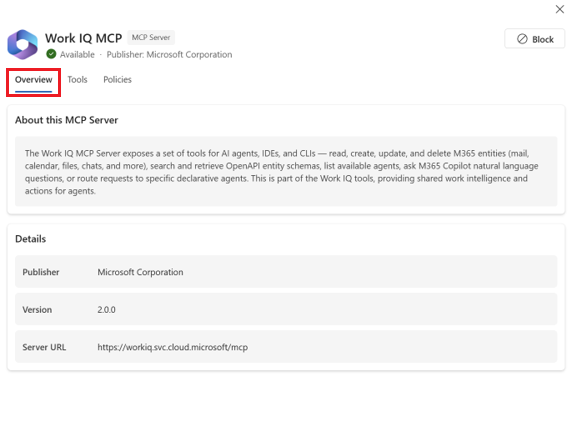
In the Overview tab, review the details of the MCP server, including its description, publisher, version, and server URL.
Select the Tools tab, and review the tools that the MCP server registered, like
getschemaandlist agentsand their status. Review the description for more details about each tool.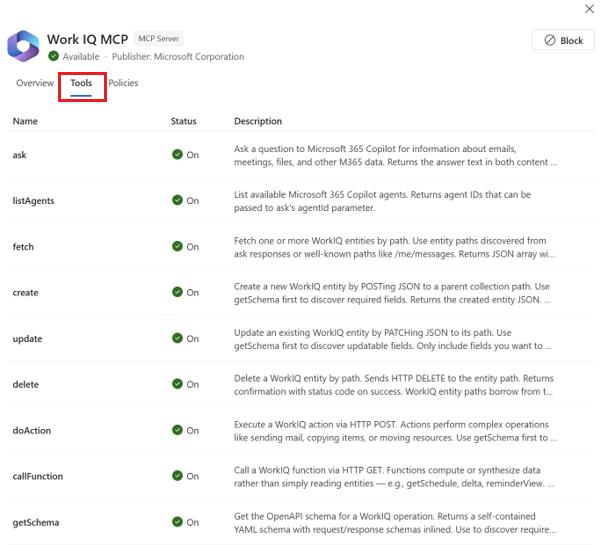
Select the Policies tab to review the policies applied to the MCP server. Select the policies you want to enable or disable for Path Access, Query Limits, Collection Limits, and Mutations.
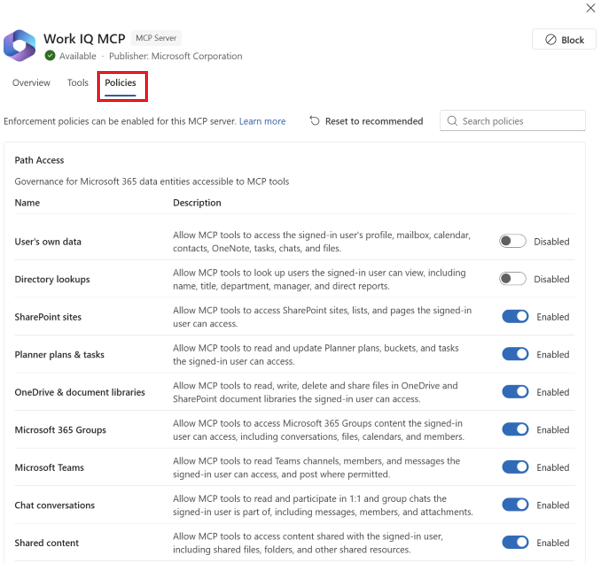
Select Save.
Review and approve tool requests
When users register Bring Your Own (BYO) MCP servers, they request activation of the MCP server and tools.
When you approve a tool, users can connect this tool to their user data, tools, and workflows in Copilot Studio and Visual Studio Code. Before approval, review the permissions and consent to them.
You can review the list of requests and approve them. Before you approve a request, review the publisher, requester, and request date. After you approve an MCP server and Microsoft Entra grants consent, users can use it across supported agent building surfaces.
Go to Microsoft 365 admin center.
In the left navigation pane, select Agents > Tools.
On the Registry tab, review the total number of tools, plugins, and MCP servers.
Select the Requests (Preview) tab to review the MCP server requests.
Review who requested the approval. On the Overview tab, review the publisher and date requested.
Select the Tools tab and select MAC MCP Server.
Select Approve.
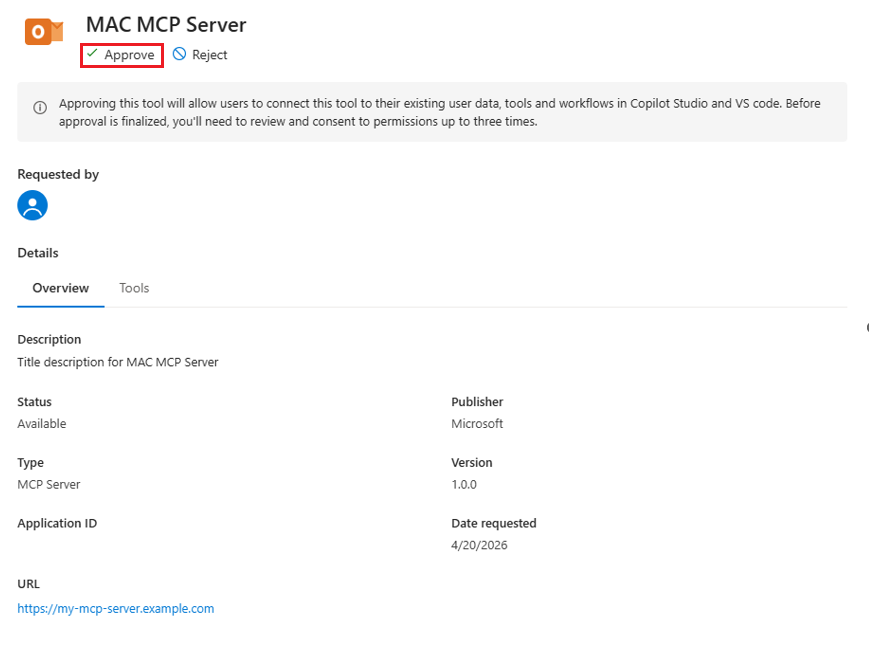
After approval, consent to the Microsoft Entra permissions required by the MCP server. The server becomes available to agent building surfaces only after consent is granted.
Block tools for agent access
If tool activity is abnormal, block an MCP server or plugin for agent access. Agents in your organization can't use blocked tools.
Block MCP server
If MCP server activity is abnormal, block the MCP server for agent access. Agents in your organization can't use blocked tools.
Go to Microsoft 365 admin center.
In the left navigation pane, select Agents > Tools.
In the Registry tab, review the number of tools, plugins, and MCP servers.
If activity is abnormal, select Block.
Confirm that you want to block the MCP server for agent access.
Block plugin
When you block a plugin, it stays registered and visible in the Microsoft 365 admin center, but agents can't use it until you unblock it.
Go to the Microsoft 365 admin center.
In the navigation pane, select Agents > Tools.
In the Registry tab, review the number of tools, plugins, and MCP servers.
If activity is abnormal, select Block.
Confirm that you want to block the plugin for agent access.