At some point, you'll need to renew your certificates if you configured your application gateway for TLS/SSL encryption.
There are two locations where certificates may exist: certificates stored in Azure Key Vault, or certificates uploaded to an application gateway.
Certificates on Azure Key Vault
When Application Gateway is configured to use Key Vault certificates, its instances retrieve the certificate from Key Vault and install them locally for TLS termination. The instances poll Key Vault at four-hour intervals to retrieve a renewed version of the certificate if it exists. If an updated certificate is found, the TLS/SSL certificate that's currently associated with the HTTPS listener is automatically rotated.
팁 (조언)
Any change to Application Gateway will force a check against Key Vault to see if any new versions of certificates are available. This includes, but is not limited to, changes to Frontend IP Configurations, Listeners, Rules, Backend Pools, Resource Tags, and more. If an updated certificate is found, the new certificate will immediately be presented.
Application Gateway uses a secret identifier in Key Vault to reference the certificates. For Azure PowerShell, the Azure CLI, or Azure Resource Manager, we strongly recommend that you use a secret identifier that doesn't specify a version. This way, Application Gateway will automatically rotate the certificate if a newer version is available in your key vault. An example of a secret URI without a version is https://myvault.vault.azure.net/secrets/mysecret/.
Certificates on an application gateway
Application Gateway supports certificate upload without the need to configure Azure Key Vault. To renew the uploaded certificates, use the following steps for the Azure portal, Azure PowerShell, or Azure CLI.
Azure Portal
To renew a listener certificate from the portal, navigate to your application gateway listeners. Select the listener that has a certificate that needs to be renewed, and then select Renew or edit selected certificate.
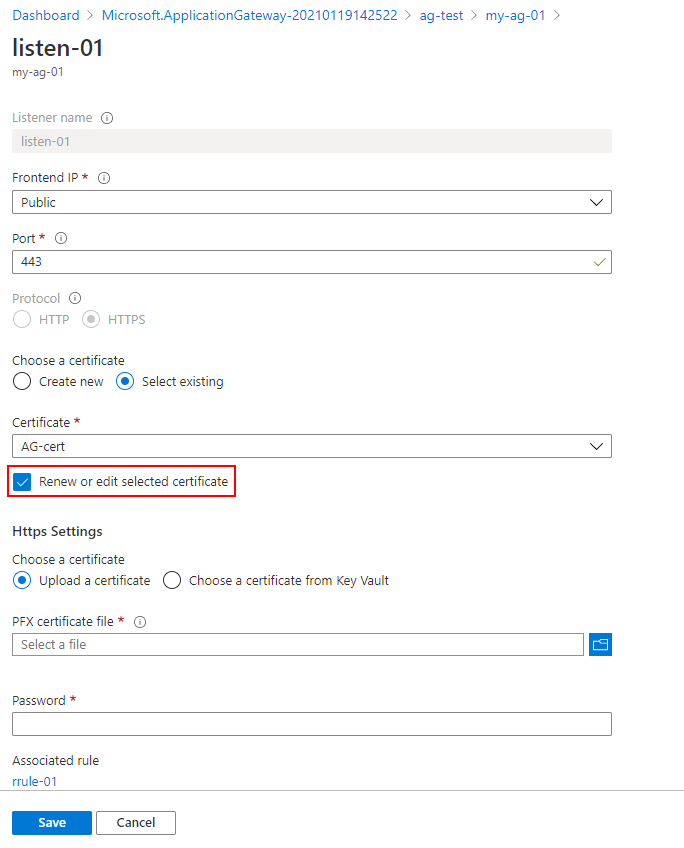
Upload your new PFX certificate, give it a name, type the password, and then select Save.
Azure PowerShell
비고
Azure Az PowerShell 모듈을 사용하여 Azure와 상호 작용하는 것이 좋습니다. 시작하려면 Azure PowerShell 설치를 참조하세요. Az PowerShell 모듈로 마이그레이션하는 방법에 대한 자세한 내용은 Azure PowerShell을 AzureRM에서 Azure로 마이그레이션을 참조하세요.
To renew your certificate using Azure PowerShell, use the following script:
$appgw = Get-AzApplicationGateway `
  -ResourceGroupName <ResourceGroup> `
  -Name <AppGatewayName>

$password = ConvertTo-SecureString `
  -String "<password>" `
  -Force `
  -AsPlainText

set-AzApplicationGatewaySSLCertificate -Name <oldcertname> `
-ApplicationGateway $appgw -CertificateFile <newcertPath> -Password $password

Set-AzApplicationGateway -ApplicationGateway $appgw
Azure 커맨드 라인 인터페이스 (CLI)
az network application-gateway ssl-cert update \
  -n "<CertName>" \
  --gateway-name "<AppGatewayName>" \
  -g "ResourceGroupName>" \
  --cert-file <PathToCerFile> \
  --cert-password "<password>"
다음 단계
To learn how to configure TLS Offloading with Azure Application Gateway, see Configure TLS Offload.