Azure Backup 세분화된 청구를 통해 팀, 애플리케이션 및 비용 센터에서 향상된 차지백 및 보고를 위해 사용자 지정 세분성 수준에서 백업 비용을 볼 수 있습니다.
중요합니다
- 세분화 청구는 복구 서비스 볼트와 백업 볼트 모두를 지원합니다.
- 이 기능은 변경 내용만 보고하는 관리 평면이며 가격 책정 미터 또는 총 백업 비용을 수정하지 않습니다.
- 기존의 과거 청구서 라인은 이전 형식을 유지하며, 선택한 세분화를 사용하는 것은 새로운 청구서뿐입니다.
- Vault 레벨은 기존 및 신규 볼트의 기본 설정으로, 하위 호환성을 유지합니다.
사용 가능한 청구 세분성 수준
Azure Backup 보고 및 차지백 요구 사항에 따라 백업 비용을 보고 분석하는 데 도움이 되는 여러 세분성 수준을 제공합니다.
요구 사항에 따라 다음 세분성 수준 중 하나를 선택할 수 있습니다.
자격 증명 모음 수준(기본값): 연결된 Recovery Services 자격 증명 모음 또는 Backup 자격 증명 모음 아래에 표시되는 백업 비용을 보여줍니다. 지정된 미터에 매핑되는 리소스의 비용은 자격 증명 모음당 하나의 항목으로 표시됩니다.
보호된 항목 수준: 보호된 각 항목에 대한 백업 비용을 표시합니다.
태그 수준: 백업 비용을 태그별로 집계하여 자원 수준에서 지출을 확인하고 분석합니다.
기본 태그(권장):태그 수준을 선택하면 Azure Backup이 내장된
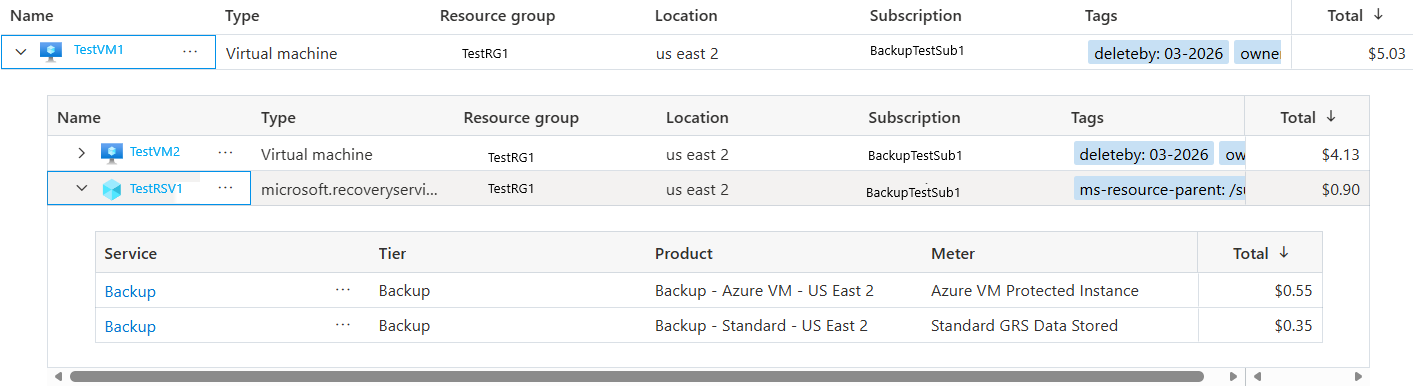
ms-resource-parent태그를 자동으로 Azure Cost Management에 전달합니다. 각 보호 항목별 백업 요금은 Azure Cost Management의 관련 리소스 아래에 표시되어 추가 설정 없이도 리소스와 백업 비용을 통합적으로 볼 수 있습니다.커스텀 태그: 백업 비용을 다른 자원에 귀속시키려면, 태그를
cm-resource-parent추가하고 백업 비용이 나타나길 원하는 대상 리소스의 Azure Resource Manager(ARM) 리소스 ID로 설정하세요. Azure Backup은 Azure Cost Management에서 해당 리소스 하의 백업 비용을 집계하여 맞춤형 차지백 및 비용 보고 시나리오를 지원할 수 있습니다.
Azure portal 사용으로 세분화된 청구를 설정하세요
두 자격 증명 모음 유형 모두 절차가 동일하며, 속성 창으로 이동하는 것만 제외됩니다. 설정하고 싶은 금고 유형을 선택하세요:
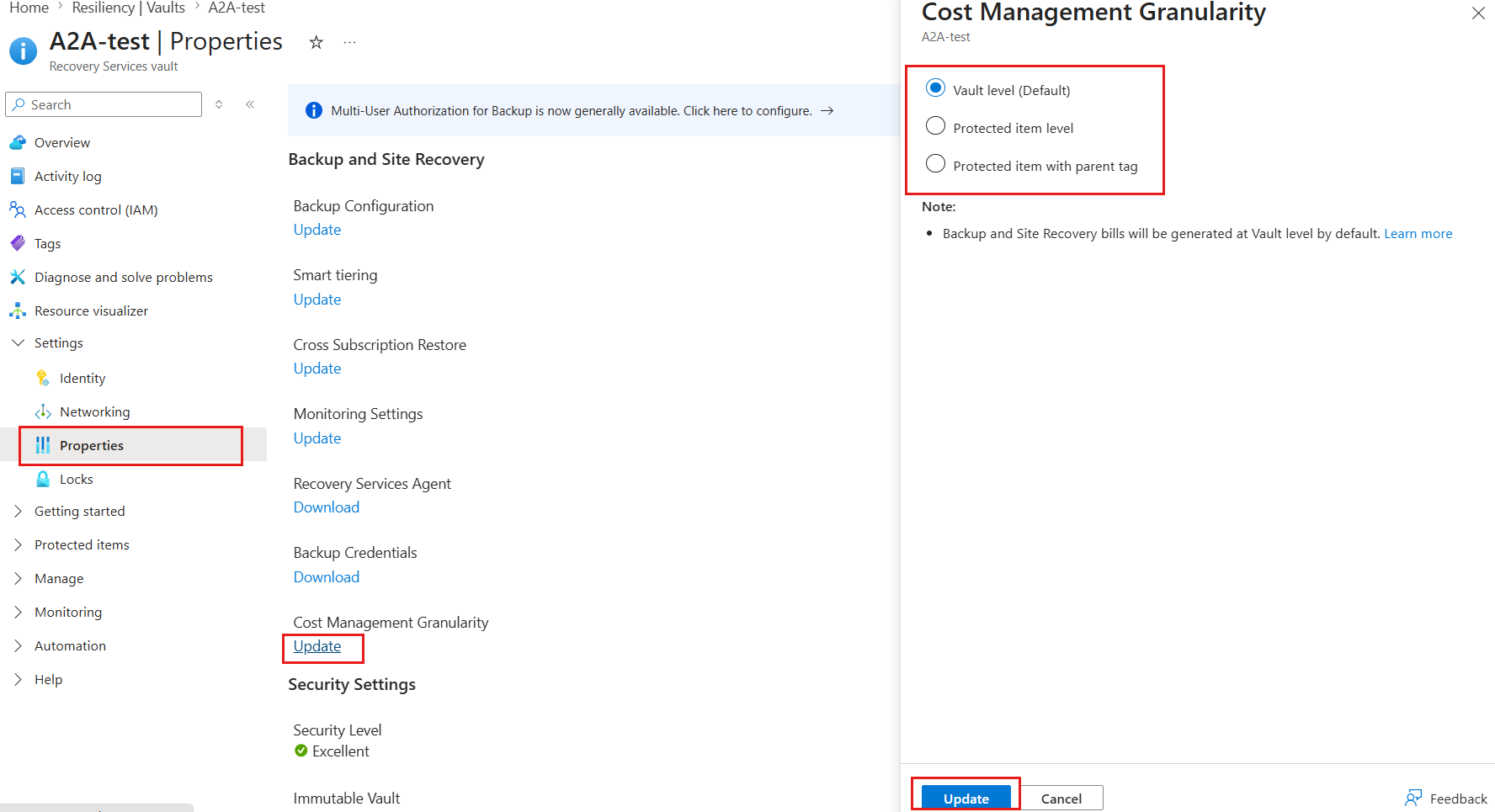
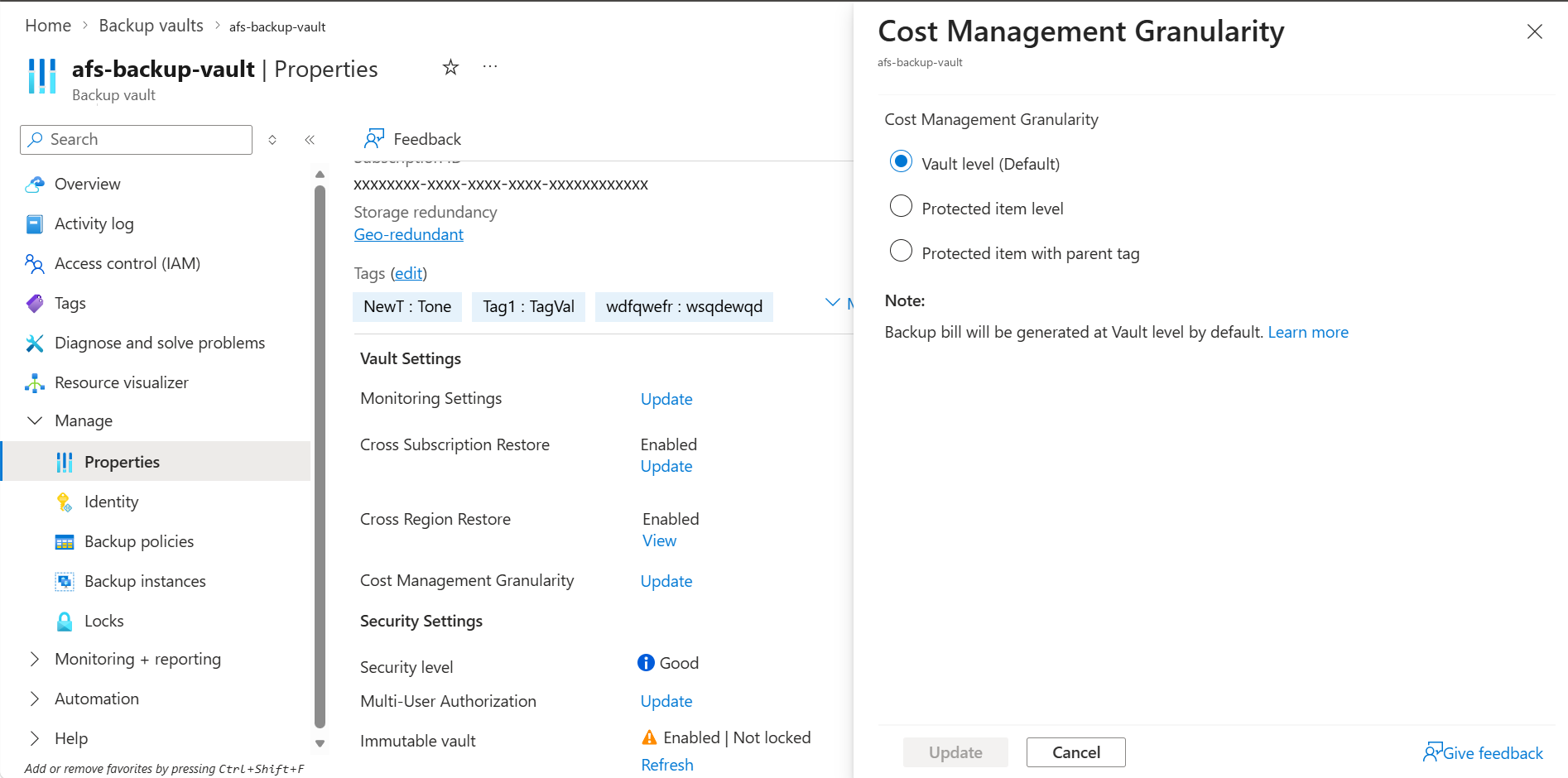
다음 표는 세분성 수준과 매개변수 -CostManagementGranularity에 전달하는 값을 나열합니다.
| 세분화 수준(포털) | Value | Behavior |
|---|---|---|
| 볼트 레벨 (기본값) | 볼트레벨 | 금고 내 모든 백업은 금고당 단일 항목으로 집계됩니다. |
| 보호된 항목 수준 | ProtectedItemLevel | 각 보호 품목에 대한 백업 비용을 보여줍니다. |
| 태그 레벨 | 부모 태그가 있는 보호된 항목 | 백업 비용을 부모 태그별로 집계하여 자원 수준에서 지출을 확인할 수 있습니다. |
Prerequisites
Azure PowerShell을 사용해 세분화된 청구를 설정하기 전에 다음 필수 조건을 충족하는지 확인하세요:
- 사용하는 자격 증명 모음 유형에 따라 Recovery Services 자격 증명 모음 개요 또는 Backup 자격 증명 모음 개요를 검토하세요.
- Azure 라이브러리에서
Az.RecoveryServices및Az.DataProtectioncmdlet 참조를 검토하세요. - Backup 기여자 또는 기여자 역할처럼 자격 증명 모음에 대한 쓰기 권한이 있는지 확인하세요.
- 사용자 지정 태그 시나리오의 경우, 자격 증명 모음에 태그를 추가할 권한이 있는지, 그리고 사용하는 ARM 리소스 ID에 해당하는 상위 리소스에 대한 읽기 권한이 있는지 확인하십시오.
세분화된 청구 구성을 위해 Azure PowerShell을 설정합니다.
Azure Az PowerShell 모듈을 사용하여 Azure와 상호 작용합니다. 세분화된 청구 구성을 위해 Azure PowerShell을 설정하기 전에 Azure PowerShell을 설치하세요. Az PowerShell 모듈로 마이그레이션하려면 AzureRM에서 Az로 Azure PowerShell 마이그레이션을 참조하세요.
Azure PowerShell을 설정하려면 다음 cmdlets를 실행하세요:
필요한 모듈을 설치하거나 업데이트하세요.
메모
-CostManagementGranularity매개 변수는 Recovery Services 자격 증명 모음에 대해 Az.RecoveryServices 7.14.1 이상, Backup 자격 증명 모음에 대해 Az.DataProtection 3.1.0 이상이 필요합니다.Install-Module -Name Az.RecoveryServices -MinimumVersion 7.14.1 -Force Install-Module -Name Az.DataProtection -MinimumVersion 3.1.0 -Force설치된 모듈 버전을 확인하세요:
Get-Module -Name Az.RecoveryServices, Az.DataProtection -ListAvailable |
    Select-Object Name, Version
예시 출력:
Name                Version
----                -------
Az.DataProtection   3.1.0
Az.RecoveryServices 7.14.1
설치된 모듈에서 새 파라미터가 사용 가능한지 확인하세요:
'New-AzRecoveryServicesVault',
'Update-AzRecoveryServicesVault',
'New-AzDataProtectionBackupVault',
'Update-AzDataProtectionBackupVault' | ForEach-Object {
    $cmd = Get-Command $_ -ErrorAction SilentlyContinue
    [pscustomobject]@{
        Cmdlet       = $_
        Installed    = $null -ne $cmd
        HasParameter = ($null -ne $cmd) -and $cmd.Parameters.ContainsKey('CostManagementGranularity')
    }
} | Format-Table -AutoSize
예시 출력:
Cmdlet Installed HasParameter ------ --------- ------------ New-AzRecoveryServicesVault True True Update-AzRecoveryServicesVault True True New-AzDataProtectionBackupVault True True Update-AzDataProtectionBackupVault True TrueConnect-AzAccount을 사용하여 Azure 계정에 로그인하세요. 표시되는 웹 페이지에 계정 자격 증명을 입력하라는 메시지가 표시됩니다.계정에 여러 구독이 있을 수 있으므로 사용할 구독을 계정과 연결합니다.
Select-AzSubscription -SubscriptionName $SubscriptionName
다음 표는 이 글에서 각 볼트 유형별로 사용하는 cmdlet을 나열합니다.
| 작업 | Recovery Services 자격 증명 모음 | 백업 저장소 |
|---|---|---|
| 생성 시 세분화를 설정하세요 |
New-AzRecoveryServicesVault(-CostManagementGranularity 사용) |
New-AzDataProtectionBackupVault(-CostManagementGranularity 사용) |
| 세분성 변경 |
Update-AzRecoveryServicesVault(-CostManagementGranularity 사용) |
Update-AzDataProtectionBackupVault(-CostManagementGranularity 사용) |
| 세분성 읽기 |
Get-AzRecoveryServicesVault - Properties.CostManagementSettings.GranularityLevel 읽기 |
Get-AzDataProtectionBackupVault - CostManagementSettingGranularityLevel |
| 커스텀 부모 태그를 적용하세요 | Update-AzTag |
Update-AzTag |
Azure PowerShell을 사용하여 세부 청구 구성
설정하고 싶은 금고 유형을 선택하세요:
볼트를 만들 때 세분화를 설정하세요
New-AzRecoveryServicesVault에서는 -CostManagementGranularity 매개변수는 선택 사항입니다. 볼트를 만들 때 이 옵션을 지정하지 않으면 기본 값은 VaultLevel입니다.
세분성 수준이 있는 볼트를 만들려면 다음 cmdlet을 실행하세요.
를 ProtectedItemLevel의 임의의 값으로 대체하세요.
$vault = New-AzRecoveryServicesVault `
    -Name "afs-vault" `
    -ResourceGroupName "backup-rg" `
    -Location "westus" `
    -CostManagementGranularity ProtectedItemLevel

$vault.Properties.CostManagementSettings.GranularityLevel
예시 출력:
ProtectedItemLevel
기존 자격 증명 모음의 세분성 변경
2일차 변경에 Update-AzRecoveryServicesVault를 사용하세요. 이 cmdlet은 포털 플로우 Recovery Services Vault>Properties>Cost Management Granularity>Update를 미러링합니다.
자격 증명 모음을 보호된 항목 수준으로 전환
금고를 보호 아이템 레벨로 전환하려면 다음 cmdlet을 실행하세요:
$updatedVault = Update-AzRecoveryServicesVault `
    -ResourceGroupName "backup-rg" `
    -Name "afs-vault" `
    -CostManagementGranularity ProtectedItemLevel

$updatedVault.Properties.CostManagementSettings.GranularityLevel
예시 출력:
ProtectedItemLevel
현재 세분화 설정 보기
Get-AzRecoveryServicesVault 새로운 매개변수가 필요하지 않습니다. 설정은 반환된 볼트 객체의 Properties.CostManagementSettings.GranularityLevel 아래에 표시되며 CrossSubscriptionRestoreState와 같은 패턴을 따릅니다.
현재 세분화 설정을 보려면 다음 cmdlet을 실행하세요:
$vault = Get-AzRecoveryServicesVault `
    -ResourceGroupName "backup-rg" `
    -Name "afs-vault"

$vault.Properties.CostManagementSettings.GranularityLevel
예시 출력:
ProtectedItemLevel
구독 내 모든 복구 서비스 볼트의 세분화 설정을 감사하려면 다음 cmdlet을 실행하세요:
Get-AzRecoveryServicesVault | ForEach-Object {
    [pscustomobject]@{
        Name              = $_.Name
        ResourceGroupName = $_.ResourceGroupName
        Location          = $_.Location
        Granularity       = $_.Properties.CostManagementSettings.GranularityLevel
    }
} | Format-Table -AutoSize
예시 출력:
Name       ResourceGroupName Location Granularity
----       ----------------- -------- -----------
afs-vault  backup-rg         westus   ProtectedItemLevel
fin-vault  finance-rg        eastus   VaultLevel
hr-vault   hr-rg             westus2  ProtectedItemWithParentTag
태그 수준의 세분화 설정
태그 수준의 세분성에는 다음과 같은 개별 역할이 포함됩니다.
- 볼트에 태그를 적용하기: 표준 Az.Resources cmdlet을 재사용하세요. 이 과정은 태깅을 위한 새로운 백업 명령어가 필요하지 않습니다.
-
태그 수준 비용 그룹 활성화: 볼트에서
-CostManagementGranularity매개변수를ProtectedItemWithParentTag(으)로 설정하세요.
시나리오 1: 기본 부모 태그 사용
백업 서비스가 ms-resource-parent 태그를 자동으로 적용하므로, 볼트에서 태그 수준의 세분화만 활성화하면 됩니다. 수동 태깅은 필요 없습니다.
기본 부모 태그를 사용하려면 다음 단계를 따르세요:
Vault에서 태그 수준 비용 그룹화를 활성화하세요.
Update-AzRecoveryServicesVault `
    -ResourceGroupName "backup-rg" `
    -Name "afs-vault" `
    -CostManagementGranularity ProtectedItemWithParentTag
설정된 설정을 확인하세요.
$vault = Get-AzRecoveryServicesVault -ResourceGroupName "backup-rg" -Name "afs-vault"
$vault.Properties.CostManagementSettings.GranularityLevel
예시 출력:
ProtectedItemWithParentTag
메모
기본 ms-resource-parent 태그는 금고나 보호 자원에 보이는 태그로 적용되지 않습니다. Azure Backup은 청구 세부 정보의 일부로 태그를 Azure Cost Management에 전달하기 때문에 볼트의 Tags 창에서는 볼 수 없습니다.
시나리오 2: 커스텀 부모 태그 사용
커스텀 부모로 비용을 그룹화하려면, 먼저 볼트에 cm-resource-parent 태그를 적용하고, 그 값을 부모 자원의 ARM 리소스 ID로 설정합니다. 그 다음 볼트에서 태그 수준의 세분성을 활성화하세요.
중요합니다
볼트의 기존 태그를 보존하려면 Update-AzTag -Operation Merge를 사용하세요.
New-AzTag는 리소스의 모든 태그를 교체하므로 여기서 사용하지 마세요.
커스텀 태그를 사용하려면 다음 단계를 따르세요:
Recovery Services 자격 증명 모음에 사용자 지정 상위 태그를 적용하세요. 태그 키는
cm-resource-parent이고, 태그 값은 부모 자원의 ARM 리소스 ID입니다.$vault = Get-AzRecoveryServicesVault -ResourceGroupName "backup-rg" -Name "afs-vault" $parent = Get-AzResource -Name "financeparent" -ResourceGroupName "storage-rg" Update-AzTag -ResourceId $vault.ID ` -Tag @{ "cm-resource-parent" = $parent.Id } ` -Operation Merge예시 출력:
Id         : /subscriptions/xxxxxxxx-xxxx-xxxx-xxxx-xxxxxxxxxxxx/resourceGroups/backup-rg/providers/Microsoft.RecoveryServices/vaults/afs-vault/providers/Microsoft.Resources/tags/default
Name       : default
Type       : Microsoft.Resources/tags
Properties :
             Name                Value
             ==================  ==========================================================
             cm-resource-parent  /subscriptions/xxxxxxxx-xxxx-xxxx-xxxx-xxxxxxxxxxxx/resour
                                 ceGroups/storage-rg/providers/Microsoft.Storage/storageAcc
                                 ounts/financeparent
Vault에서 태그 수준 비용 그룹화를 활성화하세요.
Update-AzRecoveryServicesVault `
    -ResourceGroupName "backup-rg" `
    -Name "afs-vault" `
    -CostManagementGranularity ProtectedItemWithParentTag
설정된 설정을 확인하세요.
$vault = Get-AzRecoveryServicesVault -ResourceGroupName "backup-rg" -Name "afs-vault"
$vault.Properties.CostManagementSettings.GranularityLevel
예시 출력:
ProtectedItemWithParentTag
다음 표는 세분화 수준과 --cost-management-granularity 옵션에 넘기는 값을 나열합니다.
| 세분성 수준(포털) | Value | Behavior |
|---|---|---|
| 볼트 레벨 (기본값) | 볼트레벨 | 금고 내 모든 백업은 금고당 단일 항목으로 집계됩니다. |
| 보호된 항목 수준 | ProtectedItemLevel | 각 보호 품목에 대한 백업 비용을 보여줍니다. |
| 태그 레벨 | ProtectedItemWithParentTag | 백업 비용을 부모 태그별로 집계하여 자원 수준에서 지출을 확인할 수 있습니다. |
Prerequisites
Azure CLI를 사용하여 세분화 청구를 설정하기 전에 다음 전제 조건을 충족하는지 확인하세요:
- 사용 중인 자격 증명 모음 유형에 따라 Recovery Services 자격 증명 모음 개요 또는 Backup 자격 증명 모음 개요를 검토하십시오.
-
az backup vault및az dataprotection backup-vault명령 참조 문서를 검토하세요. - 백업 기여자나 기여자 역할과 같이 자격 증명 모음에 대한 쓰기 권한이 있는지 확인하세요.
- 커스텀 태그 시나리오에서는 vault에 태그를 추가할 수 있는 권한과 사용 중인 ARM 리소스 ID의 상위 리소스에 대한 읽기 권한이 있는지 확인하세요.
세분화된 청구 구성을 위해 Azure CLI 설정하기
Azure CLI for granular billing configuration을 설정하기 전에 먼저 Azure CLI를 설치하세요. 이 명령들은 항상 최신 CLI 버전을 포함하는 Azure Cloud Shell에서도 실행할 수 있습니다.
Azure CLI를 설정하려면 다음 명령을 실행하세요:
설치된 Azure CLI 버전을 확인하세요:
az version예시 출력:
{
  "azure-cli": "2.65.0",
  "azure-cli-core": "2.65.0",
  "azure-cli-telemetry": "1.1.0",
  "extensions": {}
}
데이터 보호 확장 기능을 추가하세요.
az dataprotection명령 그룹은 확장 기능이며 CLI 코어의 일부가 아니므로, 백업 볼트를 관리하려면 먼저 설치해야 합니다. Recovery Services 자격 증명 모음만 사용한다면 이 단계를 건너뛰세요.az extension add --name dataprotection --upgrade확장 프로그램이 설치되었는지 확인하세요:
az extension list --query "[].{Name:name, Version:version}" -o table예시 출력:
Name             Version
---------------  ---------
dataprotection   1.5.1
설치된 Azure CLI 버전에서 granularity 옵션이 사용 가능한지 확인하세요. 이 옵션은 명령어의 도움말 출력에 나타납니다:
az backup vault update --help예시 출력:
--cost-management-granularity
    Use this parameter to configure cost management settings for the vault.
    By default, the property is "VaultLevel" for the vault.
    Allowed values: ProtectedItemLevel, ProtectedItemWithParentTag, VaultLevel.
Azure 계정 로그인:
az login원하는 구독을 설정하세요. 한 계정에는 여러 개의 구독이 있을 수 있습니다:
az account set --subscription "<subscription-name-or-id>"
다음 표는 이 글에서 각 Vault 유형에 대해 사용하는 명령어를 나열한 것입니다.
| 작업 | Recovery Services 자격 증명 모음 | 백업 저장소 |
|---|---|---|
| 생성 시 세분화를 설정하세요 |
az backup vault create with --cost-management-granularity |
az dataprotection backup-vault create --cost-management-granularity와 함께 |
| 세분성 변경 |
az backup vault update(--cost-management-granularity 사용) |
az dataprotection backup-vault update(--cost-management-granularity 사용) |
| 읽기 단위 | az backup vault show |
az dataprotection backup-vault show |
| 볼트 및 세분성 나열 | az backup vault list |
az dataprotection backup-vault list |
| 커스텀 부모 태그를 적용하세요 | az tag update |
az tag update |
Azure CLI 사용으로 세분화된 청구를 설정하세요
설정하고 싶은 볼트 유형을 선택하세요:
세분성 수준이 있는 자격 증명 모음 만들기
세분성 수준이 있는 vault를 생성하려면 다음 명령을 실행하세요:
az backup vault create \
    --name "afs-vault" \
    --resource-group "backup-rg" \
    --location "westus" \
    --cost-management-granularity ProtectedItemLevel \
    --query "{name:name, granularity:properties.costManagementSettings.granularityLevel}"
예시 출력:
{
  "granularity": "ProtectedItemLevel",
  "name": "afs-vault"
}
기존 자격 증명 모음의 세분성 변경
기존 볼트의 세분화를 변경하려면 다음 명령을 실행하세요:
az backup vault update \
    --name "afs-vault" \
    --resource-group "backup-rg" \
    --cost-management-granularity ProtectedItemWithParentTag \
    --query "properties.costManagementSettings.granularityLevel" -o tsv
예시 출력:
ProtectedItemWithParentTag
현재 세분화 설정 보기
az backup vault show 명령어는 새로운 옵션을 받아들이지 않습니다. 세분성 수준을 확인하려면 JSON 출력에서 properties.costManagementSettings.granularityLevel을 읽으세요.
볼트에 설정된 비용 관리 세분화 수준을 가져오려면 다음 명령을 실행하세요:
az backup vault show \
    --name "afs-vault" \
    --resource-group "backup-rg" \
    --query "properties.costManagementSettings.granularityLevel" -o tsv
예시 출력:
VaultLevel
구독 내 모든 Recovery Services 자격 증명 모음을 감사하려면 다음 명령을 실행하세요.
az backup vault list \
    --query "[].{Name:name, ResourceGroup:resourceGroup, Granularity:properties.costManagementSettings.granularityLevel}" \
    -o table
예시 출력:
Name       ResourceGroup    Granularity
---------  ---------------  --------------------------
afs-vault  backup-rg        VaultLevel
fin-vault  finance-rg       ProtectedItemLevel
hr-vault   hr-rg            ProtectedItemWithParentTag
태그 수준의 세분화 설정
태그 수준의 세분화는 다음과 같은 독립적인 책임을 포함합니다:
-
볼트에 태그를 적용하기: 표준
az tag명령어 그룹을 사용하세요. 태깅을 위해 백업 전용 명령어가 필요하지 않습니다. -
태그 수준 비용 그룹화 활성화: 볼트에서
--cost-management-granularity매개변수를ProtectedItemWithParentTag(으)로 설정하세요.
시나리오 1: 기본 부모 태그 사용
백업 서비스가 ms-resource-parent 태그를 자동으로 적용합니다. 볼트에서 태그 수준의 세분화만 활성화하면 되며, 수동 태깅은 필요 없습니다.
기본 부모 태그를 사용하려면 다음 단계를 따르세요:
Vault에서 태그 수준 비용 그룹화를 활성화하세요.
az backup vault update \
    --name "afs-vault" \
    --resource-group "backup-rg" \
    --cost-management-granularity ProtectedItemWithParentTag
설정된 설정을 확인하세요.
az backup vault show \
    --name "afs-vault" \
    --resource-group "backup-rg" \
    --query "properties.costManagementSettings.granularityLevel" -o tsv
예시 출력:
ProtectedItemWithParentTag
메모
기본 ms-resource-parent 태그는 볼트나 보호된 리소스에 보이는 태그로 적용되지 않습니다. Azure Backup은 청구 세부 정보의 일부로 태그를 Azure Cost Management에 전달하기 때문에 az backup vault show --query tags에 표시되지 않습니다.
시나리오 2: 커스텀 부모 태그 사용
커스텀 부모로 비용을 그룹화하려면, 먼저 cm-resource-parent 태그를 볼트에 적용하고, 그 값을 부모 자원의 ARM 리소스 ID로 설정합니다. 그 다음 볼트에서 태그 레벨 세분성을 활성화하세요.
중요합니다
볼트의 기존 태그를 유지하려면 az tag update --operation Merge를 사용하세요.
Replace 연산은 리소스의 모든 태그를 덮어씁니다.
커스텀 태그를 사용하려면 다음 단계를 따르세요:
금고에 커스텀 부모 태그를 적용하세요. 태그 키는
cm-resource-parent이고, 태그 값은 부모 자원의 ARM 리소스 ID입니다.vaultId=$(az backup vault show \ --name "afs-vault" \ --resource-group "backup-rg" \ --query id -o tsv) parentId=$(az storage account show \ --name "financeparent" \ --resource-group "storage-rg" \ --query id -o tsv) az tag update \ --resource-id "$vaultId" \ --operation Merge \ --tags "cm-resource-parent=$parentId" \ --query "properties.tags" -o json예시 출력:
{
  "cm-resource-parent": "/subscriptions/xxxxxxxx-xxxx-xxxx-xxxx-xxxxxxxxxxxx/resourceGroups/storage-rg/providers/Microsoft.Storage/storageAccounts/financeparent"
}
Vault에서 태그 수준 비용 그룹화를 활성화하세요.
az backup vault update \
    --name "afs-vault" \
    --resource-group "backup-rg" \
    --cost-management-granularity ProtectedItemWithParentTag
설정된 설정을 확인하세요.
az backup vault show \
    --name "afs-vault" \
    --resource-group "backup-rg" \
    --query "properties.costManagementSettings.granularityLevel" -o tsv
예시 출력:
ProtectedItemWithParentTag
비용 분석에서 백업 요금 유효성 검사
Azure Backup 대한 세부적인 청구를 구성한 후에는 선택한 세분성을 사용하여 업데이트된 백업 요금이 Cost Management에 올바르게 반영되는지 확인합니다.
메모
- Cost Management 세분성을 업데이트한 후 선택한 형식으로 새 요금이 표시됩니다.
- 이전 요금은 이전 형식을 유지합니다.
- 활동 로그는 비용 설정에 대한 변경 사항을 캡처합니다.
- 업데이트된 변경 내용은 비용 분석에 표시되는 데 최대 2시간이 걸릴 수 있습니다.
비용 분석에서 백업 요금의 유효성을 검사하려면 다음 단계를 수행합니다.
Azure Portal의 Cost Management + Billing으로 가서 Cost Management>Cost analysis를 선택하세요. 범위를 목표 구독으로 설정하세요.
비용 분석 창에서 뷰를 리소스로 설정하고 새 백업 요금이 선택한 세분성 형식으로 표시되는지 확인합니다.
다음 스크린샷에 표시된 가격은 예를 들어 용도로만 사용됩니다.
세분화된 청구 문제 해결
이 섹션에서는 Azure Backup 세분화된 청구와 관련된 문제를 해결하기 위한 문제 해결 단계를 제공합니다.
예상 요금은 비용 분석에 표시되지 않습니다.
문제를 해결하려면:
볼트 유형이 복구 서비스 볼트인지 백업 볼트인지 확인하세요.
세분성 설정을 저장했는지 확인합니다.
업데이트 작업이 성공적으로 완료된 활동 로그를 확인합니다.
최대 2시간 동안 기다렸다가 비용 분석을 새로 고쳐 변경 내용을 확인합니다.
비용 분석에서 올바른 구독 및 시간 범위 범위를 선택해야 합니다.
관련 콘텐츠
Azure Backup 가격 책정을 테스트하고 이해합니다.