이 빠른 시작에서는 TypeSpec을 사용하여 RESTful TypeScript API 애플리케이션을 디자인, 생성 및 구현하는 방법을 알아봅니다. TypeSpec은 클라우드 서비스 API를 설명하기 위한 오픈 소스 언어이며 여러 플랫폼에 대한 클라이언트 및 서버 코드를 생성합니다. 이 빠른 시작에 따라 API 계약을 한 번 정의하고 일관된 구현을 생성하여 유지 관리가 가능하고 잘 문서화된 API 서비스를 빌드하는 방법을 알아봅니다.
TypeSpec의 코드 생성기를 사용하여 라우팅 및 Swagger UI를 사용하여 Express.js 서버를 스캐폴드하고, 지속성을 위해 Azure Cosmos DB에 연결하고, Azure Container Apps에 배포합니다.
API 개발에서 TypeSpec의 역할에 대한 컨텍스트는 TypeSpec 개요를 참조하세요.
완료 시간: 15~20분
이 빠른 시작에서 당신은 다음을 수행합니다.
- TypeSpec을 사용하여 API 정의
- API 서버 애플리케이션 만들기
- 영구 스토리지에 Azure Cosmos DB 통합
- Azure에 배포
- API 실행 및 테스트
Important
@typespec/http-server-js 이미터는 현재 미리 보기로 제공됩니다.
이 정보는 릴리스되기 전에 상당히 수정될 수 있는 시험판 제품과 관련이 있습니다. Microsoft는 여기에 제공된 정보와 관련하여 명시적이거나 묵시적인 보증을 하지 않습니다.
Prerequisites
- 활성 Azure 계정입니다. 계정이 없는 경우 무료로 계정을 만듭니다.
- Node.js LTS - TypeSpec CLI 및 패키지 관리자에 필요합니다.
- TypeScript 코드를 작성하고 컴파일하기 위한 TypeScript입니다.
- Docker
- Visual Studio Code
- TypeSpec 확장
- 선택 사항: Azure Developer CLI를 사용하여 배포
TypeSpec을 사용하여 개발
TypeSpec은 언어에 구애받지 않은 방식으로 API를 정의하고 여러 플랫폼에 대한 API 서버 및 클라이언트 라이브러리를 생성합니다. 이 기능을 통해 다음을 수행할 수 있습니다.
- API 계약을 한 번 정의
- 일관된 서버 및 클라이언트 코드 생성
- API 인프라가 아닌 비즈니스 논리 구현에 집중
TypeSpec은 API 서비스 관리를 제공합니다.
- API 정의 언어
- API용 서버 쪽 라우팅 미들웨어
- API를 사용하는 클라이언트 라이브러리
클라이언트 요청 및 서버 통합을 제공합니다.
- 데이터베이스, 스토리지 및 메시징에 대한 Azure 서비스와 같은 미들웨어에서 비즈니스 논리 구현
- API용 호스팅 서버(로컬 또는 Azure)
- 반복 가능한 프로비전 및 배포를 위한 배포 스크립트
새 TypeSpec 애플리케이션 만들기
API 서버 및 TypeSpec 파일을 저장할 새 폴더를 만듭니다.
mkdir my_typespec_quickstart
cd my_typespec_quickstart
TypeSpec 컴파일러를 전역적으로 설치합니다.
npm install -g @typespec/compilerTypeSpec이 올바르게 설치되었는지 확인합니다.
tsp --versionTypeSpec 프로젝트를 초기화합니다.
tsp init제공된 답변으로 다음 프롬프트에 응답합니다.
- 여기에서 새 프로젝트를 초기화하시겠습니까? Y
- 프로젝트 템플릿을 선택하시겠습니까? 일반 REST API
- 프로젝트 이름 입력: 위젯
- 어떤 내보내기를 사용하시겠습니까?
- OpenAPI 3.1 문서
- JavaScript 서버 스텁
TypeSpec 발생기는 다양한 TypeSpec 컴파일러 API를 활용하여 TypeSpec 컴파일 프로세스를 고찰하고 아티팩트를 생성하는 라이브러리입니다.
팁 (조언)
비대화형 설정의 경우 프롬프트 응답을 .로
tsp init --template rest --project-name Widgets --template-emitters @typespec/openapi3 --template-emitters @typespec/http-server-js --no-prompt바꿉tsp init니다. JavaScript 서버 방출기를 지정하면 프로젝트에 포함@typespec/http-server-js됩니다.계속하기 전에 초기화가 완료되기를 기다립니다.
Note
tsp init는 프로젝트 종속성을 설치합니다. 프로젝트 파일을 만든 후 종속성 설치가 실패하는 경우 계속하기 전에 TypeSpec 프로젝트 루트에서 실행npm install합니다.프로젝트를 컴파일합니다.
tsp compile .팁 (조언)
반복 개발의 경우 변경 감시 모드를 사용하여 파일 변경 시
tsp compile . --watch자동으로 다시 컴파일합니다. 이렇게 하면 수정main.tsp할 때 생성된 서버와 스키마가 최신 상태로 유지됩니다.TypeSpec은 두 개의 개별 폴더를 만드는 기본
./tsp-output프로젝트를 생성합니다.-
스키마 는 OpenApi 3 사양입니다.
./main.tsp의 몇 줄이 여러분을 위해 200줄이 넘는 OpenApi 사양을 생성한 것을 주목하세요. -
서버 는 생성된 미들웨어입니다. 이 미들웨어는 Node.js 서버 프로젝트에 통합할 수 있습니다.
-
./tsp-output/server/js/src/generated/models/all/demo-service.ts는 위젯 API에 대한 인터페이스를 정의합니다. -
./tsp-output/server/js/src/generated/http/openapi3.ts는 Open API 사양을 TypeScript 파일로 정의하고 TypeSpec 프로젝트를 컴파일할 때마다 다시 생성됩니다.
-
-
스키마 는 OpenApi 3 사양입니다.
TypeSpec 방출기 구성
TypeSpec 파일을 사용하여 전체 Express.js 서버를 스캐폴드하도록 API 서버 생성을 구성합니다.
기존 구성을
./tspconfig.yaml열고 다음 YAML로 바꿉다.emit: - "@typespec/openapi3" - "@typespec/http-server-js" options: "@typespec/openapi3": emitter-output-dir: "{output-dir}/server/schema" openapi-versions: - 3.1.0 "@typespec/http-server-js": emitter-output-dir: "{output-dir}/server" express: true이 구성은 전체 Express.js API 서버를 만듭니다.
-
express: Swagger UI를 포함하여 Express.js API 서버를 생성합니다. -
emitter-output-dir: 모든 항목을./server디렉터리에 생성합니다.
-
기존
./tsp-output를 삭제하십시오. 걱정하지 마세요. 다음 단계에서 서버를 생성합니다.TypeSpec JavaScript 방출기를 사용하여 Express.js 서버를 만듭니다.
npx hsjs-scaffold새
./tsp-output/server디렉터리로 변경합니다.cd ./tsp-output/serverTypeScript를 JavaScript로 컴파일합니다.
tsc프로젝트를 실행합니다.
npm start브라우저에서 알림이 열릴 때까지 기다립니다.
브라우저를 열고
http://localhost:3000/.api-docs웹 사이트로 이동합니다.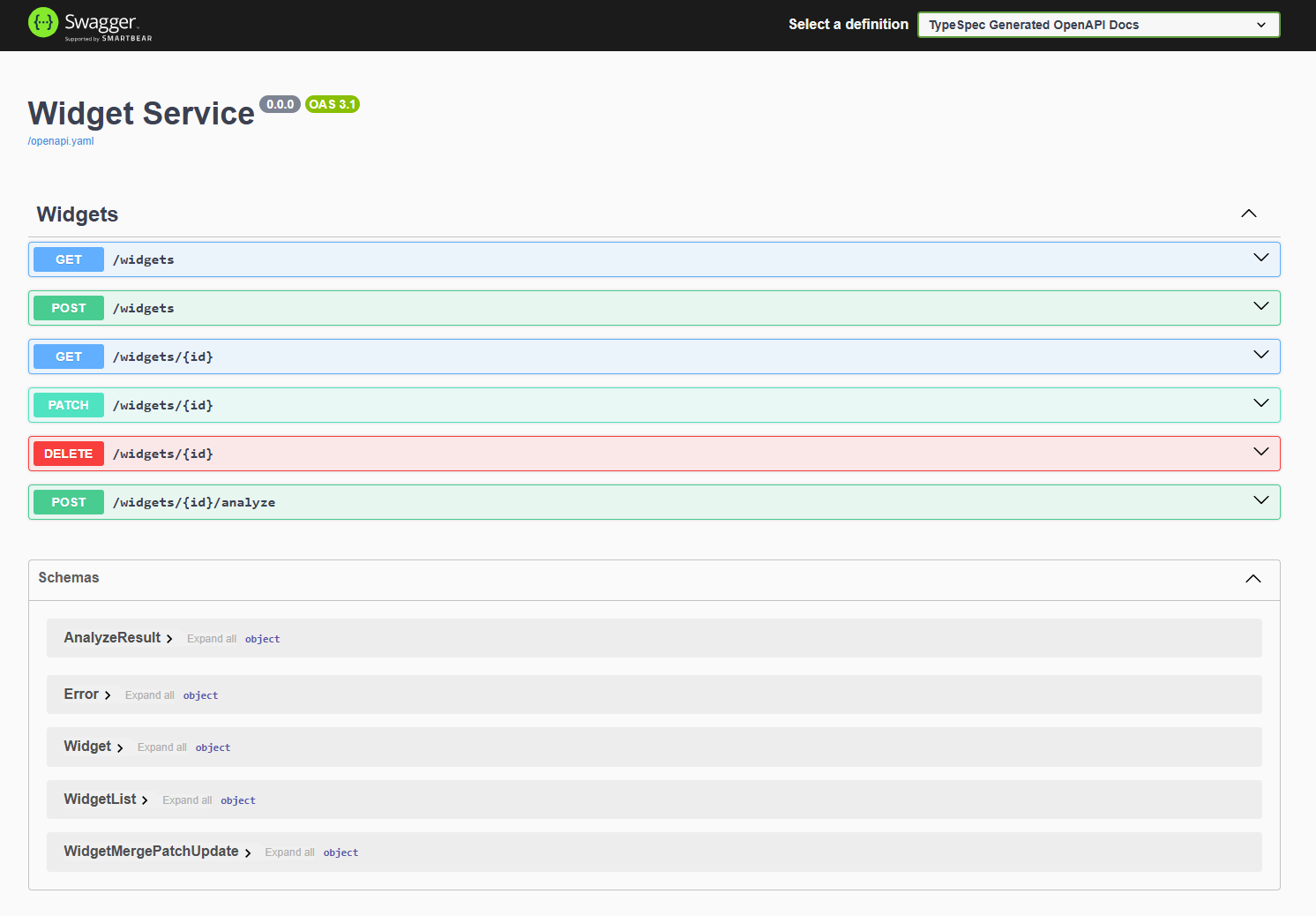
기본 TypeSpec API와 서버가 모두 작동합니다. 이 API 서버를 완성하려면 비즈니스 논리를 추가하여 위젯 API
./tsp-output/server/src/controllers/widgets.ts를 지원해야 합니다. UI는 하드 코딩된 가짜 데이터를 반환하는 API에 연결됩니다.
애플리케이션 파일 구조 이해
Express.js 프로젝트 구조 tsp-output/server/ 에는 생성된 서버, package.json및 Azure 통합을 위한 미들웨어가 포함됩니다.
server
├── package.json
├── package-lock.json
├── src
│   ├── controllers
│   │   └── widgets.ts
│   ├── generated
│   │   ├── helpers
│   │   │   ├── datetime.ts
│   │   │   ├── header.ts
│   │   │   ├── http.ts
│   │   │   ├── multipart.ts
│   │   │   ├── router.ts
│   │   │   └── temporal
│   │   │       ├── native.ts
│   │   │       └── polyfill.ts
│   │   ├── http
│   │   │   ├── openapi3.ts
│   │   │   ├── operations
│   │   │   │   └── server-raw.ts
│   │   │   └── router.ts
│   │   └── models
│   │       └── all
│   │           ├── demo-service.ts
│   │           └── typespec.ts
│   ├── index.ts
│   └── swagger-ui.ts
부모 TypeSpec 프로젝트의 파일 구조에는 다음 Express.js 프로젝트가 포함됩니다.tsp-output
├── tsp-output
├── .gitignore
├── main.tsp
├── package-lock.json
├── package.json
├── tspconfig.yaml
Azure Cosmos DB no-sql로 지속성 변경
이제 기본 Express.js API 서버가 작동하므로 영구 데이터 저장소에 대한 Azure Cosmos DB 와 함께 작동하도록 Express.js 서버를 업데이트합니다. 여기에는 미들웨어에서 index.ts Cosmos DB 통합을 사용하도록 변경된 내용이 포함됩니다. 모든 변경 내용은 ./tsp-output/server/src/generated 디렉터리 외부에서 일어나야 합니다.
./tsp-output/server디렉터리에서 프로젝트에 Azure Cosmos DB를 추가합니다.npm install @azure/cosmosAzure ID 라이브러리를 추가하여 Azure에 인증합니다.
npm install @azure/identityAzure와
./tsp-output/server/src/azure관련된 소스 코드를 저장할 디렉터리를 만듭니다.cosmosClient.ts해당 디렉터리에 파일을 만들어 Cosmos DB 클라이언트 개체를 만들고 다음 코드에 붙여넣습니다.import { CosmosClient, Database, Container } from "@azure/cosmos"; import { DefaultAzureCredential } from "@azure/identity"; /** * Interface for CosmosDB configuration settings */ export interface CosmosConfig { endpoint: string; databaseId: string; containerId: string; partitionKey: string; } /** * Singleton class for managing CosmosDB connections */ export class CosmosClientManager { private static instance: CosmosClientManager; private client: CosmosClient | null = null; private config: CosmosConfig | null = null; private constructor() {} /** * Get the singleton instance of CosmosClientManager */ public static getInstance(): CosmosClientManager { if (!CosmosClientManager.instance) { CosmosClientManager.instance = new CosmosClientManager(); } return CosmosClientManager.instance; } /** * Initialize the CosmosDB client with configuration if not already initialized * @param config CosmosDB configuration */ private ensureInitialized(config: CosmosConfig): void { if (!this.client || !this.config) { this.config = config; this.client = new CosmosClient({ endpoint: config.endpoint, aadCredentials: new DefaultAzureCredential(), }); } } /** * Get a database instance, creating it if it doesn't exist * @param config CosmosDB configuration * @returns Database instance */ private async getDatabase(config: CosmosConfig): Promise<Database> { this.ensureInitialized(config); const { database } = await this.client!.databases.createIfNotExists({ id: config.databaseId }); return database; } /** * Get a container instance, creating it if it doesn't exist * @param config CosmosDB configuration * @returns Container instance */ public async getContainer(config: CosmosConfig): Promise<Container> { const database = await this.getDatabase(config); const { container } = await database.containers.createIfNotExists({ id: config.containerId, partitionKey: { paths: [config.partitionKey] } }); return container; } /** * Clean up resources and close connections */ public dispose(): void { this.client = null; this.config = null; } } export const buildError = (error: any, message: string) => { const statusCode = error?.statusCode || 500; return { code: statusCode, message: `${message}: ${error?.message || 'Unknown error'}` }; };파일은 엔드포인트, 데이터베이스 및 컨테이너를 사용합니다. Azure ID 자격 증명
DefaultAzureCredential을 사용하므로 연결 문자열이나 키가 필요하지 않습니다. 로컬 및 프로덕션 환경 모두에 대해 이 보안 인증 방법에 대해 자세히 알아봅니다.새 위젯 컨트롤러
./tsp-output/server/src/controllers/WidgetsCosmos.ts를 만들고 Azure Cosmos DB에 대한 다음 통합 코드를 붙여넣습니다.import { Widgets, Widget, WidgetList, AnalyzeResult, Error, WidgetMergePatchUpdate } from "../generated/models/all/demo-service.js"; import { CosmosClientManager, CosmosConfig, buildError } from "../azure/cosmosClient.js"; import { HttpContext } from "../generated/helpers/router.js"; import { Container } from "@azure/cosmos"; export interface WidgetDocument extends Widget { _ts?: number; _etag?: string; } /** * Implementation of the Widgets API using Azure Cosmos DB for storage */ export class WidgetsCosmosController implements Widgets<HttpContext> { private readonly cosmosConfig: CosmosConfig; private readonly cosmosManager: CosmosClientManager; private container: Container | null = null; /** * Creates a new instance of WidgetsCosmosController * @param azureCosmosEndpoint Cosmos DB endpoint URL * @param databaseId The Cosmos DB database ID * @param containerId The Cosmos DB container ID * @param partitionKey The partition key path */ constructor(azureCosmosEndpoint: string, databaseId: string, containerId: string, partitionKey: string) { if (!azureCosmosEndpoint) throw new Error("azureCosmosEndpoint is required"); if (!databaseId) throw new Error("databaseId is required"); if (!containerId) throw new Error("containerId is required"); if (!partitionKey) throw new Error("partitionKey is required"); this.cosmosConfig = { endpoint: azureCosmosEndpoint, databaseId: databaseId, containerId: containerId, partitionKey: partitionKey }; this.cosmosManager = CosmosClientManager.getInstance(); } /** * Get the container reference, with caching * @returns The Cosmos container instance */ private async getContainer(): Promise<Container | null> { if (!this.container) { try { this.container = await this.cosmosManager.getContainer(this.cosmosConfig); return this.container; } catch (error: any) { console.error("Container initialization error:", error); throw buildError(error, `Failed to access container ${this.cosmosConfig.containerId}`); } } return this.container; } /** * Create a new widget * @param widget The widget to create * @returns The created widget with assigned ID */ async create(ctx: HttpContext, body: Widget ): Promise<Widget | Error> { const id = body.id; try { const container = await this.getContainer(); if(!container) { return buildError({statusCode:500}, "Container is not initialized"); } if (!body.id) { return buildError({statusCode:400}, "Widget ID is required"); } const response = await container.items.create<Widget>(body, { disableAutomaticIdGeneration: true }); if (!response.resource) { return buildError({statusCode:500}, `Failed to create widget ${body.id}: No resource returned`); } return this.documentToWidget(response.resource); } catch (error: any) { if (error?.statusCode === 409) { return buildError({statusCode:409}, `Widget with id ${id} already exists`); } return buildError(error, `Failed to create widget ${id}`); } } /** * Delete a widget by ID * @param id The ID of the widget to delete */ async delete(ctx: HttpContext, id: string): Promise<void | Error> { try { const container = await this.getContainer(); if(!container) { return buildError({statusCode:500}, "Container is not initialized"); } await container.item(id, id).delete(); } catch (error: any) { if (error?.statusCode === 404) { return buildError({statusCode:404}, `Widget with id ${id} not found`); } return buildError(error, `Failed to delete widget ${id}`); } } /** * Get a widget by ID * @param id The ID of the widget to retrieve * @returns The widget if found */ async read(ctx: HttpContext, id: string): Promise<Widget | Error> { try { const container = await this.getContainer(); if(!container) { return buildError({statusCode:500}, "Container is not initialized"); } const { resource } = await container.item(id, id).read<WidgetDocument>(); if (!resource) { return buildError({statusCode:404}, `Widget with id ${id} not found`); } return this.documentToWidget(resource); } catch (error: any) { return buildError(error, `Failed to read widget ${id}`); } } /** * List all widgets with optional paging * @returns List of widgets */ async list(ctx: HttpContext): Promise<WidgetList | Error> { try { const container = await this.getContainer(); if(!container) { return buildError({statusCode:500}, "Container is not initialized"); } const { resources } = await container.items .query({ query: "SELECT * FROM c" }) .fetchAll(); return { items: resources.map(this.documentToWidget) }; } catch (error: any) { return buildError(error, "Failed to list widgets"); } } /** * Update an existing widget * @param id The ID of the widget to update * @param body The partial widget data to update * @returns The updated widget */ async update( ctx: HttpContext, id: string, body: WidgetMergePatchUpdate, ): Promise<Widget | Error> { try { const container = await this.getContainer(); if(!container) { return buildError({statusCode:500}, "Container is not initialized"); } // First check if the widget exists const { resource: item } = await container.item(id).read<WidgetDocument>(); if (!item) { return buildError({statusCode:404}, `Widget with id ${id} not found`); } // Apply patch updates to the existing widget const updatedWidget: Widget = { ...item, ...body, id }; // Replace the document in Cosmos DB const { resource } = await container.item(id).replace(updatedWidget); if (!resource) { return buildError({statusCode:500}, `Failed to update widget ${id}: No resource returned`); } return this.documentToWidget(resource); } catch (error: any) { return buildError(error, `Failed to update widget ${id}`); } } async analyze(ctx: HttpContext, id: string): Promise<AnalyzeResult | Error> { return { id: "mock-string", analysis: "mock-string", }; } /** * Convert a Cosmos DB document to a Widget */ private documentToWidget(doc: WidgetDocument): Widget { return Object.fromEntries( Object.entries(doc).filter(([key]) => !key.startsWith('_')) ) as Widget; } }./tsp-output/server/src/index.ts새 컨트롤러를 가져오도록 업데이트하고, Azure Cosmos DB 환경 설정을 가져온 다음, WidgetsCosmosController를 만들고 라우터에 전달합니다.// Generated by Microsoft TypeSpec import { WidgetsCosmosController } from "./controllers/WidgetsCosmos.js"; import { createDemoServiceRouter } from "./generated/http/router.js"; import express from "express"; import morgan from "morgan"; import { addSwaggerUi } from "./swagger-ui.js"; const azureCosmosEndpoint = process.env.AZURE_COSMOS_ENDPOINT!; const azureCosmosDatabase = "WidgetDb"; const azureCosmosContainer = "Widgets"; const azureCosmosPartitionKey = "/id"; const router = createDemoServiceRouter( new WidgetsCosmosController( azureCosmosEndpoint, azureCosmosDatabase, azureCosmosContainer, azureCosmosPartitionKey) ); const PORT = process.env.PORT || 3000; const app = express(); app.use(morgan("dev")); const SWAGGER_UI_PATH = process.env.SWAGGER_UI_PATH || "/.api-docs"; addSwaggerUi(SWAGGER_UI_PATH, app); app.use(router.expressMiddleware); app.listen(PORT, () => { console.log(`Server is running at http://localhost:${PORT}`); console.log( `API documentation is available at http://localhost:${PORT}${SWAGGER_UI_PATH}`, ); });사용 중인 터미널에서
./tsp-output/server의 TypeScript를 JavaScript로 컴파일합니다.tsc이제 프로젝트는 Cosmos DB 통합을 사용하여 빌드됩니다. Azure 리소스를 만들고 프로젝트를 배포하는 배포 스크립트를 만들어 보겠습니다.
배포 인프라 만들기
Azure Developer CLI 및 Bicep 템플릿을 사용하여 반복 가능한 배포에 필요한 파일을 만듭니다.
TypeSpec 프로젝트의 루트에서 배포 정의 파일을 만들고
azure.yaml다음 원본에 붙여넣습니다.# yaml-language-server: $schema=https://raw.githubusercontent.com/Azure/azure-dev/main/schemas/v1.0/azure.yaml.json name: azure-typespec-scaffold-js metadata: template: azd-init@1.14.0 services: api: project: ./ host: containerapp language: js docker: path: Dockerfile pipeline: provider: github hooks: postprovision: windows: shell: pwsh run: | # Set environment variables for the Container App azd env set AZURE_COSMOS_ENDPOINT "$env:AZURE_COSMOS_ENDPOINT" continueOnError: false interactive: true posix: shell: sh run: | # Set environment variables for the Container App azd env set AZURE_COSMOS_ENDPOINT "$AZURE_COSMOS_ENDPOINT" continueOnError: false interactive: true이 구성은 전체 TypeSpec 프로젝트를 참조합니다.
TypeSpec 프로젝트의 루트에서 Azure Container Apps에 사용할 컨테이너를 구성하는
./Dockerfile를 만듭니다.# Stage 1: Build stage FROM node:lts-alpine AS builder WORKDIR /app # Install TypeScript globally RUN npm install -g typescript # Copy package files first to leverage Docker layer caching COPY package*.json ./ # Create the tsp-output/server directory structure RUN mkdir -p tsp-output/server # Copy server package.json COPY tsp-output/server/package.json ./tsp-output/server/ # Install build and dev dependencies RUN npm i --force --no-package-lock RUN cd tsp-output/server && npm install # Copy the rest of the application code COPY . . # Build the TypeScript code RUN cd tsp-output/server && tsc #--------------------------------------------------------------- # Stage 2: Runtime stage FROM node:lts-alpine AS runtime # Set NODE_ENV to production for better performance ENV NODE_ENV=production WORKDIR /app # Copy only the server package files COPY tsp-output/server/package.json ./ # Install only production dependencies RUN npm install # Copy all necessary files from the builder stage # This includes the compiled JavaScript, any static assets, etc. COPY --from=builder /app/tsp-output/server/dist ./dist # Set default port and expose it ENV PORT=3000 EXPOSE 3000 # Run the application CMD ["node", "./dist/src/index.js"]TypeSpec 프로젝트의 루트에서
./infra디렉터리를 만듭니다../infra/main.bicepparam파일을 만들고 다음을 복사하여 배포에 필요한 매개 변수를 정의합니다.using './main.bicep' param environmentName = readEnvironmentVariable('AZURE_ENV_NAME', 'dev') param location = readEnvironmentVariable('AZURE_LOCATION', 'eastus2') param deploymentUserPrincipalId = readEnvironmentVariable('AZURE_PRINCIPAL_ID', '')이 매개 변수 목록은 이 배포에 필요한 최소 매개 변수를 제공합니다.
./infra/main.bicep파일을 만들고 다음을 복사하여 프로비저닝 및 배포를 위한 Azure 리소스를 정의합니다.metadata description = 'Bicep template for deploying a GitHub App using Azure Container Apps and Azure Container Registry.' targetScope = 'resourceGroup' param serviceName string = 'api' var databaseName = 'WidgetDb' var containerName = 'Widgets' var partitionKey = '/id' @minLength(1) @maxLength(64) @description('Name of the environment that can be used as part of naming resource convention') param environmentName string @minLength(1) @description('Primary location for all resources') param location string @description('Id of the principal to assign database and application roles.') param deploymentUserPrincipalId string = '' var resourceToken = toLower(uniqueString(resourceGroup().id, environmentName, location)) var tags = { 'azd-env-name': environmentName repo: 'https://github.com/typespec' } module managedIdentity 'br/public:avm/res/managed-identity/user-assigned-identity:0.4.1' = { name: 'user-assigned-identity' params: { name: 'identity-${resourceToken}' location: location tags: tags } } module cosmosDb 'br/public:avm/res/document-db/database-account:0.8.1' = { name: 'cosmos-db-account' params: { name: 'cosmos-db-nosql-${resourceToken}' location: location locations: [ { failoverPriority: 0 locationName: location isZoneRedundant: false } ] tags: tags disableKeyBasedMetadataWriteAccess: true disableLocalAuth: true networkRestrictions: { publicNetworkAccess: 'Enabled' ipRules: [] virtualNetworkRules: [] } capabilitiesToAdd: [ 'EnableServerless' ] sqlRoleDefinitions: [ { name: 'nosql-data-plane-contributor' dataAction: [ 'Microsoft.DocumentDB/databaseAccounts/readMetadata' 'Microsoft.DocumentDB/databaseAccounts/sqlDatabases/containers/items/*' 'Microsoft.DocumentDB/databaseAccounts/sqlDatabases/containers/*' ] } ] sqlRoleAssignmentsPrincipalIds: union( [ managedIdentity.outputs.principalId ], !empty(deploymentUserPrincipalId) ? [deploymentUserPrincipalId] : [] ) sqlDatabases: [ { name: databaseName containers: [ { name: containerName paths: [ partitionKey ] } ] } ] } } module containerRegistry 'br/public:avm/res/container-registry/registry:0.5.1' = { name: 'container-registry' params: { name: 'containerreg${resourceToken}' location: location tags: tags acrAdminUserEnabled: false anonymousPullEnabled: true publicNetworkAccess: 'Enabled' acrSku: 'Standard' } } var containerRegistryRole = subscriptionResourceId( 'Microsoft.Authorization/roleDefinitions', '8311e382-0749-4cb8-b61a-304f252e45ec' ) module registryUserAssignment 'br/public:avm/ptn/authorization/resource-role-assignment:0.1.1' = if (!empty(deploymentUserPrincipalId)) { name: 'container-registry-role-assignment-push-user' params: { principalId: deploymentUserPrincipalId resourceId: containerRegistry.outputs.resourceId roleDefinitionId: containerRegistryRole } } module logAnalyticsWorkspace 'br/public:avm/res/operational-insights/workspace:0.7.0' = { name: 'log-analytics-workspace' params: { name: 'log-analytics-${resourceToken}' location: location tags: tags } } module containerAppsEnvironment 'br/public:avm/res/app/managed-environment:0.8.0' = { name: 'container-apps-env' params: { name: 'container-env-${resourceToken}' location: location tags: tags logAnalyticsWorkspaceResourceId: logAnalyticsWorkspace.outputs.resourceId zoneRedundant: false } } module containerAppsApp 'br/public:avm/res/app/container-app:0.9.0' = { name: 'container-apps-app' params: { name: 'container-app-${resourceToken}' environmentResourceId: containerAppsEnvironment.outputs.resourceId location: location tags: union(tags, { 'azd-service-name': serviceName }) ingressTargetPort: 3000 ingressExternal: true ingressTransport: 'auto' stickySessionsAffinity: 'sticky' scaleMaxReplicas: 1 scaleMinReplicas: 1 corsPolicy: { allowCredentials: true allowedOrigins: [ '*' ] } managedIdentities: { systemAssigned: false userAssignedResourceIds: [ managedIdentity.outputs.resourceId ] } secrets: { secureList: [ { name: 'azure-cosmos-db-nosql-endpoint' value: cosmosDb.outputs.endpoint } { name: 'user-assigned-managed-identity-client-id' value: managedIdentity.outputs.clientId } ] } containers: [ { image: 'mcr.microsoft.com/devcontainers/typescript-node' name: serviceName resources: { cpu: '0.25' memory: '.5Gi' } env: [ { name: 'AZURE_COSMOS_ENDPOINT' secretRef: 'azure-cosmos-db-nosql-endpoint' } { name: 'AZURE_CLIENT_ID' secretRef: 'user-assigned-managed-identity-client-id' } ] } ] } } output AZURE_COSMOS_ENDPOINT string = cosmosDb.outputs.endpoint output AZURE_COSMOS_DATABASE string = databaseName output AZURE_COSMOS_CONTAINER string = containerName output AZURE_COSMOS_PARTITION_KEY string = partitionKey output AZURE_CONTAINER_REGISTRY_ENDPOINT string = containerRegistry.outputs.loginServer output AZURE_CONTAINER_REGISTRY_NAME string = containerRegistry.outputs.nameOUTPUT 변수를 사용하면 로컬 개발과 함께 프로비전된 클라우드 리소스를 사용할 수 있습니다.
Azure에 애플리케이션 배포
Azure Container Apps를 사용하여 Azure에 이 애플리케이션을 배포할 수 있습니다.
프로젝트의 루트에 있는 터미널에서 Azure 개발자 CLI에 인증합니다.
azd auth loginAzure CLI 사용하여 이미 로그인한 경우 Azure 개발자 CLI에서 해당 자격 증명을 사용하도록 구성할 수 있습니다.
azd config set auth.useAzCliAuth trueAzure 개발자 CLI를 사용하여 Azure Container Apps에 배포:
azd up제공된 답변으로 다음 프롬프트에 응답합니다.
- 고유한 환경 이름을 입력합니다.
tsp-server-js - 사용할 Azure 구독 선택: 구독 선택
- 사용할 Azure 위치 선택: 가까운 위치 선택
- 사용할 리소스 그룹 선택: 새 리소스 그룹 만들기 선택
- 새 리소스 그룹의 이름을 입력합니다. 제공된 기본값을 적용합니다.
팁 (조언)
무인 배포의 경우 다음 명령을 사용하여 프롬프트 응답을 바꿉
azd up니다. CI에서 먼저 참조에 설명된 지원되지 않는 메서드를 사용하여 인증합니다azd auth login.azd env new tsp-server-js --no-prompt azd env set AZURE_SUBSCRIPTION_ID <subscription-id> azd env set AZURE_LOCATION <location> azd up --no-prompt- 고유한 환경 이름을 입력합니다.
배포가 완료될 때까지 기다립니다. 응답에는 다음과 유사한 정보가 포함됩니다.
Deploying services (azd deploy)

  (✓) Done: Deploying service api
  - Endpoint: https://container-app-123.ambitiouscliff-456.centralus.azurecontainerapps.io/


SUCCESS: Your up workflow to provision and deploy to Azure completed in 6 minutes 32 seconds.
브라우저에서 애플리케이션 사용
배포되면 다음을 수행할 수 있습니다.
- 콘솔에서 URL을
Endpoint선택하여 브라우저에서 엽니다. - Swagger UI를 사용하기 위해 엔드포인트에 경로를
/.api-docs추가합니다. - 이제 각 메서드에서 Try it 기능을 사용하여 API를 통해 위젯을 만들고, 읽고, 업데이트하고, 삭제합니다.
애플리케이션 확장
이제 전체 엔드-엔드 프로세스가 작동했으므로 API를 계속 빌드합니다.
- 에 API 및 API 계층 기능을 더 추가하려면 TypeSpec 언어 에 대해 자세히 알아봅니다
./main.tsp. -
방출기를 더 추가하고 해당 매개변수를
./tspconfig.yaml에서 구성합니다. - TypeSpec 파일에 추가 기능을 추가하면 서버 프로젝트의 소스 코드를 사용하여 이러한 변경 내용을 지원합니다.
- Azure ID에서 암호 없는 인증 을 계속 사용합니다.
자원을 정리하세요
이 빠른 시작을 완료하면 Azure 리소스를 제거할 수 있습니다.
azd down
또는 Azure Portal에서 직접 리소스 그룹을 삭제합니다.
Troubleshooting
포트 3000이 이미 사용 중입니다.
오류:listen EADDRINUSE: address already in use :::3000
Solution:
- 포트 3000
netstat -tulpn | grep 3000(macOS/Linux) 또는netstat -ano | findstr :3000(Windows)를 사용하여 프로세스를 식별합니다. - 해당 프로세스를 중지하거나 PORT 환경 변수
PORT=3001 npm start를 변경합니다.
Node.js 버전 불일치
오류:tsp: command not found 또는 npm ERR! The engine "node" is incompatible
Solution:
- Node.js 버전을
node --version확인합니다. - LTS 버전인지 확인합니다. nodejs.org 또는 패키지 관리자에서 업데이트합니다.
- npm 캐시 지우기:
npm cache clean --force다음을 다시 설치합니다npm install -g @typespec/compiler.
@typespec/http-server-js 방출기를 찾을 수 없음
오류:Error: Cannot find module '@typespec/http-server-js'
Solution:
- TypeSpec 프로젝트 루트에서 방출
npm install @typespec/http-server-js기를 설치합니다. - 이미터가
tspconfig.yaml안에emit:나열되어 있는지 확인합니다. - 다시 컴파일:
tsp compile ..
생성된 서버의 TypeScript 컴파일 오류
오류:error TS2322: Type 'X' is not assignable to type 'Y' 생성된 파일에서
Solution:
-
main.tsptsp compile .을 수정한 후cd ./tsp-output/server && tsc에 따라 서버를 다시 생성하십시오. - 사용자 지정 컨트롤러 코드가 디렉터리 외부 에
./generated있는지 확인합니다. 생성된 파일을 직접 편집하지 마세요.
시작 시 Express.js 서버 크래시
오류:listen EADDRINUSE 또는 Error: Cannot find module '@azure/cosmos'
Solution:
- 누락된 종속성 설치:
cd ./tsp-output/server && npm install @azure/cosmos @azure/identity. - 포트 충돌의 경우 PORT를
index.ts변경하거나 사용합니다PORT=3001 npm start.
다음 단계
- TypeSpec 설명서
- Azure Cosmos DB 설명서
- Azure에 Node.js 앱 배포
- Azure Container Apps 설명서