메모
Azure AI 검색 Azure 포털, REST API 및 Azure SDK 통해 사용할 수 있습니다. 또한 엔터프라이즈 콘텐츠를 Microsoft Foundry 포털의 에이전트에 대해 재사용 가능한 사용 권한 인식 기술 자료로 변환하는 관리되는 기술 계층인 Foundry IQ를 뒷받침합니다.
이 자습서에서는 다음 작업을 수행하는 다중 모델 인덱서 파이프라인을 빌드합니다.
- 텍스트와 이미지를 추출하고 분할하기
- 유사성 검색을 위해 텍스트 및 이미지 벡터화
- 앱에서 검색하기 위해 잘린 이미지를 지식 저장소로 보내기
이 자습서에서는 다중 모달 콘텐츠를 추출, 청크 및 벡터화하는 다양한 방법을 설명하기 위해 여러 기술 세트를 나란히 보여 줍니다. 콘텐츠 추출을 위해 문서 추출 기술 및 문서 레이아웃 기술을 사용합니다.
팁 (조언)
새로운 기술 세트의 경우 Azure Content Understanding 기술 사용하는 것이 좋습니다. 이 기술은 의미 체계 청크, AI 생성 이미지 설명 및 향상된 문서 포함 테이블 추출을 단일 기술로 제공합니다. 시작하려면 Azure Content Understanding 기술을 사용하여 콘텐츠를 청크로 나누고 벡터화를 참조하세요.
필수 조건
샘플 데이터를 사용하려는 경우 기본 가격 책정 계층 이상에서 Azure AI 검색를 사용합니다. 모델 및 데이터에 대한 역할 기반 액세스를 위한 관리 ID를 구성합니다.
샘플 데이터를 저장하고 지식 저장소를 만드는 데 사용되는 Azure Storage입니다.
Foundry 모델 및 API를 제공하는 Microsoft Foundry 리소스 입니다. Azure AI 비전 의 멀티모달을 사용하는 경우 Microsoft Foundry 리소스에 대해 지원되는 지역 중 하나를 선택하십시오.
REST 클라이언트 또는 Python 확장을 사용한 Visual Studio Code입니다. 적합한 버전의 Python을 설치하지 않은 경우 VS Code Python 자습서의 지침을 따릅니다.
멀티모달 인덱싱은 인덱서 파이프라인에서 AI 모델 및 API를 호출하는 기술을 통해 구현됩니다. 모델 필수 구성 요소는 각 작업에 대해 선택한 기술에 따라 달라집니다.
팁 (조언)
무료 계층에서 이 자습서를 완료하려면 이미지 수가 적은 더 작은 문서를 사용합니다. 이 자습서에서는 Foundry 모델만 사용하지만 다른 모델을 사용하는 사용자 지정 기술을 만들 수 있습니다.
액세스 구성
시작하기 전에 Azure AI 검색에서 콘텐츠 및 작업에 액세스할 수 있는 권한이 있는지 확인합니다. 이 빠른 시작에서는 인증에 Microsoft Entra ID를 사용하고 권한 부여를 위해 역할 기반 액세스를 사용합니다. 역할을 할당하려면 소유자 또는 사용자 액세스 관리자 여야 합니다. 역할이 가능하지 않은 경우 대신 키 기반 인증을 사용합니다.
권장되는 역할 기반 액세스를 구성하려면 다음을 수행합니다.
검색 서비스에 대한 역할 기반 액세스를 사용하도록 설정합니다.
사용자 계정에 다음 역할을 할당합니다.
Search 서비스 기여자
검색 인덱스 데이터 기여자
검색 인덱스 데이터 읽기 권한자
엔드포인트 가져오기
각 Azure AI 검색 서비스에는 서비스에 대한 네트워크 액세스를 식별하고 제공하는 고유한 URL인 엔드포인트가 있습니다. 이후 섹션에서는 프로그래밍 방식으로 검색 서비스에 연결하도록 이 엔드포인트를 지정합니다.
엔드포인트를 얻으려면 다음을 수행합니다.
Azure Portal에서 검색 서비스로 이동합니다.
왼쪽 창에서 개요를 선택합니다.
https://my-service.search.windows.net과 같은 엔드포인트를 기록해 둡니다.
데이터 준비
샘플 데이터는 차트, 인포그래픽 및 스캔한 페이지와 같은 풍부한 시각적 콘텐츠를 원본 텍스트와 결합하는 36페이지 분량의 PDF 문서입니다. Azure Storage는 샘플 데이터를 제공하고 지식 저장소를 호스트합니다. 검색 서비스 관리 ID에는 다음이 필요합니다.
Azure Storage에 대한 액세스를 읽고 샘플 데이터를 검색합니다.
지식 저장소를 만들기 위한 쓰기 액세스 권한입니다. 검색 서비스는 환경 변수에 제공한 이름을 사용하여 기술 세트 처리 중에 잘린 이미지에 대한 컨테이너를 만듭니다.
샘플 데이터를 설정하려면 다음 단계를 수행합니다.
다음 샘플 PDF 다운로드: sustainable-ai-pdf
Azure Portal에 로그인합니다.
Azure Storage에서 sustainable-ai-pdf라는 새 컨테이너를 만듭니다.
샘플 데이터 파일을 업로드합니다.
-
데이터 검색을 위한 Storage Blob 데이터 판독기
지식 저장소를 만들기 위한 Storage Blob 데이터 기여자 및 스토리지 테이블 데이터 기여자입니다.
Azure Portal에서 Azure Storage 페이지가 열려 있는 동안 환경 변수에 대한 연결 문자열을 가져옵니다.
설정>엔드포인트에서 리소스 ID에 대한 엔드포인트를 선택합니다. 다음 예제
/subscriptions/00000000-0000-0000-0000-00000000/resourceGroups/rg-mydemo/providers/Microsoft.Storage/storageAccounts/mydemostorage/blobServices/default와 유사하게 표시됩니다.이 연결 문자열의 접두사
ResourceId=입니다. 환경 변수에 이 버전을 사용합니다.ResourceId=/subscriptions/00000000-0000-0000-0000-00000000/resourceGroups/rg-mydemo/providers/Microsoft.Storage/storageAccounts/mydemostorage/blobServices/default사용자 할당 관리 ID를 사용하여 만든 연결의 경우 동일한 연결 문자열을 사용하고 미리 정의된 사용자 할당 관리 ID에 속성 집합을 제공합니다
identity."credentials" : { "connectionString" : "ResourceId=/subscriptions/00000000-0000-0000-0000-00000000/resourceGroups/MY-DEMO-RESOURCE-GROUP/providers/Microsoft.Storage/storageAccounts/MY-DEMO-STORAGE-ACCOUNT/;" }, "identity" : { "@odata.type": "#Microsoft.Azure.Search.DataUserAssignedIdentity", "userAssignedIdentity" : "/subscriptions/00000000-0000-0000-0000-00000000/resourcegroups/MY-DEMO-RESOURCE-GROUP/providers/Microsoft.ManagedIdentity/userAssignedIdentities/MY-DEMO-USER-MANAGED-IDENTITY" }
멀티모달 인덱싱에 대한 기술 선택
인덱스, 데이터 원본 및 인덱서 정의는 모든 시나리오에서 대부분 동일하지만 기술 세트는 텍스트와 이미지를 추출, 청크 및 벡터화하는 방법에 따라 다른 기술 조합을 포함할 수 있습니다.
추출 및 청크에 대한 기술을 선택합니다.
- 문서 추출, 텍스트 분할
- 문서 레이아웃
벡터화에 대한 기술 선택:
- GenAI 프롬프트, Azure OpenAI 포함
- Azure AI 비전 멀티모달 임베딩
이러한 기술의 대부분은 배포된 모델 또는 Microsoft Foundry 리소스에 따라 달라집니다. 다음 표에서는 각 기술을 지원하는 모델과 모델 액세스를 제공하는 리소스 및 권한을 식별합니다.
| 기술 | Usage | 모델 | 리소스 | Permissions |
|---|---|---|---|---|
| 문서 추출 기술, 텍스트 분할 기술 | 고정 크기에 따라 추출하고 청크합니다. 텍스트 추출은 무료입니다. 이미지 추출은 청구할 수 있습니다. |
없음(기본 제공) | Azure AI 검색 | 액세스 구성 참조 |
| 문서 레이아웃 기술 | 문서 레이아웃을 기반으로 추출하고 분할합니다. | 문서 인텔리전스 4.0 | Microsoft Foundry | Cognitive Services 사용자 |
| Azure AI 비전 기술 | 텍스트 및 이미지 콘텐츠를 벡터화합니다. | Azure AI 비전 다중 모드 4.0 | Microsoft Foundry | Cognitive Services 사용자 |
| GenAI 프롬프트 기술 | LLM을 호출하여 이미지 콘텐츠에 대한 텍스트 설명을 생성합니다. | GPT-5 또는 GPT-4 | Microsoft Foundry | Cognitive Services 사용자 |
| Azure OpenAI 포함 기술 | 텍스트 및 생성된 텍스트 이미지 설명을 벡터화합니다. | Text-embedding-3 또는 text-embedding-ada-002 | Microsoft Foundry | Cognitive Services 사용자 |
모델 사용량은 텍스트 추출 및 텍스트 분할을 제외하고 청구할 수 있습니다.
검색 서비스가 퍼블릭 엔드포인트, 프라이빗 연결을 통해 연결하거나 청구 연결이 키가 없는 경우 모델 배포는 지원되는 모든 지역에 있을 수 있습니다. 그렇지 않은 경우 연결이 키 기반인 경우 Azure AI 검색와 동일한 지역의 Microsoft Foundry 리소스를 연결 합니다.
Foundry 모델 지원 지역
환경 설정
이 자습서에서는 Azure AI 검색에 대한 로컬 REST 클라이언트 연결에 엔드포인트 및 API 키가 필요합니다. Azure Portal에서 이러한 값을 가져올 수 있습니다. 다른 연결 방법은 검색 서비스에 연결을 참조하세요.
인덱서 및 기술 세트 처리 중에 발생하는 인증된 연결의 경우 검색 서비스는 이전에 정의한 역할 할당을 사용합니다.
Visual Studio Code를 시작하고 새 파일을 만듭니다.
요청에 사용되는 변수에 대한 값을 제공합니다.
 @searchUrl = PUT-YOUR-SEARCH-SERVICE-ENDPOINT-HERE
 @storageConnection = PUT-YOUR-STORAGE-CONNECTION-STRING-HERE
 @imageProjectionContainer=sustainable-ai-pdf-images
 @token = PUT-YOUR-PERSONAL-IDENTITY-TOKEN HERE
연결
@storageConnection문자열에 후행 세미콜론 또는 따옴표가 없는지 확인합니다. 연결 문자열 구문에 대한 데이터 준비를 참조하세요 .의 경우
@imageProjectionContainerBlob Storage에서 고유한 컨테이너 이름을 제공합니다. Azure AI 검색는 기술 처리 중에 이 컨테이너를 만듭니다.액세스 토큰을 가져오는 데 도움이 되는 내용은 Azure AI 검색에 연결을 참조하세요. 역할을 사용할 수 없는 경우 키로 연결을 참조하세요.
문서 레이아웃 기술 또는 Azure AI 비전 기술을 사용하는 경우 이 변수를 추가합니다(모델 버전 2023-04-15 사용).
@foundryUrl = PUT-YOUR-MULTISERVICE-AZURE-AI-FOUNDRY-ENDPOINT-HERE
@azureAiVisionModelVersion = 2023-04-15
GenAI 프롬프트 기술 및 Azure OpenAI 포함 기술을 사용하는 경우 다음 변수를 추가합니다.
@chatCompletionModelUri = PUT-YOUR-DEPLOYED-MODEL-URI-HERE @chatCompletionModelKey = PUT-YOUR-MODEL-KEY-HERE @textEmbeddingModelUri = PUT-YOUR-DEPLOYED-MODEL-URI-HERE @textEmbeddingModelKey = PUT-YOUR-MODEL-KEY-HERE.rest또는.http파일 확장자를 사용하여 파일을 저장합니다. REST 클라이언트에 대한 도움말은 빠른 시작: REST를 사용한 전체 텍스트 검색을 참조하세요.
동일한 Foundry 리소스는 Azure AI 비전 , Document Intelligence, 채팅 완성 모델 및 텍스트 포함 모델을 제공할 수 있습니다. 해당 지역에서 필요한 모델을 지원하는지 확인합니다. 지역의 용량이 꽉 찬 경우, 필요한 모델을 배포하기 위해 새 리소스를 만들어야 할 수도 있습니다.
파이프라인 설정
인덱서 파이프라인은 데이터 원본, 인덱스, 기술 세트 및 인덱서의 네 가지 구성 요소로 구성됩니다.
REST 파일 다운로드
azure-search-rest-samples GitHub 리포지토리에는 . 파이프라인을 만들고 인덱스 쿼리를 하는 REST 파일입니다.
팁 (조언)
Python 예제는 azure-ai-search-multimodal-sample GitHub 리포지토리를 참조하세요.
데이터 원본 만들기
REST(데이터 원본 만들기)에 인덱싱할 데이터를 지정하는 데이터 원본 연결을 만듭니다.
POST {{searchUrl}}/datasources?api-version=2026-08-01-preview   HTTP/1.1
  Content-Type: application/json
  Authorization: Bearer {{token}}

{
   "name":"demo-multimodal-ds",
   "description":null,
   "type":"azureblob",
   "subtype":null,
   "credentials":{
      "connectionString":"{{storageConnection}}"
   },
   "container":{
      "name":"sustainable-ai-pdf",
      "query":null
   },
   "dataChangeDetectionPolicy":null,
   "dataDeletionDetectionPolicy":null,
   "encryptionKey":null,
   "identity":null
}
요청을 보냅니다. 응답은 다음과 같아야 합니다.
HTTP/1.1 201 Created
Transfer-Encoding: chunked
Content-Type: application/json; odata.metadata=minimal; odata.streaming=true; charset=utf-8
Location: https://<YOUR-SEARCH-SERVICE-NAME>.search.windows-int.net:443/datasources('demo-multimodal-ds')?api-version=2026-08-01-preview -Preview
Server: Microsoft-IIS/10.0
Strict-Transport-Security: max-age=2592000, max-age=15724800; includeSubDomains
Preference-Applied: odata.include-annotations="*"
OData-Version: 4.0
request-id: 4eb8bcc3-27b5-44af-834e-295ed078e8ed
elapsed-time: 346
Date: Sat, 26 Apr 2026 21:25:24 GMT
Connection: close

{
  "name": "demo-multimodal-ds",
  "description": null,
  "type": "azureblob",
  "subtype": null,
  "indexerPermissionOptions": [],
  "credentials": {
    "connectionString": null
  },
  "container": {
    "name": "sustainable-ai-pdf",
    "query": null
  },
  "dataChangeDetectionPolicy": null,
  "dataDeletionDetectionPolicy": null,
  "encryptionKey": null,
  "identity": null
}
인덱스 만들기
인덱스 만들기(REST) 는 검색 서비스에 인덱스 만들기 인덱스는 다음과 같은 예외를 제외하고 모든 기술 세트에서 유사합니다.
이 섹션에서는
vectorizers검색 시 쿼리 텍스트를 벡터화하는 방법을 정의합니다. 쿼리 벡터와 인덱싱된 벡터가 호환되도록 기술 세트(Azure AI 비전 멀티모달 또는 Azure OpenAI 텍스트 포함)에서 사용하는 것과 동일한 포함 공급자 및 모델 패밀리를 사용해야 합니다.필드
content_embedding값은dimensions포함 모델(예1024: Azure AI 비전 멀티모달 또는3072text-embedding-3-large)에서 생성된 벡터 크기와 정확히 일치해야 합니다. 일치하지 않으면 인덱싱 또는 쿼리 오류가 발생할 수 있습니다.복합 형식을 사용할 때는 인덱스 내의 중첩된 필드 이름이 대소문자를 포함하여 보강 출력 이름과 정확하게 일치해야 합니다. Azure AI 검색는 중첩된 하위 필드를 다른 이름에 매핑할 수 없습니다.
location_metadata,bounding_polygons, 및page_number는 텍스트 분할 출력을 허용하는 필드에 사용하고,locationMetadata,boundingPolygons, 및pageNumber는 문서 레이아웃 출력을 허용하는 필드에 사용합니다.
각 기술 조합에 대한 인덱스 정의는 다음과 같습니다.
이 패턴은 다음을 사용합니다.
텍스트 및 이미지 포함을 위한 Azure AI 비전 멀티모달 기술입니다.
{
   "name":"demo-multimodal-1-index",
   "fields":[
      {
         "name":"content_id",
         "type":"Edm.String",
         "retrievable":true,
         "key":true,
         "analyzer":"keyword"
      },
      {
         "name":"text_document_id",
         "type":"Edm.String",
         "searchable":false,
         "filterable":true,
         "retrievable":true,
         "stored":true,
         "sortable":false,
         "facetable":false
      },
      {
         "name":"document_title",
         "type":"Edm.String",
         "searchable":true
      },
      {
         "name":"image_document_id",
         "type":"Edm.String",
         "filterable":true,
         "retrievable":true
      },
      {
         "name":"content_text",
         "type":"Edm.String",
         "searchable":true,
         "retrievable":true
      },
      {
         "name":"content_embedding",
         "type":"Collection(Edm.Single)",
         "dimensions":1024,
         "searchable":true,
         "retrievable":true,
         "vectorSearchProfile":"hnsw"
      },
      {
         "name":"content_path",
         "type":"Edm.String",
         "searchable":false,
         "retrievable":true
      },
      {
         "name":"location_metadata",
         "type":"Edm.ComplexType",
         "fields":[
            {
               "name":"page_number",
               "type":"Edm.Int32",
               "searchable":false,
               "retrievable":true
            },
            {
               "name":"bounding_polygons",
               "type":"Edm.String",
               "searchable":false,
               "retrievable":true,
               "filterable":false,
               "sortable":false,
               "facetable":false
            }
         ]
      }
   ],
   "vectorSearch":{
      "profiles":[
         {
            "name":"hnsw",
            "algorithm":"defaulthnsw",
            "vectorizer":"demo-vectorizer"
         }
      ],
      "algorithms":[
         {
            "name":"defaulthnsw",
            "kind":"hnsw",
            "hnswParameters":{
               "m":4,
               "efConstruction":400,
               "metric":"cosine"
            }
         }
      ],
      "vectorizers":[
         {
            "name":"demo-vectorizer",
            "kind":"aiServicesVision",
            "aiServicesVisionParameters":{
               "resourceUri":"{{foundryUrl}}",
               "authIdentity":null,
               "modelVersion":"{{azureAiVisionModelVersion}}"
            }
         }
      ]
   },
   "semantic":{
      "defaultConfiguration":"semanticconfig",
      "configurations":[
         {
            "name":"semanticconfig",
            "prioritizedFields":{
               "titleField":{
                  "fieldName":"document_title"
               },
               "prioritizedContentFields":[

               ],
               "prioritizedKeywordsFields":[

               ]
            }
         }
      ]
   }
}
주요 정보:
content_embedding는 유일한 벡터 필드이며 텍스트 및 이미지 콘텐츠 모두에 대한 벡터를 저장합니다. 이를 위해서는3072text-embedding-3-large 같은 임베딩 모델과 벡터 검색 프로필을 포함하여 적절한 차원으로 구성되어야 합니다.content_path는 지식 저장소에 있는 각 이미지의 경로입니다.location_metadata또는locationMetadata는 정규화된 각 이미지의 경계 다각형과 페이지 번호 메타데이터를 캡처하여, 정확한 공간 검색 및 UI 오버레이를 가능하게 합니다. 필드 이름은 정보가 추출되는 방법에 따라 달라집니다.텍스트 분할 기술을 기반으로 하는 콘텐츠 추출의 경우 위치 메타데이터는 PDF 파일에 대해서만 지원됩니다. 또한 텍스트 분할 기술의 경우 메모리 내 위치 메타데이터를 캡처하고 문서 트리에 표시하기 위한 쉐이퍼 기술을 포함해야 합니다. 또한 Shaper 스킬은 knowledge store 컨테이너 이름을
content_path에 추가하는 역할도 맡고 있습니다.
추출, 청크 및 벡터화에 대한 기술 세트 만들기
기술 세트 만들기(REST) 는 검색 서비스에 기술 세트를 만듭니다. 기술 세트는 인덱싱 전에 콘텐츠를 추출, 청크 및 벡터화하는 작업을 정의합니다.
4가지 기술 세트 패턴이 있습니다. 각각은 벡터화 전략과 짝을 이루는 추출과 청크화 전략을 보여줍니다. 각 패턴에는 기술 세트 구성 및 indexProjections 등의 2가지 주요한 차이가 있습니다. 프로젝션은 각 포함 기술의 출력에 따라 달라집니다.
네 가지 패턴 모두 쉐이퍼 기술을 포함합니다. 쉐이퍼 기술의 출력은 지식 저장소 및 위치 메타데이터(페이지 번호 및 경계 다각형)에 이미지의 정규화된 경로를 만듭니다.
이 패턴은 다음을 사용합니다.
텍스트 및 이미지 포함을 위한 Azure AI 비전 멀티모달 기술입니다.
쉐이퍼 기술은 지식 저장소의 이미지 파일 경로에 대한 위치 메타데이터 및 컨테이너 이름을 캡처합니다. 이 기능은 PDF 콘텐츠 및 문서 추출에 고유합니다.
{
   "name":"demo-multimodal-skillset",
   "description":"A test skillset",
   "skills":[
      {
         "@odata.type":"#Microsoft.Skills.Util.DocumentExtractionSkill",
         "name":"document-extraction-skill",
         "description":"Document extraction skill to extract text and images from documents",
         "parsingMode":"default",
         "dataToExtract":"contentAndMetadata",
         "configuration":{
            "imageAction":"generateNormalizedImages",
            "normalizedImageMaxWidth":2000,
            "normalizedImageMaxHeight":2000
         },
         "context":"/document",
         "inputs":[
            {
               "name":"file_data",
               "source":"/document/file_data"
            }
         ],
         "outputs":[
            {
               "name":"content",
               "targetName":"extracted_content"
            },
            {
               "name":"normalized_images",
               "targetName":"normalized_images"
            }
         ]
      },
      {
         "@odata.type":"#Microsoft.Skills.Text.SplitSkill",
         "name":"split-skill",
         "description":"Split skill to chunk documents",
         "context":"/document",
         "defaultLanguageCode":"en",
         "textSplitMode":"pages",
         "maximumPageLength":2000,
         "pageOverlapLength":200,
         "unit":"characters",
         "inputs":[
            {
               "name":"text",
               "source":"/document/extracted_content",
               "inputs":[

               ]
            }
         ],
         "outputs":[
            {
               "name":"textItems",
               "targetName":"pages"
            }
         ]
      },
      {
         "@odata.type":"#Microsoft.Skills.Vision.VectorizeSkill",
         "name":"text-embedding-skill",
         "description":"Vision Vectorization skill for text",
         "context":"/document/pages/*",
         "modelVersion":"{{azureAiVisionModelVersion}}",
         "inputs":[
            {
               "name":"text",
               "source":"/document/pages/*"
            }
         ],
         "outputs":[
            {
               "name":"vector",
               "targetName":"text_vector"
            }
         ]
      },
      {
         "@odata.type":"#Microsoft.Skills.Vision.VectorizeSkill",
         "name":"image-embedding-skill",
         "description":"Vision Vectorization skill for images",
         "context":"/document/normalized_images/*",
         "modelVersion":"{{azureAiVisionModelVersion}}",
         "inputs":[
            {
               "name":"image",
               "source":"/document/normalized_images/*"
            }
         ],
         "outputs":[
            {
               "name":"vector",
               "targetName":"image_vector"
            }
         ]
      },
      {
         "@odata.type":"#Microsoft.Skills.Util.ShaperSkill",
         "name":"shaper-skill",
         "description":"Shaper skill to reshape the data to fit the index schema",
         "context":"/document/normalized_images/*",
         "inputs":[
            {
               "name":"normalized_images",
               "source":"/document/normalized_images/*",
               "inputs":[

               ]
            },
            {
               "name":"imagePath",
               "source":"='{{imageProjectionContainer}}/'+$(/document/normalized_images/*/imagePath)",
               "inputs":[

               ]
            },
            {
               "name":"dataUri",
               "source":"='data:image/jpeg;base64,'+$(/document/normalized_images/*/data)",
               "inputs":[

               ]
            },
            {
               "name":"location_metadata",
               "sourceContext":"/document/normalized_images/*",
               "inputs":[
                  {
                     "name":"page_number",
                     "source":"/document/normalized_images/*/page_number"
                  },
                  {
                     "name":"bounding_polygons",
                     "source":"/document/normalized_images/*/bounding_polygon"
                  }
               ]
            }
         ],
         "outputs":[
            {
               "name":"output",
               "targetName":"new_normalized_images"
            }
         ]
      }
   ],
   "cognitiveServices":{
      "@odata.type":"#Microsoft.Azure.Search.AIServicesByIdentity",
      "subdomainUrl":"{{foundryUrl}}",
      "identity":null
   },
   "indexProjections":{
      "selectors":[
         {
            "targetIndexName":"demo-multimodal-index",
            "parentKeyFieldName":"text_document_id",
            "sourceContext":"/document/pages/*",
            "mappings":[
               {
                  "name":"content_embedding",
                  "source":"/document/pages/*/text_vector"
               },
               {
                  "name":"content_text",
                  "source":"/document/pages/*"
               },
               {
                  "name":"document_title",
                  "source":"/document/document_title"
               }
            ]
         },
         {
            "targetIndexName":"demo-multimodal-index",
            "parentKeyFieldName":"image_document_id",
            "sourceContext":"/document/normalized_images/*",
            "mappings":[
               {
                  "name":"content_embedding",
                  "source":"/document/normalized_images/*/image_vector"
               },
               {
                  "name":"content_path",
                  "source":"/document/normalized_images/*/new_normalized_images/imagePath"
               },
               {
                  "name":"location_metadata",
                  "source":"/document/normalized_images/*/new_normalized_images/location_metadata"
               },
               {
                  "name":"document_title",
                  "source":"/document/document_title"
               }
            ]
         }
      ],
      "parameters":{
         "projectionMode":"skipIndexingParentDocuments"
      }
   },
   "knowledgeStore":{
      "storageConnectionString":"{{storageConnection}}",
      "identity":null,
      "projections":[
         {
            "files":[
               {
                  "storageContainer":"{{imageProjectionContainer}}",
                  "source":"/document/normalized_images/*"
               }
            ]
         }
      ]
   }
}
인덱서 실행
인덱서 만들기 검색 서비스에 인덱서가 만들어집니다. 인덱서는 데이터 원본에 연결하고, 데이터를 로드하고, 기술 세트를 실행하고, 보강된 콘텐츠를 인덱싱합니다.
### Create and run an indexer
POST {{searchUrl}}/indexers?api-version=2026-08-01-preview   HTTP/1.1
  Content-Type: application/json
  Authorization: Bearer {{token}}

{
  "name": "demo-multimodal-indexer",
  "dataSourceName": "demo-multimodal-ds",
  "targetIndexName": "demo-multimodal-index",
  "skillsetName": "demo-multimodal-skillset",
  "parameters": {
    "maxFailedItems": -1,
    "maxFailedItemsPerBatch": 0,
    "batchSize": 1,
    "configuration": {
      "allowSkillsetToReadFileData": true
    }
  },
  "fieldMappings": [
    {
      "sourceFieldName": "metadata_storage_name",
      "targetFieldName": "document_title"
    }
  ],
  "outputFieldMappings": []
}
쿼리 실행
첫 번째 문서를 로드하는 즉시 검색을 시작할 수 있습니다. 인덱스에 검색 가능한 것으로 표시된 모든 필드와 문서 수를 반환하는 지정되지 않은 전체 텍스트 검색 쿼리입니다.
팁 (조언)
필드에는 content_embedding 1,000개가 넘는 차원이 포함됩니다.
select 문을 사용하여 다른 모든 필드를 명시적으로 선택하여 응답에서 해당 필드를 제외합니다. 인덱스 필드와location_metadatalocationMetadata일치하도록 select 문을 조정합니다. 예를 들어 다음과 같습니다: "select": "content_id, text_document_id, document_title, image_document_id, content_text,
### Query the index
POST {{searchUrl}}/indexes/demo-multimodal-index/docs/search?api-version=2026-08-01-preview   HTTP/1.1
  Content-Type: application/json
  Authorization: Bearer {{token}}

  {
    "search": "*",
    "count": true
  }
요청을 보냅니다. 응답은 다음과 같아야 합니다.
HTTP/1.1 200 OK
Transfer-Encoding: chunked
Content-Type: application/json; odata.metadata=minimal; odata.streaming=true; charset=utf-8
Content-Encoding: gzip
Vary: Accept-Encoding
Server: Microsoft-IIS/10.0
Strict-Transport-Security: max-age=2592000, max-age=15724800; includeSubDomains
Preference-Applied: odata.include-annotations="*"
OData-Version: 4.0
request-id: 712ca003-9493-40f8-a15e-cf719734a805
elapsed-time: 198
Date: Wed, 30 Apr 2025 23:20:53 GMT
Connection: close

{
  "@odata.count": 100,
  "@search.nextPageParameters": {
    "search": "*",
    "count": true,
    "skip": 50
  },
  "value": [
  ],
  "@odata.nextLink": "https://<YOUR-SEARCH-SERVICE-NAME>.search.windows.net/indexes/demo-multimodal-index/docs/search?api-version=2026-08-01-preview "
}
100 문서가 응답에 반환됩니다.
이미지 전용 콘텐츠 쿼리
필터를 사용하여 이미지가 아닌 모든 콘텐츠를 제외합니다. 매개 변수는 $filter 인덱스 생성 중에 필터링 가능한 것으로 표시된 필드에서만 작동합니다.
필터의 경우 논리 연산자(및, 그렇지 않음) 및 비교 연산자(eq, ne, gt, lt, ge, le)를 사용할 수도 있습니다. 문자열 비교는 대/소문자를 구분합니다. 자세한 내용 및 예제는 간단한 검색 쿼리의 예를 참조하세요.
POST {{searchUrl}}/indexes/demo-multimodal-index/docs/search?api-version=2026-08-01-preview   HTTP/1.1
  Content-Type: application/json
  Authorization: Bearer {{token}}

  {
    "search": "*",
    "count": true,
    "filter": "image_document_id ne null"
  }
이미지 전용 콘텐츠가 포함된 검색 결과에는 텍스트 콘텐츠가 없으므로 텍스트 필드를 제외할 수 있습니다.
필드에는 content_embedding 페이지 텍스트와 구두 이미지 설명 모두에 대한 고차원 벡터(일반적으로 1,000~3,000차원)가 포함됩니다. 쿼리에서 이 필드를 제외합니다.
필드에는 content_path 지정된 이미지 프로젝션 컨테이너 내의 이미지 파일에 대한 상대 경로가 포함됩니다. 이 필드는 imageAction이 generateNormalizedImages로 설정된 경우에만 PDF에서 추출된 이미지에 대해 생성되며, 원본 필드 /document/normalized_images/*/imagePath를 보강한 문서에서 매핑할 수 있습니다.
텍스트 분할 기술을 사용하여 추출된 PDF 컨텍스트의 경우 쉐이퍼 기술은 경로 및 위치 메타데이터에 컨테이너 이름을 추가합니다.
"에너지"에 관련된 콘텐츠 쿼리
에너지와 관련된 콘텐츠가 있는 텍스트 또는 이미지를 쿼리하고, 콘텐츠 ID, 부모 문서 및 텍스트(텍스트 청크에만 채워지음) 및 이미지가 지식 저장소에 저장되는 콘텐츠 경로(이미지에 대해서만 채워집니다)를 반환합니다.
이 쿼리는 전체 텍스트 검색에만 해당하지만 유사성 검색 을 위해 벡터 필드를 쿼리 할 수 있습니다.
POST {{searchUrl}}/indexes/demo-multimodal-index/docs/search?api-version=2026-08-01-preview   HTTP/1.1
  Content-Type: application/json
  Authorization: Bearer {{token}}


  {
    "search": "energy",
    "count": true
  }
다시 설정하고 다시 실행
인덱서를 리셋하여 고수준 포인트를 지우면 전체 인덱스를 다시 구축할 수 있습니다. 다음 POST 요청은 다시 설정하고 다시 실행합니다.
### Reset the indexer
POST {{searchUrl}}/indexers/demo-multimodal-indexer/reset?api-version=2026-08-01-preview   HTTP/1.1
  Content-Type: application/json
  Authorization: Bearer {{token}}
### Run the indexer
POST {{searchUrl}}/indexers/demo-multimodal-indexer/run?api-version=2026-08-01-preview   HTTP/1.1
  Content-Type: application/json
  Authorization: Bearer {{token}}
### Check indexer status
GET {{searchUrl}}/indexers/demo-multimodal-indexer/status?api-version=2026-08-01-preview   HTTP/1.1
  Content-Type: application/json
  Authorization: Bearer {{token}}
지식 저장소에서 이미지 보기
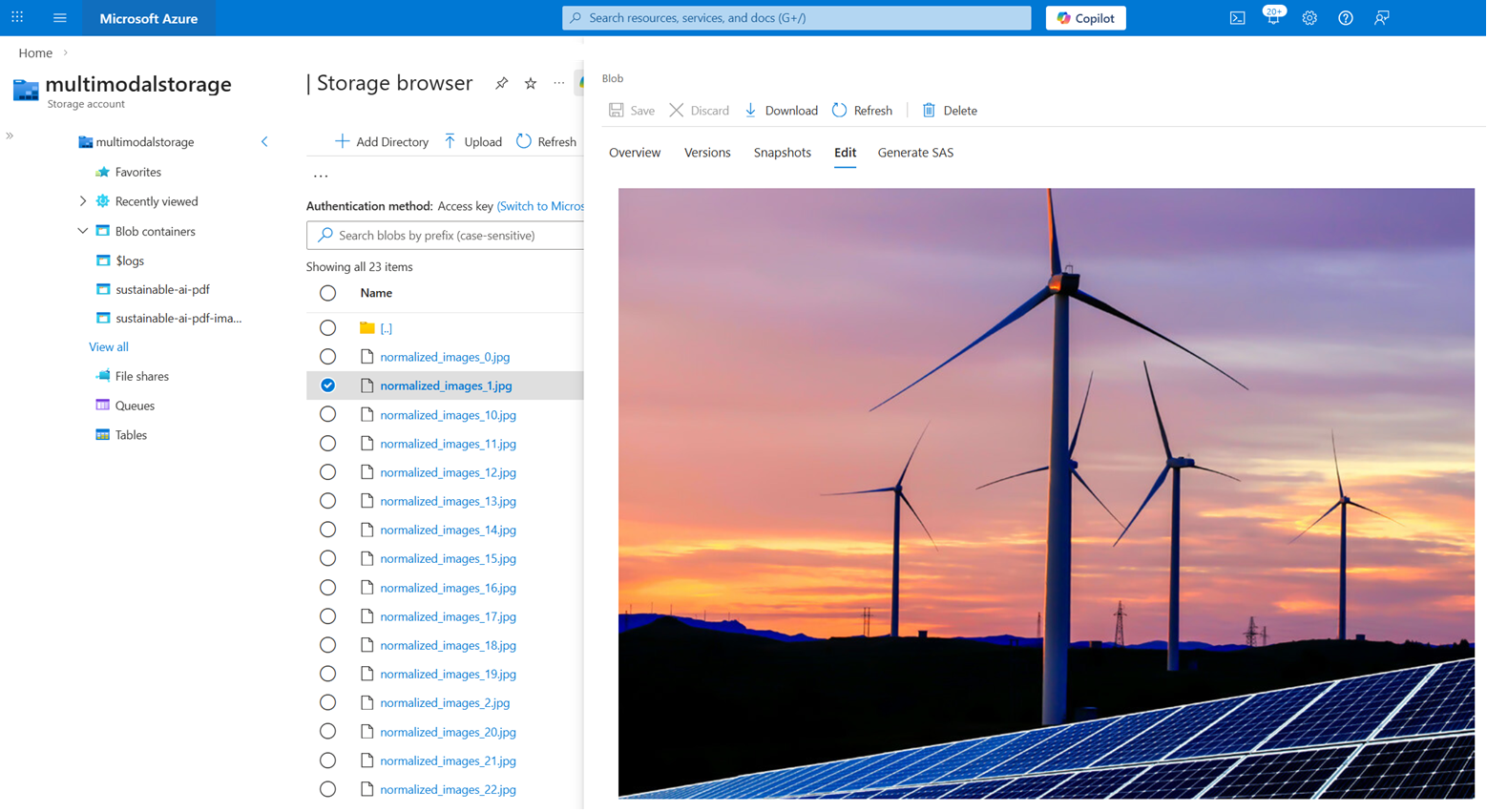
이 자습서의 기술 세트는 PDF에서 추출된 이미지 콘텐츠에 대한 지식 저장소 를 만듭니다. 인덱서가 실행되면 지속 가능한 ai-pdf-images 컨테이너에는 약 23개의 이미지가 있어야 합니다.
검색 쿼리에서는 이러한 이미지를 반환할 수 없습니다. 그러나 사용자 환경에 필요한 경우 Azure Storage API를 호출하여 이미지를 검색하는 애플리케이션 코드를 작성할 수 있습니다. 필드에는 content_path 각 이미지에 대한 경로가 있습니다.
스토리지 브라우저에서 이미지를 보려면 다음을 수행합니다.
Azure Portal에 로그인하고 Storage 계정으로 이동합니다.
스토리지 브라우저에서 지속 가능한 ai-pdf-images 컨테이너를 확장합니다.
이미지를 선택합니다.
오른쪽 맨 오른쪽 메뉴(...)에서 보기/편집을 선택합니다.
자원을 정리하세요
사용자 고유의 구독에서 작업하는 경우 더 이상 필요하지 않은 리소스를 제거하여 프로젝트를 완료하는 것이 좋습니다. 실행 상태로 방치된 리소스는 비용이 들 수 있습니다.
Azure Portal의 왼쪽 창에서 모든 리소스 또는 리소스 그룹을 선택하여 리소스를 찾고 관리합니다. 리소스를 개별적으로 삭제하거나 리소스 그룹을 삭제하여 모든 리소스를 한 번에 제거할 수 있습니다.