이 문서는 .NET Core 3.1 SDK 이상 버전에 적용됩니다 ✔️.
이 자습서에서는 과도한 CPU 사용 시나리오를 디버그하는 방법을 알아봅니다. 제공된 예제 ASP.NET Core 웹앱 소스 코드 리포지토리를 사용하여 의도적으로 교착 상태를 일으킬 수 있습니다. 엔드포인트는 응답을 중지하고 스레드 누적을 경험합니다. 다양한 도구를 사용하여 진단 데이터의 몇 가지 주요 부분을 사용하여 이 시나리오를 진단하는 방법을 알아봅니다.
이 자습서에서는 다음을 수행합니다.
- 높은 CPU 사용량 조사
- dotnet-counters를 사용하여 CPU 사용량 확인
- 추적 생성에 dotnet-trace 사용
- PerfView의 프로필 성능
- 과도한 CPU 사용량 진단 및 해결
필수 조건
이 자습서에서는 다음을 사용합니다.
- .NET Core 3.1 SDK 이상 버전.
- 시나리오를 트리거하는 샘플 디버그 대상입니다.
- dotnet-trace 를 사용하여 프로세스를 나열하고 프로필을 생성합니다.
- cpu 사용량을 모니터링하는 dotnet-counters입니다.
CPU 계수기
이 자습서를 시도하기 전에 최신 버전의 dotnet-counters를 설치하세요.
dotnet tool install --global dotnet-counters
앱이 .NET 9보다 오래된 .NET 버전을 실행하는 경우 dotnet-counters의 출력 UI는 약간 다르게 표시됩니다. 자세한 내용은 dotnet-counters를 참조하세요 .
진단 데이터를 수집하기 전에 높은 CPU 상태를 관찰해야 합니다. 프로젝트 루트 디렉터리에서 다음 명령을 사용하여 샘플 애플리케이션 을 실행합니다.
dotnet run
현재 CPU 사용량을 확인하려면 dotnet-counters 도구 명령을 사용합니다.
dotnet-counters monitor -n DiagnosticScenarios --showDeltas
출력은 다음과 유사해야 합니다.
Press p to pause, r to resume, q to quit.
    Status: Running

Name                                                            Current Value      Last Delta
[System.Runtime]
    dotnet.assembly.count ({assembly})                               111               0
    dotnet.gc.collections ({collection})
        gc.heap.generation
        ------------------
        gen0                                                           8               0
        gen1                                                           1               0
        gen2                                                           0               0
    dotnet.gc.heap.total_allocated (By)                        4,042,656          24,512
    dotnet.gc.last_collection.heap.fragmentation.size (By)
        gc.heap.generation
        ------------------
        gen0                                                     801,728               0
        gen1                                                       6,048               0
        gen2                                                           0               0
        loh                                                            0               0
        poh                                                            0               0
    dotnet.gc.last_collection.heap.size (By)
        gc.heap.generation
        ------------------
        gen0                                                     811,512               0
        gen1                                                     562,024               0
        gen2                                                   1,095,056               0
        loh                                                       98,384               0
        poh                                                       24,528               0
    dotnet.gc.last_collection.memory.committed_size (By)       5,623,808               0
    dotnet.gc.pause.time (s)                                           0.019           0
    dotnet.jit.compilation.time (s)                                    0.582           0
    dotnet.jit.compiled_il.size (By)                             138,895               0
    dotnet.jit.compiled_methods ({method})                         1,470               0
    dotnet.monitor.lock_contentions ({contention})                     4               0
    dotnet.process.cpu.count ({cpu})                                  22               0
    dotnet.process.cpu.time (s)
        cpu.mode
        --------
        system                                                         0.109           0
        user                                                           0.453           0
    dotnet.process.memory.working_set (By)                    65,515,520               0
    dotnet.thread_pool.queue.length ({work_item})                      0               0
    dotnet.thread_pool.thread.count ({thread})                         0               0
    dotnet.thread_pool.work_item.count ({work_item})                   6               0
    dotnet.timer.count ({timer})                                       0               0
값Last Delta에 dotnet.process.cpu.time 초점을 맞추면 새로 고침 기간(현재 기본값인 1초로 설정됨) 내에 CPU가 활성화된 시간(초)이 표시됩니다. 웹앱이 실행되면 시작 직후 CPU가 전혀 소비되지 않으며 이러한 델타는 둘 다 0됩니다. 경로 매개변수로 60000을(를) 사용하여 api/diagscenario/highcpu 경로로 이동합니다.
https://localhost:5001/api/diagscenario/highcpu/60000
이제 dotnet-counters 명령을 다시 실행합니다.
dotnet-counters monitor -n DiagnosticScenarios --showDeltas
아래와 같이 CPU 사용량이 증가해야 합니다(호스트 머신에 따라 다양한 CPU 사용량이 예상됨).
Press p to pause, r to resume, q to quit.
    Status: Running

Name                                                            Current Value      Last Delta
[System.Runtime]
    dotnet.assembly.count ({assembly})                               111               0
    dotnet.gc.collections ({collection})
        gc.heap.generation
        ------------------
        gen0                                                           8               0
        gen1                                                           1               0
        gen2                                                           0               0
    dotnet.gc.heap.total_allocated (By)                        4,042,656          24,512
    dotnet.gc.last_collection.heap.fragmentation.size (By)
        gc.heap.generation
        ------------------
        gen0                                                     801,728               0
        gen1                                                       6,048               0
        gen2                                                           0               0
        loh                                                            0               0
        poh                                                            0               0
    dotnet.gc.last_collection.heap.size (By)
        gc.heap.generation
        ------------------
        gen0                                                     811,512               0
        gen1                                                     562,024               0
        gen2                                                   1,095,056               0
        loh                                                       98,384               0
        poh                                                       24,528               0
    dotnet.gc.last_collection.memory.committed_size (By)       5,623,808               0
    dotnet.gc.pause.time (s)                                           0.019           0
    dotnet.jit.compilation.time (s)                                    0.582           0
    dotnet.jit.compiled_il.size (By)                             138,895               0
    dotnet.jit.compiled_methods ({method})                         1,470               0
    dotnet.monitor.lock_contentions ({contention})                     4               0
    dotnet.process.cpu.count ({cpu})                                  22               0
    dotnet.process.cpu.time (s)
        cpu.mode
        --------
        system                                                         0.344           0.013
        user                                                          14.203           0.963
    dotnet.process.memory.working_set (By)                    65,515,520               0
    dotnet.thread_pool.queue.length ({work_item})                      0               0
    dotnet.thread_pool.thread.count ({thread})                         0               0
    dotnet.thread_pool.work_item.count ({work_item})                   6               0
    dotnet.timer.count ({timer})                                       0               0
요청 기간 동안 CPU 사용량은 증가된 값을 가리킵니다.
팁 (조언)
더 높은 CPU 사용량을 시각화하려면 동시에 여러 브라우저 탭에서 이 엔드포인트를 연습할 수 있습니다.
이 시점에서 CPU가 예상보다 높게 실행되고 있다고 안전하게 말할 수 있습니다. 문제의 영향을 식별하는 것이 원인을 찾는 데 중요합니다. 문제의 원인을 찾기 위해 진단 도구 외에도 높은 CPU 사용량의 효과를 사용합니다.
프로파일러를 사용하여 높은 CPU 분석
CPU 사용량이 높은 앱을 분석할 때 프로파일러를 사용하여 코드가 수행하는 작업을 이해합니다.
dotnet-trace collect는 모든 운영 체제에서 작동하지만, 안전 지점 바이어스 및 관리 전용 호출 스택으로 인해 Windows용 ETW나 Linux용 perf 같은 커널 인식 프로파일러에 비해 더 일반적인 정보로 제한됩니다. 운영 체제 및 .NET 버전에 따라 향상된 프로파일링 기능을 사용할 수 있습니다. 자세한 지침은 다음 플랫폼별 탭을 참조하세요.
사용 dotnet-trace collect-linux (.NET 10 이상)
.NET 10 이상에서는 dotnet-trace collect-linux Linux에서 권장되는 프로파일링 접근 방식입니다. EventPipe와 OS 수준 perf_events 결합하여 프로세스를 다시 시작하지 않고도 관리형 및 네이티브 호출 스택을 모두 포함하는 단일 통합 추적을 생성합니다. 이렇게 하려면 루트 권한 및 Linux 커널 6.4 이상이 CONFIG_USER_EVENTS=y필요합니다. 전체 요구 사항은 collect-linux 필수 구성 요소를 참조하세요.
샘플 디버그 대상이 .NET 10 이상을 대상으로 구성되었는지 확인하고 실행한 다음 높은 CPU 엔드포인트(https://localhost:5001/api/diagscenario/highcpu/60000)를 다시 실행합니다. 1분 요청 내에서 실행되는 동안 dotnet-trace collect-linux를 실행하여 시스템 전체 추적을 캡처합니다.
sudo dotnet-trace collect-linux
약 20-30초 동안 실행한 다음 Ctrl+C 또는 Enter 키를 눌러 컬렉션을 중지합니다. 결과는 .nettrace 관리되는 호출 스택과 네이티브 호출 스택을 모두 포함하는 파일입니다.
.nettrace를 PerfView로 열고 CPU 스택 보기로 가장 많은 CPU 시간을 소비하는 메서드를 식별합니다.
추적에서 네이티브 런타임 기호를 확인하는 방법에 대한 자세한 내용은 네이티브 런타임 프레임에 대한 기호 가져오기를 참조하세요.
perf 사용
이 perf 도구를 사용하여 .NET Core 앱 프로필을 생성할 수도 있습니다.
샘플 디버그 대상의 이전 인스턴스를 종료합니다.
.NET 앱이 DOTNET_PerfMapEnabled 디렉터리에 파일을 만들도록 환경 변수를 map/tmp 설정합니다. 이 map 파일은 perf에서 CPU 주소를 JIT 생성 함수 이름으로 매핑하는 데 사용됩니다. 자세한 내용은 퍼포먼스 맵 및 JIT 덤프 내보내기를 참조하세요.
동일한 터미널 세션에서 샘플 디버그 대상 을 실행합니다.
export DOTNET_PerfMapEnabled=1
dotnet run
고도 CPU API 엔드포인트(https://localhost:5001/api/diagscenario/highcpu/60000)를 다시 실행합니다. 1분 요청 내에서 실행되는 동안 프로세스 ID를 사용하여 perf 명령을 실행합니다.
sudo perf record -p 2266 -g
이 perf 명령은 성능 수집 프로세스를 시작합니다. 약 20-30초 동안 실행한 다음 Ctrl+C 를 눌러 컬렉션 프로세스를 종료합니다. 동일한 perf 명령을 사용하여 추적의 출력을 볼 수 있습니다.
sudo perf report -f
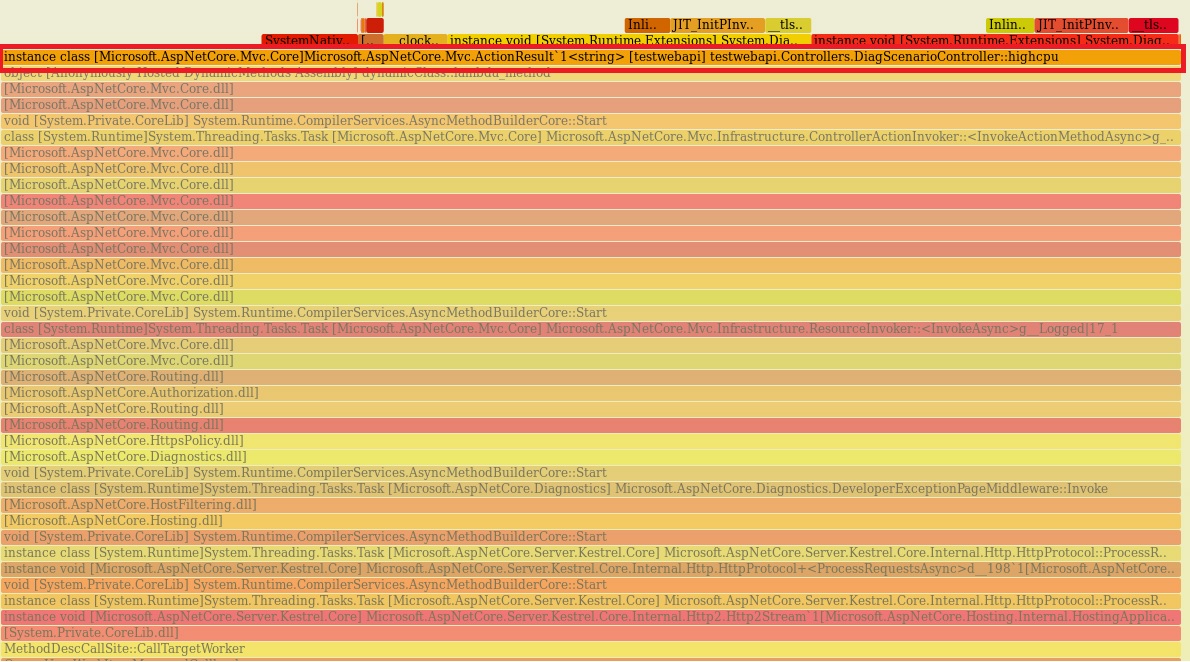
다음 명령을 사용하여 화염 그래프 를 생성할 수도 있습니다.
git clone --depth=1 https://github.com/BrendanGregg/FlameGraph
sudo perf script | FlameGraph/stackcollapse-perf.pl | FlameGraph/flamegraph.pl > flamegraph.svg
이 명령은 성능 문제를 조사하기 위해 브라우저에서 볼 수 있는 파일을 생성 flamegraph.svg 합니다.

Visual Studio를 사용하여 높은 CPU 데이터 분석
모든 *.nettrace 파일은 Visual Studio에서 분석할 수 있습니다. Visual Studio에서 Linux *.nettrace 파일을 분석하려면 필요한 다른 문서 외에도 *.nettrace 파일을 Windows 컴퓨터로 전송한 다음 Visual Studio에서 *.nettrace 파일을 엽니다. 자세한 내용은 CPU 사용량 현황 데이터 분석을 참조하세요.
참고하십시오
- 프로세스를 나열하는 dotnet-trace
- 관리되는 메모리 사용량을 확인하기 위한 dotnet-counters
- 덤프 파일을 수집하고 분석하는 dotnet-dump
- dotnet/diagnostics
다음 단계
GitHub에서 Microsoft와 공동 작업
이 콘텐츠의 원본은 GitHub에서 찾을 수 있으며, 여기서 문제와 끌어오기 요청을 만들고 검토할 수도 있습니다. 자세한 내용은 참여자 가이드를 참조하세요.

.NET