Set up for voice
Now that you have the necessary extensions in place, and you set up the handoff to your preferred customer service application, you're ready to set up the agent for voice. From a design standpoint, you don't need to do anything differently when you create the agent. Items such as topics, entities, and other elements are designed the same way. The only real difference is that, because the agent is enabled for voice, the text is spoken to the customer instead of presented on a screen.
For more information about getting started building Microsoft Copilot Studio agents, select the following links:
The simplest way to set up an agent for voice is from the Customer Service admin center or the Omnichannel admin center. The focus of Customer Service admin center is to administer Dynamics 365 Customer Service and omnichannel functionality, while the Omnichannel admin center focuses on administrating omnichannel functionality. Whatever you do in the Omnichannel admin center, you can do in the Customer Service admin center.
To learn more about both administrative experiences, select the following links:
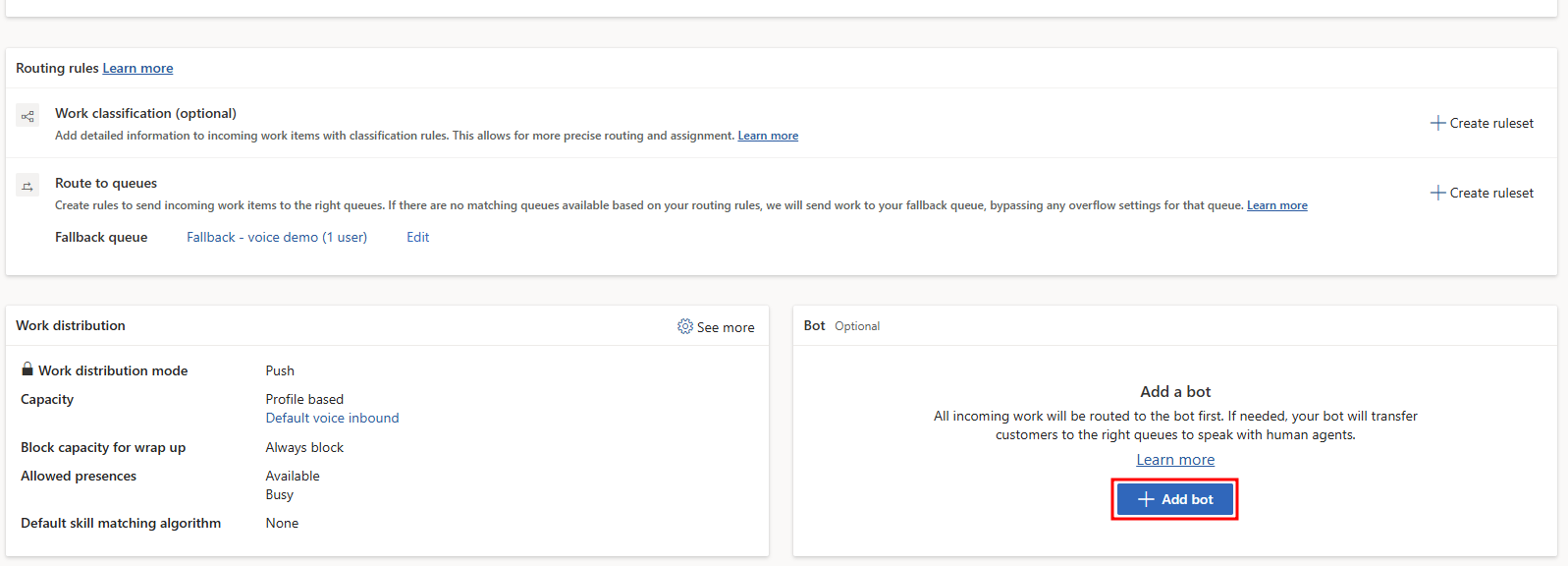
To set up an agent for voice, open a voice channel workstream that was previously created. For more information, see Deploy a Voice channel in Dynamics 365 Customer Service. In the Add an agent section, select the Add an agent option, where you specify the agent that you want to use.
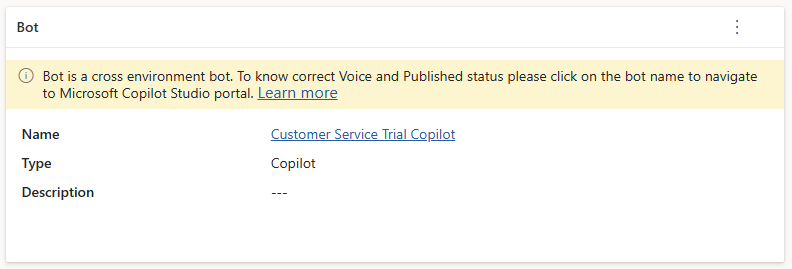
After you specify the agent, detailed information about the agent that's associated with the item displays in the Agent section.