Deploy the necessary extensions
Basic behavior of a voice-enabled Microsoft Copilot Studio agent isn't entirely different from a traditional agent. From a design standpoint, you don't need to do anything differently when you create the agent. Items such as topics, entities, and other elements are designed the same way. The primary difference is that, rather than interacting with a customer through a text-based form of communication, the agent engages with them through a voice conversation. To ensure that this process happens as intended, you need to install multiple extensions into your environment to ensure that everything is handled correctly.
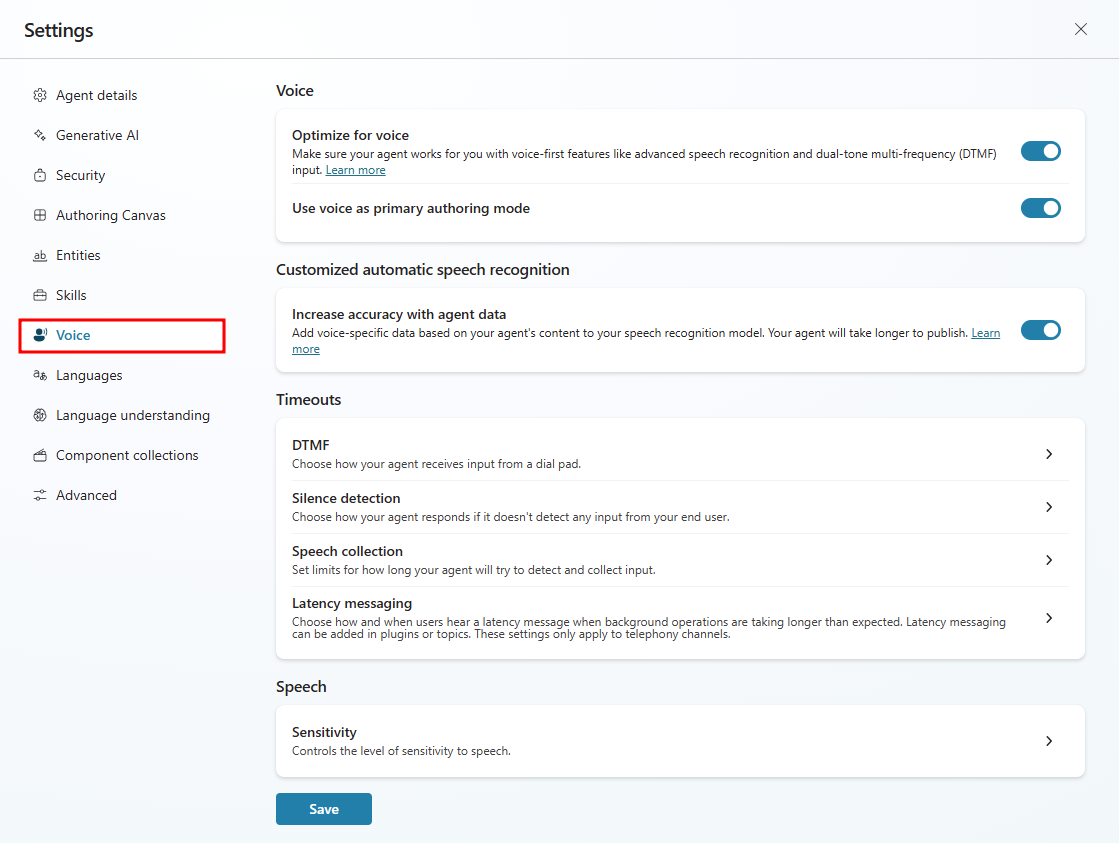
You need to perform some configuration to set up your agent for voice capabilities. All voice settings can be accessed by going to Settings > Voice. Initially your agent isn't optimized for voice. By selecting Optimize for voice, additional voice capabilities become available.
Once you have enabled Optimize for voice, you can update the following settings:
Use voice as primary authoring mode:
Increase accuracy with agent data: Allows you to add voice-specific data based on your agent's content to your speech recognition model. This increases the amount of time that it takes for your agent to publish.
Timeouts:
DTMF: Includes different settings that help to define how agent receives input from a dial pad. There are two settings to modify:
Interdigit timeout: This timeout limit applies when your user hasn't met the maximum input length. It applies only to multi-digit DTMF input.
Termination timeout: This timeout limit applies when the user has met the maximum input length and hasn't pressed the termination key. It applies only to multi-digit DTMF input.
Silence detection: Allows you to specify how your agent responds if it doesn’t detect any input from your end user. The setting is binary and can either be enabled or disabled.
Speech collection: Allows you to set limits for how long your agent tries to detect and collect input data. It includes the following settings:
Utterance end timeout: This timeout limit applies when the user pauses during or after speech. If the pause continues past the timeout limit, the agent acts as though user has finished speaking.
Speech recognition timeout: This timeout limit determines how much time the agent allows for the user's input once they begin speaking.
Latency Messaging: Allows you to choose how and when users hear a latency message when background operations are taking longer than expected. It includes the following settings:
Send message delay: This setting determines how long the agent waits before delivering the latency message after a background operation request has started.
Minimum playback time: The latency message plays for this amount of time, at least, even if the background operation completes while the message is playing.
Speech sensitivity: Controls the level of sensitivity to speech. Lower settings filters out more background noise. Higher settings are best for quiet environments.