Sales acceleration reporting
As your sales staff leverages The Sales Accelerator, there will be multiple sequences applied to different records. This can become a large undertaking for a sales organization.
Sales acceleration reporting provides a broad overview of the sequences that are related to leads and opportunities in your organization. By using AI, the reports provide insights related to which sequences are doing better and are providing the most successful conversion rates. Additionally, you can analyze metrics and key performance indicators (KPIs) to identify areas for improvement that might have the greatest effect on sales growth.
By default, Sales acceleration reports aren't enabled. They'll need to be enabled by someone with administrative privileges. Reports are enabled by going to Sales Insights Settings, choosing Workspace under the Sales accelerator group, and going to enable reporting. Once enabled, it might take up to 24 hours to display the data in the reports. When the reports are being provisioned for the first time. After the first time, reports are refreshed every 24 hours.
By default, users with sales manager and sequence manager roles can view the reporting page. When working in the sales area of the Sales hub app, users can access the reports under the Sales Analytics group and select Sales Acceleration Reporting.
Understand sales acceleration reporting
By default, the report displays KPIs for all sequences that are related to leads and opportunities over the past month. The reporting view can be categorized into the following sections:
Data filters
KPI summary charts
Metric charts
Data filters
Use the data filtering options to select data for specific time periods, entity type, sequence name, sequence owner, seller, and territory. To filter data by duration, channel, queue, or agent, select a value from the respective dropdown list.

KPI summary charts
The KPI summary charts summarize the key performance indicators for the specified period and the percentage change during the period. You can further filter these areas by entity type, sequence name, sequence owner, seller, and territory. Also, a trend is displayed corresponding to the value specifying how the KPI is doing in the selected timeframe when compared with the previous timeframe. A green upward triangle indicates an improvement in the score, and a red downward triangle indicates a decline in the score.

The following table shows the KPIs that are displayed in the report.
Lead conversion rate: The percentage of leads in a sequence that are successfully converted into opportunities.
Avg.time (in days) for lead conversion: The average number of days a lead takes to be converted to an opportunity when it's connected to a sequence.
Avg.time (in days) for sequence completion: The average number of days it takes for a sequence to be completed in an attached record.
Opportunity-to-win ratio: The percentage of opportunities in a sequence that are successfully converted into win deals.
Avg.time (in days) for opportunity conversion: The average number of days that it takes for an opportunity in a sequence to be converted into a win deal.
Metric charts
The metric chart provides a detailed view into the individual values of a sequence, such as status, number of steps, and the status of the steps.
To view specific data that's related to a value in the charts, select the value. Other metric charts in the report will be refreshed to show data that's related to the value you select. Drilling down into these values helps you to identify the areas of improvements for the sequence.
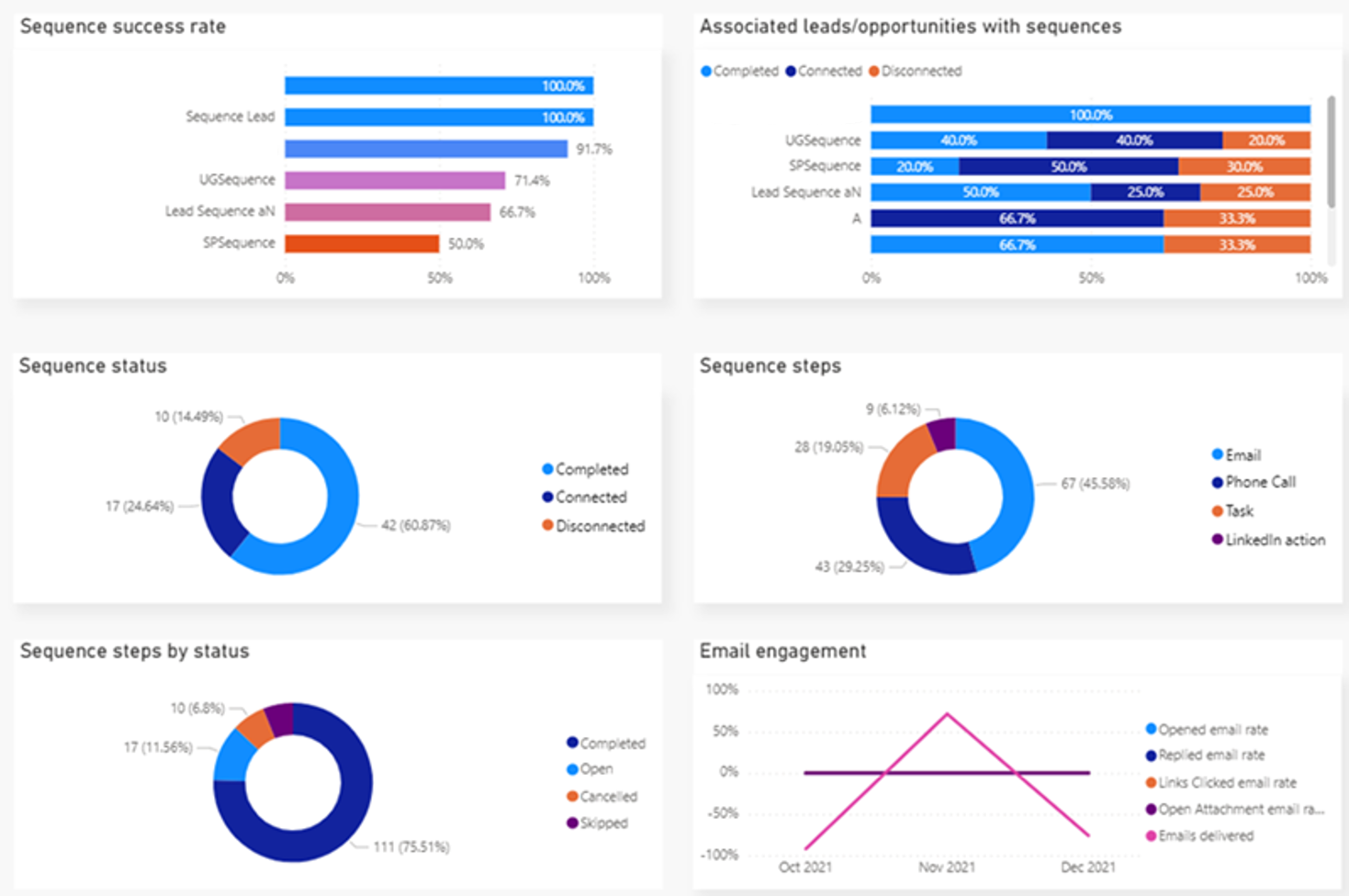
The following metrics are displayed in the charts.
Sequence success rate: A breakdown of sequences that are active in your organization, with the percentage of records that have been successfully converted.
Associated leads/opportunities with sequence: A breakdown of sequences with the status of their associated lead or opportunity records. Completed, Connected, or Disconnected.
Sequence status: A breakdown of sequences by their status. Completed, Connected, or Disconnected.
Sequence steps: A breakdown of sequence steps that are added to active sequences in your organization.
Sequence steps by status: A breakdown of sequence steps by their status in all the sequences that they're added to. Completed, Canceled, Skipped, or Open.
Email engagement: A breakdown of the status of emails that are linked to sequences through email steps. The status displayed in the chart is based on the status that's defined in the email engagement feature.