Connect a segment to a sequence
Typically, after you create and activate your segment, the next step is to connect the segment to a sequence. When you connect a segment to a sequence, new records that meet the segment's conditions automatically have the sequence applied. For example, if you connect a web leads segment to a sequence called lead nurturing, the system automatically adds new leads in the web leads segment to the nurturing sequence.
In the Sales Hub app, go to Sales Insights settings > Sequences. Select and open a sequence and then go to the Connected leads tab.
The Connected leads tab includes two sections:
Connected segments - Specifies the segments that have been connected to this sequence.
Connected leads - Specifies the individual leads that have been connected to this sequence.
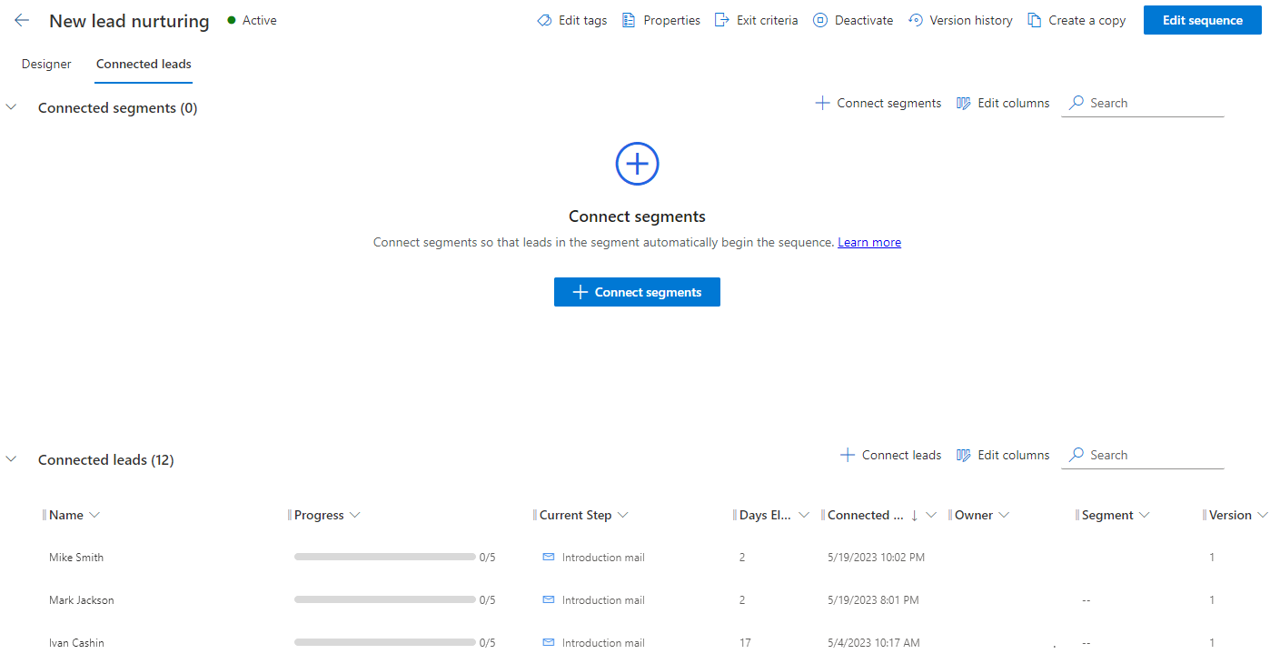
To associate a segment to the sequence, in the Connected segments section, select + Connect segments. Only activated segments for that record type should display. If no segments display, you might need to return and activate a segment. After identifying the segment that you want to use, select the Connect button.
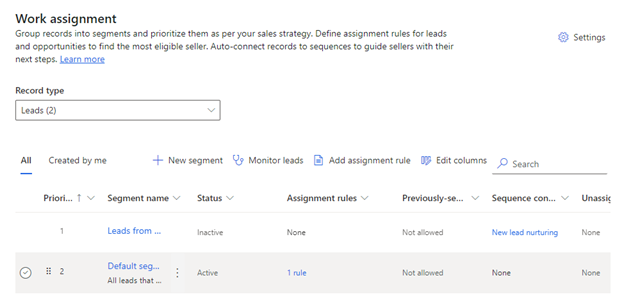
Whenever you want to disassociate a segment from this sequence, select the segment and then select Disconnect.
For more information, see Connect a segment to a sequence.