View details of a segment
The Details tab on a segment provides all details of a segment, such as connected sequences, segment members, and assignment rules.
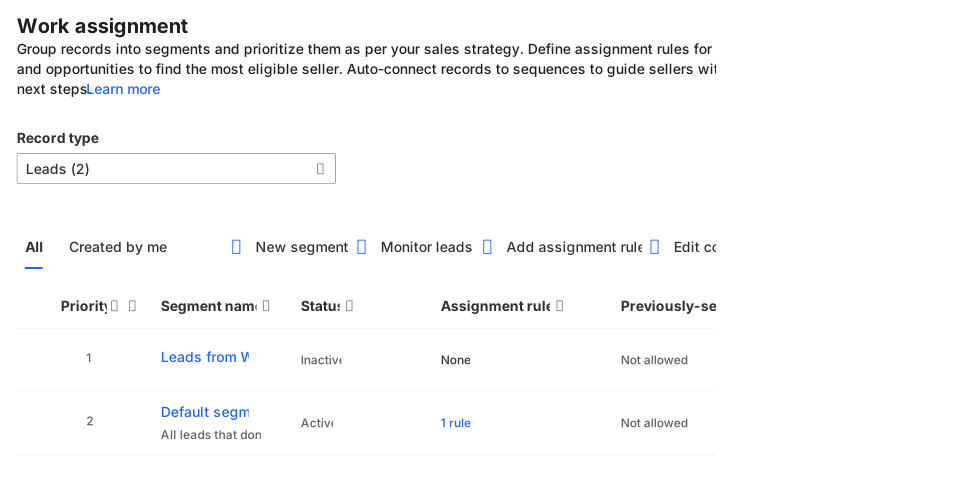
To view details of a segment in the Sales Hub app, go to Sales Insights settings > Work assignment and then select the record type that you want to work with from the Work assignment list. For example, if you set the record type to Leads, all segments that are available for lead records display.
In addition, the page provides extra information about each listed segment, such as:
Priority - Specifies the order in which the segment is applied to the records. The system applies segments with the highest priority first. If the segment is inactive, the system doesn't consider priority.
Status - Specifies whether the segment is active, inactive, or paused. If a segment is paused, the record type of the segment is deleted from the sales accelerator configuration. Inactive means that the segment isn't active and is unavailable for connecting to sequences or assignment rules.
Previously-segmented records - Specifies if the records were allowed to move from another segment to this segment.
Assignment rules - Specifies if record assignment rules are associated with this segment.
Sequence connected - Specifies if the segment is connected to any sequences.
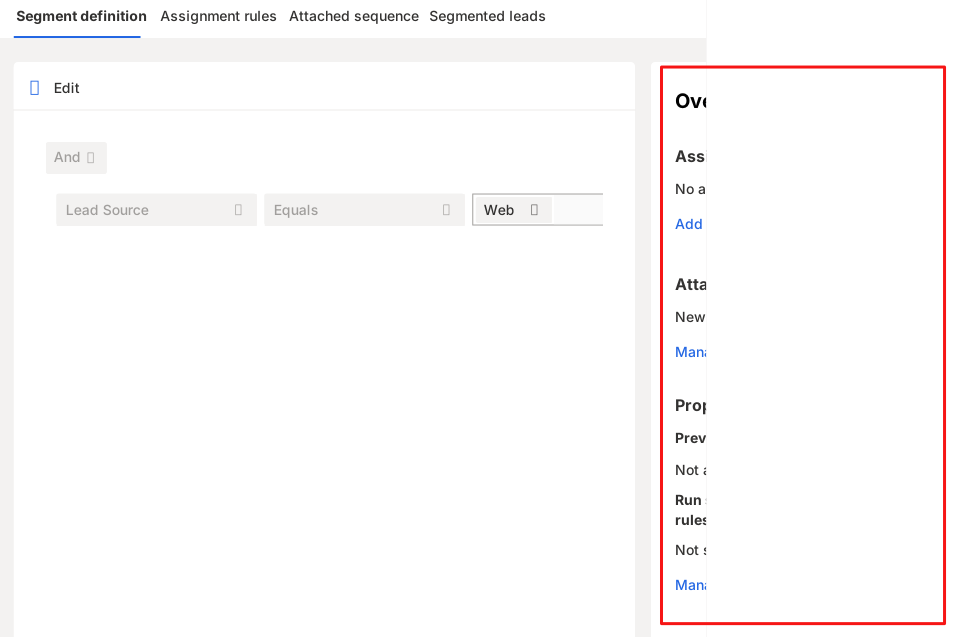
You can open a segment by selecting it and choosing View segment. Once you open a segment, it contains an Overview panel. The overview panel will display high-level details of the segment including:
Assignment rules – Displays any assignment rules that are associated with the segment.
Attached sequence – Lists the sequence that is attached to this segment.
Properties – Provides additional details about the segment.
Important
Assignment rules aren't the primary focus of this module. For more information about assignment rules, see Manage assignment rules for routing.
You can also see:
- Segment members - Specifies a list of records that are associated with the segment. You can edit the records without moving away from the Details page. Select the record to open it in a dialog.
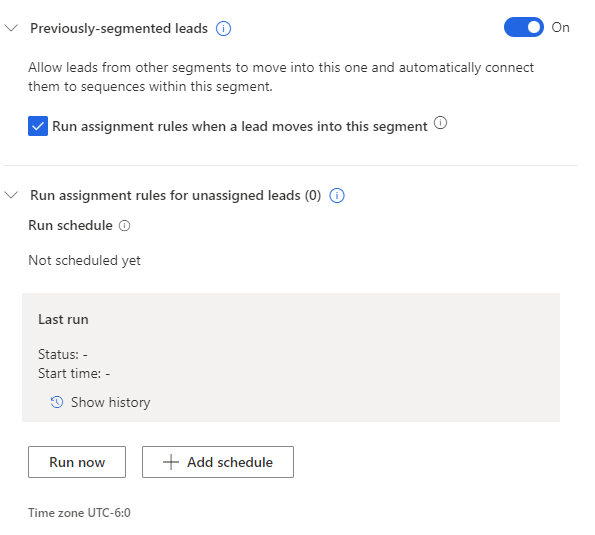
Then, if you select manage under the properties group, there will be two additional settings that you can modify for the segment.
- Previously-segmented leads – Occasionally, you might want records that are already in another segment to be moved to the segment that you're creating. For example, the segment that you're creating has a higher priority than another segment. Turning on previously-segmented leads validates the records for conditions that are defined in this segment and moves the records accordingly, even if the records are connected to a different segment. When moved, the records are connected to the sequence from this segment.
Additionally, you can enable the run assignment rules when a lead moves in the segment option. This ensures that all leads moved into the segment are automatically assigned to a sales rep.
Run assignment rules for unassigned leads – Runs any assignment rules again to assign unassigned records to sellers. You have two options to choose from:
Run now – Runs assignment rules on unassigned records right away.
Add Schedule – Allows you to specify a schedule that you want assignment rules to run on.
For more information, see View details of a segment.