언어
Windows 앱 SDK 사용하여 Windows 앱을 빌드할 때 사용자는 종종 문서, 이미지 또는 기타 콘텐츠와 같은 파일을 디바이스의 특정 위치에 저장해야 합니다. 이 Windows 앱 SDK FileSavePicker 클래스를 제공하여 사용자가 파일을 저장할 위치와 이름을 선택할 수 있는 일관되고 사용자에게 친숙한 인터페이스를 만듭니다.
이 문서에서는 WinUI 앱에서 파일 저장 선택기를 구현하는 방법을 보여 줍니다. 선택기 모양과 동작을 구성하고, 사용자의 선택을 처리하고, 선택한 위치에 콘텐츠를 저장하는 방법을 알아봅니다.
파일 저장 선택기는 사용자가 파일을 더 쉽게 저장할 수 있도록 제안된 파일 이름 및 기타 기본 설정으로 채울 수 있습니다.
필수 조건
시작하기 전에 다음이 있는지 확인합니다.
- Windows 앱 SDK 1.8 이상. 이 문서에 사용된 API는
Microsoft.Windows.Storage.PickersWindows 앱 SDK 1.8에서 도입되었습니다. 프로젝트가 이전 버전을 대상으로 하는 경우 레거시 접근 방식에 대해 HWND interop에서 WinRT 선택기 사용을 참조하세요. - Windows 앱 SDK 사용하여 설정된 WinUI 프로젝트
- C# 및 XAML에 대한 기본 숙지
- C의 비동기/대기 패턴 이해#
중요 API
이 항목에서는 다음 API가 사용됩니다.
FileSavePicker를 사용하여 사용자가 앱에서 파일을 저장할 이름과 위치를 지정할 수 있습니다.

WinUI 3 갤러리 앱에는 WinUI 컨트롤 및 기능의 대화형 예제가 포함되어 있습니다. Microsoft Store에서 앱을 다운로드하거나 GitHub 소스 코드를 찾습니다.
FileSavePicker를 사용하여 문서 저장
사용자가 저장할 파일의 이름, 형식 및 위치를 지정할 수 있도록 FileSavePicker 를 사용합니다. 파일 선택기 개체를 만들고, 사용자 지정하고, 표시한 다음, 선택한 파일 경로가 포함된 반환된 PickFileResult를 사용하여 데이터를 저장합니다. 파일 이름이 필요한 경우 해당 경로에서 파생합니다.
- FileSavePicker를 만들고 사용자 지정합니다. 먼저 새 FileSavePicker 개체를 만든 다음, 개체의 속성을 설정하여 앱과 사용자의 파일 선택기를 사용자 지정합니다.
    using Microsoft.Windows.Storage.Pickers;
    ...
    var savePicker = new FileSavePicker(this.AppWindow.Id)
    {
        // (Optional) Specify the initial location for the picker.
        //     If the specified location doesn't exist on the user's machine, it falls back to the DocumentsLibrary.
        //     If not set, it defaults to PickerLocationId.Unspecified, and the system will use its default location.
        SuggestedStartLocation = PickerLocationId.DocumentsLibrary,

        // (Optional) specify the default file name. If not specified, use system default.
        SuggestedFileName = "My Document",

        // (Optional) Sets the folder that the file save dialog displays when it opens.
        //     If not specified or the specified path doesn't exist, defaults to the last folder the user visited.
        SuggestedFolder = @"C:\MyFiles",

        // (Optional) specify the text displayed on the commit button.
        //     If not specified, the system uses a default label of "Save" (suitably translated).
        CommitButtonText = "Save Document",

        // (Optional) categorized extension types. If not specified, "All Files (*.*)" is allowed.
        //     Note that when "All Files (*.*)" is allowed, end users can save a file without an extension.
        FileTypeChoices = {
            { "Documents", new List<string> { ".txt", ".doc", ".docx" } }
        },

        // (Optional) specify the default file extension (will be appended to SuggestedFileName).
        //      If not specified, no extension will be appended.
        DefaultFileExtension = ".txt",
    };
    #include <winrt/Microsoft.Windows.Storage.Pickers.h>
    using namespace winrt::Microsoft::Windows::Storage::Pickers;

    FileSavePicker savePicker(AppWindow().Id());

    // (Optional) Specify the initial location for the picker.
    //     If the specified location doesn't exist on the user's machine, it falls back to the DocumentsLibrary.
    //     If not set, it defaults to PickerLocationId.Unspecified, and the system will use its default location.
    savePicker.SuggestedStartLocation(PickerLocationId::DocumentsLibrary);

    // (Optional) specify the default file name. If not specified, use system default.
    savePicker.SuggestedFileName(L"NewDocument");

    // (Optional) Sets the folder that the file save dialog displays when it opens.
    //     If not specified or the specified path doesn't exist, defaults to the last folder the user visited.
    savePicker.SuggestedFolder = L"C:\\MyFiles";

    // (Optional) specify the text displayed on the commit button.
    //     If not specified, the system uses a default label of "Save" (suitably translated).
    savePicker.CommitButtonText(L"Save Document");

    // (Optional) categorized extension types. If not specified, "All Files (*.*)" is allowed.
    //     Note that when "All Files (*.*)" is allowed, end users can save a file without an extension.
    savePicker.FileTypeChoices().Insert(L"Text", winrt::single_threaded_vector<winrt::hstring>({ L".txt" }));

    // (Optional) specify the default file extension (will be appended to SuggestedFileName).
    //      If not specified, no extension will be appended.
    savePicker.DefaultFileExtension(L".txt");
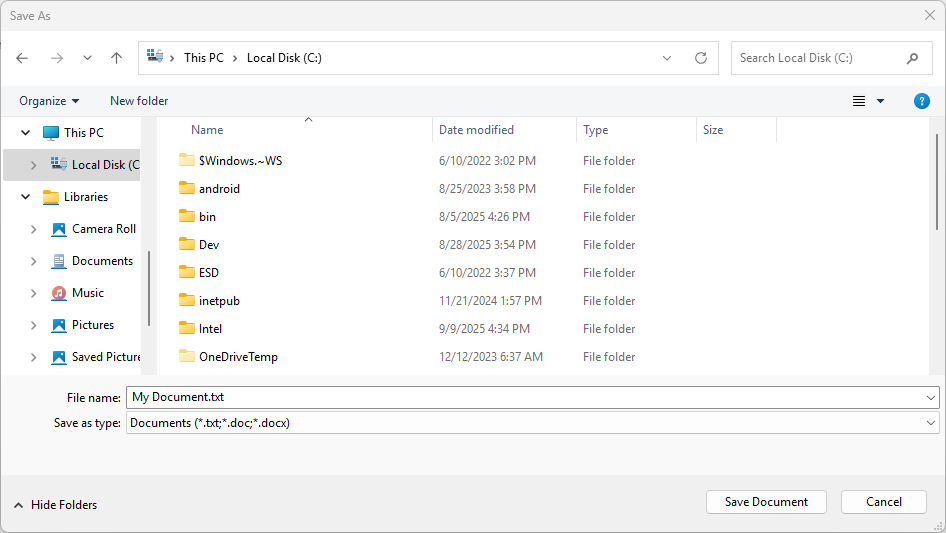
다음은 SuggestedStartLocation, SuggestedFileName, SuggestedFolder, CommitButtonText, FileTypeChoices 및 DefaultFileExtension의 6가지 속성을 설정하는 예제입니다.
사용자가 문서 또는 텍스트 파일을 저장하기 때문에 샘플은 PickerLocationId 열거형의 DocumentsLibrary 값을 사용하여 SuggestedStartLocation을 문서 라이브러리 폴더로 설정합니다. SuggestedStartLocation을 저장되는 파일 형식(예: 음악, 그림, 비디오 또는 문서)에 적합한 위치로 설정합니다. 시작 위치에서 사용자는 다른 위치로 이동하여 선택할 수 있습니다.
사용자에게 몇 가지 입력을 저장하기 위해 예제에서는 SuggestedFileName을 설정합니다. 제안된 파일 이름은 저장되는 파일과 관련이 있어야 합니다. 예를 들어 Word 경우 기존 파일 이름이 있으면 제안하거나, 사용자가 아직 이름이 없는 파일을 저장하는 경우 문서의 첫 줄을 제안할 수 있습니다.
샘플에서 지원하는 파일 형식(문서 및 텍스트 파일 Microsoft Word)을 지정할 때 FileTypeChoices 속성을 사용합니다. 이렇게 하면 앱이 저장된 후 파일을 열 수 있습니다. 지정한 모든 파일 형식이 앱에서 지원되는지 확인합니다. 사용자가 지정한 파일 형식으로 파일을 저장할 수 있습니다. 지정한 다른 파일 형식을 선택하여 파일 형식을 변경할 수도 있습니다. 목록에서 첫 번째 파일 형식 선택은 기본적으로 선택됩니다. 이를 제어하려면 DefaultFileExtension 속성을 설정합니다.
비고
또한 파일 선택기는 현재 선택한 파일 형식을 사용하여 표시되는 파일을 필터링하므로 선택한 파일 형식과 일치하는 파일 형식만 사용자에게 표시됩니다.
비고
FileSavePicker 개체는 PickerViewMode.List 보기 모드를 사용하여 파일 선택기를 표시합니다.
- 다음으로 FileSavePicker 를 표시하고 선택한 파일 위치에 저장합니다. PickSaveFileAsync를 호출하여 파일 선택기를 표시합니다. 사용자가 이름, 파일 형식 및 위치를 지정하고 파일을 저장하도록 확인한 후 PickSaveFileAsync 는 저장된 파일의 경로를 포함하는 경량 PickFileResult 개체를 반환합니다. 파일 이름이 필요한 경우 해당 경로에서 파생합니다. 읽기 및 쓰기 권한이 있는 경우 이 파일을 캡처하고 처리할 수 있습니다.
    using Microsoft.Windows.Storage.Pickers;
    ...
    var savePicker = new FileSavePicker(this.AppWindow.Id);
    var result = await savePicker.PickSaveFileAsync();
    if (result != null)
    {
        if (!System.IO.File.Exists(result.Path))
        {
            // Create a file and write to it.
            System.IO.File.WriteAllText(result.Path, "Hello world." + Environment.NewLine);
        }
        else
        {
            // Append to the existing file.
            System.IO.File.AppendAllText(result.Path, "Hello again." + Environment.NewLine);
        }
    }
    else
    {
        this.textBlock.Text = "Operation cancelled.";
    }
    #include <winrt/Microsoft.Windows.Storage.Pickers.h>
    #include <fstream>
    #include <string>
    using namespace winrt::Microsoft::Windows::Storage::Pickers;

    FileSavePicker savePicker(AppWindow().Id());
    auto result{ co_await savePicker.PickSaveFileAsync() };
    if (result)
    {
        // Check if the file exists.
        if (!std::ifstream(result.Path().c_str()))
        {
            std::ofstream outFile(result.Path().c_str());
            outFile << "Hello world.";
            outFile.close();
        }
        else
        {
            // Append to the existing file.
            std::ofstream outFile(result.Path().c_str(), std::ios::app);
            outFile << "Hello again.";
            outFile.close();
        }
    }
    else
    {
        textBlock().Text(L"Operation cancelled.");
    }
이 예제에서는 파일이 있는지 확인하고 새 파일을 만들거나 기존 파일에 추가합니다. 사용자가 작업을 취소하면 결과가 생성되며 null사용자에게 메시지를 표시하는 등 해당 사례를 적절하게 처리할 수 있습니다.
팁 (조언)
다른 처리를 수행하기 전에 저장된 파일이 존재하고 유효한지 항상 확인해야 합니다. 그런 다음, 앱에 맞게 파일에 콘텐츠를 저장할 수 있습니다. 선택한 파일이 유효하지 않은 경우 앱에서 적절한 동작을 제공해야 합니다.
관련 콘텐츠
GitHub에서 Microsoft와 공동 작업
이 콘텐츠의 원본은 GitHub에서 찾을 수 있으며, 여기서 문제와 끌어오기 요청을 만들고 검토할 수도 있습니다. 자세한 내용은 참여자 가이드를 참조하세요.

Windows developer