PendingUpdate를 사용하여 앱 알림에서 다단계 상호 작용을 만들 수 있습니다. 예를 들어 후속 알림이 이전 알림의 응답에 따라 달라지는 일련의 알림을 만들 수 있습니다.
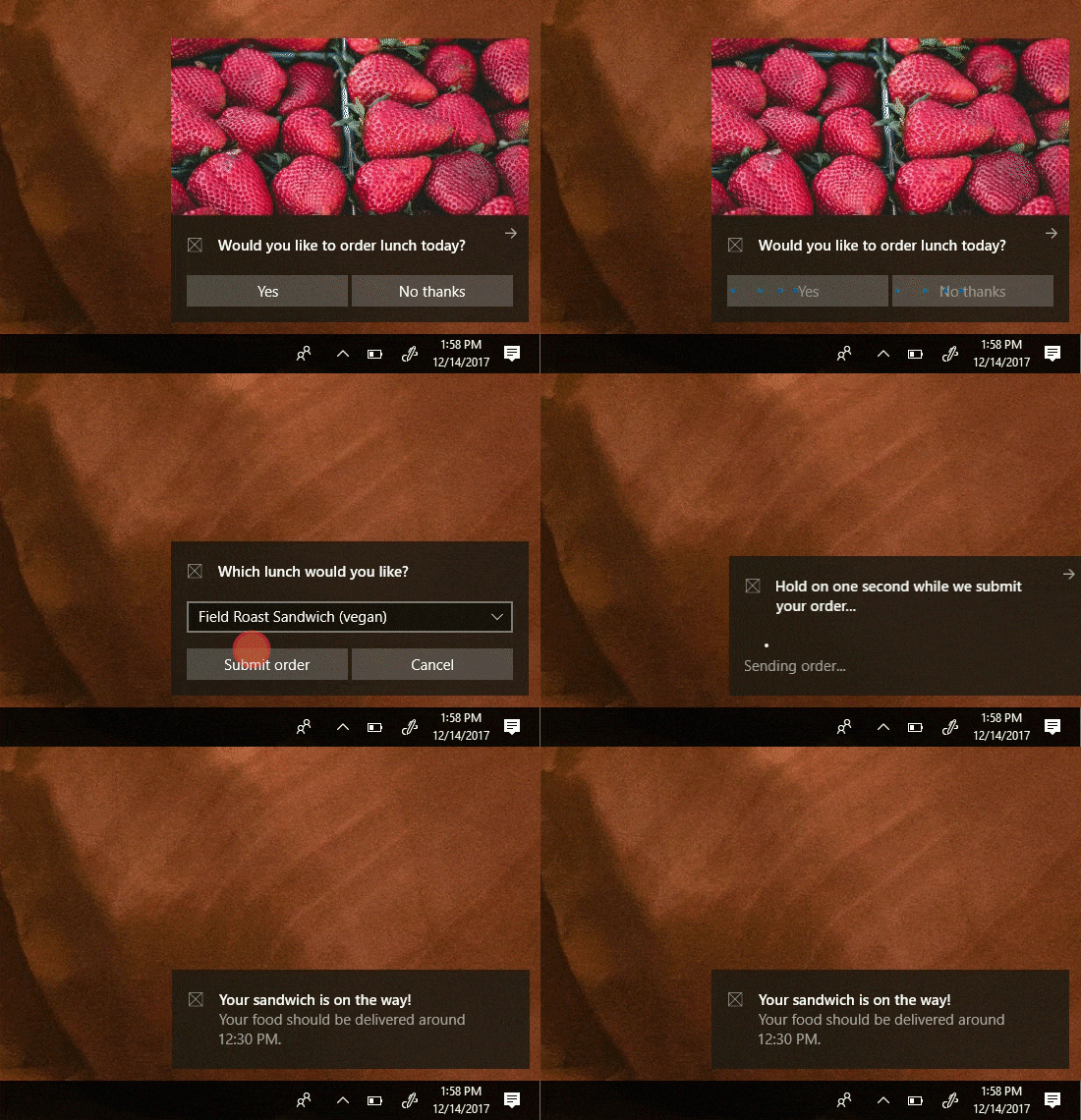
앱 알림에 대한 자세한 내용은 앱 알림 개요를 참조하세요.
개요
보류 중인 업데이트를 활성화 후 동작으로 사용하는 알림을 구현하려면 다음을 수행합니다.
- 백그라운드 활성화 단추에서 afterActivationBehavior를 pendingUpdate로 지정합니다.
- 알림을 보낼 때 태그 (및 필요에 따라 그룹화)를 할당합니다.
- 사용자가 단추를 클릭하면 백그라운드 작업이 활성화되고 알림이 보류 중인 업데이트 상태로 화면에 유지됩니다.
- 백그라운드 작업에서 동일한 태그 및 그룹을 사용하여 새 콘텐츠로 새 알림을 보내 보류 중인 알림을 바꿉니다.
보류 중인 업데이트 동작 설정
메모
AppNotificationButton 은 현재 지원 AfterActivationBehavior되지 않습니다.
AppNotification 생성자와 함께 XML 페이로드를 직접 사용하여 버튼에서 afterActivationBehavior="pendingUpdate"을(를) 설정합니다.
백그라운드 활성화 버튼에서 afterActivationBehavior를 pendingUpdate로 설정합니다.
activationType="background"이 있는 버튼에만 이 기능이 작동합니다.
using Microsoft.Windows.AppNotifications;

string xml = @"
<toast>
  <visual>
    <binding template='ToastGeneric'>
      <text>Would you like to order lunch today?</text>
    </binding>
  </visual>
  <actions>
    <action
      content='Yes'
      arguments='action=orderLunch'
      activationType='background'
      afterActivationBehavior='pendingUpdate'/>
    <action
      content='No'
      arguments='action=cancelLunch'
      activationType='background'/>
  </actions>
</toast>";

var notification = new AppNotification(xml);
notification.Tag = "lunch";

AppNotificationManager.Default.Show(notification);
알림을 새 콘텐츠로 바꾸기
단추를 클릭하는 사용자에 대한 응답으로 백그라운드 작업이 트리거되고 새 알림을 동일한 태그 및 그룹으로 전송하여 알림을 바꿉니다. AppNotificationBuilder.MuteAudio를 사용하여 사용자가 이미 알림과 상호 작용하고 있으므로 단추 클릭에 대한 응답으로 교체 시 오디오를 음소거합니다.
var notification = new AppNotificationBuilder()
    .AddText("Ordering your lunch...")
    .MuteAudio()
    .BuildNotification();

notification.Tag = "lunch";

AppNotificationManager.Default.Show(notification);
참고하십시오
GitHub에서 Microsoft와 공동 작업
이 콘텐츠의 원본은 GitHub에서 찾을 수 있으며, 여기서 문제와 끌어오기 요청을 만들고 검토할 수도 있습니다. 자세한 내용은 참여자 가이드를 참조하세요.

Windows developer