Notiz
Zougrëff op dës Säit erfuerdert Autorisatioun. Dir kënnt probéieren, Iech unzemellen oder Verzeechnesser ze änneren.
Zougrëff op dës Säit erfuerdert Autorisatioun. Dir kënnt probéieren, Verzeechnesser ze änneren.
Get started with Azure Virtual Network Manager by using Bicep to manage connectivity for all your virtual networks.
In this quickstart, you deploy three virtual networks and use Azure Virtual Network Manager to create a mesh network topology. Then you verify that the connectivity configuration was applied.
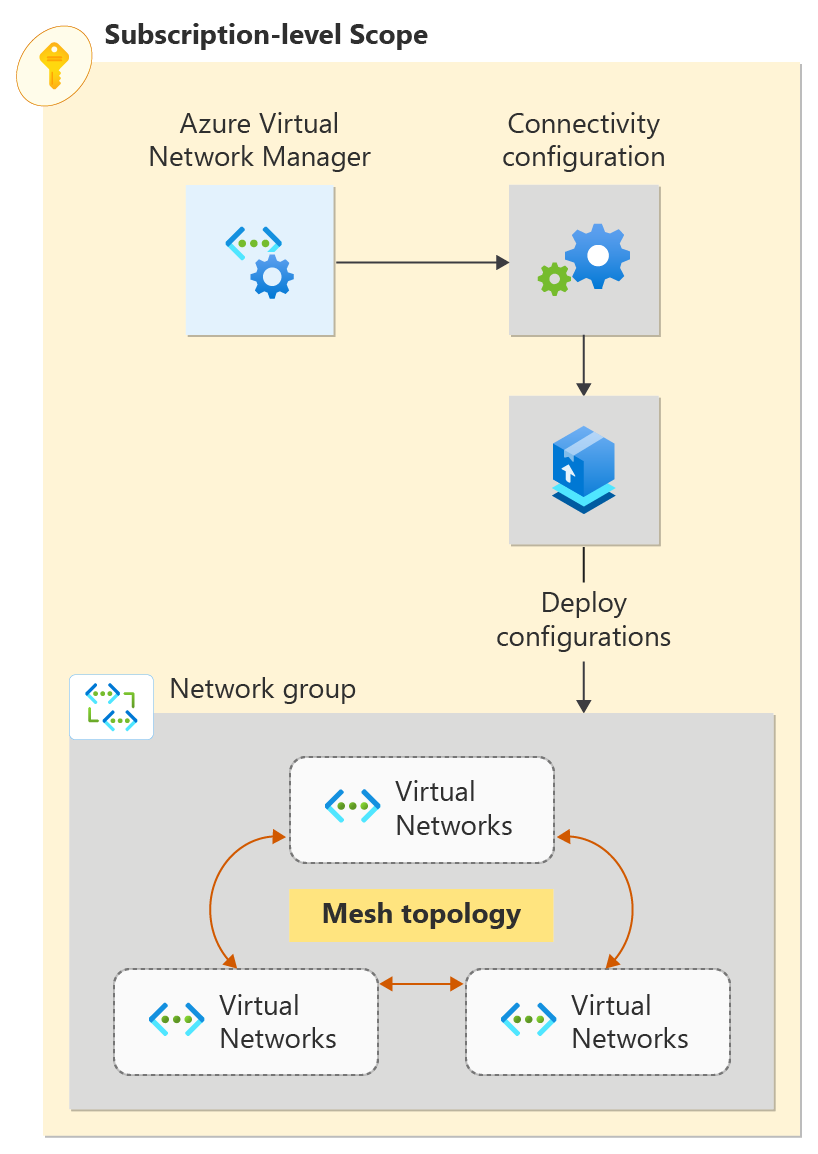
The Bicep solution for this sample is broken down into modules to enable deployments at both a resource group and subscription scope. The following sections describe the components that are unique to Azure Virtual Network Manager. In addition to these components, the solution deploys virtual networks, a user assigned identity, and a role assignment.
Define the virtual network manager resource
This resource creates the Microsoft.Network/networkManagers instance, at API version 2022-09-01, that implements the connected group for inter-virtual network connectivity. Set networkManagerScopes to the subscriptions or management groups that the instance manages, and keep Connectivity in networkManagerScopeAccesses so the instance can deploy connectivity configurations.
@description('This is the Azure Virtual Network Manager which will be used to implement the connected group for inter-vnet connectivity.')
resource networkManager 'Microsoft.Network/networkManagers@2022-09-01' = {
  name: 'vnm-learn-prod-${location}-001'
  location: location
  properties: {
    networkManagerScopeAccesses: [
      'Connectivity'
    ]
    networkManagerScopes: {
      subscriptions: [
        '/subscriptions/${subscription().subscriptionId}'
      ]
      managementGroups: []
    }
  }
}
Define static and dynamic network groups
The solution supports either a static membership network group or a dynamic membership network group. The networkGroupMembershipType parameter selects which one deploys; only one of the two resources is created.
Static membership network group
The static network group resource, Microsoft.Network/networkManagers/networkGroups at API version 2022-09-01, names its members explicitly. The nested staticMembers resources add spoke virtual networks A, B, and C, plus the hub virtual network, by resource ID. To target your own virtual networks, change the spokeNetworkGroupMembers and hubVnetId parameters.
@description('This is the static network group for the all VNETs.')
resource networkGroupSpokesStatic 'Microsoft.Network/networkManagers/networkGroups@2022-09-01' = if (networkGroupMembershipType == 'static') {
  name: 'ng-learn-prod-${location}-static001'
  parent: networkManager
  properties: {
    description: 'Network Group - Static'
  }

  // add spoke vnets A, B, and C to the static network group
  resource staticMemberSpoke 'staticMembers@2022-09-01' = [for spokeMember in spokeNetworkGroupMembers: if (contains(groupedVNETs,last(split(spokeMember,'/')))) {
    name: 'sm-${(last(split(spokeMember, '/')))}'
    properties: {
      resourceId: spokeMember
    }
  }]

  resource staticMemberHub 'staticMembers@2022-09-01' = {
    name: 'sm-${(toLower(last(split(hubVnetId, '/'))))}'
    properties: {
      resourceId: hubVnetId
    }
  }
}
Dynamic membership network group
The dynamic network group resource declares no members. Membership is populated by the Azure Policy definition described in Define the dynamic membership policy.
@description('This is the dynamic group for all VNETs.')
resource networkGroupSpokesDynamic 'Microsoft.Network/networkManagers/networkGroups@2022-09-01' = if (networkGroupMembershipType == 'dynamic') {
  name: 'ng-learn-prod-${location}-dynamic001'
  parent: networkManager
  properties: {
    description: 'Network Group - Dynamic'
  }
}
Define the mesh connectivity configuration
The connectivity configuration resource, Microsoft.Network/networkManagers/connectivityConfigurations at API version 2022-09-01, associates the network group with the mesh network topology. The appliesToGroups property references the network group you deployed, and you set connectivityTopology to Mesh.
@description('This connectivity configuration defines the connectivity between VNETs using Direct Connection. The hub will be part of the mesh, but gateway routes from the hub will not propagate to spokes.')
resource connectivityConfigurationMesh 'Microsoft.Network/networkManagers/connectivityConfigurations@2022-09-01' = {
  name: 'cc-learn-prod-${location}-mesh001'
  parent: networkManager
  properties: {
    description: 'Mesh connectivity configuration'
    appliesToGroups: [
      {
        networkGroupId: (networkGroupMembershipType == 'static') ? networkGroupSpokesStatic.id : networkGroupSpokesDynamic.id
        isGlobal: 'False'
        useHubGateway: 'False'
        groupConnectivity: 'DirectlyConnected'
      }
    ]
    connectivityTopology: 'Mesh'
    deleteExistingPeering: 'True'
    hubs: []
    isGlobal: 'False'
  }
}
Commit the configuration with a deployment script
To deploy the configuration to the target network group, use a deployment script that calls the Deploy-AzNetworkManagerCommit PowerShell command. The deployment script needs an identity with sufficient permissions to run the PowerShell script against the virtual network manager. The Bicep file creates a user-managed identity and grants it the Contributor role on the target resource group. For more information about deployment scripts and associated identities, see Use deployment scripts in ARM templates.
The following resource is a Microsoft.Resources/deploymentScripts resource at API version 2020-10-01. It runs an inline PowerShell script that signs in with the user-assigned identity and calls Deploy-AzNetworkManagerCommit. Change the properties azPowerShellVersion, retentionInterval, and timeout for your own deployment. Change the values passed through arguments: the network manager name, target locations, configuration IDs, subscription ID, configuration type, and resource group name.
@description('Create a Deployment Script resource to perform the commit/deployment of the Network Manager connectivity configuration.')
resource deploymentScript 'Microsoft.Resources/deploymentScripts@2020-10-01' = {
  name: deploymentScriptName
  location: location
  kind: 'AzurePowerShell'
  identity: {
    type: 'UserAssigned'
    userAssignedIdentities: {
      '${userAssignedIdentityId}': {}
    }
  }
  properties: {
    azPowerShellVersion: '8.3'
    retentionInterval: 'PT1H'
    timeout: 'PT1H'
    arguments: '-networkManagerName "${networkManagerName}" -targetLocations ${location} -configIds ${configurationId} -subscriptionId ${subscription().subscriptionId} -configType ${configType} -resourceGroupName ${resourceGroup().name}'
    scriptContent: '''
    param (
      # AVNM subscription id
      [parameter(mandatory=$true)][string]$subscriptionId,

      # AVNM resource name
      [parameter(mandatory=$true)][string]$networkManagerName,

      # string with comma-separated list of config ids to deploy. ids must be of the same config type
      [parameter(mandatory=$true)][string[]]$configIds,

      # string with comma-separated list of deployment target regions
      [parameter(mandatory=$true)][string[]]$targetLocations,

      # configuration type to deploy. must be either connectivity or securityadmin
      [parameter(mandatory=$true)][ValidateSet('Connectivity','SecurityAdmin')][string]$configType,

      # AVNM resource group name
      [parameter(mandatory=$true)][string]$resourceGroupName
    )

    $null = Login-AzAccount -Identity -Subscription $subscriptionId

    [System.Collections.Generic.List[string]]$configIdList = @()
    $configIdList.addRange($configIds)
    [System.Collections.Generic.List[string]]$targetLocationList = @() # target locations for deployment
    $targetLocationList.addRange($targetLocations)

    $deployment = @{
        Name = $networkManagerName
        ResourceGroupName = $resourceGroupName
        ConfigurationId = $configIdList
        TargetLocation = $targetLocationList
        CommitType = $configType
    }

    try {
      Deploy-AzNetworkManagerCommit @deployment -ErrorAction Stop
    }
    catch {
      Write-Error "Deployment failed with error: $_"
      throw "Deployment failed with error: $_"
    }
    '''
    }
}
Define the dynamic membership policy
When you configure the deployment to use dynamic network group membership, the solution also deploys an Azure Policy definition and assignment.
The following resource is a Microsoft.Authorization/policyDefinitions resource at API version 2021-06-01. It uses the Microsoft.Network.Data policy mode and the addToNetworkGroup effect, which adds matching virtual networks to the network group identified by networkGroupId. The policy rule matches virtual networks that carry the _avnm_quickstart_deployment tag and that live in this sample's resource group. Change the tag name and the resource group filter in the like condition to match your own environment.
@description('This is a Policy definition for dynamic group membership')
resource policyDefinition 'Microsoft.Authorization/policyDefinitions@2021-06-01' = {
  name: uniqueString(networkGroupId)
  properties: {
    description: 'AVNM quickstart dynamic group membership Policy'
    displayName: 'AVNM quickstart dynamic group membership Policy'
    mode: 'Microsoft.Network.Data'
    policyRule: {
      if: {
        allof: [
          {
            field: 'type'
            equals: 'Microsoft.Network/virtualNetworks'
          }
          {
            // virtual networks must have a tag where the key is '_avnm_quickstart_deployment'
            field: 'tags[_avnm_quickstart_deployment]'
            exists: true
          }
          {
            // virtual network ids must include this sample's resource group ID - limiting the chance that dynamic membership impacts other vnets in your subscriptions
            field: 'id'
            like: '${subscription().id}/resourcegroups/${resourceGroupName}/*'
          }
        ]
      }
      then: {
        // 'addToNetworkGroup' is a special effect used by AVNM network groups
        effect: 'addToNetworkGroup'
        details: {
          networkGroupId: networkGroupId
        }
      }
    }
  }
}
Deploy the Bicep solution
Deployment prerequisites
- An Azure account with an active subscription. Create an account for free.
- Permissions to create a Policy Definition and Policy Assignment at the target subscription scope. You need these permissions when using the deployment parameter
networkGroupMembershipType=Dynamicto deploy the required Policy resources for Network Group membership. The default isstatic, which doesn't deploy a Policy. - All resources in this solution are available in the Azure Samples GitHub repository. You can download the Bicep solution from the repo or clone the repo to your local machine.
Download the Bicep solution
- Download a ZIP archive of the sample repo at this link.
- Extract the downloaded ZIP file. In your terminal, go to the extracted
avnm-mesh-connected-groupdirectory. The Bicep files for this solution are in thebicepsubdirectory.
Alternatively, you can use git to clone the repo:
git clone https://github.com/Azure-Samples/avnm-mesh-connected-group
cd avnm-mesh-connected-group
Connect to Azure
Sign in to your Azure account and select your subscription
To begin your configuration, sign in to your Azure account:
Connect-AzAccount
Then, connect to your subscription:
Set-AzContext -Subscription <subscription name or id>
Install the Azure PowerShell module
Install the latest Az.Network Azure PowerShell module by using this command:
Install-Module -Name Az.Network -RequiredVersion 5.3.0
Deployment parameters
- resourceGroupName: [required] The name of the resource group where you want to deploy the virtual network manager and sample virtual networks.
- location: [required] The location for the resources to deploy.
- networkGroupMembershipType: [optional] The type of Network Group membership to deploy. The default is
static, but you can usedynamicfor dynamic group membership.
Note
Choosing dynamic group membership deploys an Azure Policy to manage membership, which requires more permissions.
Default deployment with static network group membership
New-AzSubscriptionDeployment -Name avnm-mesh-connected-group -Location <deploymentLocation> -TemplateFile ./bicep/main.bicep -resourceGroupName <newOrExistingResourceGroup>
Deployment with dynamic network group membership
To use Azure Policy to dynamically manage the membership of the network group, include the deployment parameter networkGroupMembershipType with a value of dynamic.
New-AzSubscriptionDeployment -Name avnm-mesh-connected-group -Location <deploymentLocation> -TemplateFile ./bicep/main.bicep -resourceGroupName <newOrExistingResourceGroup> -networkGroupMembershipType dynamic
Verify configuration deployment
Use the Network Manager section for each virtual network to verify that you deployed your configuration:
Go to the vnet-learn-prod-{location}-spoke001 virtual network.
Under Settings, select Network Manager.
On the Connectivity Configurations tab, verify that cc-learn-prod-{location}-mesh001 appears in the list.
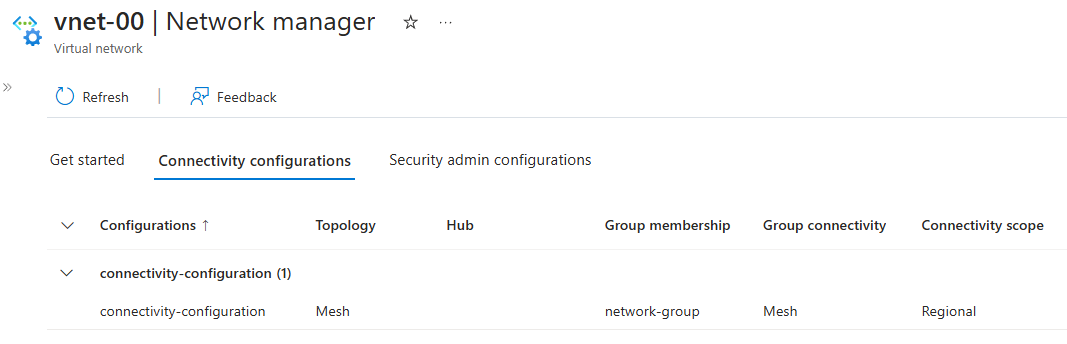
Repeat the previous steps on vnet-learn-prod-{location}-spoke004--you should see the vnet-learn-prod-{location}-spoke004 is excluded from the connectivity configuration.
Clean up resources
If you no longer need Azure Virtual Network Manager and the associated virtual networks, remove them by deleting the resource group and its resources.
- In the Azure portal, browse to your resource group - resource-group.
- Select resource-group and select Delete resource group.
- In Delete a resource group, confirm that you want to delete by entering resource-group in the text box, and then select Delete.
- If you used Dynamic Network Group Membership, delete the deployed Azure Policy Definition and Assignment by navigating to the Subscription in the portal and selecting the Policies. In Policies, find the Assignment named
AVNM quickstart dynamic group membership Policyand delete it, then do the same for the Definition namedAVNM quickstart dynamic group membership Policy.
Next steps
Now that you created an Azure Virtual Network Manager instance, learn how to block network traffic by using a security admin configuration: