Notiz
Zougrëff op dës Säit erfuerdert Autorisatioun. Dir kënnt probéieren, Iech unzemellen oder Verzeechnesser ze änneren.
Zougrëff op dës Säit erfuerdert Autorisatioun. Dir kënnt probéieren, Verzeechnesser ze änneren.
Applies to: Azure Logic Apps (Consumption + Standard)
When your workflows need to work with Oracle data, connect to your Oracle database by using the Oracle Database connector in Azure Logic Apps. You can access databases hosted either on-premises or on an Azure virtual machine.
The Oracle Database connector helps you solve common data integration tasks, such as:
- Add customer records to your database.
- Update order records in your database.
- Get, insert, or delete table rows as part of your workflow.
Supported Oracle Database versions
The following table lists the supported Oracle DB versions that each connector supports:
| Connector | Logic app | Supported Oracle DB versions |
|---|---|---|
| Managed | - Consumption - Standard |
- Oracle 9 and later - Oracle Data Access Client (ODAC) 11.2 and later |
| Built-in (preview) | Standard | Oracle Database 11 and later |
Connector technical reference
The Oracle Database connector has different versions, based on logic app workflow type and host environment.
| Logic app | Environment | Connector version |
|---|---|---|
| Consumption | Multitenant Azure Logic Apps | Managed connector, which appears in the connector gallery under the Shared filter. For more information, see Oracle Database managed connector reference. |
| Standard | Single-tenant Azure Logic Apps, App Service Environment v3 (Windows plans only), and Hybrid | Managed connector, which appears in the connector gallery under the Shared filter, and built-in connector (public preview), which appears in the connector gallery under the Built-in filter. The built-in version runs in-process with the Azure Logic Apps runtime and doesn't require the on-premises data gateway because the runtime can reach your Oracle endpoint over the network. For more information, see: - Oracle Database managed connector reference - Built-in connector reference |
Built-in connector operations (preview)
The built-in connector currently supports the following actions:
| Name | Parameters | Description | Returns |
|---|---|---|---|
Execute query (executeQuery) |
- Query (query): Required with string type. The SQL query to run. - Query Parameters ( queryParameters): Optional with object type. The query parameters to include. |
Runs a SQL query. | The SQL query result as an array. |
Execute stored procedure (executeStoredProcedure) |
- Stored procedure name (storedProcedure): Required with string type. The name for the stored procedure to run. - Stored procedure parameters ( storedProcedureParameters): Optional with object type. The stored procedure parameters to include. |
Runs a stored procedure and returns the result sets and output parameters. | - Result sets (resultSets) with string type. The list of result sets returned by the stored procedure. - Output parameters ( outputParmaters) with string type. The output parameter values returned by the stored procedure. |
Get rows (getRows) |
- Table name (tableName): Required with string type. The name for the source table. - Where condition ( columnValuesForWhereCondition): Optional with object type. The key-value pair of columns that identify the rows to get. - Offset for Get Rows ( skipCount): Optional with string type. The number of entries to skip. Default is 0. - Max Rows ( maxcount): Optional with string type. The maximum rows to get. Default is 0. - Ordering Column ( orderBy): Optional with string type. The column name to use for ordering the query result. - Select Columns ( filterBy): Optional with string type. The column value to get from the table or view. |
Gets one or more rows based on the specified condition. | The fetched rows as an array. |
Get tables (getTables) |
Only return tables owned by the current user (ownedTables): Optional with string type. Returns only tables where the owner is the provided user. |
Gets a list of tables. | The list of tables as an array. |
Insert row (insertRow) |
- Table name (tableName): Required with string type. The name of the table. - Set columns ( setColumns): Optional with object type. The values of the row fields. |
Inserts a row. | The inserted row with object type. |
Prerequisites
An Azure account and subscription. Get a free Azure account.
The logic app resource and workflow from where to connect to your Oracle database.
This connector provides only actions, not triggers. You can use any trigger that you want to start your workflow. To create the logic app resource and workflow, and then add a trigger, see:
Managed connector prerequisites (Consumption and Standard)
Download and install the on-premises data gateway.
This gateway acts as a bridge and provides a secure data transfer between on-premises data and your app or client. You can use the same gateway installation with multiple services and data sources, which means you might only need to install the gateway once.
Install your Oracle client on the computer where you installed the on-premises data gateway. Otherwise, an error occurs when you try to create or use the connection.
Create an Azure gateway resource for your gateway installation.
Built-in connector prerequisites (Standard, preview)
Make sure that your Standard logic app workflow can reach your Oracle endpoint, including any host, port, DNS resolution, and firewall rules.
When you create the Oracle database connection, you need the following values:
- Oracle database server IP address
- Username
- Password
For the server IP address, specify this value in the following formats:
Format Syntax Example Easy Connect (non-SSL) <host>:<port>/<database-service-name> localhost:1522/XETransparent Network Substrate (TNS) descriptor (SSL): The full Oracle Datasource descriptor (description=(retry_count=<retries>)(retry_delay=<delay-duration>)(address=(protocol=tcps)(port=<port-number>)(host=<host>))(connect_data=(service_name=<service-name>))(security=(ssl_server_dn_match=yes))) (description=(retry_count=20)(retry_delay=3)(address=(protocol=tcps)(port=1522)(host=localhost))(connect_data=(service_name=XE))(security=(ssl_server_dn_match=yes))) For the Get row action used in this example, you need to know the identifier for the table to access.
If you don't know this information, contact your Oracle Database administrator, or get the output from the following statement:
select * from <table-name>.
Known issues and limitations
The current connector versions don't support triggers. Use any trigger that fits your scenario to start your workflow, and then add Oracle actions.
| Connector | Limitations |
|---|---|
| Managed | - Tables with composite keys - Tables with nested object types - Database functions with nonscalar values |
| Built-in | - No dedicated update or delete actions. For update and delete scenarios, use the Execute query or Execute stored procedure actions. - Some connection problems might appear only at workflow runtime, rather than at connection creation time. |
Add an action
The steps to add and use an Oracle action differ based on whether you use the built-in connector or managed connector.
Add a built-in connector action (Standard, preview)
In the Azure portal, open your Standard logic app resource.
In the designer, open your workflow.
Follow the generic steps to add the Oracle Database action you want to your workflow.
This example continues with the Get rows action.
In the connection information pane, enter the required information, such as the connection name you want, Oracle database server IP address, username, and password, for example:
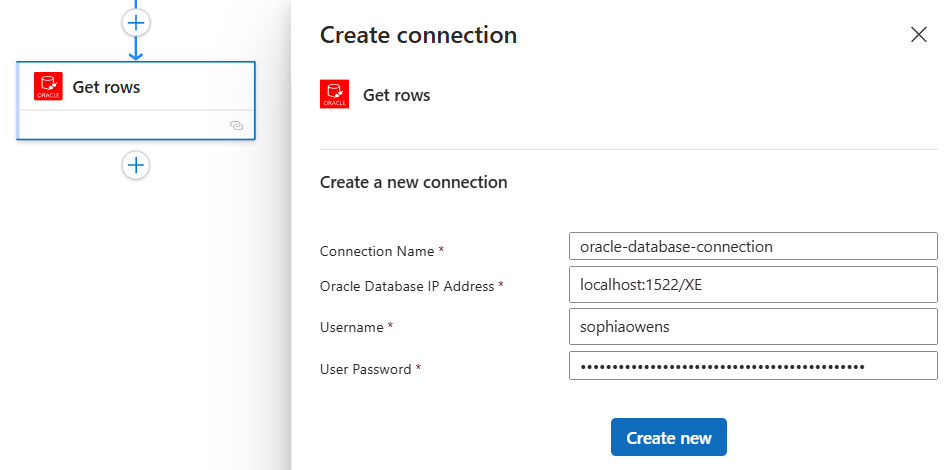
When you finish, select Create new.
In the action information pane, enter the parameter values required for your selected action.
For example, if you select the Get rows action, enter the table name:
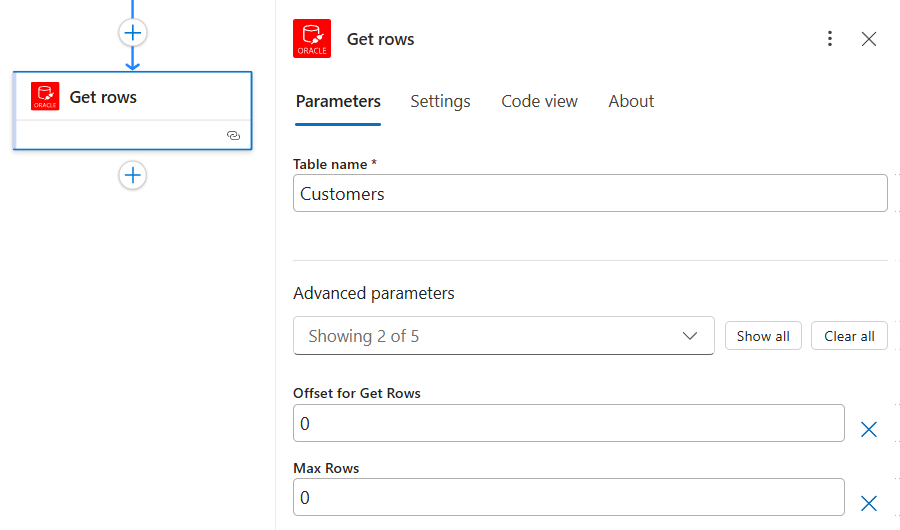
Add any other actions necessary to finish your workflow.
Save the workflow. On the designer toolbar, select Save.
Add a managed connector action (Consumption and Standard)
In the Azure portal, open your Consumption or Standard logic app resource.
In the designer, open your workflow.
Follow the generic steps to add the Oracle Database action you want to your workflow.
This example continues with the Get row action.
In the connection information pane, enter the required connection information.
For the Gateway property, select the Azure subscription and Azure gateway resource to use.
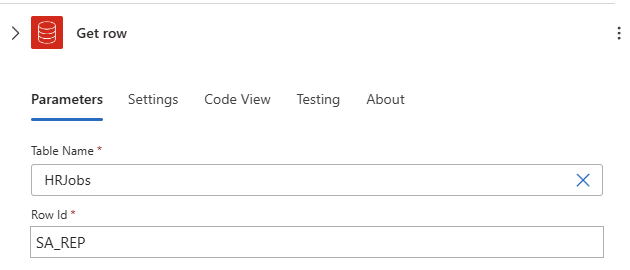
After you finish the connection, from the Table name list, select a table.
For the Row Id property, enter the row ID that you want in your table.
In the following example, job data is returned from a Human Resources database:
Add any other actions necessary to finish your workflow.
Save the workflow. On the designer toolbar, select Save.
Troubleshoot Oracle database connection problems
Error: Cannot reach the Gateway
Cause: The on-premises data gateway can't connect to the cloud.
Mitigation: Make sure your gateway is running on the on-premises computer where you installed the gateway and has internet connectivity. Avoid installing the gateway on a computer that might be turned off or go to sleep. You can also try restarting the on-premises data gateway service (PBIEgwService).
Error: The provider being used is deprecated: 'System.Data.OracleClient requires Oracle client software version 8.1.7 or greater.' To install the official provider, see https://go.microsoft.com/fwlink/p/?LinkID=272376.
Cause: The Oracle client SDK isn't installed on the computer where the on-premises data gateway is running.
Resolution: Download and install the Oracle client SDK on the same computer as the on-premises data gateway.
Error: Table '[Tablename]' does not define any key columns
Cause: The table doesn't have a primary key.
Resolution: The Oracle Database connector requires that you use a table with a primary key column.