Notiz
Zougrëff op dës Säit erfuerdert Autorisatioun. Dir kënnt probéieren, Iech unzemellen oder Verzeechnesser ze änneren.
Zougrëff op dës Säit erfuerdert Autorisatioun. Dir kënnt probéieren, Verzeechnesser ze änneren.
Azure Key Vault is a cloud service that provides a secure store for secrets, such as keys, passwords, certificates, and other secrets. This quickstart focuses on the process of deploying an Azure Resource Manager template (ARM template) to create a key vault and a secret.
An Azure Resource Manager template is a JavaScript Object Notation (JSON) file that defines the infrastructure and configuration for your project. The template uses declarative syntax. You describe your intended deployment without writing the sequence of programming commands to create the deployment.
If your environment meets the prerequisites and you're familiar with using ARM templates, select the Deploy to Azure button. The template will open in the Azure portal.

Prerequisites
To complete this article:
If you don't have an Azure subscription, create a free account before you begin.
Your Microsoft Entra user object ID is needed by the template to configure permissions. The following procedure gets the object ID (GUID).
Run the following Azure PowerShell or Azure CLI command by select Try it, and then paste the script into the shell pane. To paste the script, right-click the shell, and then select Paste.
echo "Enter your email address that is used to sign in to Azure:" && read upn && az ad user show --id $upn --query "Id" && echo "Press [ENTER] to continue ..."Write down the object ID. You need it in the next section of this quickstart.
Review the template
Important
This quickstart uses an external template that creates a vault with legacy access policies. For production deployments, use Azure RBAC authorization instead. See Create a key vault using an ARM template for a template that uses enableRbacAuthorization: true, or see Secure your Azure Key Vault for comprehensive security guidance.
The template used in this quickstart is from Azure Quickstart Templates.
Two Azure resources are defined in the template:
- Microsoft.KeyVault/vaults: create an Azure key vault.
- Microsoft.KeyVault/vaults/secrets: create a key vault secret.
More Azure Key Vault template samples can be found in Azure Quickstart Templates.
Deploy the template
Select the following image to sign in to Azure and open a template. The template creates a key vault and a secret.
Select or enter the following values.
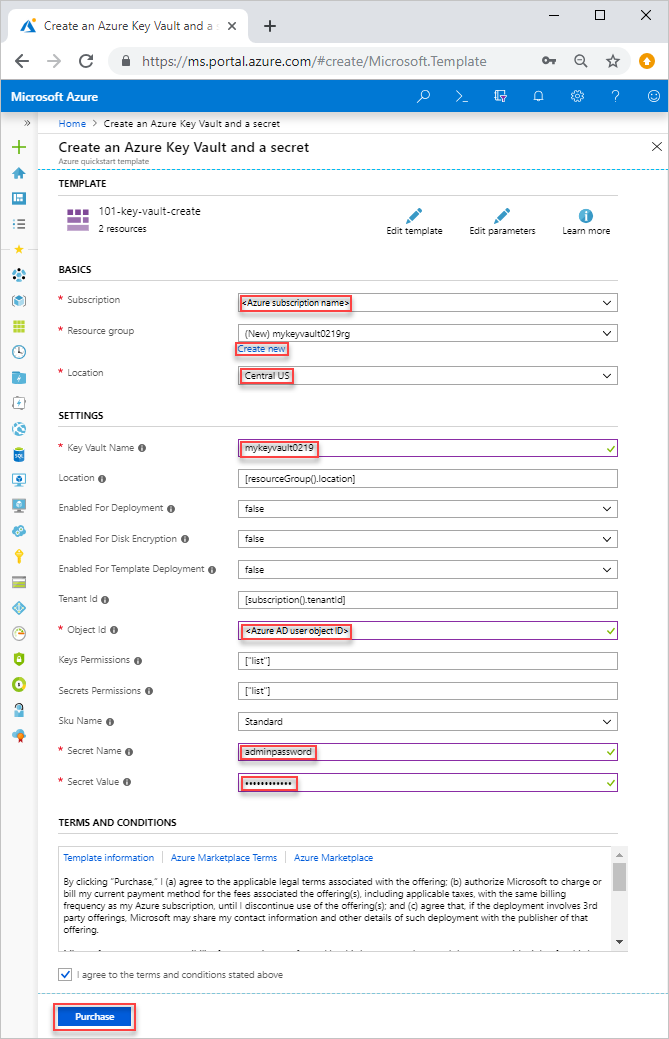
Unless it's specified, use the default value to create the key vault and a secret.
- Subscription: select an Azure subscription.
- Resource group: select Create new, enter a unique name for the resource group, and then click OK.
- Location: select a location. For example, Central US.
- Key Vault Name: enter a name for the key vault, which must be globally unique within the .vault.azure.net namespace. You need the name in the next section when you validate the deployment.
- Tenant Id: the template function automatically retrieves your tenant ID. Don't change the default value.
- Ad User Id: enter your Microsoft Entra user object ID that you retrieved from Prerequisites.
- Secret Name: enter a name for the secret that you store in the key vault. For example, adminpassword.
- Secret Value: enter the secret value. If you store a password, it's recommended to use the generated password you created in Prerequisites.
- I agree to the terms and conditions state above: Select.
Select Purchase. After the key vault has been deployed successfully, you get a notification:
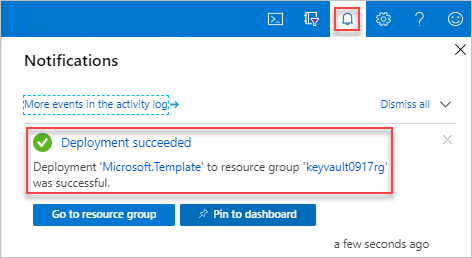
The Azure portal is used to deploy the template. In addition to the Azure portal, you can also use the Azure PowerShell, Azure CLI, and REST API. To learn other deployment methods, see Deploy templates.
Review deployed resources
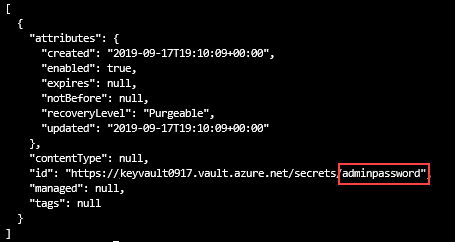
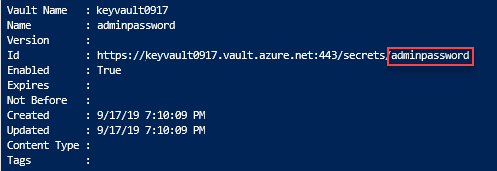
You can either use the Azure portal to check the key vault and the secret, or use the following Azure CLI or Azure PowerShell script to list the secret created.
echo "Enter your key vault name:" &&
read keyVaultName &&
az keyvault secret list --vault-name $keyVaultName &&
echo "Press [ENTER] to continue ..."
The output looks similar to:
Clean up resources
Other Key Vault quickstarts and tutorials build upon this quickstart. If you plan to continue on to work with subsequent quickstarts and tutorials, you may wish to leave these resources in place. When no longer needed, delete the resource group, which deletes the Key Vault and related resources. To delete the resource group by using Azure CLI or Azure PowerShell:
echo "Enter the Resource Group name:" &&
read resourceGroupName &&
az group delete --name $resourceGroupName &&
echo "Press [ENTER] to continue ..."
Next steps
In this quickstart, you created a key vault and a secret using an ARM template, and validated the deployment. To learn more about Key Vault and Azure Resource Manager, continue on to the articles below.
- Read an Overview of Azure Key Vault
- Learn more about Azure Resource Manager
- Review the Key Vault security overview