Notiz
Zougrëff op dës Säit erfuerdert Autorisatioun. Dir kënnt probéieren, Iech unzemellen oder Verzeechnesser ze änneren.
Zougrëff op dës Säit erfuerdert Autorisatioun. Dir kënnt probéieren, Verzeechnesser ze änneren.
The Fabric Lookup activity can retrieve a dataset from any of the data sources supported by Microsoft Fabric. You can use it to dynamically determine which objects to operate on in a subsequent activity, instead of hard coding the object name. Some object examples are files and tables.
Lookup activity reads and returns the content of a configuration file or table. It also returns the result of executing a query or stored procedure. The output can be a singleton value or an array of attributes, which can be consumed in a subsequent copy, transformation, or control flow activities like ForEach activity.
Prerequisites
To get started, you must complete the following prerequisites:
- A tenant account with an active Microsoft Fabric subscription. You can try Fabric with a free trial.
- A Fabric workspace.
Add a lookup activity to a pipeline with UI
To use a Lookup activity in a pipeline, complete the following steps:
Creating the activity
Create a new pipeline in your workspace.
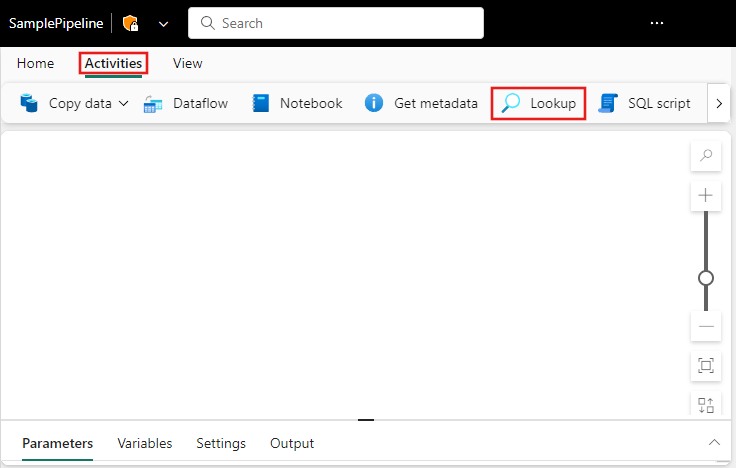
Search for Lookup in the pipeline Activities pane, and select it to add it to the pipeline canvas.
Select the new Lookup activity on the canvas if it isn't already selected.
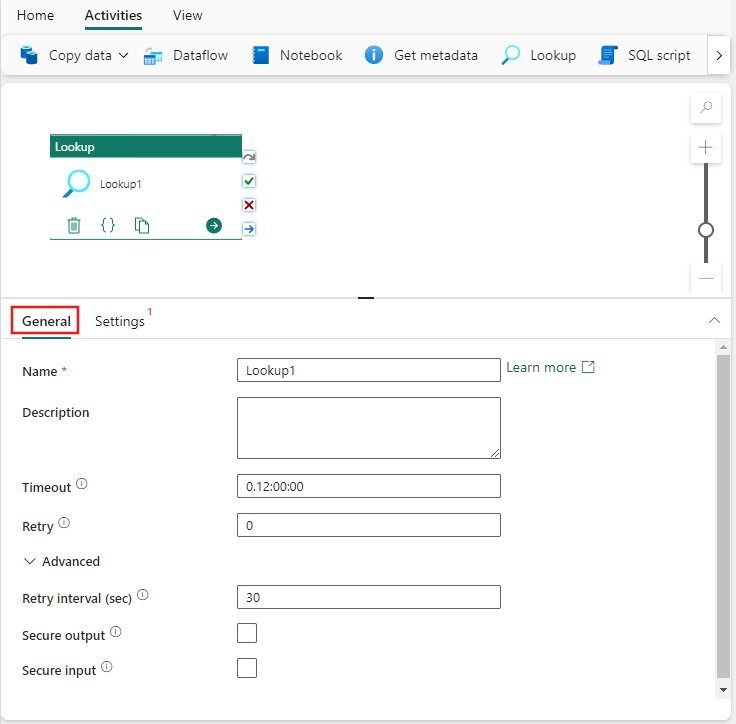
Refer to the General settings guidance to configure the General settings tab.
Lookup settings
Select the Settings tab, select an existing connection from the Connection dropdown, or create a new connection, and specify its configuration details.
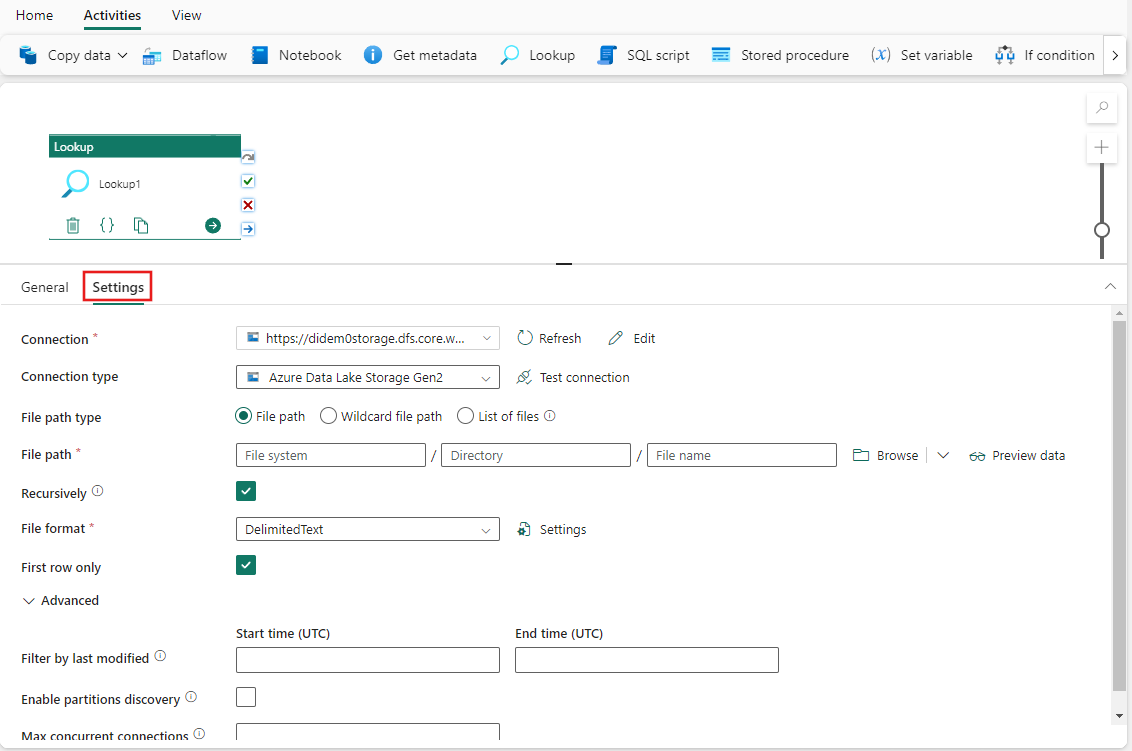
The example in the previous image shows a blob storage connection, but each connection type has its own configuration details specific to the data source selected.
Supported capabilities
- The Lookup activity can return up to 5,000 rows; if the result set contains more records, the first 5,000 rows are returned.
- The Lookup activity output supports up to 4 MB in size; activity fails if the size exceeds the limit.
- The longest duration for Lookup activity before timeout is 24 hours.
Note
When you use query or stored procedure to look up data, make sure to return one and exact one result set. Otherwise, Lookup activity fails.
The following data sources are supported for Lookup activity.
Save and run or schedule the pipeline
Switch to the Home tab at the top of the pipeline editor and select the save button to save your pipeline. Select Run to run it directly or Schedule to schedule runs at specific times or intervals. For more information on pipeline runs, see: schedule pipeline runs.

After running, you can monitor the pipeline execution and view run history from the Output tab below the canvas.