Notiz
Zougrëff op dës Säit erfuerdert Autorisatioun. Dir kënnt probéieren, Iech unzemellen oder Verzeechnesser ze änneren.
Zougrëff op dës Säit erfuerdert Autorisatioun. Dir kënnt probéieren, Verzeechnesser ze änneren.
Microsoft Defender for Cloud generates security alerts when it detects threats in your environment. These alerts can sometimes include false positives or other unwanted alerts. You can automatically suppress any false positives or unwanted alerts by using alert suppression rules.
Prerequisites
Required roles and permissions:
- Security admin and Owner can create and delete rules.
- Security reader and Reader can view rules.
For cloud availability, see the Defender for Cloud support matrices for Azure commercial/other clouds.
Create a suppression rule
You can apply suppression rules to management groups or to subscriptions.
- To suppress alerts for a management group, use Azure Policy.
- To suppress alerts for subscriptions, use the Azure portal or the REST API.
The rule doesn't suppress alert types that never triggered on a subscription or management group before the rule was created.
Create a suppression rule for a specific alert in the Azure portal:
Sign in to the Azure portal.
Go to Microsoft Defender for Cloud > Security alerts.
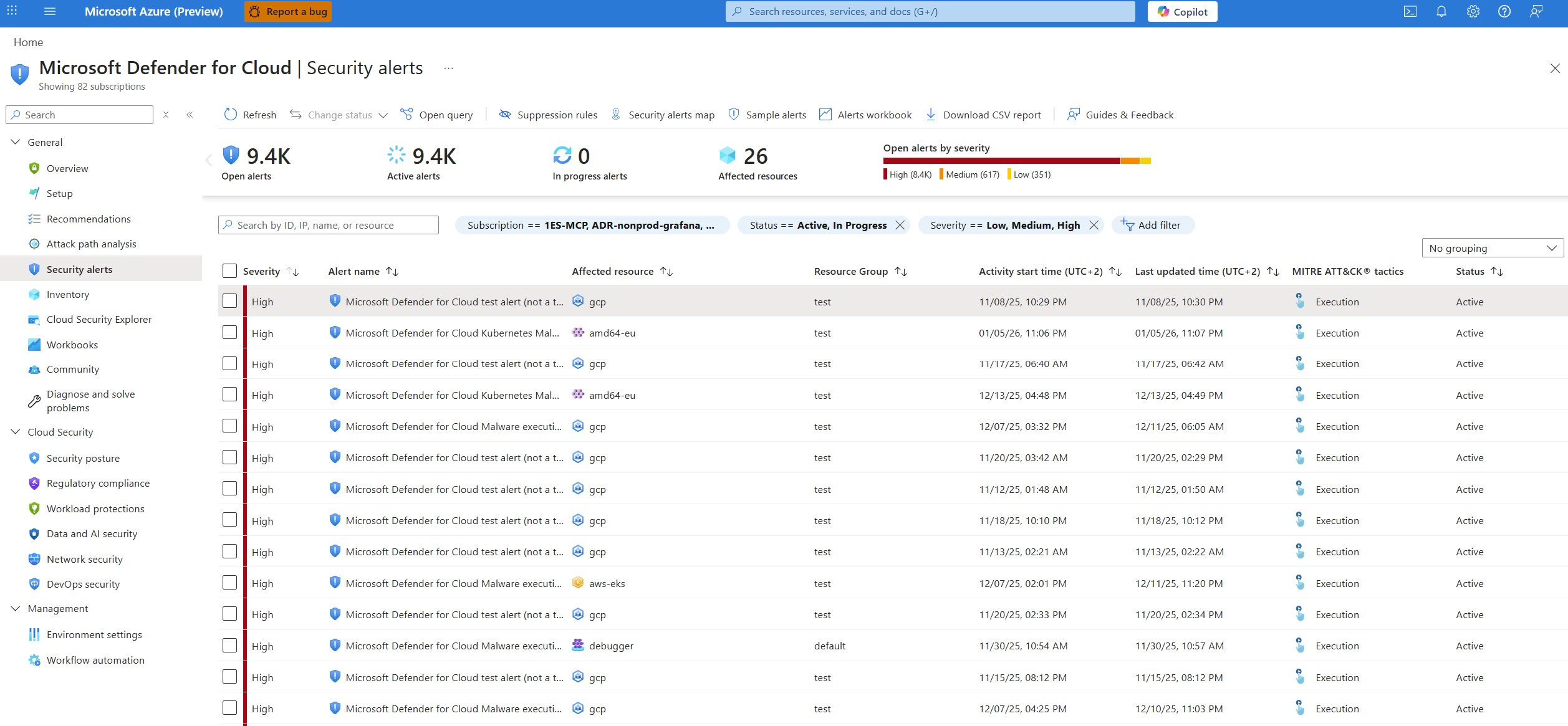
Select an alert.
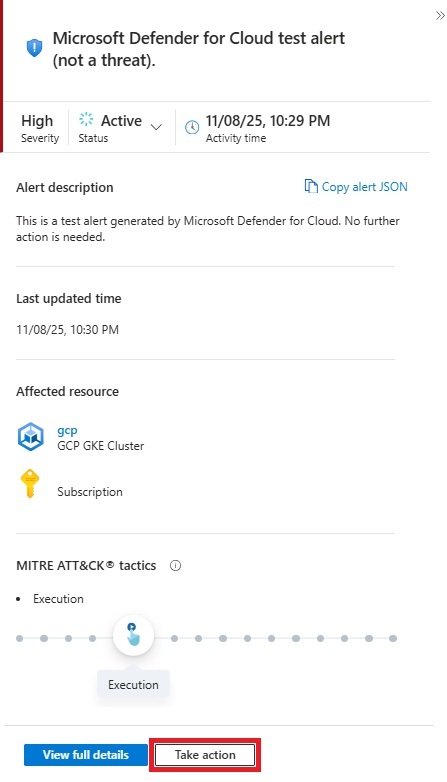
Select Take action.
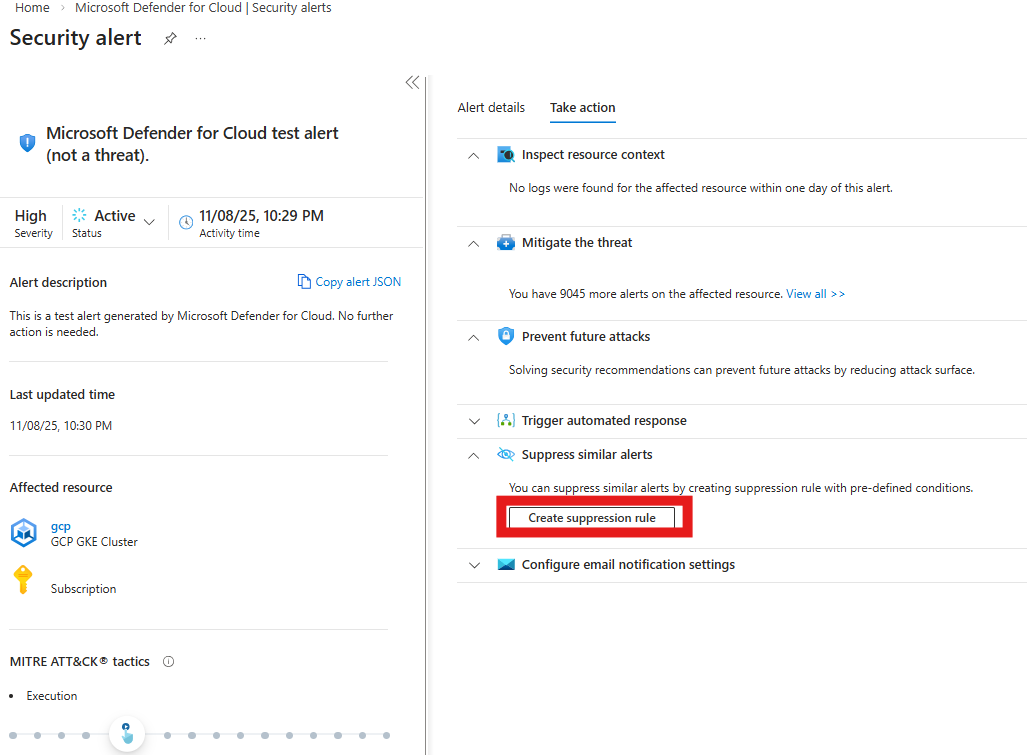
Select Create suppression rule.
Enter the appropriate details:
- Subscription - The subscription where you want to create the rule.
- (Optional) Entities - The resources that the rule applies to. You can specify a single resource, multiple resources, or resources that contain a partial resource ID. If you don't specify any resources, the rule applies to all resources in the subscription.
- Rule name - A name for the rule. Rule names must begin with a letter or a number, be between 2 and 50 characters, and contain no symbols other than dashes (-) or underscores (_).
- State - Enabled or disabled.
- Reason - Select one of the built-in reasons or 'other' to specify your own reason in the comment.
- (Optional) Expiration date - An end date and time for the rule. Rules can run without any time limit as set in Expiration date.
(Optional) Select Simulate to test your rule.
Select Apply.
The rule is created and listed in the Suppression rules page.
Edit a suppression rule
You can edit a rule that you created from the suppression rules page.
Sign in to the Azure portal.
Go to Microsoft Defender for Cloud > Security alerts.
Select Suppression rules.

Select the relevant subscriptions.
Select the three dots button ... for the rule you want to edit.
Select Edit.
Edit the rule details.
Select Apply.
To delete a rule, use the same three dots menu and select Remove.
Create and manage suppression rules with the API
You can create, view, or delete alert suppression rules by using the Defender for Cloud REST API.
Create a suppression rule for an alert that the API already triggered. Use the Alerts REST API to retrieve the alert that you want to suppress. Then, use the Alerts Suppression Rules REST API to create a suppression rule by using the retrieved alert information.
The relevant methods for suppression rules in the Alerts Suppression Rules REST API are:
UPDATE:
- To create or update a suppression rule in a specified subscription.
GET:
- To get the details of a specific suppression rule on a specified subscription. This method returns one suppression rule.
LIST:
- To list all suppression rules configured for a specified subscription. This method returns an array of the applicable rules.
DELETE:
- To delete an existing suppression rule. This method doesn't change the status of alerts that the suppression rule already dismissed.
For details and usage examples, see the API documentation.