Notiz
Zougrëff op dës Säit erfuerdert Autorisatioun. Dir kënnt probéieren, Iech unzemellen oder Verzeechnesser ze änneren.
Zougrëff op dës Säit erfuerdert Autorisatioun. Dir kënnt probéieren, Verzeechnesser ze änneren.
When you investigate security recommendations in Microsoft Defender for Cloud, you review the list of affected resources. Occasionally, you find a resource that shouldn't be in the list, or you find a recommendation that appears in a scope where it doesn't belong. For example, Defender for Cloud might not track a remediation process, or a recommendation might not apply to a specific subscription. Your organization might decide to accept the risks related to the specific resource or recommendation.
In such cases, create an exemption rule to:
Exempt a resource to remove it from the list of unhealthy resources and from secure score impact. Defender for Cloud lists the resource as Not applicable and shows the reason as Exempted with the justification that you select.
Exempt a subscription or management group to prevent the recommendation from affecting your secure score or appearing for that scope. The exemption applies to existing resources and to resources that you create later. Defender for Cloud marks the recommendation with the justification that you select for that scope.
For each scope, create an exemption rule to:
Mark a specific recommendation as Mitigated or Risk accepted for one or more subscriptions, or for a management group.
Mark one or more resources as Mitigated or Risk accepted for a specific recommendation.
Resource exemption is limited to 5,000 resources per subscription. If you add more than 5,000 exemptions per subscription, you might experience load issues on the exemption page.
Prerequisites
Defender for Cloud exemptions rely on the Microsoft Cloud Security Benchmark (MCSB) initiative. MCSB must be assigned on the subscription before you create exemptions.
Important
Without MCSB assigned:
- Some portal features might not work as expected.
- Resources might not appear in compliance views.
- Exemption options might occasionally be unavailable.
You can create exemptions for recommendations that belong to the default MCSB initiative or to other built-in regulatory standards. Some recommendations in MCSB don't support exemptions. You can find a list of these recommendations in the exemptions FAQ.
Permissions:
To create exemptions, you need the following permissions:
- Owner or Security Admin on the scope where you create the exemption.
- To create a rule, you need permissions to edit policies in Azure Policy. For details, see Azure RBAC permissions in Azure Policy.
- You must have exemption permission on all initiative assignments at the target scope. If multiple initiatives contain a recommendation, you must create the exemption with permissions across all of them. A missing permission on even one initiative can cause the exemption to fail.
You need the following role-based access control (RBAC) actions:
| Action | Description |
|---|---|
Microsoft.Authorization/policyExemptions/write |
Create an exemption |
Microsoft.Authorization/policyExemptions/delete |
Delete an exemption |
Microsoft.Authorization/policyExemptions/read |
View an exemption |
Microsoft.Authorization/policyAssignments/exempt/action |
Perform an exemption operation on a linked scope |
Note
If any of these actions are missing, the Exempt button might be hidden. Custom roles offer limited support for exemption operations.
To manage exemptions, use one of the following built-in roles:
- Security Admin (recommended)
- Owner
- Contributor (at the subscription level)
- Resource Policy Contributor
Subscription-level permissions don't inherit upward to management groups. If the policy assignment is at the management group level, you need the role assigned at that level.
To manage exemptions for specific resources, you need the required RBAC actions at the resource or resource group level. Subscription-scoped role assignments might not provide sufficient access to create or delete exemptions on individual resources. Verify that your role assignment covers the scope of the resource you want to exempt.
When you create an exemption at the management group level, ensure the Microsoft Azure Security Resource Provider has the necessary permissions by assigning it the Reader role on that management group. Grant this role the same way that you grant user permissions.
Limitations:
You don't create exemptions for custom recommendations.
Preview recommendations might not support exemptions. Check whether the recommendation shows a Preview tag.
If you disable a recommendation, you also exempt all of its subrecommendations.
Kusto Query Language (KQL)-based recommendations use standard assignments and don't use Azure Policy exemption events in the Activity Logs. To determine whether a recommendation is KQL-based or policy-based, open the recommendation in the portal and check the Assessment key field. KQL-based recommendations show a standard assessment key format and don't have an associated Azure Policy definition link. Policy-based recommendations display a direct link to the underlying policy definition.
When you create an exemption from the Defender for Cloud portal, Defender for Cloud identifies all initiatives that contain the recommendation and creates the exemption across all of them automatically. If you create the exemption through the Azure Policy API instead, you must create a separate exemption for each initiative manually. For more information, see Exemptions FAQ.
When you assign a new initiative that contains a recommendation with an existing exemption, the exemption doesn't carry over to the new initiative. Create a new exemption for the recommendation under the newly assigned initiative.
Tip
If you run into issues after you create an exemption, see Review and manage recommendation exemptions for guidance on:
Define an exemption
We recommend creating exemptions in the Defender for Cloud portal. Exemptions created through the Azure Policy API might not fully integrate with Defender for Cloud. They can cause unexpected results, such as exemptions that don't propagate across all relevant initiatives. If you need to use the API, see Azure Policy exemption structure.
To create an exemption rule:
Sign in to the Azure portal.
Go to Defender for Cloud > Recommendations.
Select a recommendation.
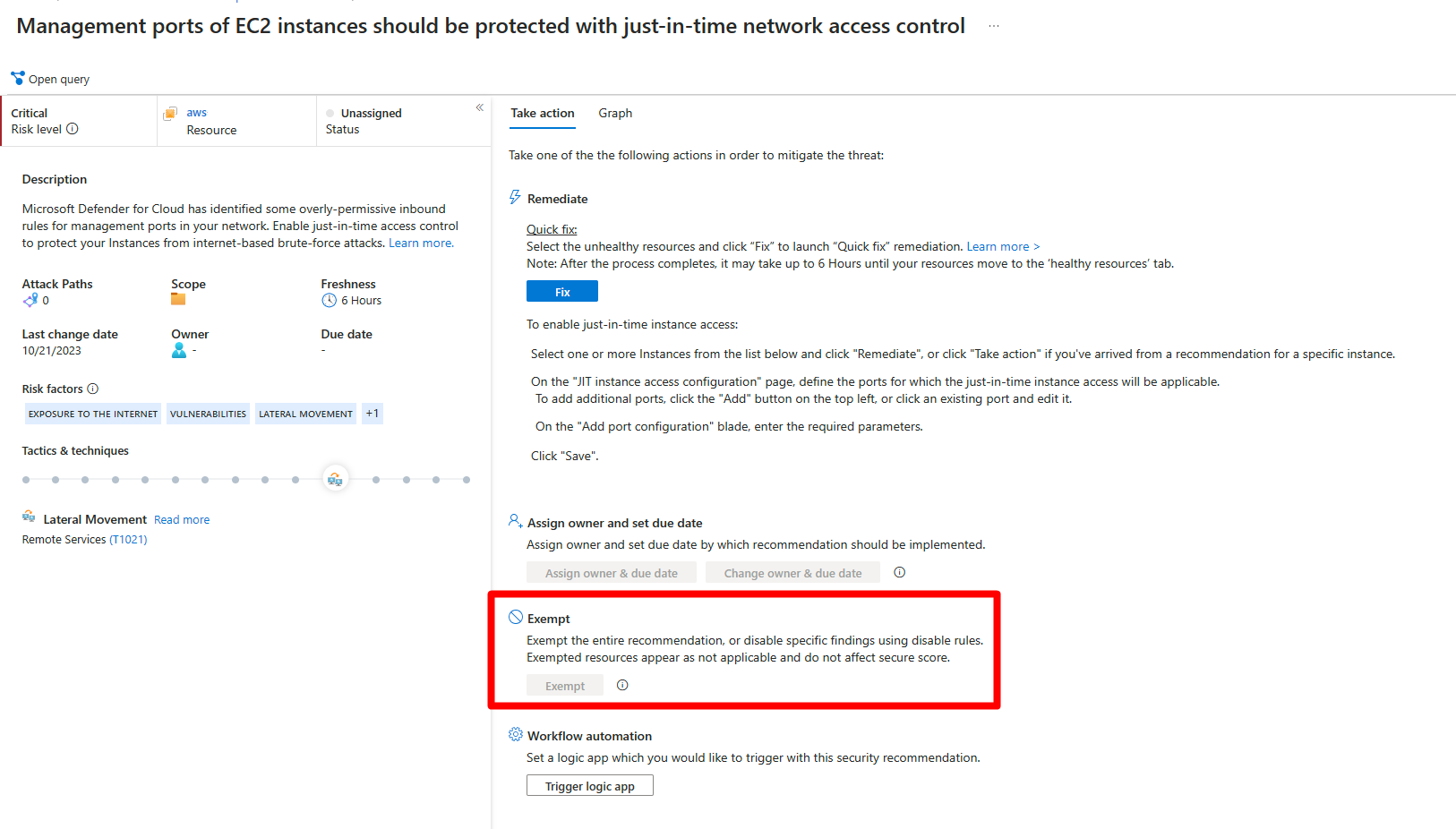
Select Exempt.
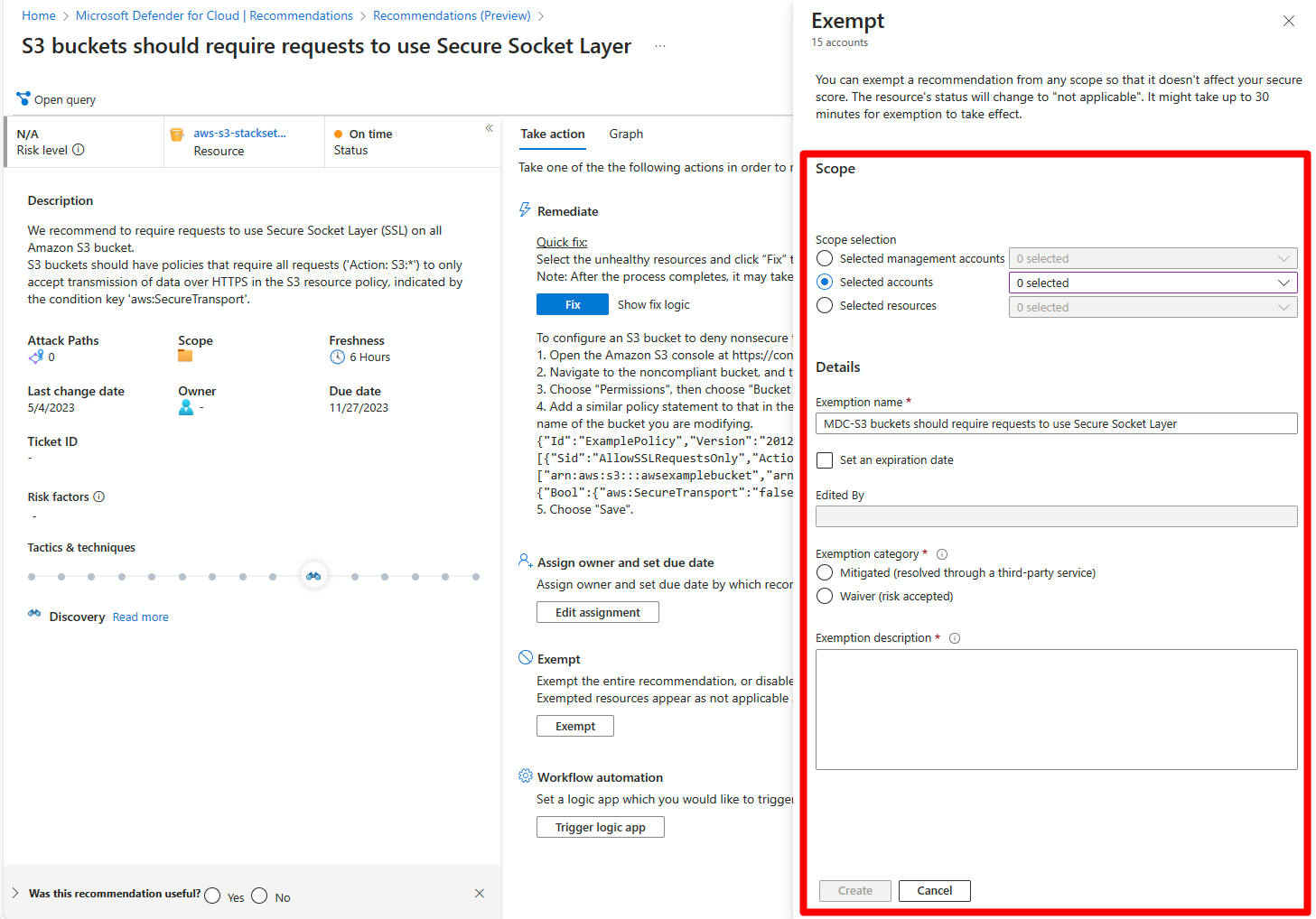
Select the scope for the exemption.
- If you select a management group, Defender for Cloud exempts the recommendation from all subscriptions in that group.
- If you create this rule to exempt one or more resources from the recommendation, choose Selected resources and select the relevant resources from the list.
Enter a name.
(Optional) Set an expiration date.
Select the category for the exemption:
- Resolved through third-party service (mitigated) – if you use a non-Microsoft service for remediation that Defender for Cloud doesn't track.
Note
When you exempt a resource as mitigated, it counts as healthy. You don't gain points for the remediation, but Defender for Cloud doesn't deduct points for leaving it unhealthy, so exempted resources don't lower your score.
- Risk accepted (waiver) – if you decide to accept the risk of not mitigating this recommendation.
Enter a description.
Select Create.
After you create the exemption
An exemption can take up to 24 hours to take effect. Defender for Cloud evaluates resources every 12 to 24 hours. After the exemption takes effect:
The recommendation or resources don't affect your secure score.
If you exempt specific resources, Defender for Cloud lists them in the Not applicable tab of the recommendation details page.
If you exempt a recommendation, Defender for Cloud hides it by default on the Recommendations page. This happens because the default Recommendation status filter excludes Not applicable recommendations. The same behavior occurs if you exempt all recommendations in a security control.
Understand how the exemption type affects the recommendation status
The exemption type that you select determines how the exemption affects the recommendation and secure score:
- Mitigated exemptions: Exempt resources count as healthy. Secure score increases.
- Waiver exemptions: Exempt resources are excluded from the secure score calculation. Resources don't count toward secure score but might still appear in recommendations.
Note
Preview recommendations have no impact on secure score regardless of exemption status.
Verify that the exemption is working
If the recommendation still shows resources as unhealthy after 24 hours, see Resolve an exemption that doesn't update the recommendation status for detailed steps.
Next step
Related content
Exemptions help security teams focus on the risks that require action while maintaining a governed record of findings that don't require remediation. Use an exemption when a finding has been reviewed and determined to be a false positive, covered by another control, temporarily deferred, or accepted as risk. Each exemption records its scope, matching conditions, justification, and review period, helping your organization reduce operational noise without losing visibility or accountability.
Why use exemptions?
Exemptions provide a structured alternative to informally suppressing a security finding. They help organizations:
- Focus remediation resources on security findings that require action.
- Apply a documented risk decision consistently across the relevant scope.
- Reduce repetitive work by managing exceptions through centralized rules.
- Record the justification and supporting context needed for governance, audit, and compliance.
- Reassess accepted risks through expiration dates and lifecycle review.
- Preserve the security context of exempted findings in investigation and attack-path experiences.
Use cases
Create an exemption after a finding has been generated and reviewed, and your organization determines that remediation is not currently required. Common scenarios include:
- The finding is a false positive.
- The organization reviewed and accepted the risk.
- A third-party control addresses the risk.
- An alternative mitigation is already in place.
- Remediation is deferred for a documented business or technical reason.
Remove a rule or create an exemption?
Both recommendation policies and exemptions allow you to control recommendation behavior, but they serve different governance purposes. Use a policy change when a recommendation should not be evaluated for a specific scope. Use an exemption when the recommendation remains valid, but remediation is temporarily not required and should be tracked for governance, audit, or compliance purposes.
| Action | What it does | Choose it when |
|---|---|---|
| Remove the rule from a policy | Stops the rule from generating recommendations and findings for the selected policy scope. Assets within that scope will no longer be evaluated against the rule. | The recommendation is not relevant for the selected scope and should never apply there. This is a long-term policy decision that defines which security controls should be evaluated. Learn more in Manage posture policies. |
| Create an exemption | Keeps the rule active and continues evaluating the finding, but marks matching findings as Exempted for the approved scope and review period. | The finding is valid, but remediation is temporarily postponed or accepted as an exception. Exemption preserves visibility, justification, ownership, and review tracking for governance, audit, and compliance needs. |
Before you begin
Verify that an environment is managed in Defender
Exemptions created in Defender apply only to assets that belong to environments managed in Defender. You can verify the management location in either of the following ways:
From the recommendations experience, review the Managed in property and confirm that the value is Defender.
From cloud environment management, open the cloud Environment management page and confirm that the applicable environment is managed in Defender.
If a finding affects assets managed in Azure, you have two options:
- Connect the environment to Defender and continue managing exemptions through Defender.
- Create the exemption in Azure.
Permissions
Microsoft Defender unified role-based access control (RBAC) controls access to exemptions:
| Role or permission | Access |
|---|---|
| Global Administrator or Security Administrator | Can view, create, edit, and delete exemptions across all existing and future scopes, including tenant-wide exemptions. |
| Exposure Management (Manage) | Can create, edit, and delete exemptions for the scopes assigned to the user. Manage permission is required for every scope included in the rule. |
| Exposure Management (Read) | Can view exemptions for assigned scopes but can't create, edit, or delete them. |
To delegate exemption management, go to System > Permissions > Microsoft Defender XDR > Roles in the Microsoft Defender portal and create or update a role with the required permission and scope.
Create an exemption
Go to Exposure Management > Policies > Exemption, and then select Create Exemption. The creation process includes four decisions:
| Creation section | What you define | Key guidance |
|---|---|---|
| Details and scope | The exemption name and the environments or assets to which the exemption applies. | Use the narrowest scope possible to represent the approved risk decision. Only Defender-managed environments and assets can be selected. Only Global Administrators and Security Administrators can create exemptions that apply to All connected environments. |
| Conditions | The findings that the exemption applies to, such as specific recommendations, recommendation categories, or risk criteria. | Carefully review whether the condition is static or dynamic. Dynamic conditions can automatically apply to future findings that match the defined criteria, for example, all recommendations with a Low risk level. |
| Justification and duration | The business justification, supporting evidence, and exemption duration. | Document the reason for accepting the risk, any compensating controls, and relevant evidence. Use a time-bound exemption with a defined review or expiration date. |
| Review and create | The complete exemption configuration before submission. | Verify the selected scope and affected findings to ensure the exemption isn't broader than the approved business decision. |
After the exemption is submitted, Microsoft Defender processes the exemption and updates matching findings. Changes to finding status, exposure calculations, and related posture metrics might not be reflected immediately.
Create an exemption from a recommendation
You can also create an exemption directly from a recommendation. When launched from a recommendation, Defender automatically prepopulates the exemption conditions based on the selected recommendation to reduce configuration effort and ensure the exemption targets the intended finding:
What is prepopulated?
- The exemption condition is automatically set to By recommendation and is based on the recommendation from which the exemption was created. This condition can't be changed during the creation flow.
- The scope is automatically populated with the assets selected when the exemption was created. You can further refine, narrow, or expand the scope as needed before submitting the exemption.
If the selection includes both Defender-managed and Azure-managed assets, the Defender exemption applies only to the supported Defender-managed assets. Manage the remaining assets in Azure or move the relevant environment to Defender management.
Tip
If your goal is to exempt all assets that currently have a specific recommendation, switch to the By recommendation title view before creating the exemption. This makes it easier to review all impacted assets and apply a consistent exemption decision across the entire recommendation set.
Manage exemption lifecycle
Use the Exemption rules page to review the organization's exemption decisions and manage their lifecycle.
- Edit a rule when its scope, matching conditions, justification, owner, or review period changes.
- Delete a rule when the exception is no longer valid and matching findings should return to active remediation tracking.
- Review expiring rules before the approved risk period ends.
- Review expired rules as historical evidence of previous decisions and determine whether a new assessment is required.
Note
If multiple exemptions apply to the same recommendation, the recommendation remains exempted until the last active exemption expires or is removed, regardless of whether the exemption was created in Azure or in Microsoft Defender.
When an exemption is deleted or reaches its expiration date, Microsoft Defender automatically re-evaluates the affected findings. Any findings that still require remediation return to an Active state and once again contribute to posture and risk calculations. Findings that are no longer applicable remain unaffected.
Understand the effect of an exemption
When an exemption is active, matching findings are marked as Exempted. The exemption changes how the finding is treated, but it doesn't remove the finding, its supporting evidence, or its relationship to other security signals.
Exempted findings remain available throughout Microsoft Defender investigation and drill-down experiences. Depending on the current filters, exempted findings might be hidden by default. To review them, update the status filter to include Exempted findings.
Score impact
Exempted findings are excluded from the applicable security score calculations while the exemption remains active. The impact on the score depends on the exemption scope and the product experience.
Attack paths
Exempting a recommendation doesn't remove it from associated attack paths. Microsoft Defender continues to include the recommendation in attack path analysis and clearly identifies it as Exempted. This helps security teams understand the potential impact of the accepted risk, maintain visibility into how the recommendation contributes to overall exposure, and reassess the exemption if the security posture or business requirements change.
Existing Azure exemptions and the transition to Defender
This section is primarily relevant for organizations that historically managed recommendations and exemptions in Azure and are now transitioning their environments to be Managed in Defender. During this transition, Microsoft preserves existing Azure exemption configurations while establishing Defender as the central location for managing new exemption decisions.
How exemption ownership works
Microsoft Defender and Azure can coexist during the transition period. While exemption rules remain owned by the portal where they were originally created, recommendation status remains consistent across experiences.
- Exemption rules created in Azure continue to be managed in Azure.
- Exemption rules created in Defender are managed from the Exemption rules page in Defender.
- Exemption rule definitions aren't synchronized or copied between Azure and Defender.
- Both Azure and Defender exemptions affect the corresponding recommendations.
- Recommendation status and exemption state remain consistent regardless of which portal owns the exemption rule.
Existing Azure exemptions
When an environment becomes Managed in Defender, Microsoft continues to honor exemption rules that were previously created in Azure.
- Existing Azure exemptions continue to influence recommendation status and posture calculations.
- Security teams can continue to edit or remove these exemptions in Azure.
- These Azure-created exemptions don't appear as manageable exemption rules in Defender.
This approach allows organizations to move to Defender without disrupting existing risk-acceptance decisions or requiring immediate migration of historical exemption rules.
Creating new exemptions
After an environment becomes Managed in Defender, new exemptions for that scope must be created in Defender. New Azure exemptions can't be created for those scopes through the supported portal experience.
This ownership model gives security teams centralized control over new exemption decisions while preserving existing Azure configurations. It also prevents teams from creating new, competing rules for the same Defender-managed scope in different portals.
Limitations
The following limitations apply to exemption management in the Microsoft Defender portal:
- Existing Azure exemptions continue to be honored after an environment is managed in Defender, but they aren't automatically migrated to the Defender portal.
- Processing, status updates, score recalculation, and cross-portal status propagation aren't immediate and require additional processing time.
Why use exemption management in Microsoft Defender?
Organizations that choose to manage their cloud posture in Microsoft Defender can benefit from a centralized exemption management experience integrated directly into the entire exposure management workflow. Azure continues to support exemption management, while Defender offers a unified experience for organizations looking to manage security posture across all workloads and related decisions from a single location.
- Flexible scopes: Defender enables organizations to create exemptions across supported environments and assets, providing more flexibility in scope selection than traditional Azure hierarchy-based scoping.
- Reduced administrative overhead: Centralized and reusable exemption rules help reduce the number of exemptions that need to be created and maintained across multiple Azure subscriptions, management groups, and scopes.
- Granular security permissions: Microsoft Defender XDR unified RBAC enables organizations to separate read and manage permissions and delegate exemption management to specific security teams without relying solely on Azure administrative roles.
- Lifecycle governance by design: While Azure also supports exemption management, Defender provides a more security-focused governance experience. Exemptions include review periods and mandatory expiration dates, making temporary risk-acceptance decisions easier to track, review, and validate during audits and compliance assessments. Security teams can easily identify exemptions that are approaching expiration, review expired exemptions, and periodically reassess accepted risks.
- Faster exemption processing: Exemptions created in Defender are typically reflected in recommendation status, score calculations, and related experiences faster than equivalent exemptions in Azure. Microsoft continues to improve processing efficiency to further reduce the time required for exemption changes to take effect.