Notiz
Zougrëff op dës Säit erfuerdert Autorisatioun. Dir kënnt probéieren, Iech unzemellen oder Verzeechnesser ze änneren.
Zougrëff op dës Säit erfuerdert Autorisatioun. Dir kënnt probéieren, Verzeechnesser ze änneren.
In this quickstart, you use the core Azure developer tools to deploy a sample application to Azure. By the end, you have hands-on experience with:
- Azure Developer CLI (azd) to scaffold and deploy a full-stack app
- Azure Tools for VS Code extension pack to browse and manage your deployed resources
- GitHub Copilot for Azure to get AI-assisted answers about your Azure resources
Prerequisites
- An Azure account with an active subscription. Create one for free.
- A GitHub Copilot subscription - required by GitHub Copilot for Azure
- Use either the local installation of the tools or the browser-based VS Code for the Web experience. For the local installation, ensure you have:
- Visual Studio Code
- Git - required by Azure Developer CLI to clone the template repository
Set up the tools
You can choose to use the tools directly in the browser with VS Code for the Web or install them locally. The browser-based experience is the fastest way to get started, while the local installation provides a local development environment.
VS Code for the Web (vscode.dev/azure) gives you a browser-based VS Code environment with CLIs and several extensions preinstalled. No local installation is required.
- Open vscode.dev/azure in your browser.
- Sign in by using your Azure account when prompted.
- Some Azure extensions are preinstalled. For all Azure tools, install the Azure Tools extension pack You can install it from the Extensions view in VS Code for the Web. Search for "Azure Tools" and select Install.
You now have access to the Azure Tools extensions and GitHub Copilot for Azure directly in the browser.
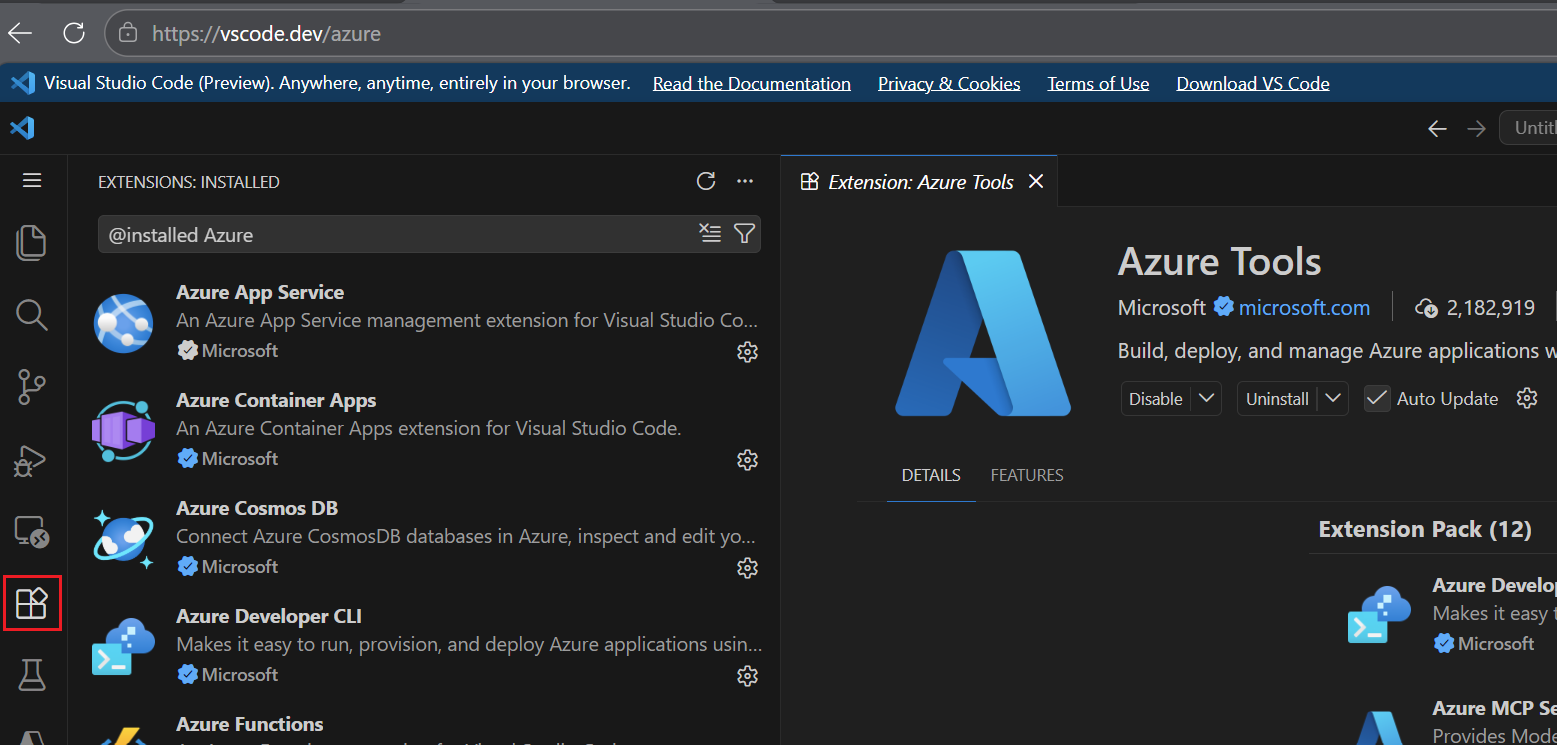
For more information about using VS Code for the Web for Azure development, see VS Code for the Web - Azure.
Deploy a sample app with azd
Use the Azure Developer CLI to deploy a full-stack to-do application to Azure. This step creates all the Azure resources and deploys the application code.
Open the terminal from the Command Palette via Terminal > Create New Terminal.
In the terminal, create and change into a new directory for your project.
mkdir my-todo-app && cd my-todo-appInitialize a project from a starter template. The
todo-nodejs-mongotemplate is a full-stack application built with Node.js, Express, and MongoDB. The template includes an Azure Resource Manager (ARM) template that defines the required Azure resources, such as an App Service for hosting the application and an Azure Cosmos DB account for the database.azd init --template todo-nodejs-mongoWhen prompted, enter an environment name like
my-todo-dev. Use this name as a prefix for the Azure resources.Sign in to Azure:
azd auth loginProvision Azure resources and deploy the application:
azd upWhen prompted, select a subscription and region.
The
azd upcommand:- Creates a resource group with the infrastructure defined in the template.
- Provisions the required Azure services, such as App Service and Azure Cosmos DB.
- Deploys the application code.
This process takes a few minutes. When it finishes, Azure Developer CLI displays the URL of your deployed application.
Open the URL in your browser to verify the application is running. You see a to-do application where you can add and complete tasks.
For more information, see What is the Azure Developer CLI.
Browse resources with Azure Tools for VS Code
Now use the Azure Tools extension to explore the resources that Azure Developer CLI created.
Verify that you're signed in to Azure by running the following command in the terminal:
azd auth statusIf the command returns your account details, you're already signed in. If not, sign in through VS Code:
- Open the Command Palette.
- Type Azure: Sign In and select it.
- Complete the sign-in flow in your browser.
Open the Azure view by selecting the Azure icon in the Activity Bar (left sidebar). Expand Resources to see your Azure subscriptions. Make sure the resource list is grouped by Resource Group by selecting the Group By icon at the top of the Resources view and choosing Resource Group. Expand your subscription and find the resource group created by Azure Developer CLI. The resource group name starts with the environment name you chose when running
azd init.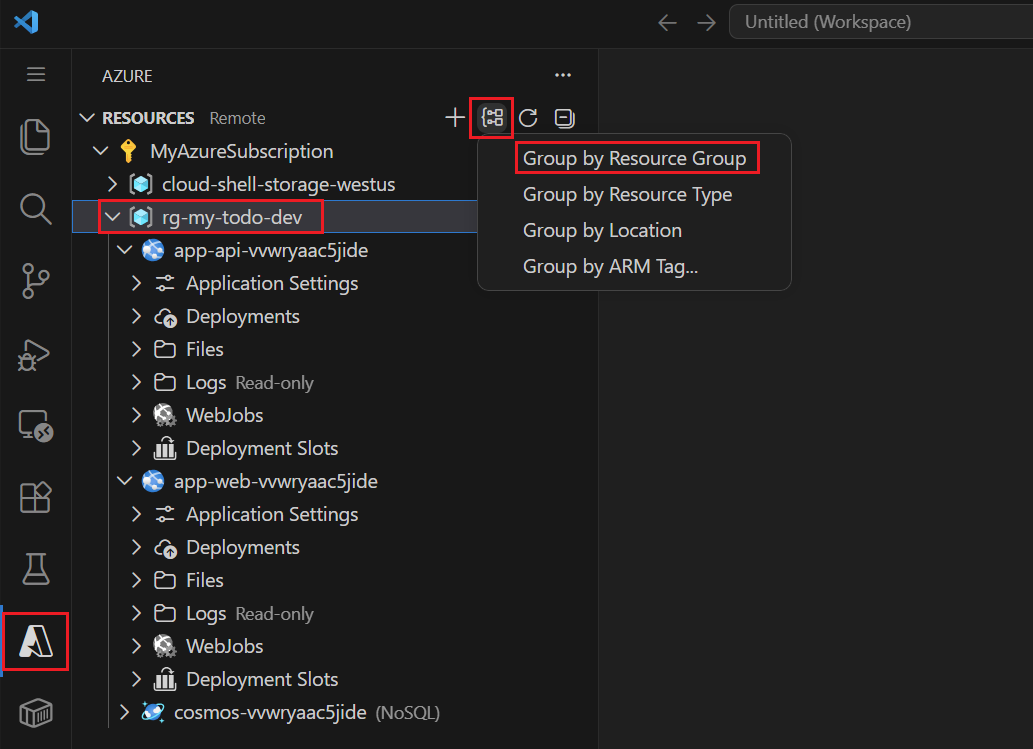
Explore the deployed resources:
- Expand the resource group to see the App Service, Cosmos DB account, and other resources.
- Right-click the App Service resource and select Browse Website to open your deployed app.
- Right-click the Cosmos DB account and select Open in Portal to view the database in the Azure portal.
View application logs:
- Right-click the App Service resource.
- Select Start Streaming Logs to see live log output from your running application.
- Open your to-do app in a browser and add a task to see log entries appear.
For more information, see Azure Tools extension pack.
Use GitHub Copilot for Azure
Use GitHub Copilot for Azure to learn about the resources you deployed and get guidance on next steps.
In VS Code, open the Copilot Chat view by selecting the chat icon in the activity bar.
Ask for guidance on your application:
How can I add authentication to my Azure App Service?Copilot provides step-by-step guidance tailored to your deployed application.
For example prompts, see:
- Example prompts for learning about Azure and your application with GitHub Copilot for Azure
- Example prompts for designing and developing your application with GitHub Copilot for Azure
- Example prompts for deploying your application with GitHub Copilot for Azure
For more information about GitHub Copilot for Azure, see the GitHub Copilot for Azure overview.
Clean up resources
When you're done exploring, delete the Azure resources to avoid incurring charges:
azd down
This command deletes all Azure resources created by azd up, including the resource group, App Service, and Cosmos DB account.
Next steps
Now that you used the core Azure developer tools, explore more:
- Azure Developer CLI templates - Find templates for different languages and architectures.
- GitHub Copilot for Azure documentation - Learn more about AI-assisted Azure development.
- Azure Tools for VS Code - Explore all available extensions.