Notiz
Zougrëff op dës Säit erfuerdert Autorisatioun. Dir kënnt probéieren, Iech unzemellen oder Verzeechnesser ze änneren.
Zougrëff op dës Säit erfuerdert Autorisatioun. Dir kënnt probéieren, Verzeechnesser ze änneren.
This article walks you through setting up a development environment for Azure development in Java. Microsoft provides IDE extensions for both IntelliJ and Eclipse to increase productivity when working with the Azure SDK for Java.
Install the Azure Toolkit for IntelliJ
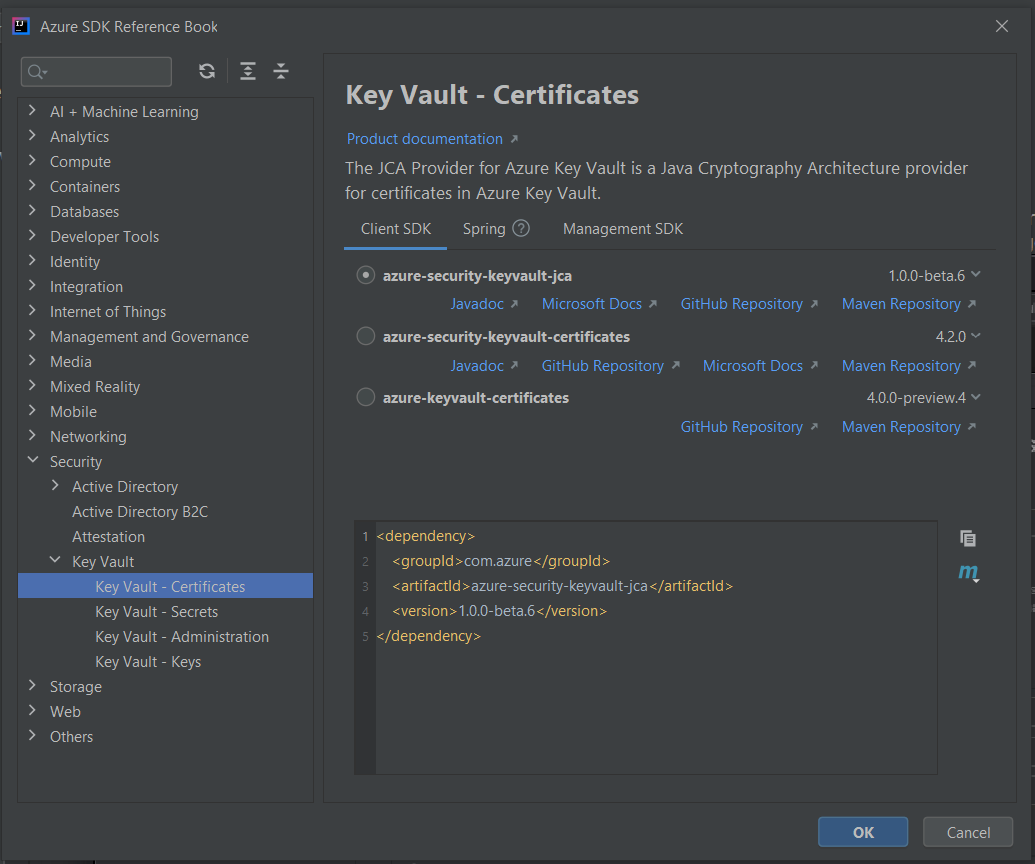
If you plan to deploy web apps or APIs programmatically, install the Azure toolkit. The toolkit also includes a comprehensive SDK reference book for any Azure development with Java SDK. For a quickstart with Azure Web Apps, see Create a Hello World web app for Azure App Service using IntelliJ.
The following steps summarize the installation process.
Select the File menu, and then select Settings.
Select Browse repositories, search for Azure, and install the Azure toolkit for Intellij.
Restart Intellij.
Open the reference book from Tools -> Azure -> Azure SDK Reference Book.
Install the Azure Toolkit for Eclipse
If you plan to deploy web apps or APIs programmatically, install the Azure toolkit. Currently, it isn't used for any other kinds of development. For a quickstart, see Create a Hello World web app for Azure App Service using Eclipse.
The following steps summarize the installation process.
- Select the Help menu, and then select Install new software.
- In the Work with box, enter
http://dl.microsoft.com/eclipse/and select Enter. - Select the check box next to Azure toolkit for Java. Clear the check box for Contact all update sites during install to find required software. Then select Next.