Notiz
Zougrëff op dës Säit erfuerdert Autorisatioun. Dir kënnt probéieren, Iech unzemellen oder Verzeechnesser ze änneren.
Zougrëff op dës Säit erfuerdert Autorisatioun. Dir kënnt probéieren, Verzeechnesser ze änneren.
This quickstart shows you how to create a Dell PowerScale Preview resource by using the Azure portal.
Prerequisites
- An Azure account with an active subscription is required. If you don't have one, create an account for free.
- The Owner or Contributor role for your Azure subscription. Only users who are assigned one of these roles can set up integration between Azure and Confluent. Before you begin, verify that you have the appropriate access.
- You must subscribe to Azure Native Dell PowerScale.
- Before you create the Dell PowerScale resource, ensure that the required Azure resource provider Dell.Storage is registered. For more information, see Register resource provider.
- You must have a dedicated subnet delegated to Dell PowerScale.
Create a resource
Begin by signing in to the Azure portal.
In the Azure portal, in the search box, enter the name of the service.
In the Services search results, select the service.
Select the Create option.
Basics tab
The Basics tab has three sections:
- Project details
- Azure resource details
- Dell PowerScale file system details
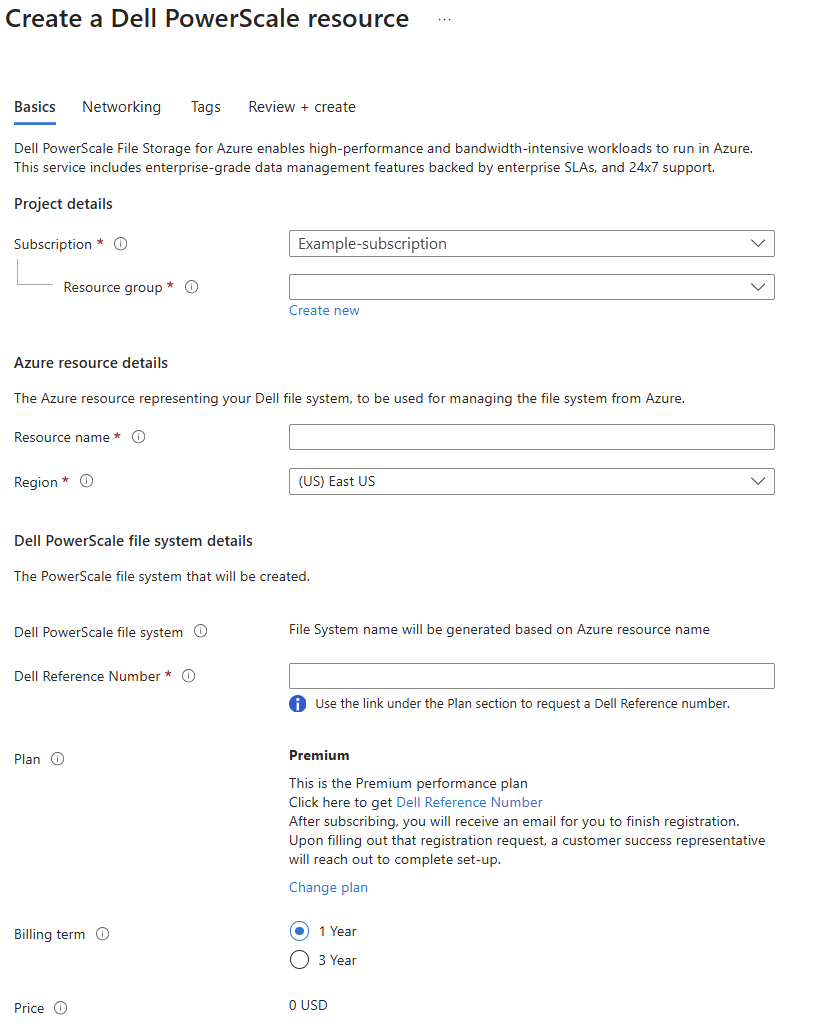
There are required fields that you need to fill out.
Enter the values for each required setting under Project details.
Setting Action Subscription Select the subscription that you want to use. Resource group Select an existing resource group, or create a new one by selecting Create new. Enter the values for each required setting under Azure resource details.
Setting Action Resource name Enter a name for your resource. Region Select the region in which you want to deploy the resource. Enter the values for each required setting under Dell PowerScale file system details.
Setting Action Dell Reference Number Enter your Dell reference number. You can request a reference number by selecting the link in the Plan section. Select Next to go to the Networking tab.
Networking tab
The Networking tab has two sections:
- Networking details
- SmartConnect FQDN
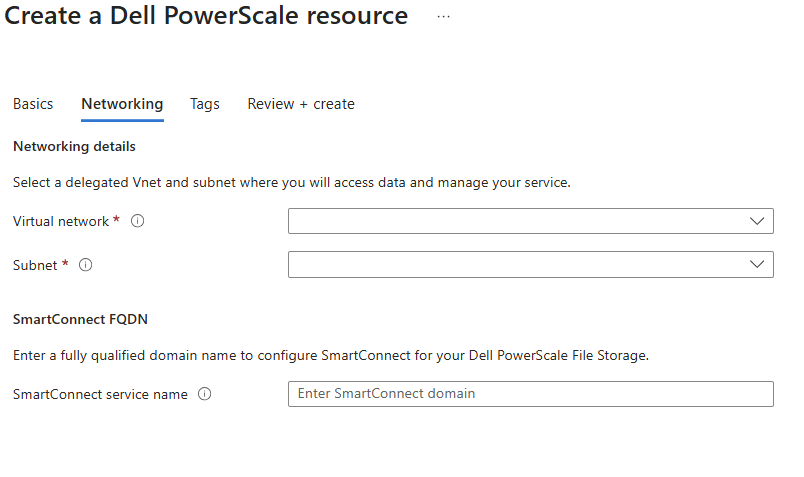
There are required fields that you need to fill out.
Enter the values for each required setting under Networking details.
Setting Action Virtual network Select the delegated virtual network in which to deploy the resource. Subnet Select the delegated subnet in which to deploy the resource. The subnet must be delegated to Dell.Storage/filesystems and have at least 256 IP addresses reserved for Dell PowerScale. Enter the value for the required setting under SmartConnect FQDN.
Setting Action SmartConnect service name Enter a fully qualified domain name to configure SmartConnect. If you want to create tags, select the Tags tab. See the next section. Otherwise, select the Review + create button at the bottom of the page.
Tags tab (optional)
Optionally, you can create tags for your resource. Then select Review + create.
Review + create tab
If the review finds no errors, the Create button becomes active. Select Create.
If the review identifies errors, a red dot appears next to each section where errors exist. To fix errors:
Open each section that has errors and fix the errors.
Fields with errors are highlighted in red.
Select Review + create again.
Select Create.
The message "Deployment is in progress" appears. When the deployment is complete, the message "Your deployment is complete" appears on the upper-right corner of the Azure portal.
After the resource is created, select Go to resource to view your resource.