This article documents the methods you can use to delete an existing Microsoft Planetary Computer Pro GeoCatalog resource.
- Using the Azure portal.
- Using the Azure REST API.
- Using the Azure SDKs (.NET, Java, JavaScript, Python, Go).
Before you proceed with deleting your GeoCatalog resource, download a backup of any data, assets, SpatioTemporal Asset Catalog (STAC) Items, or render configurations that you wish to preserve. After deletion is complete, it won't be possible to access any data within your GeoCatalog Configuration or Collections.
Before you continue with the deletion steps, make sure you're ready to delete the resource.
Prerequisites
Delete a GeoCatalog with the Azure portal
Navigate to your GeoCatalog resource within the Azure portal.
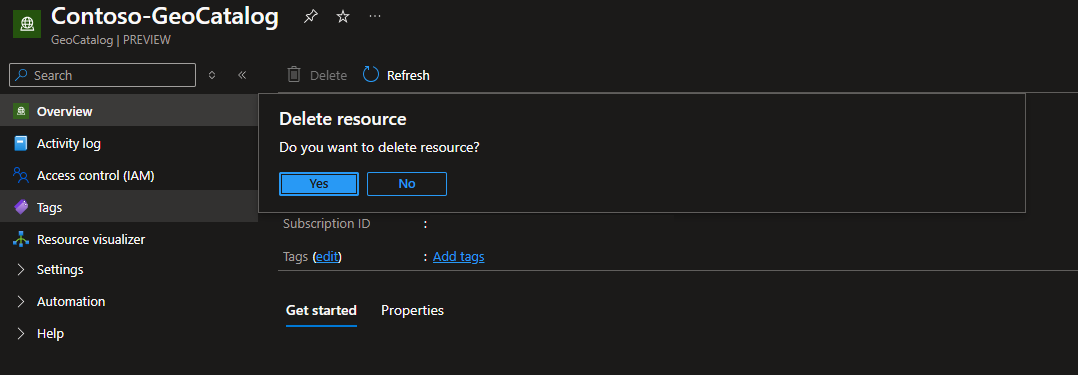
From within the GeoCatalog Azure portal page, select Delete. You're presented with a Delete resource confirmation dialog box.
Note
Selecting "Yes" will immediately begin deleting this resource.
Next Steps
Related Content
Delete a GeoCatalog with the REST API
Sign in to your Azure portal
Open up a cloud shell.
Select Bash mode.
Run the following command:
Note
Running this command will immediately begin deleting this resource.
# Replace the placeholder values below with your specific data
SUBSCRIPTION_ID="<your-subscription-id>"
RESOURCE_GROUP="<your-resource-group>"
CATALOG_NAME="<your-GeoCatalog-name>"

az rest --method DELETE --uri "/subscriptions/$SUBSCRIPTION_ID/resourceGroups/$RESOURCE_GROUP/providers/Microsoft.Orbital/geoCatalogs/$CATALOG_NAME?api-version=2026-04-15"
Next Steps
Related Content
Delete a GeoCatalog with the .NET SDK
Note
Running this code will immediately begin deleting this resource.
using Azure.Identity;
using Azure.ResourceManager;
using Azure.ResourceManager.PlanetaryComputer;

var client = new ArmClient(new DefaultAzureCredential());

string subscriptionId = "<your-subscription-id>";
string resourceGroupName = "<your-resource-group>";
string catalogName = "<your-geocatalog-name>";

var geoCatalogResourceId = PlanetaryComputerGeoCatalogResource.CreateResourceIdentifier(
    subscriptionId, resourceGroupName, catalogName);
var geoCatalog = client.GetPlanetaryComputerGeoCatalogResource(geoCatalogResourceId);

var operation = await geoCatalog.DeleteAsync(Azure.WaitUntil.Completed);
Console.WriteLine("GeoCatalog deleted successfully.");
For more information, see the .NET SDK reference.
Next Steps
Related Content
Delete a GeoCatalog with the Java SDK
Note
Running this code will immediately begin deleting this resource.
import com.azure.identity.DefaultAzureCredentialBuilder;
import com.azure.resourcemanager.planetarycomputer.PlanetaryComputerManager;

PlanetaryComputerManager manager = PlanetaryComputerManager.authenticate(
    new DefaultAzureCredentialBuilder().build(),
    "<your-subscription-id>");

manager.geoCatalogs().deleteByResourceGroup(
    "<your-resource-group>",
    "<your-geocatalog-name>");

System.out.println("GeoCatalog deleted successfully.");
For more information, see the Java SDK reference.
Next Steps
Related Content
Delete a GeoCatalog with the JavaScript SDK
Note
Running this code will immediately begin deleting this resource.
import { SpatioClient } from "@azure/arm-planetarycomputer";
import { DefaultAzureCredential } from "@azure/identity";

const credential = new DefaultAzureCredential();
const client = new SpatioClient(credential, "<your-subscription-id>");

const result = await client.geoCatalogs.delete(
  "<your-resource-group>",
  "<your-geocatalog-name>"
);
console.log("GeoCatalog deleted successfully.");
For more information, see the JavaScript SDK reference.
Next Steps
Related Content
Delete a GeoCatalog with the Python SDK
Note
Running this code will immediately begin deleting this resource.
from azure.identity import DefaultAzureCredential
from azure.mgmt.planetarycomputer import PlanetaryComputerMgmtClient

credential = DefaultAzureCredential()
client = PlanetaryComputerMgmtClient(
    credential=credential,
    subscription_id="<your-subscription-id>"
)

client.geo_catalogs.begin_delete(
    resource_group_name="<your-resource-group>",
    catalog_name="<your-geocatalog-name>"
).wait()

print("GeoCatalog deleted successfully.")
For more information, see the Python SDK reference.
Next Steps
Related Content
Delete a GeoCatalog with the Go SDK
Note
Running this code will immediately begin deleting this resource.
package main

import (
	"context"
	"fmt"
	"log"

	"github.com/Azure/azure-sdk-for-go/sdk/azidentity"
	"github.com/Azure/azure-sdk-for-go/sdk/resourcemanager/planetarycomputer/armplanetarycomputer"
)

func main() {
	cred, err := azidentity.NewDefaultAzureCredential(nil)
	if err != nil {
		log.Fatalf("failed to create credential: %v", err)
	}

	clientFactory, err := armplanetarycomputer.NewClientFactory(
		"<your-subscription-id>", cred, nil)
	if err != nil {
		log.Fatalf("failed to create client factory: %v", err)
	}

	client := clientFactory.NewGeoCatalogsClient()

	poller, err := client.BeginDelete(context.Background(),
		"<your-resource-group>",
		"<your-geocatalog-name>",
		nil)
	if err != nil {
		log.Fatalf("failed to start deletion: %v", err)
	}

	_, err = poller.PollUntilDone(context.Background(), nil)
	if err != nil {
		log.Fatalf("failed to delete: %v", err)
	}

	fmt.Println("GeoCatalog deleted successfully.")
}
For more information, see the Go SDK source.
Next Steps
Related Content
