Notiz
Zougrëff op dës Säit erfuerdert Autorisatioun. Dir kënnt probéieren, Iech unzemellen oder Verzeechnesser ze änneren.
Zougrëff op dës Säit erfuerdert Autorisatioun. Dir kënnt probéieren, Verzeechnesser ze änneren.
Microsoft Defender XDR's automatic attack disruption capabilities can help protect your Okta-managed identities by automatically responding to threats. When an identity managed by Okta is compromised, Defender XDR can take remediation actions directly in Okta to contain the attack, limit lateral movement, and reduce overall impact.
This article describes how to set up the Okta integration with Microsoft Defender for Identity to enable attack disruption actions in your Okta environment.
Prerequisites
Before you begin, make sure the following prerequisites are met:
Okta requirements
You have an Okta account with admin privileges and a developer or enterprise license.
Microsoft requirements
- Your Microsoft Sentinel analytic workspace is connected to the unified security operations portal
- The Okta connector for Microsoft Sentinel is deployed and enabled.
Note
During public preview, only the Okta single sign-in connector is supported.
Step 1: Create the Okta integration
To create the integration from an Okta account with admin privileges, follow these steps:
-
- Provide a friendly name for your token
- Make sure to keep the generated token value to be used later when creating the integration.
Note
This token is a secret that allows connecting to your Okta environment and performing actions. Don't share its value or save it in any visible or public location.
Step 2: Create the integration from the Defender portal
Log in to the Defender portal
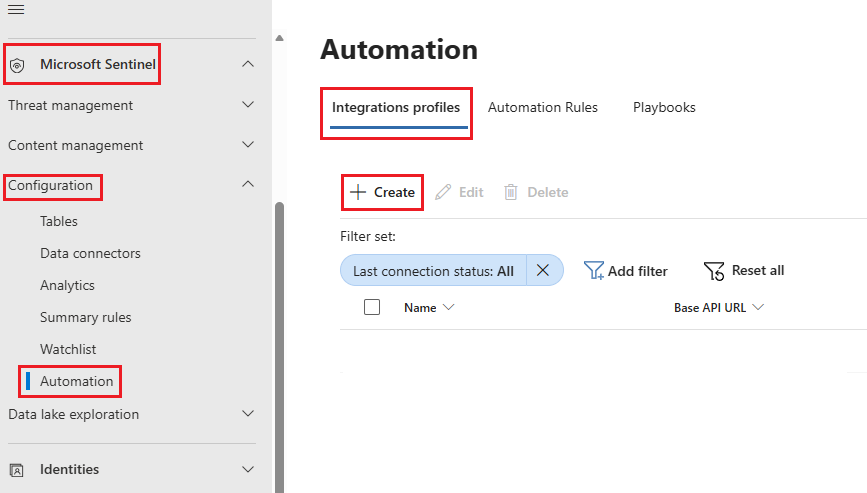
Navigate Microsoft Sentinel -> Configuration -> Automation.
In the Integrations profiles tab, select +Create to create a new integration.
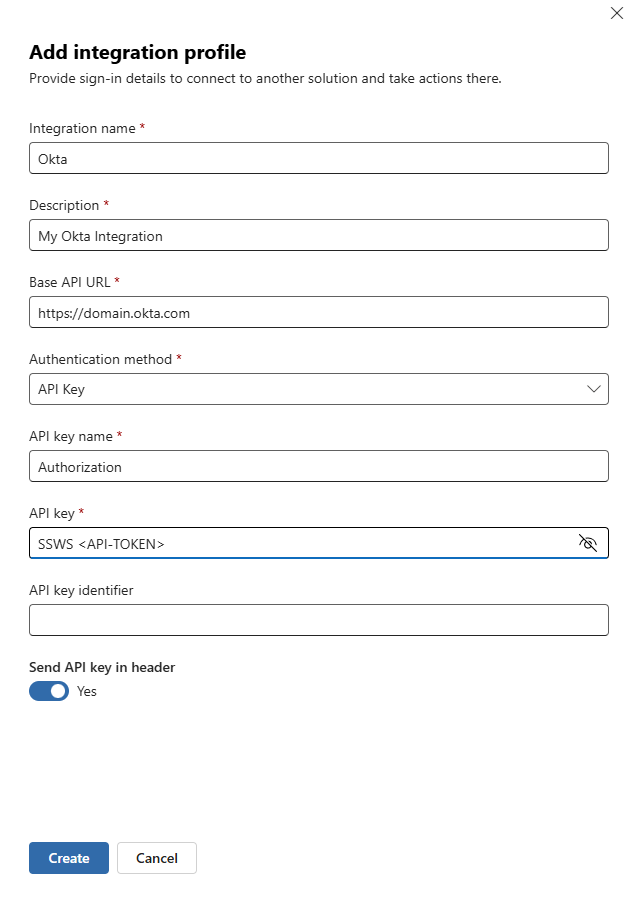
Fill in the following values, then select Create:
Integration name
Description
Base API URL: Enter your full Okta domain starting with
https://Authentication method: Select API Key
- API key name
- API key: Enter
SSWS <API-Key>, replacing<API-Key>with the value of the API token you generated in Okta. There should be a space betweenSSWSand your API Key. For more information, see the Okta documentation for API Key usage - API key identifier: Leave empty
- Enable the Send SPI key in header switch.
Related content
- Automatic attack disruption in Microsoft Defender XDR
- Configure automatic attack disruption
- Enable attack disruption actions on AWS with Microsoft Sentinel
- How Microsoft Defender for Identity protects your Okta accounts
- Connect Okta to Microsoft Defender for Identity
Tip
Do you want to learn more? Engage with the Microsoft Security community in our Tech Community: Microsoft Defender XDR Tech Community.