Notiz
Zougrëff op dës Säit erfuerdert Autorisatioun. Dir kënnt probéieren, Iech unzemellen oder Verzeechnesser ze änneren.
Zougrëff op dës Säit erfuerdert Autorisatioun. Dir kënnt probéieren, Verzeechnesser ze änneren.
The timeout rules feature in Customer Service workspace helps you manage and monitor time-sensitive actions during conversations. You can ensure timely responses, improve productivity, and maintain control over automated processes. This article explains how to access and use the timeout rules panel, interpret rule statuses, and manage rules effectively. When you disable a rule with the toggle, it halts the countdown even if conditions are met. The countdown resumes using the previous timer state when you enable the rule again.
Prerequisite
Your administrator enabled timeout rules.
Use the representative override panel
Here’s what you can do:
Access the Timeout Rules panel on the productivity pane
- In Customer Service workspace, select the Timeout Rules icon on the Productivity pane. If no timeout rules apply to the conversation, the panel remains blank.
The panel refreshes dynamically for the currently open conversations. For each conversation, all active timeout rules are displayed on the panel. If there are more rules than the panel can display, scroll to view the remaining rules.
- To refresh and view the most accurate state of each timeout rule, select Retry.
View rules linked to the conversation, rule status, and remaining time through the hourglass tooltip
The following states indicate the status of the rule based on the conditions and remaining time until the action is performed:
Active: Condition true; countdown running.
Started: Timer just began; <50% time elapsed.
Halfway: >50% time elapsed.
Almost: >75% time elapsed.
Can't turn off: Too close to triggering.
Note
You can't disable this rule. To ensure reliability, rules move to the Can't turn off state when the timeout is less than one minute.
Inactive: Condition false; countdown stopped and reset.
Just Ran: Rule applied; timer stopped.
Turned Off: Representative disabled the rule completely.
You can hover over the hourglass icon to view the exact remaining time.
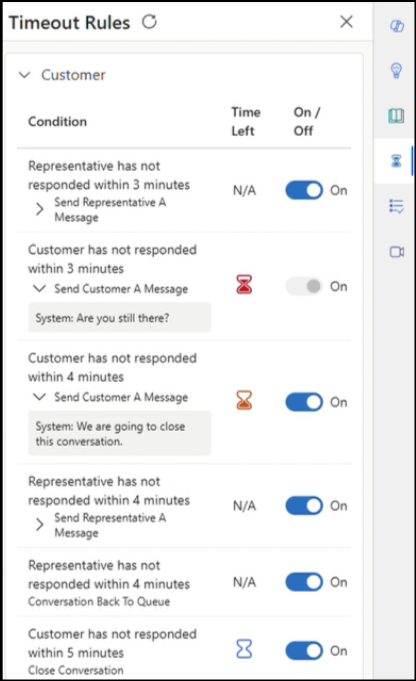
Toggle rules
Turn off the rule to stop the countdown and prevent the rule from running, even if conditions are true.
Turn on the rule to resume countdown when conditions become true. When you resume a rule, it uses the existing timer for the rule.