Notiz
Zougrëff op dës Säit erfuerdert Autorisatioun. Dir kënnt probéieren, Iech unzemellen oder Verzeechnesser ze änneren.
Zougrëff op dës Säit erfuerdert Autorisatioun. Dir kënnt probéieren, Verzeechnesser ze änneren.
A library is a reusable package of code — such as a Python package from PyPI, an R package from CRAN, or a Java JAR — that you can import into your notebooks and Spark job definitions to add functionality without writing it from scratch. Microsoft Fabric provides multiple mechanisms to help you manage and use libraries.
- Built-in libraries: Each Fabric Spark runtime provides a rich set of popular preinstalled libraries. You can find the full built-in library list in Fabric Spark Runtime.
- Public libraries: Public libraries are sourced from repositories such as PyPI and Conda, which are currently supported.
- Custom libraries: Custom libraries refer to code that you or your organization build. Fabric supports them in the .whl, .jar, and .tar.gz formats. Fabric supports .tar.gz only for the R language. For Python custom libraries, use the .whl format.
Summary of library management best practices
The following scenarios describe best practices when using libraries in Fabric.
Environment publishing modes (Quick vs Full)
When you install libraries in a Fabric environment, you choose a publishing mode that controls how libraries are delivered to your Spark sessions.
- Quick mode publishes in about 5 seconds. Libraries install when a notebook session starts rather than during publish. If a Quick mode package has the same name as a Full mode package, the Quick mode version overrides the Full mode version for that session only. Use Quick mode for rapid, iterative notebook development and early-stage experimentation.
- Full mode creates a stable, reproducible library snapshot. Publishing typically takes 3 to 6 minutes because the system resolves dependencies and validates compatibility. Session startup adds 1 to 3 minutes for dependency deployment, depending on dependency size. Use Full mode for pipelines, scheduled runs, and shared workloads that require consistent, reproducible environments.
Full mode with a custom live pool
To combine the stability of Full mode with fast session starts, configure a custom live pool that attaches to a Full mode environment. The live pool hydrates clusters with the Full mode library snapshot in advance, enabling approximately 5-second session start times while preserving the reproducible snapshot.
For details on each mode, see Manage libraries in Fabric environments.
Scenario 1: Admin sets default libraries for the workspace
To set default libraries, you have to be the administrator of the workspace. As admin, you can perform these tasks:
- Create a new environment
- Install the required libraries in the environment
- Attach this environment as the workspace default
When your notebooks and Spark job definitions are attached to the Workspace settings, they start sessions with the libraries installed in the workspace's default environment.
Scenario 2: Persist library specifications for one or multiple code items
If you have common libraries for different code items and don't need to update them frequently, install the libraries in an environment and attach it to the code items.
Publishing time depends on the mode you choose. Quick mode publishes in about 5 seconds and installs libraries at session start. Full mode resolves dependencies and creates a stable snapshot; it typically takes 3 to 6 minutes to publish, and session startup adds 1 to 3 minutes for dependency deployment.
The benefit of this approach is that successfully installed libraries are guaranteed to be available when a Spark session starts with the environment attached. It saves the effort of maintaining common libraries for your projects and is recommended for pipeline scenarios because of its stability.
Scenario 3: Inline installation in interactive run
If you're writing code interactively in a notebook, inline installation is the best approach for adding PyPI or conda libraries or validating custom libraries for one-time use. Inline commands make a library available in the current notebook Spark session only — they allow quick installation, but the installed library doesn't persist across sessions.
Because %pip install can generate different dependency trees from run to run, which might lead to library conflicts, inline commands are turned off by default in pipeline runs and aren't recommended for pipelines.
Note
Libraries installed through inline commands (such as %pip install or %conda install) and libraries added from a notebook or environment Resources folder are scoped to the current session or notebook. They aren't affected by environment publishing in either Quick mode or Full mode.
Summary of supported library types
| Library type | Environment library management | Inline installation |
|---|---|---|
| Python Public (PyPI & Conda) | Supported | Supported |
| Python Custom (.whl) | Supported | Supported |
| R Public (CRAN) | Not supported | Supported |
| R custom (.tar.gz) | Supported as custom library | Supported |
| Jar | Supported as custom library | Supported |
Inline installation
Inline commands let you manage libraries within individual notebook sessions.
Python inline installation
The system restarts the Python interpreter to apply library changes. Any variables defined before you run the command cell are lost. Put all commands for adding, deleting, or updating Python packages at the beginning of your notebook.
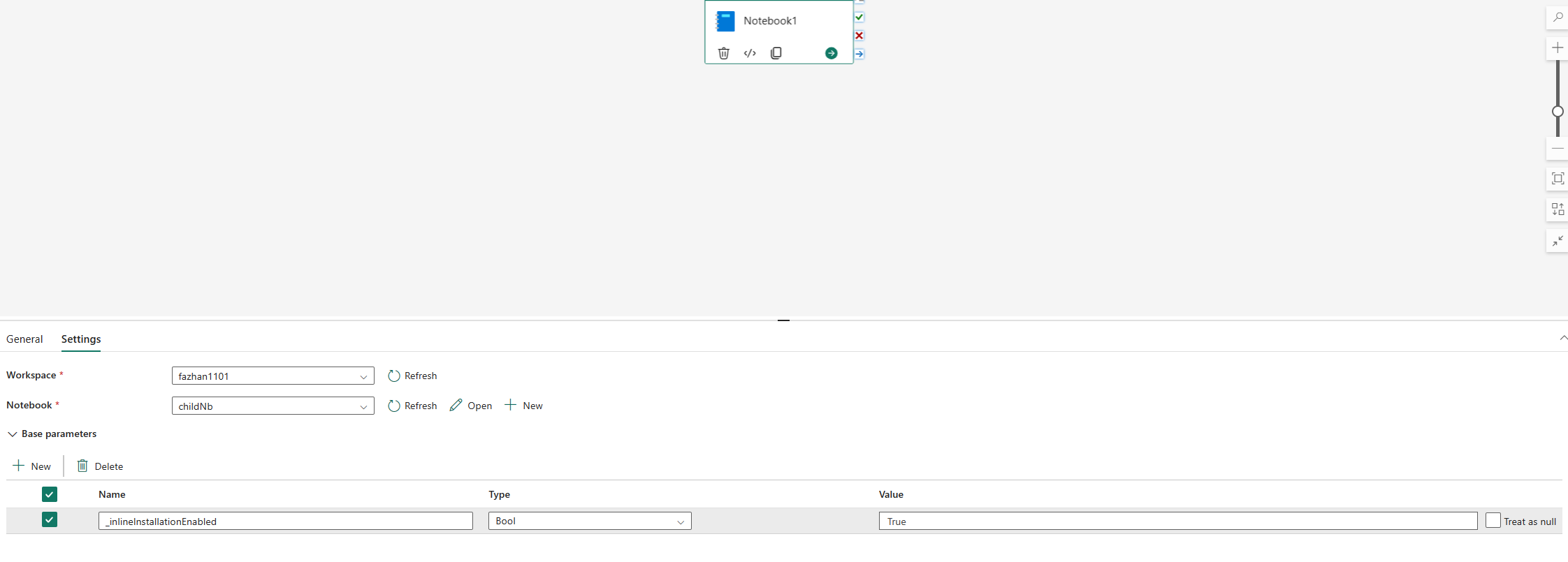
Inline commands for managing Python libraries are disabled in notebook pipeline runs by default. To enable %pip install for a pipeline, add _inlineInstallationEnabled as a boolean parameter set to True in the notebook activity parameters.
Note
The %pip install command can produce inconsistent results from run to run. Install libraries in an environment and use the environment in a pipeline instead.
The %pip install command isn't supported in High Concurrency mode.
In notebook reference runs, inline commands for managing Python libraries aren't supported. Remove these inline commands from the referenced notebook to ensure correct execution.
Use %pip instead of !pip. The !pip command is an IPython built-in shell command with the following limitations:
!pipinstalls a package only on the driver node, not on executor nodes.- Packages installed through
!pipdon't account for conflicts with built-in packages or packages already imported in a notebook.
%pip handles these scenarios. Libraries installed through %pip are available on both driver and executor nodes and take effect even if the library is already imported.
Tip
The %conda install command usually takes longer than the %pip install command to install new Python libraries. It checks the full dependencies and resolves conflicts.
Use %conda install for more reliability and stability. Use %pip install if you're sure that the library you want to install doesn't conflict with the preinstalled libraries in the runtime environment.
For all available Python inline commands and clarifications, see %pip commands and %conda commands.
Manage Python public libraries through inline installation
This example shows how to use inline commands to manage libraries. Suppose you want to use altair, a powerful visualization library for Python, for a one-time data exploration, and the library isn't installed in your workspace. The following example uses conda commands to illustrate the steps.
You can use inline commands to enable altair on your notebook session without affecting other sessions of the notebook or other items.
Run the following commands in a notebook code cell. The first command installs the altair library. Also, install vega_datasets, which contains a semantic model you can use to visualize.
%conda install altair          # install latest version through conda command
%conda install vega_datasets   # install latest version through conda command
The output of the cell indicates the result of the installation.
Import the package and semantic model by running the following code in another notebook cell.
import altair as alt
from vega_datasets import data
Now you can play around with the session-scoped altair library.
# load a simple dataset as a pandas DataFrame
cars = data.cars()
alt.Chart(cars).mark_point().encode(
x='Horsepower',
y='Miles_per_Gallon',
color='Origin',
).interactive()
Manage Python custom libraries through inline installation
You can upload your Python custom libraries to the resources folder of your notebook or the attached environment. The resources folder is a built-in file system provided by each notebook and environment. See Notebook resources for more details. After you upload a library, you can drag and drop it into a code cell to automatically generate the install command. Or you can run the following command:
# install the .whl through pip command from the notebook built-in folder
%pip install "builtin/wheel_file_name.whl"
Note
Custom libraries installed from the Resources folder through inline commands are per-session and per-notebook. They aren't affected by environment publishing.
R inline installation
To manage R libraries, Fabric supports the install.packages(), remove.packages(), and devtools:: commands. For all available R inline commands and clarifications, see install.packages command and remove.package command.
Manage R public libraries through inline installation
Follow this example to walk through the steps of installing an R public library.
To install an R feed library:
Switch the working language to SparkR (R) in the notebook ribbon.
Install the caesar library by running the following command in a notebook cell.
install.packages("caesar")Now you can play around with the session-scoped caesar library with a Spark job.
library(SparkR)
sparkR.session()

hello <- function(x) {
library(caesar)
caesar(x)
}
spark.lapply(c("hello world", "good morning", "good evening"), hello)
Manage Jar libraries through inline installation
You can add .jar files to notebook sessions with the following command.
%%configure -f
{
    "conf": {
        "spark.jars": "abfss://<<Lakehouse prefix>>.dfs.fabric.microsoft.com/<<path to JAR file>>/<<JAR file name>>.jar",
    }
}
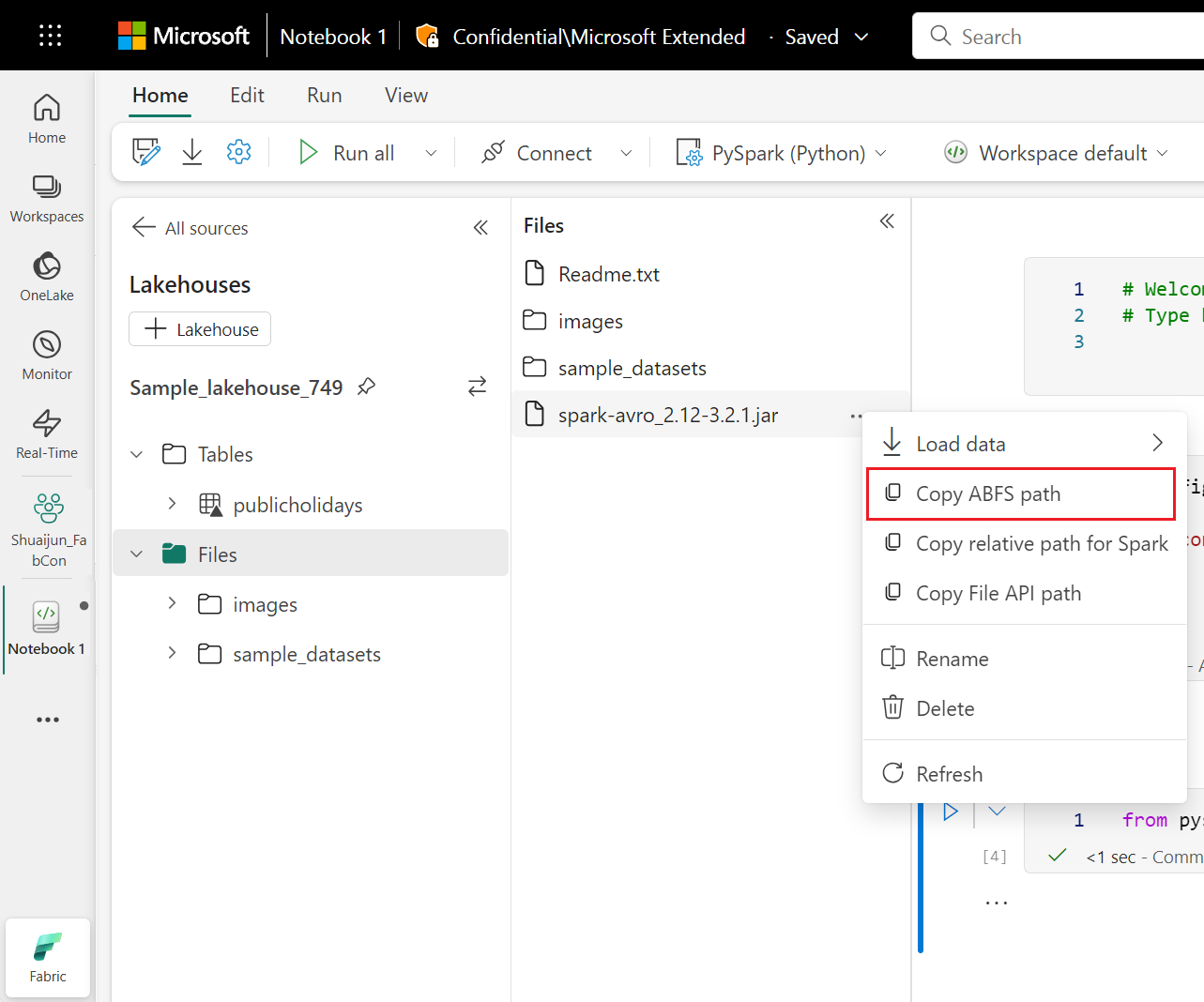
The preceding code cell uses lakehouse storage as an example. In the notebook explorer, you can copy the full ABFS path of the file and replace it in the code.