Notiz
Zougrëff op dës Säit erfuerdert Autorisatioun. Dir kënnt probéieren, Iech unzemellen oder Verzeechnesser ze änneren.
Zougrëff op dës Säit erfuerdert Autorisatioun. Dir kënnt probéieren, Verzeechnesser ze änneren.
The If Condition activity in Data Factory for Microsoft Fabric provides the same functionality that an if statement provides in programming languages. It executes a set of activities when the condition evaluates to true and another set of activities when the condition evaluates to false.
Prerequisites
To get started, you must complete the following prerequisites:
- A tenant account with an active Microsoft Fabric subscription. You can try Fabric with a free trial.
- A Fabric workspace.
Add an If Condition activity to a pipeline with UI
To use an If Condition activity in a pipeline, complete the following steps:
Creating the activity
Create a new pipeline in your workspace.
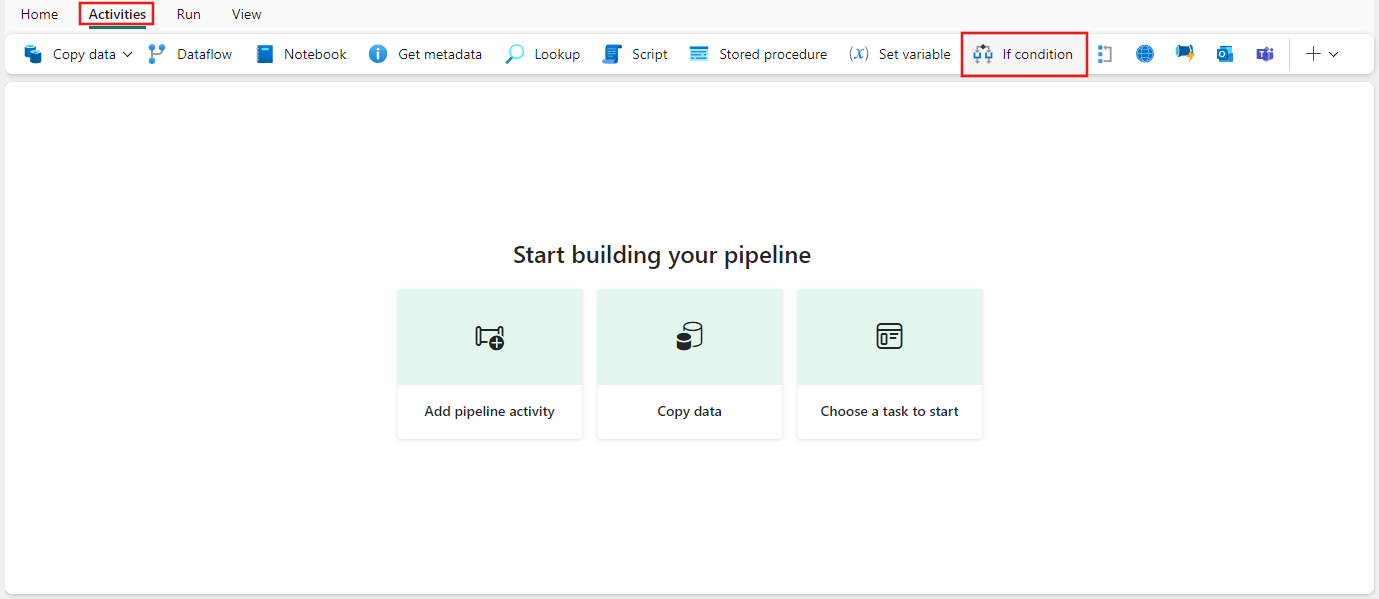
Search for If Condition in the pipeline Activities pane, and select it to add it to the pipeline canvas.
Select the new If Condition activity on the canvas if it isn't already selected.
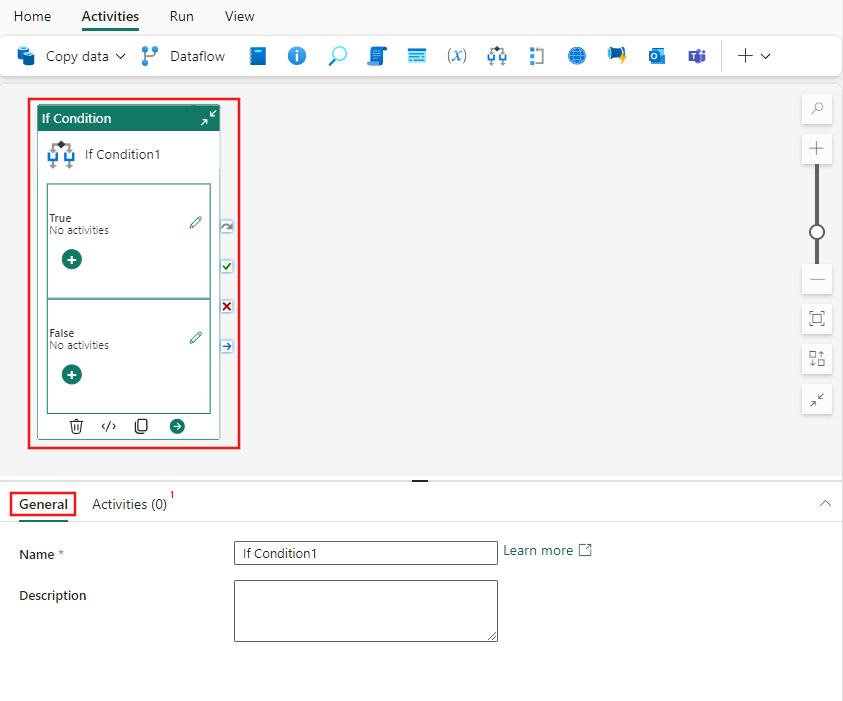
Refer to the General settings guidance to configure the General settings tab.
If Condition settings
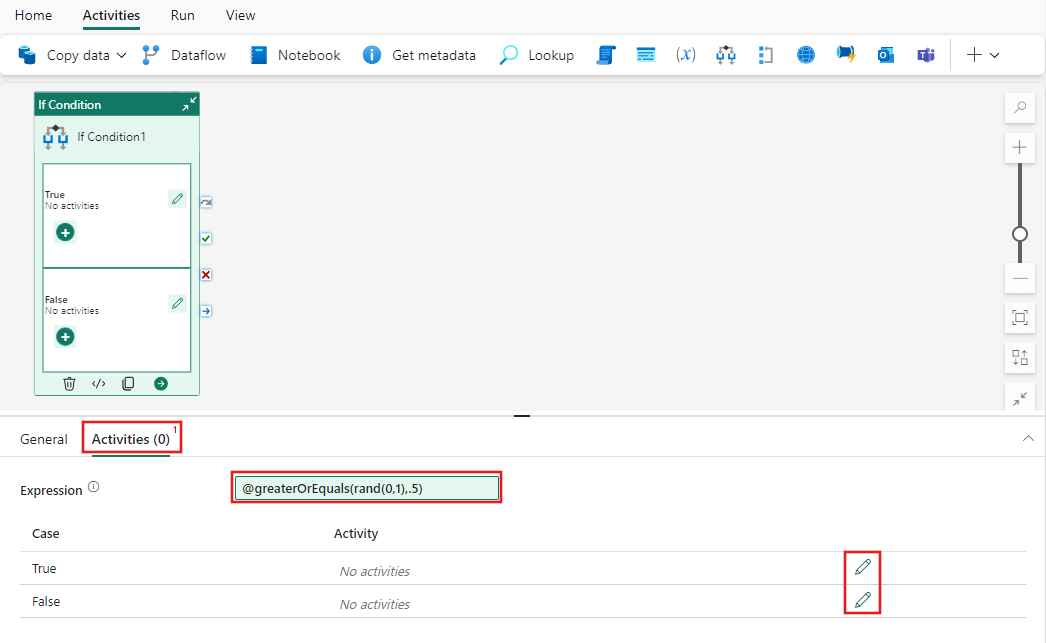
Select the Activities tab and provide a dynamic boolean Expression for the If activity. In this simple example, we randomly generate a number between 0 and 1, and return True if the number is greater than or equal to .5, or otherwise False. You can use any of the available functions in the Data Factory expression language or any parameters specified in the pipeline.
After providing the expression for the If Condition, selecting the pencil icon beside each case (True/False) allows you to add as many activities as necessary to be conditionally executed whenever the expression evaluates.
Tip
For more examples and information about the expression language, see: Expressions and functions for Data Factory in Microsoft Fabric
Save and run or schedule the pipeline
Switch to the Home tab at the top of the pipeline editor and select the save button to save your pipeline. Select Run to run it directly or Schedule to schedule runs at specific times or intervals. For more information on pipeline runs, see: schedule pipeline runs.

After running, you can monitor the pipeline execution and view run history from the Output tab below the canvas.