Notiz
Zougrëff op dës Säit erfuerdert Autorisatioun. Dir kënnt probéieren, Iech unzemellen oder Verzeechnesser ze änneren.
Zougrëff op dës Säit erfuerdert Autorisatioun. Dir kënnt probéieren, Verzeechnesser ze änneren.
This guide shows you how to use the Semantic model refresh activity to connect to your Power BI semantic model datasets and refresh them from a pipeline in Data Factory for Microsoft Fabric.
Note
This activity works only with semantic models you create yourself.
Prerequisites
Before you start, make sure you have:
- A tenant account with an active subscription. Create an account for free.
- A workspace with Power BI Premium, Premium Per User, or Power BI Embedded capacities.
Add a Semantic model refresh activity to a pipeline with UI
Follow these steps to use the Semantic model refresh activity in your pipeline:
Create the activity
Start by creating a new pipeline in your workspace.
Before you add the Semantic model refresh activity, make sure you have a connection to your Power BI datasets.
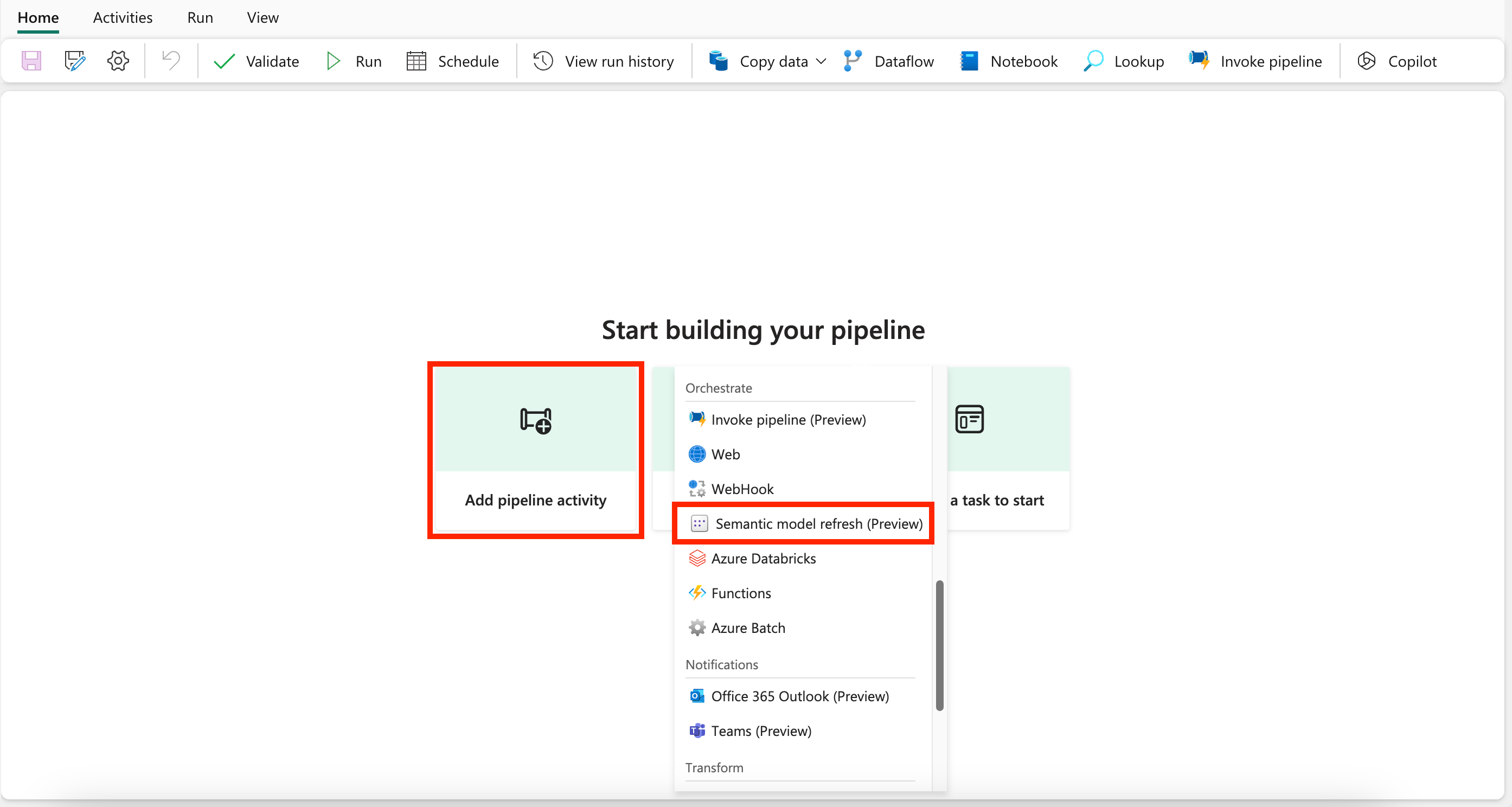
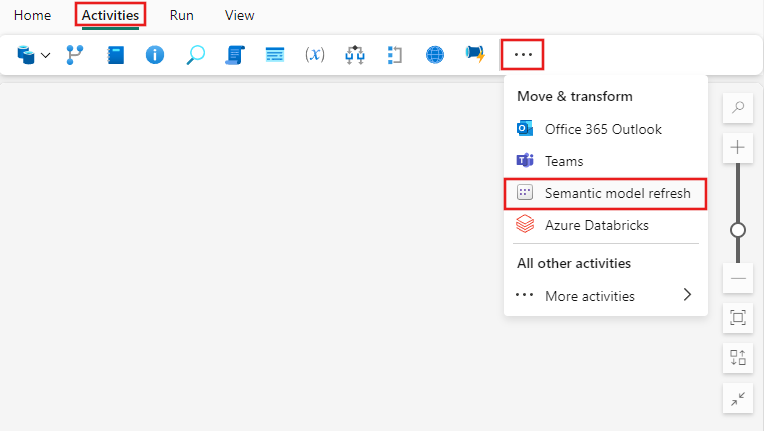
Find "Semantic model refresh" from the Add pipeline activity home screen card and select it, or pick it from the Activities bar to add it to the pipeline canvas.
Creating the activity from the home screen card:
Creating the activity from the Activities bar:
Select the new Semantic model refresh activity on the pipeline editor canvas if it isn't already selected.
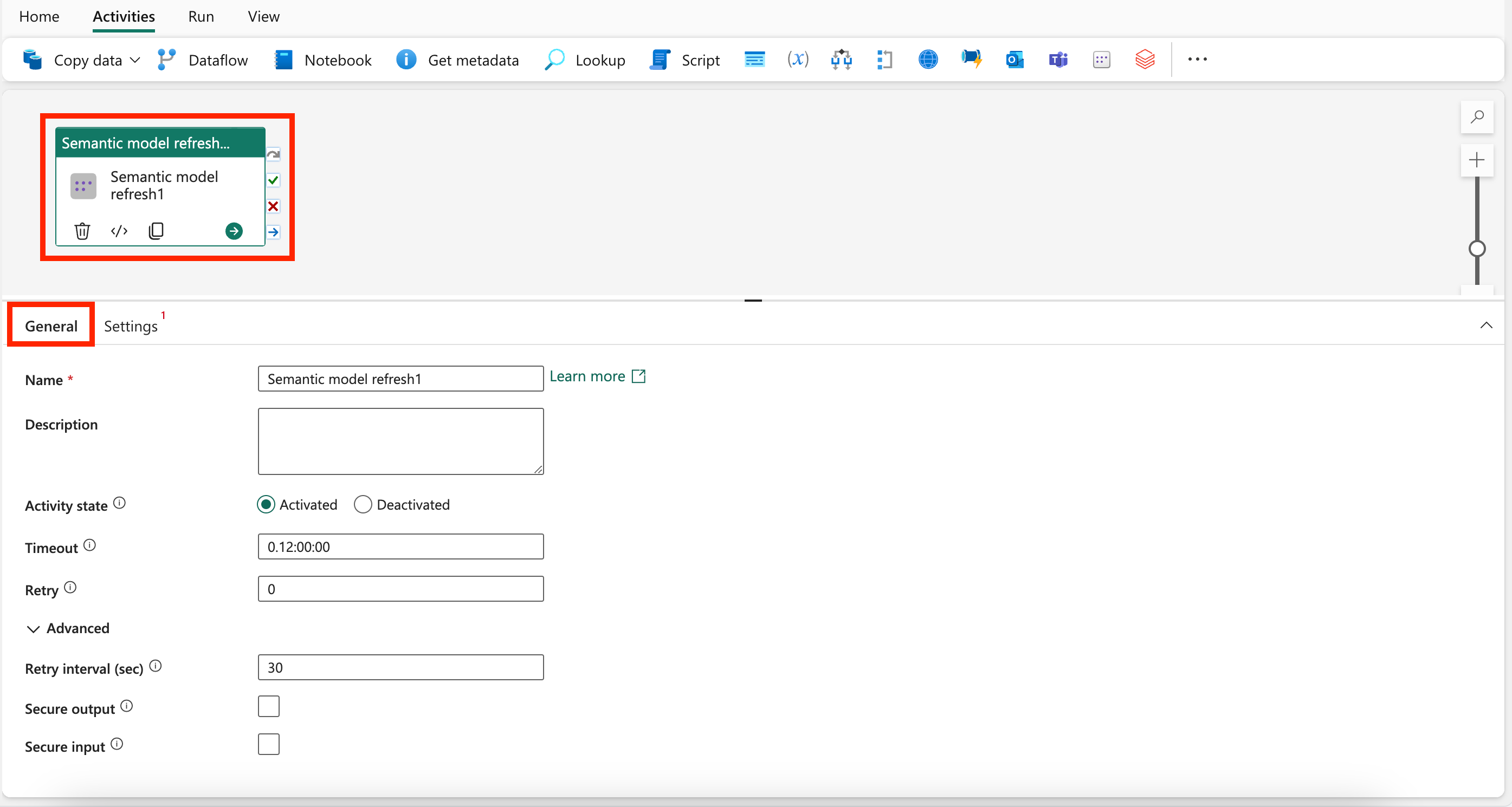
Refer to the General settings guidance to configure the options found on this tab.
Semantic model refresh activity settings
Select the Settings tab in the activity properties pane. Use the Connection dropdown to pick an existing connection, or create and configure a new connection to Power BI.
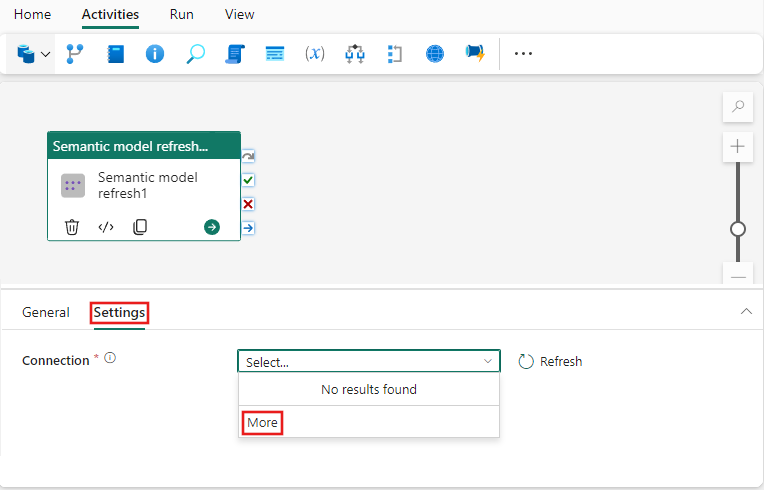
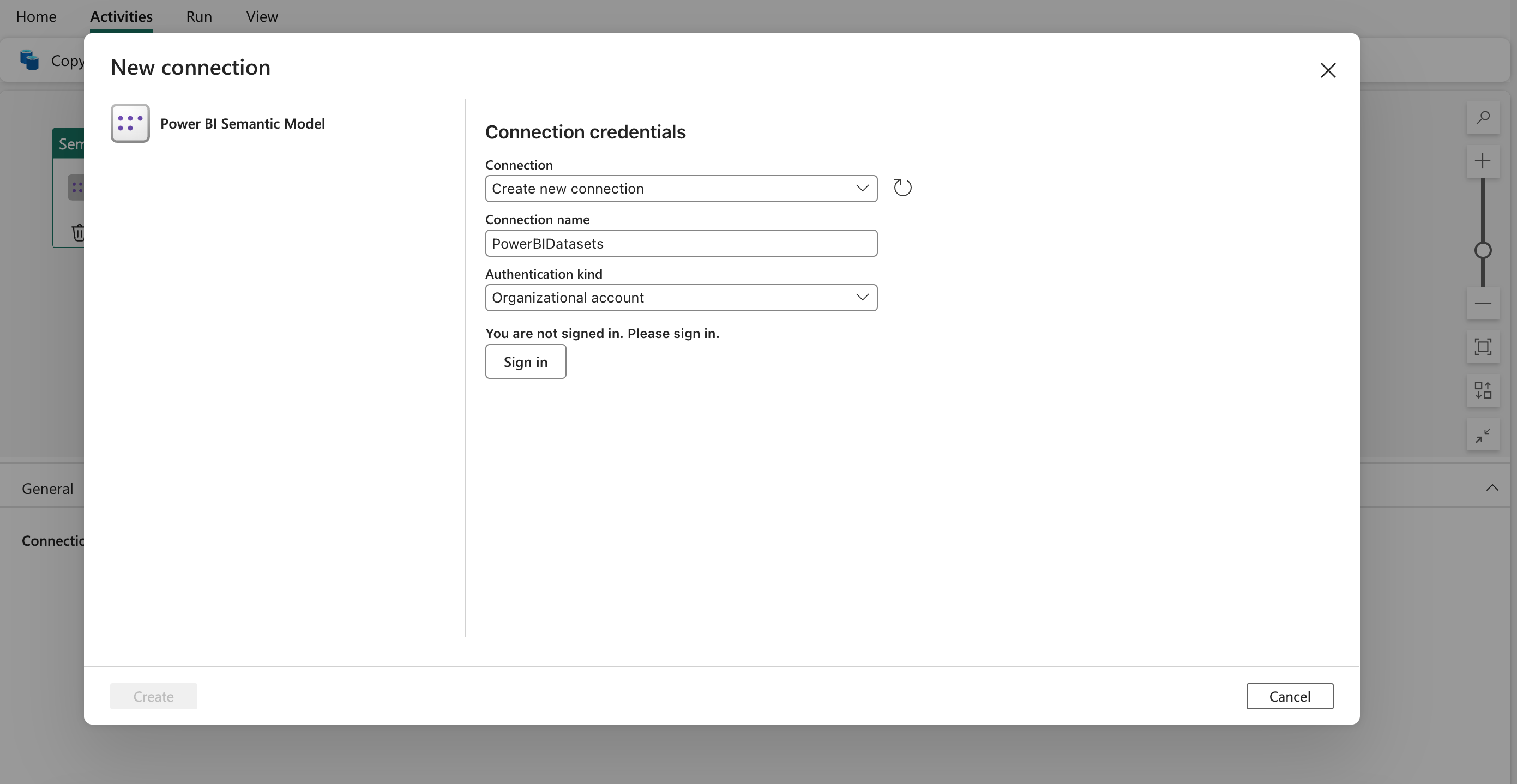
When you select + New to make a new connection, a dialog appears where you can enter the Connection name and your credentials for the Authorization kind you choose.
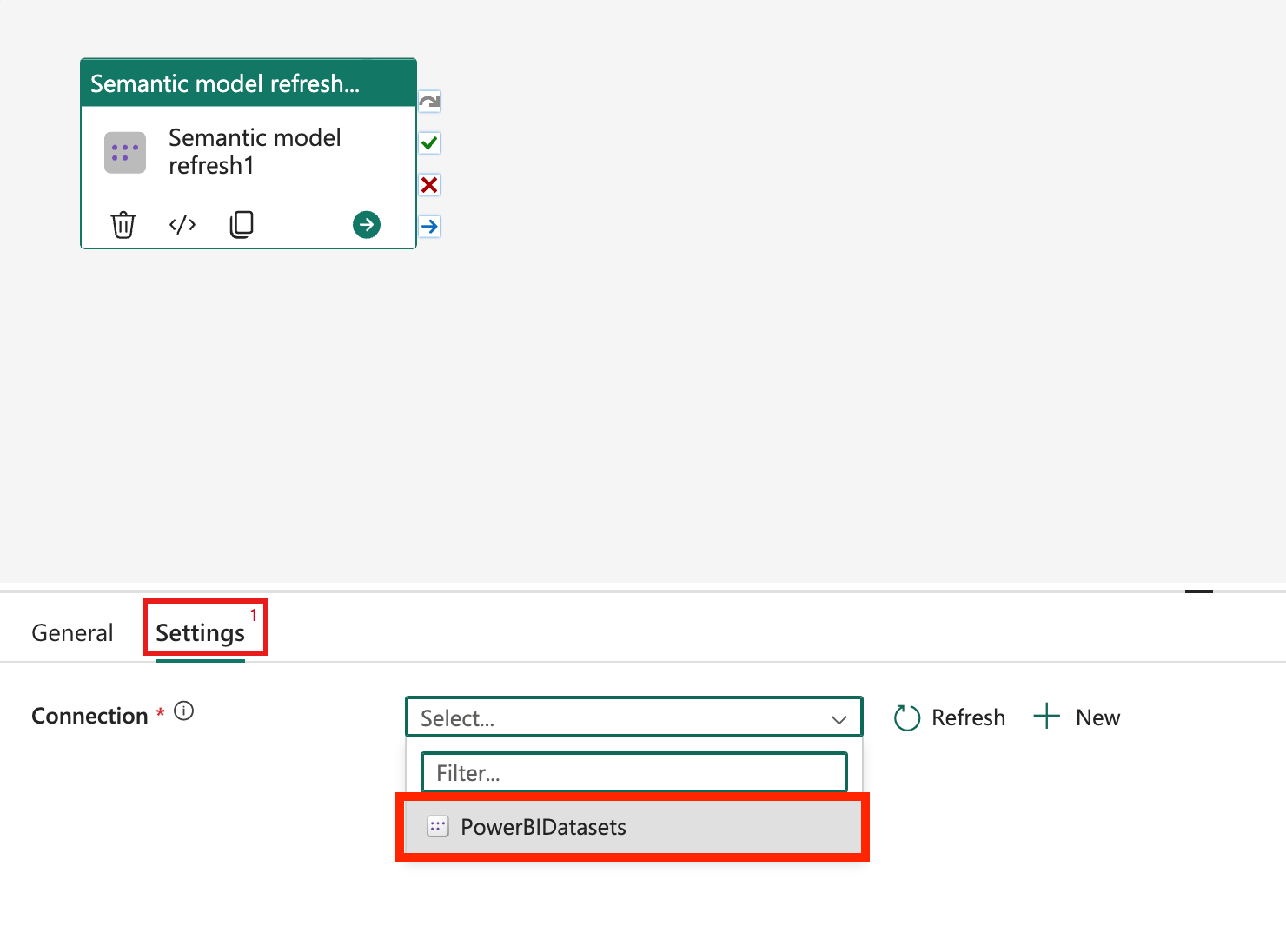
After you create a connection, you'll see it in the dropdown menu. If it doesn't show up right away, select Refresh. Then, select your connection.
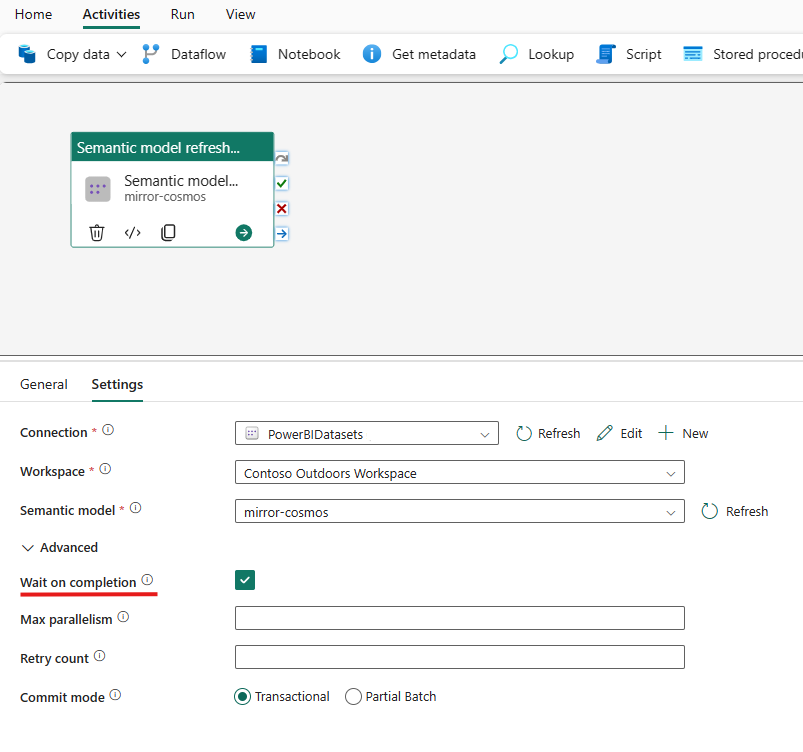
Select your Workspace and Dataset to finish setting up the activity. For more options, open the Advanced section.
- In Advanced, you'll see Wait on completion turned on by default. This option lets the activity wait until the refresh finishes before moving on.
- You can also set values for Max parallelism and Retry Count, and choose whether to commit the refresh all at once (Transactional) or in batches (Partial Batch).
Note
By default, the semantic model refresh activity runs a full refresh when triggered from the pipeline.
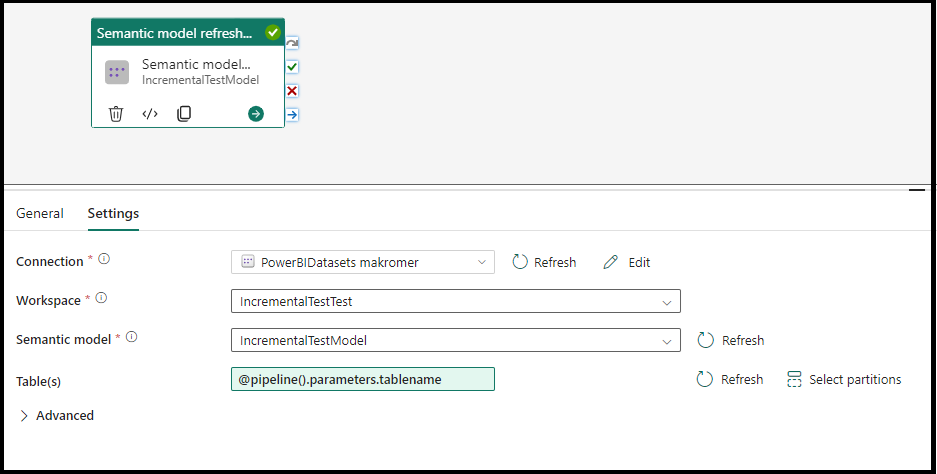
Choose tables and partitions to refresh
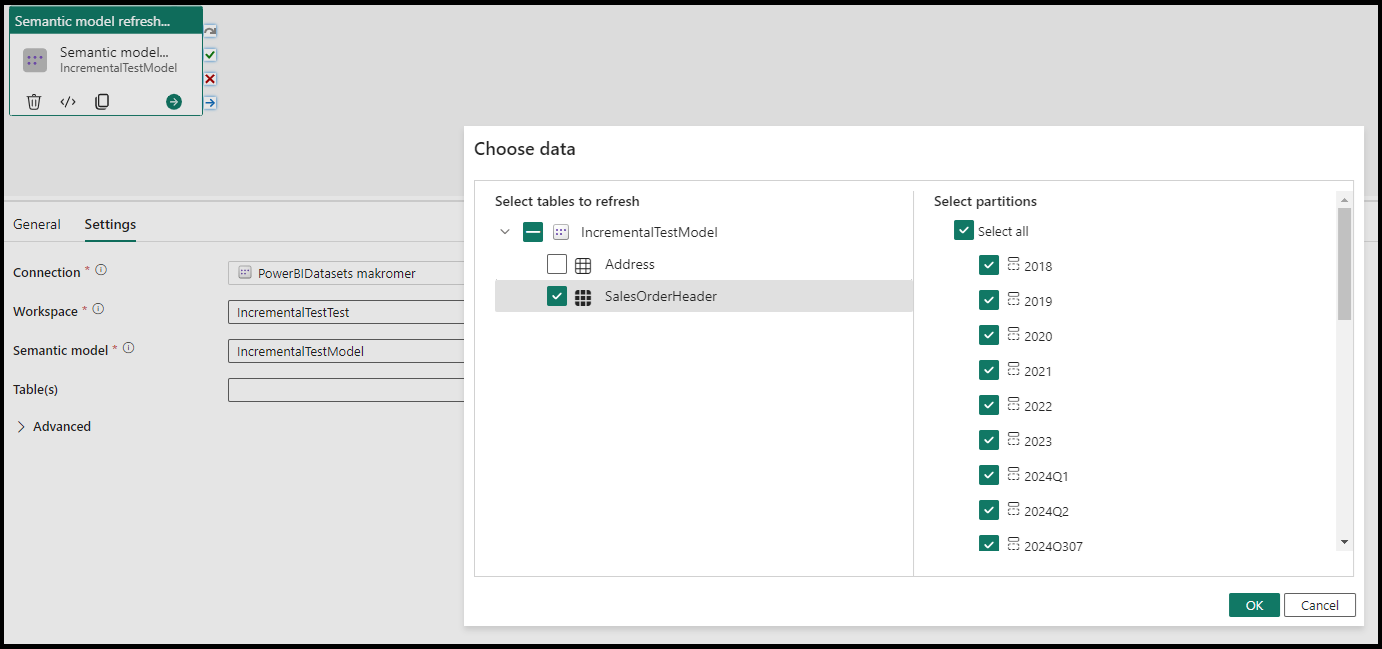
You can make your semantic model refresh faster by picking only the tables and the partitions you want to refresh, instead of refreshing the whole model. You'll find these options under settings. You can also use the pipeline expression builder to set these properties with parameters.
Save and run or schedule the pipeline
You can run the Semantic model refresh activity on its own or as part of a larger pipeline. Once you've set up any other activities you need, you can save and run or schedule the pipeline.
Switch to the Home tab at the top of the pipeline editor and select the save button to save your pipeline. Select Run to run it directly or Schedule to schedule runs at specific times or intervals. For more information on pipeline runs, see: schedule pipeline runs.

After running, you can monitor the pipeline execution and view run history from the Output tab below the canvas.