Notiz
Zougrëff op dës Säit erfuerdert Autorisatioun. Dir kënnt probéieren, Iech unzemellen oder Verzeechnesser ze änneren.
Zougrëff op dës Säit erfuerdert Autorisatioun. Dir kënnt probéieren, Verzeechnesser ze änneren.
Applies to: ✅ Warehouse in Microsoft Fabric
This article describes how to upgrade warehouse items to the latest system file version in a Git integrated Fabric workspace.
Important
This feature is in preview.
Microsoft Fabric periodically updates the underlying item definition for item types, including the warehouse. When this item definition changes, the config.version value in the item's .platform file is bumped, for example from 1.0 to 2.0. To avoid breaking your existing warehouse changes, Fabric doesn't apply this update automatically. Instead, Fabric shows a System update available notice in Source control and lets you choose when to apply the update for a specific item type, such as warehouse.
Prerequisites
- A workspace connected to a Git repository that contains one or more warehouses.
- Contributor or higher role in the workspace.
Identify that a system file update is available
The config.version value and the $schema URL contain the current system file version for a warehouse.
Go to your Git-connected workspace, and select Source control.
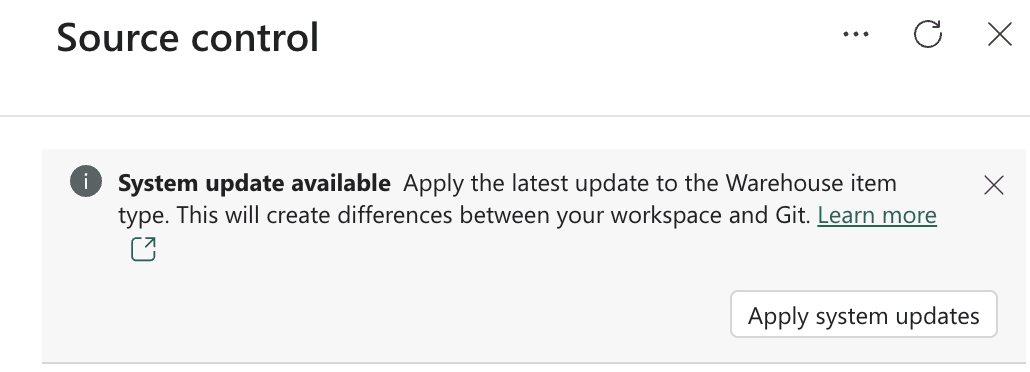
If a system update is available for the warehouse item type, Fabric shows a System update available banner at the top of the Source control pane.
You can also confirm the current system file version for a warehouse by inspecting the
config.versionproperty in the item's.platformfile in your Git repository. For example, the following.platformfile for a warehouse nameddwshows a system file version of2.0:{ "$schema": "https://developer.microsoft.com/json-schemas/fabric/gitIntegration/platformProperties/2.0.0/schema.json", "metadata": { "type": "Warehouse", "displayName": "dw" }, "config": { "version": "2.0", "logicalId": "5e477a9e-0e1a-bf9b-4eb8-33420d62f352" } }
For more information about the .platform file, see Automatically generated system files.
Commit existing changes before you apply system file updates
Before you select Apply system updates, commit any pending changes in your workspace.
If you apply system updates and commit your own warehouse changes together, it becomes harder to separate the two sets of changes later. If you commit your existing changes first, the system file update appears as its own, isolated commit. This separation makes it easier to review, and if needed, revert the system update without affecting your own changes.
- Go to Source control in the Fabric workspace.
- Review the pending changes in the Changes list.
- Select the items you want to commit, add a commit message, and commit the changes to the Git repository.
For more information about committing changes, see Make changes and commit warehouse updates to Git.
Apply system updates
After you commit your existing changes, apply the system update.
In Source control, select Apply system updates.
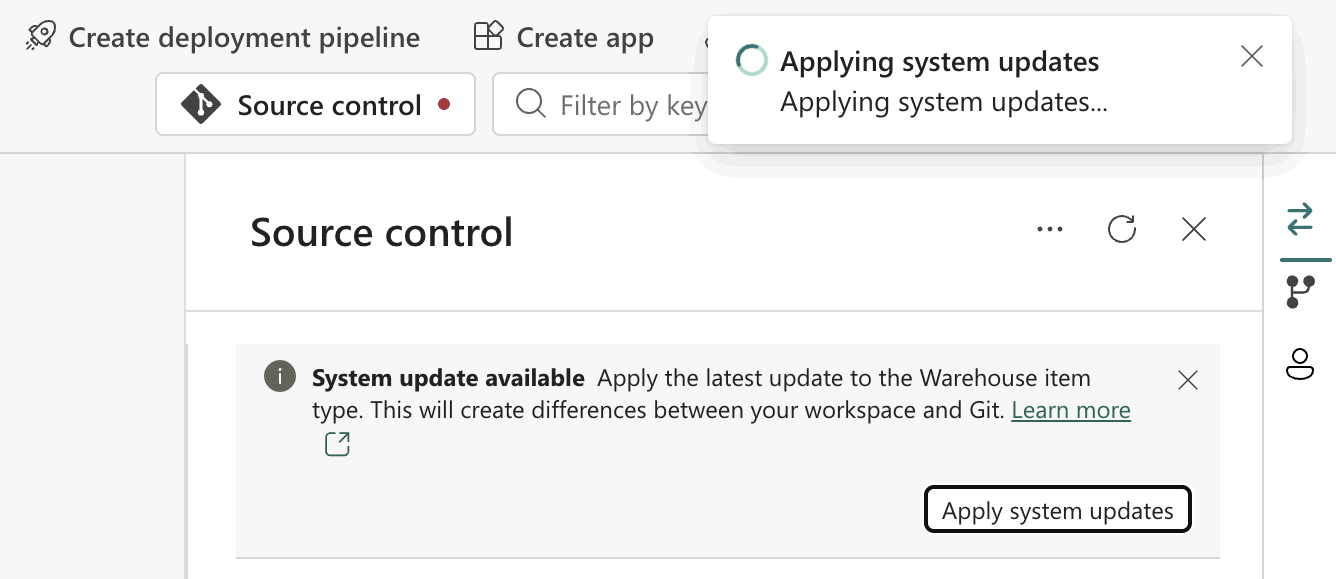
Fabric applies the system update to every warehouse of that item type in the workspace. If you have multiple warehouses, all of them are updated at the same time. You can't select individual warehouses to update.
Wait for the Applying system updates notification to complete.
Review and commit the system update
When the system update finishes applying, review the differences before you commit them.
In Source control, go to the Changes list. Each updated warehouse appears as a pending change.
Select a warehouse, and then select Review and commit changes to compare the latest item definition with your current version. You can compare the
.sqlprojfile and other system files to see exactly what changed, such as an updatedSdkversion.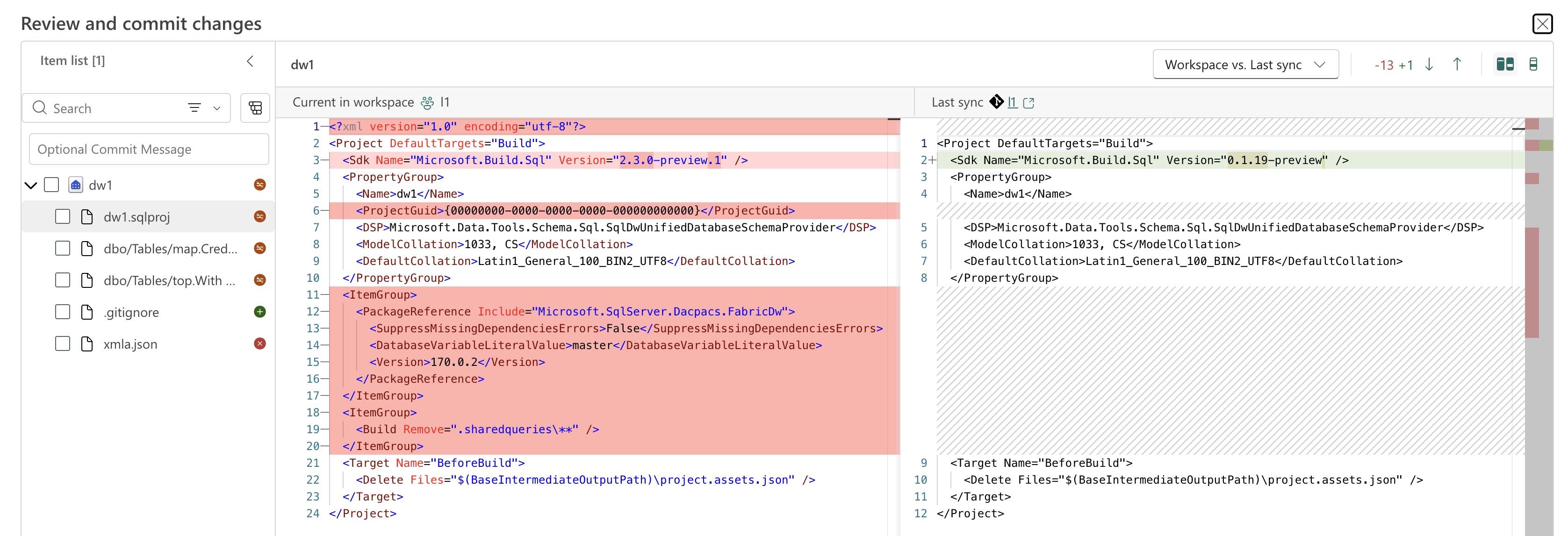
After you confirm the changes are expected, select the warehouse items, add a commit message, and select Commit to commit the system update to the Git repository.
If you have multiple warehouses in the workspace, all of them show the same system update. Review and commit each warehouse the same way, either individually or together, to make sure every warehouse is upgraded to the latest version.
Warehouse system update history
For a history and release notes of the system file version history, see Release notes for Fabric Data Warehouse system file.