Notiz
Zougrëff op dës Säit erfuerdert Autorisatioun. Dir kënnt probéieren, Iech unzemellen oder Verzeechnesser ze änneren.
Zougrëff op dës Säit erfuerdert Autorisatioun. Dir kënnt probéieren, Verzeechnesser ze änneren.
Sharing geospatial insights across an organization is now easier and more secure with Microsoft Fabric org apps. By integrating Fabric Maps into org apps, operation teams and decision-makers can package interactive maps into curated, read-only applications. This approach enables broader audiences, such as field teams and business stakeholders, to explore and respond to spatial data within a governed, scalable environment, ensuring that access permissions are managed and sensitive information remains protected. Org apps streamline the distribution of geospatial intelligence, making it accessible to the right users while maintaining organizational control and compliance.
Important
The preview for org apps is off by default for tenants. To enable the preview, you must be a Microsoft Fabric administrator. For more information, see Prerequisites for creating org app items
For more information about sharing maps in Fabric Maps, see Sharing Microsoft Fabric Maps.
Important
Fabric Maps is currently in preview. Features and functionality may change.
Share a map
Create a Fabric org app
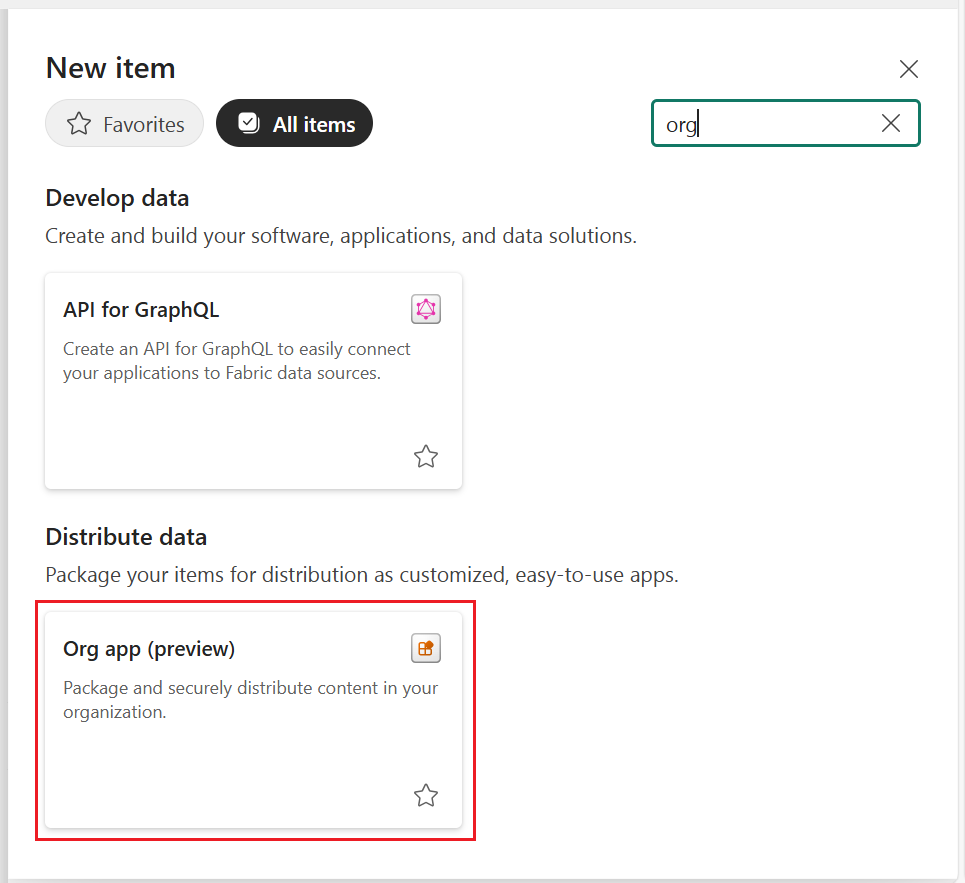
- In your Fabric workspace, select New Item and choose Org app (preview).
Select content to include
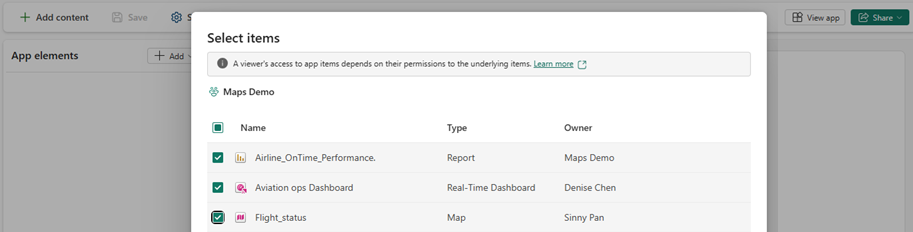
Add any needed content, including items like Fabric maps, Power BI reports, dashboards, and notebooks.
Define audience and permissions
Specify who should have access (individuals, groups, or organization-wide).
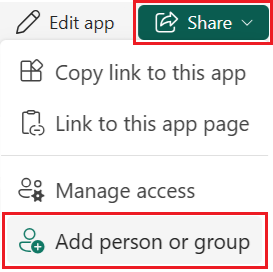
Set permissions for the app audience by selecting Share button in the upper-right side of the window, then Add person or group.
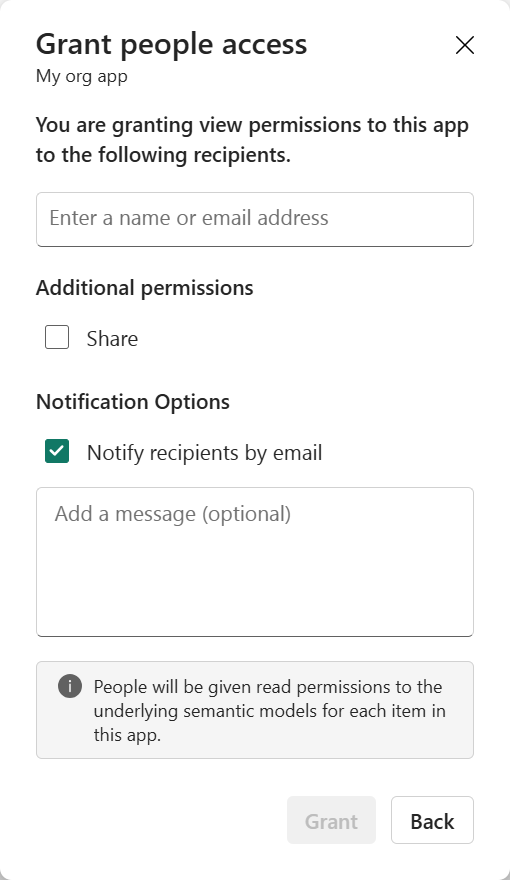
In the Grant people access dialog box, enter the name or email address of anyone you wish to grant access to, then select Grant.
Reshare and manage access
- Org apps support resharing according to your organization's policies. To enable resharing, select the Share checkbox when granting people access.
- Org apps support updating audience access or permissions at any time, according to your organization's policies. To change permissions, select the Share button in the upper-right side of the window, then Manage access.
Important
You must also manually grant recipients access to all underlying data sources, such as a lakehouse or eventhouse, for the map to function correctly.
Best practices
- When sharing via org apps, always verify recipients have access to all underlying data sources. If recipients lack permissions for underlying data sources, they could encounter access errors
- Monitor for future updates as additions and improvements to features are released.