Notiz
Zougrëff op dës Säit erfuerdert Autorisatioun. Dir kënnt probéieren, Iech unzemellen oder Verzeechnesser ze änneren.
Zougrëff op dës Säit erfuerdert Autorisatioun. Dir kënnt probéieren, Verzeechnesser ze änneren.
To help you get started with building custom agents, Microsoft Copilot Studio provides various agent templates that you can use to create your own custom agents. These templates are designed to be easily customizable, so you can tailor them to your specific needs and use cases.
Important
You're responsible for assessing all safety and legal implications of using an agent template and customizing it as appropriate for your business.
Organizations must assess specific legal and regulatory requirements when using agent templates, as they might not be suitable for all industries, scenarios, or use cases. Moreover, don't use AI services in ways prohibited by applicable terms of service and relevant codes of conduct.
The following table lists the agent templates currently available on the Agents page in Copilot Studio:
| Name | Type |
|---|---|
| Citizen Services | Custom agent |
| Financial Insights | Custom agent |
| IT Helpdesk | Custom agent |
| Safe Travels | Custom agent |
| Voice | Custom agent |
| Weather | Custom agent |
| Website Q&A | Custom agent |
| Sustainability Insights | Custom agent |
| Benefits | Microsoft 365 Copilot agent |
To create a custom agent from an agent template bundled with Copilot Studio:
From the left navigation pane in Copilot Studio, select Agents.
In the Start with an agent template section, select the agent template you want to use.
On the agent configuration page, enter a name and, as required, a description and instructions for your new agent.
To change the icon representing your agent, select Change icon, select an icon, and then select Save.
As required, confirm the agent's data connection:
If you need to set up or change the data connection, select the three dots (⋮) next to the data connection, and then select Edit.
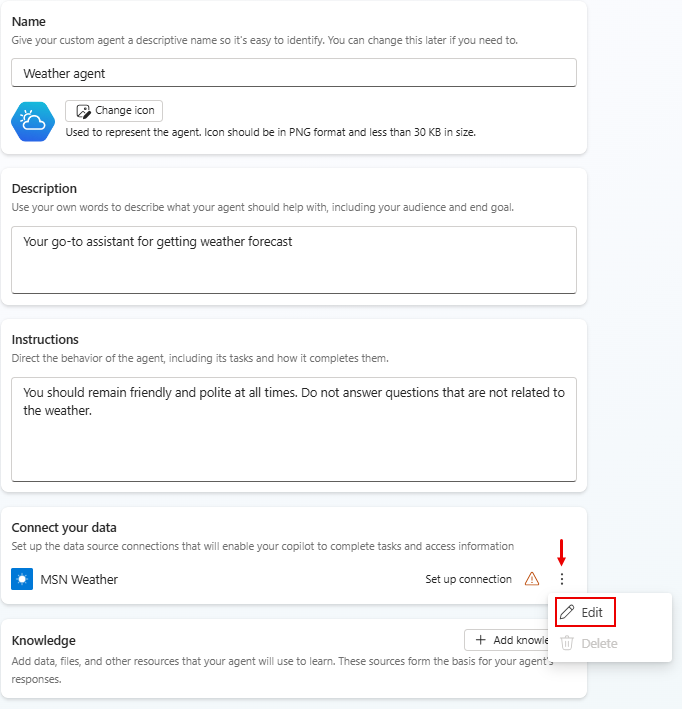
On the Connection setup page, if you're satisfied with the listed connection, select Confirm, or sign in, as required.
On the agent configuration page, select a primary language.
Optionally, to add knowledge sources, select Add knowledge, select a knowledge source type, configure the knowledge source, and then select Add to agent.
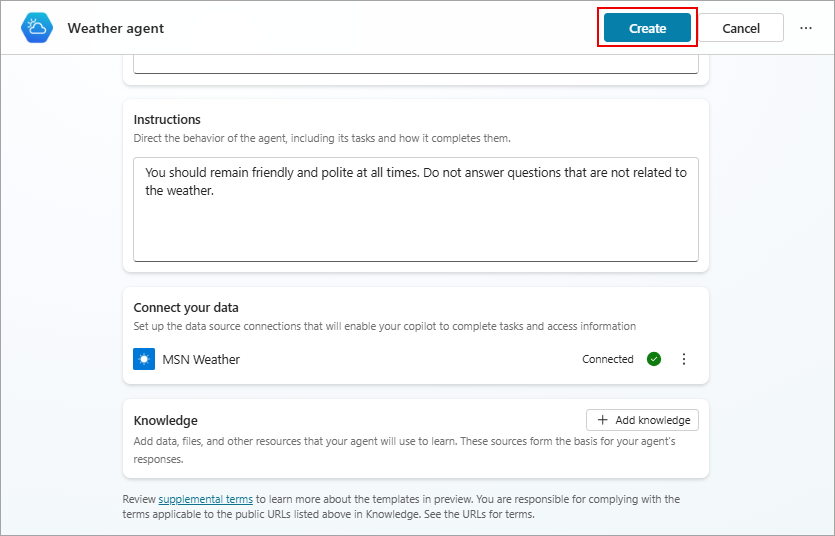
When you're finished configuring your new agent on the agent configuration page, select Create at the top of the page.
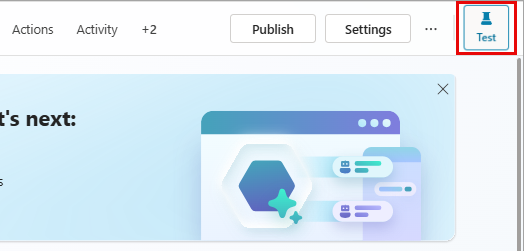
To test your new agent, select Test at the top of the page, and then test the responses. Continue to refine your agent as desired in the Overview page.
When you're ready to publish your agent, select Publish at the top of the page.
Note
Agent operations such as publish and authentication configurations might take a few more minutes to be ready for use.