Notiz
Zougrëff op dës Säit erfuerdert Autorisatioun. Dir kënnt probéieren, Iech unzemellen oder Verzeechnesser ze änneren.
Zougrëff op dës Säit erfuerdert Autorisatioun. Dir kënnt probéieren, Verzeechnesser ze änneren.
Power Automate is deeply integrated with SharePoint. You can start with any of the more than 100 SharePoint templates, or create your own flow that integrates with SharePoint from scratch.
Learn more about how to use Power Automate with SharePoint in the following video.
Top SharePoint workflow scenarios
Here are some of the top scenarios in which you can use Power Automate with SharePoint:
- Manage approval flows.
- Work with files and lists created with Microsoft Lists.
- Migrate from workflows to Power Automate.
Manage approval flows
- Customize SharePoint page approvals to meet your needs.
- Require approval of documents in SharePoint by using Power Automate.
- Route finished documents to a team for approval.
Work with files and lists
- Manage list item and file permissions.
- Move files to different folders after they're approved in SharePoint.
- Create an item in SharePoint when a new order is added in Salesforce.
- Get items from lists, or get files from libraries.
- Create a flow for a list or library in SharePoint or OneDrive.
- Edit a cloud flow.
Other top scenarios
- Use HTTP requests to manage lists and libraries.
- Create SharePoint reminder flows.
SharePoint triggers and actions
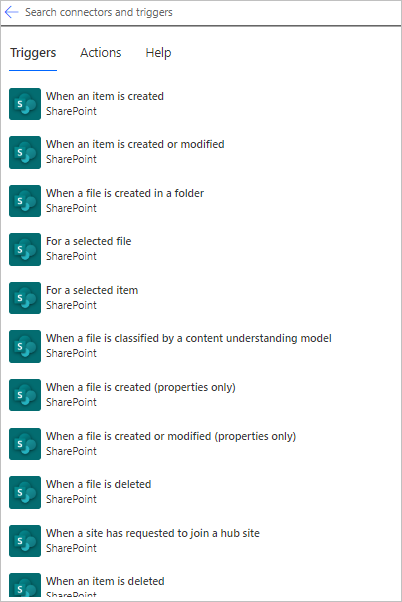
You can use SharePoint triggers to start flows that monitor changes made to a list or library. For a full list, go to SharePoint triggers.
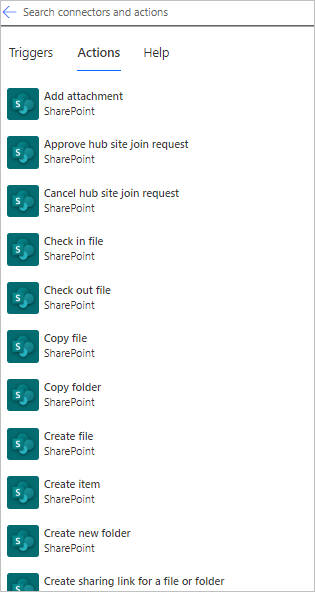
As soon as your flow starts, you can use any of the more than 40 actions to manipulate your lists.
Authentication requirements for SharePoint and Power Automate
When users view or run Power Automate flows from SharePoint lists and libraries, SharePoint performs a token exchange with the Power Automate service on behalf of the user. This token exchange requires consistent Conditional Access policies between SharePoint and Power Automate.
If your organization uses Conditional Access policies (MFA, Terms of Use, or device compliance), ensure your policy targets the Office 365 app or All cloud apps so that SharePoint and Power Automate have consistent requirements. If you target individual applications and the requirements differ, users see an authentication error when they try to access flows from SharePoint.
Tip
If you must target individual apps, ensure Microsoft Flow Service (Application ID: 7df0a125-d3be-4c96-aa54-591f83ff541c) is included alongside SharePoint with matching requirements. If your policy includes Terms of Use, exclude service accounts and flow connection owners—flow connections refresh tokens silently and can't present the acceptance page. For detailed guidance, see Conditional access and multifactor authentication in Power Automate.
Migrate from workflows to Power Automate
- Migrate from classic workflows to Power Automate flows in SharePoint.
Related information
- Get started with Power Automate and SharePoint
- Get started with approvals
- Create modern approval flows in conditions in advanced mode
- Training: Integrate SharePoint and Power Automate (learning path)