Notiz
Zougrëff op dës Säit erfuerdert Autorisatioun. Dir kënnt probéieren, Iech unzemellen oder Verzeechnesser ze änneren.
Zougrëff op dës Säit erfuerdert Autorisatioun. Dir kënnt probéieren, Verzeechnesser ze änneren.
APPLIES TO:  Power BI service for business users
Power BI service for designers & developers
Power BI service for business users
Power BI service for designers & developers  Power BI Desktop
Requires Pro or Premium license
Power BI Desktop
Requires Pro or Premium license
Print an entire dashboard, a dashboard tile, a report page, or a report visual from the Power BI service. If your report has more than one page, you need to print each page separately. You can't print from Power BI Desktop.
Print considerations
Report designers create most Power BI dashboards and reports for use online. They look great on any device used to view them. However, when it comes time to print the content, you might not get the results you want.
You can change your browser and print settings to adjust the print job. But to ensure your printouts match what you see in your browser, consider exporting to PDF and then printing the PDF instead.
Tip
If you don't see the File menu option in Power BI, use your browser's native print function by pressing Ctrl+P (Windows) or Cmd+P (Mac).
Adjust your browser print settings
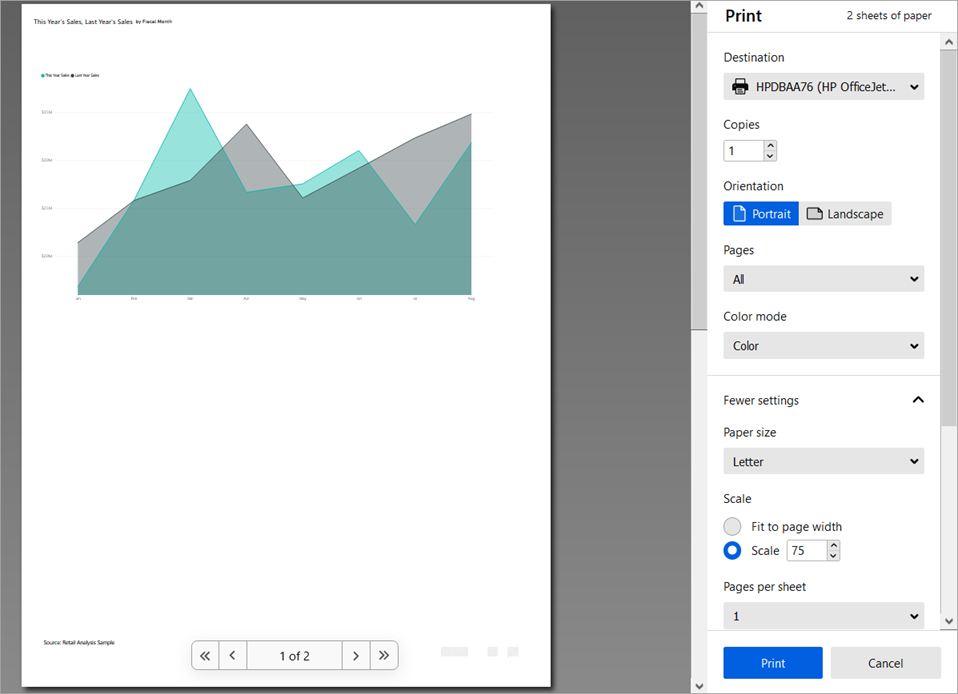
When you print from Power BI, your browser opens a Print window. Every browser has a different Print window, but they all have similar options you can use to control the look of your printout.
Here are a few quick tips you can use to format your printout.
Use the Landscape layout if your dashboard, report, or visual is wider than it's tall.
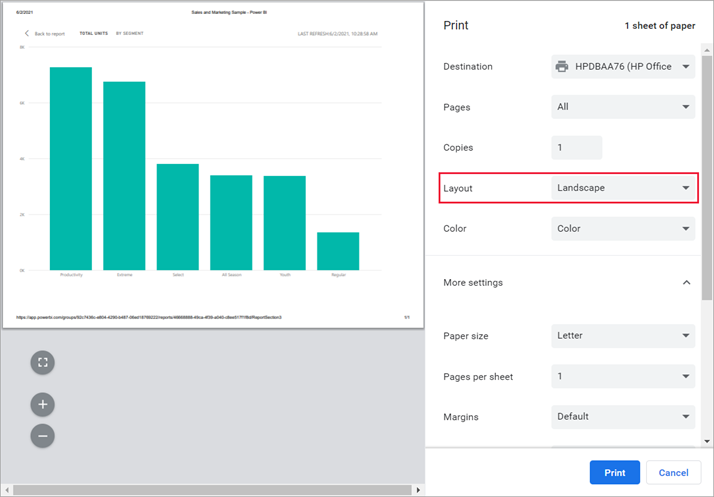
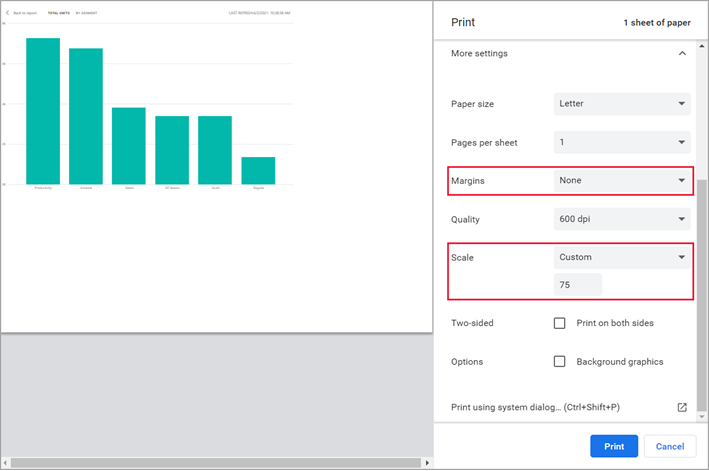
Adjust the margins and scale settings to fit more onto a printed page. For example, if your tile doesn't fit on the page, you might want to change the scale to 75%.
Experiment with your browser's settings until you get the look you like. Some browsers even have options to print background graphics.
Print a dashboard
Open the dashboard that you want to print.
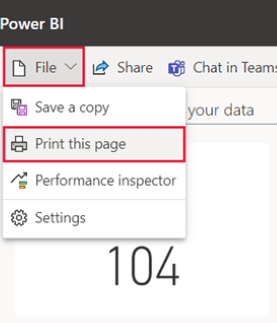
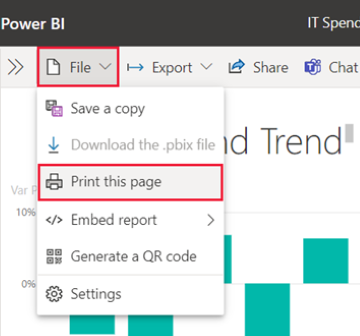
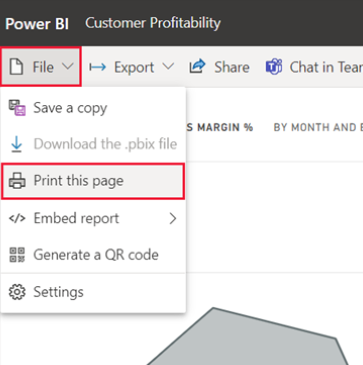
In the upper left corner, select File > Print this page. Alternatively, press Ctrl+P (Windows) or Cmd+P (Mac).
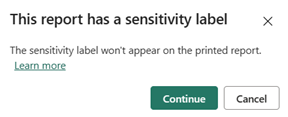
If your report has a sensitivity label, decide whether you should print the report.
Adjust your print settings.
Select Print.
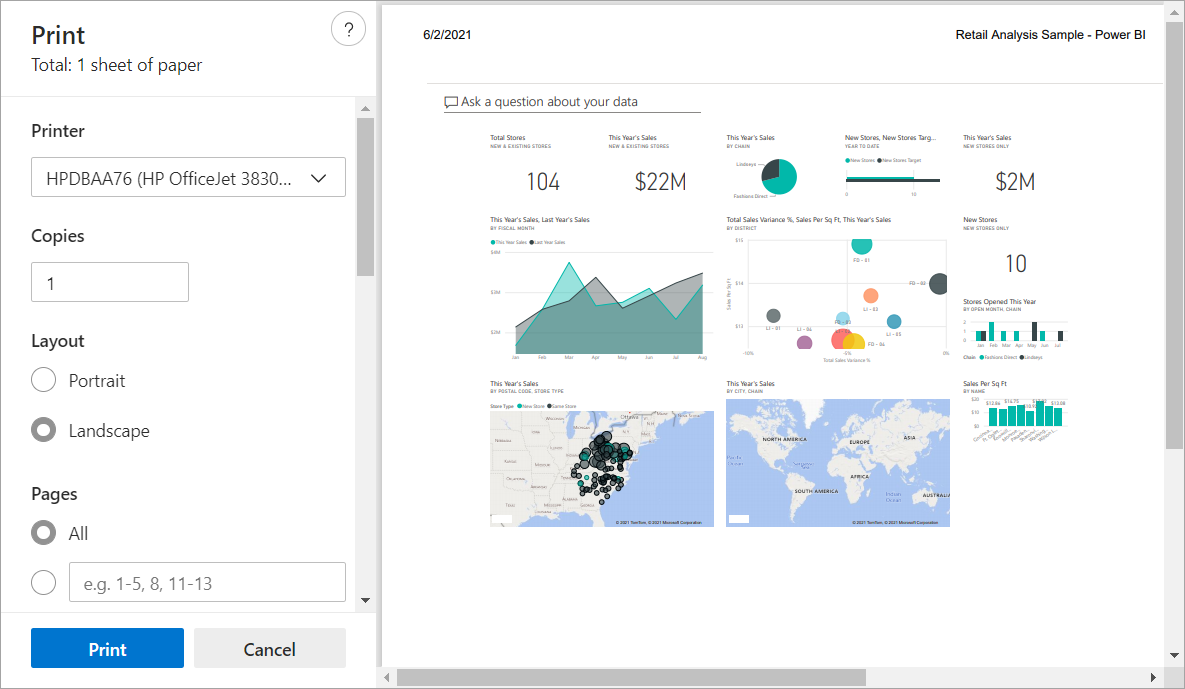
 from the upper menu bar.
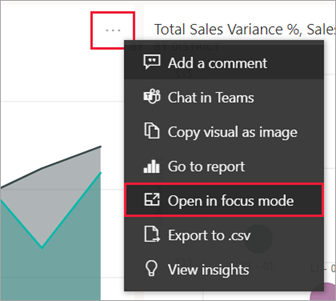


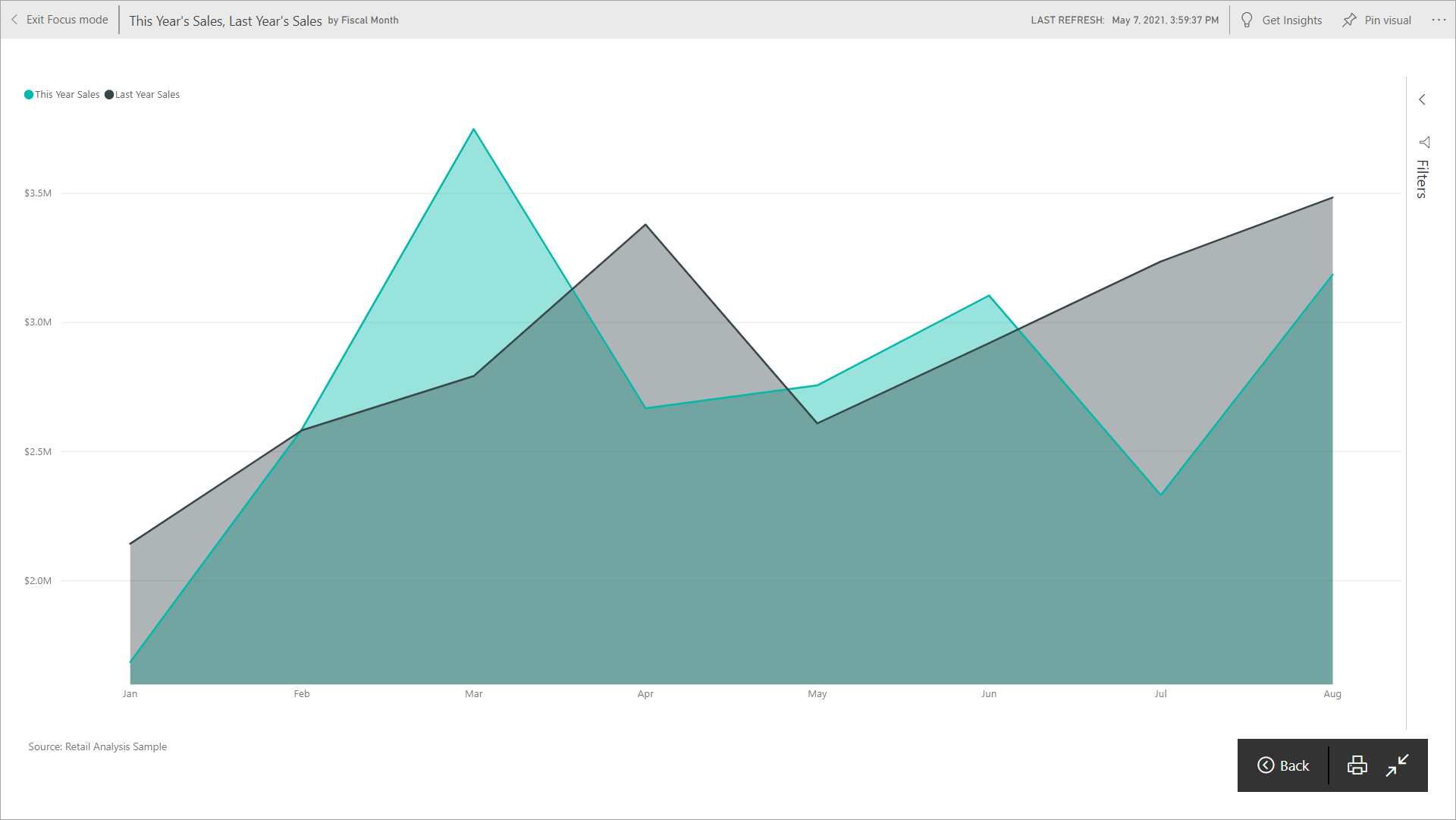
Considerations and troubleshooting
- If you don't see the File menu or Print this page option, the menu might not be visible in certain views or if your browser is in full screen mode (F11). Exit full screen mode and try again. If you still don't see the option, try using your browser's print function (Ctrl+P on Windows or Cmd+P on Mac) as an alternative. Additionally, some organizational policies or Power BI tenant settings might restrict printing functionality.
- You can only print report pages one at a time. You can't print all report pages at once.
- If you can't print to PDF, you need to configure the PDF driver in your browser to use this option. If you don't see this option, check to see if your administrator has disabled print to PDF.
- The Print screens vary by browser and software version. Your browser might not match the screenshots when you select Print.
- Power BI can't guarantee the printed copy is exactly the same as it appears in the Power BI service. Things like scaling, margins, visual details, orientation, and size aren't controlled by Power BI. Try adjusting the print settings for your browser. Some of the print settings to adjust include page orientation (portrait or landscape), margin size, and scale. If these setting adjustments don't help, refer to the documentation for your specific browser.
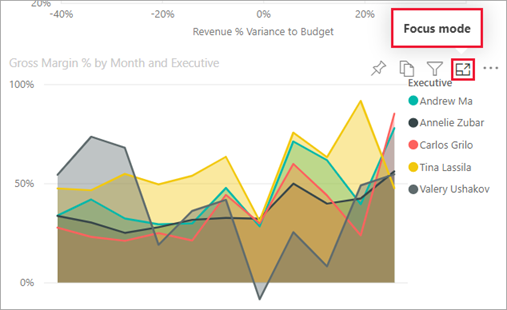
- If you don't see the print option when you hover over the visual in full screen mode, go back to the dashboard or report in default view. Reopen the visual in Focus mode and then Full screen mode.